


Start from: The Mapal OS Login page.
Note: Depending on your permissions, some options (such as User Management) may not be available. If you cannot see a menu described here, contact your internal administrator or Mapal Customer Success Manager.
The user has no User profile in Mapal OS
Every person who logs in must have a User in Mapal OS.
- Select User Management > Users.
- Use the Search bar to look for the user’s name or email address.
- If no result appears, the user profile does not exist, and the user will not be able to log in.
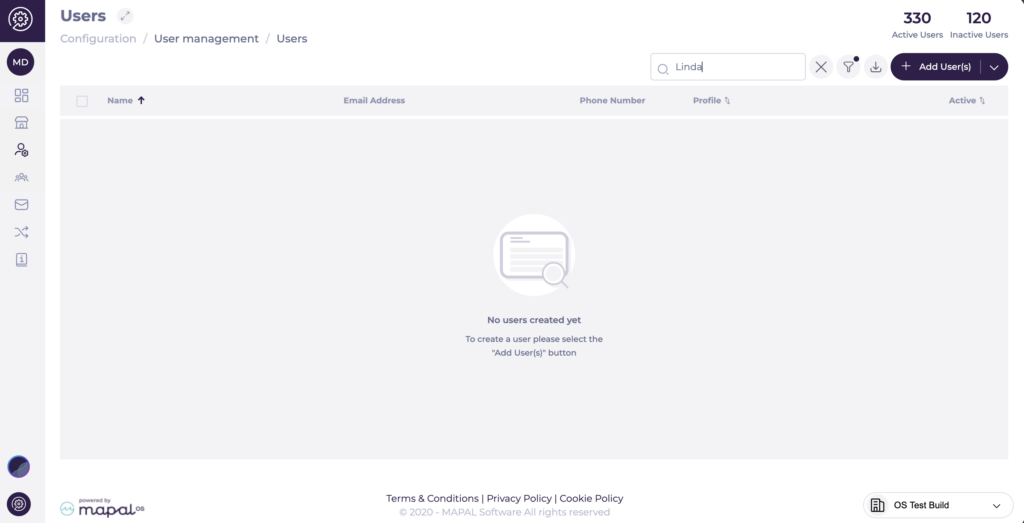
- Create a new user if appropriate (for details, see Add a new user in Mapal OS), or ask your internal admin to do so. Make sure you use the same email address the user expects to use when logging in.
Additional checks for integrated customers
If your users are created from an HR or Payroll integration and someone is missing from User Management > Users:
- Confirm the employee exists and is active in the source HR/Payroll system.
- Ask your integration or system admin to review the feed logs for recent runs and check for errors related to that employee (for example, invalid email, missing business unit, or job title).
If there is a feed error, it usually needs to be corrected in the HR/Payroll system so that the user can be synced into Mapal OS on the next run.
The user’s profile details are incorrect
Even if a User exists, login can fail if key details are wrong, especially the email address.
- In User Management > Users.
- Search, and open the user.
- Check the Email field matches the email the user is typing at login.
- If the email is incorrect or out of date, update it and Save.
- Ask the user to try again with the updated email.
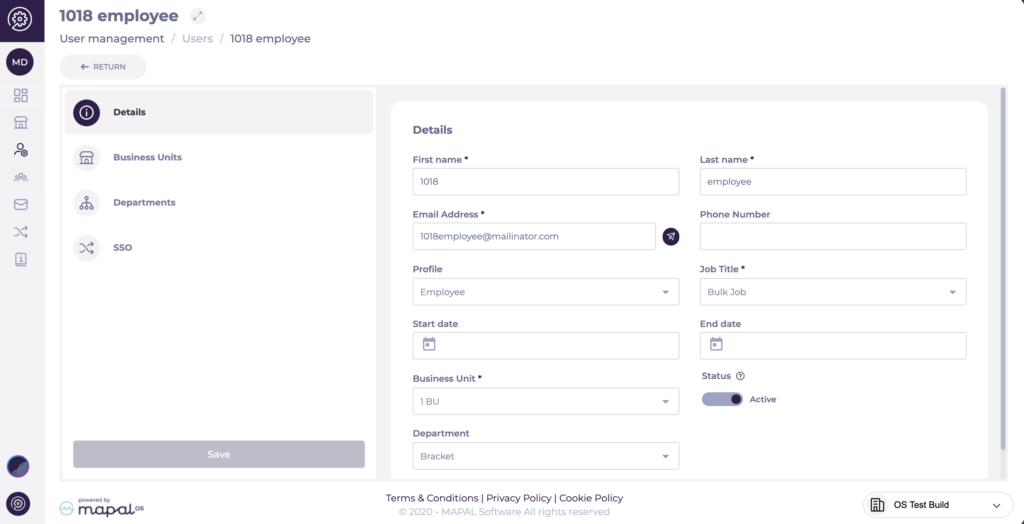
If your organisation uses SSO, the email must also match what is stored in your corporate identity provider (for example, Microsoft Entra ID/AD). For more information, see Manage SSO configuration.
The user’s permission profile does not include the right products
A user can log in to Mapal OS but still be unable to access specific products (for example, Mapal One, Flow Learning, or Workforce) if their Profile does not include permissions for those products.
- Go to User Management > Users and open the user.
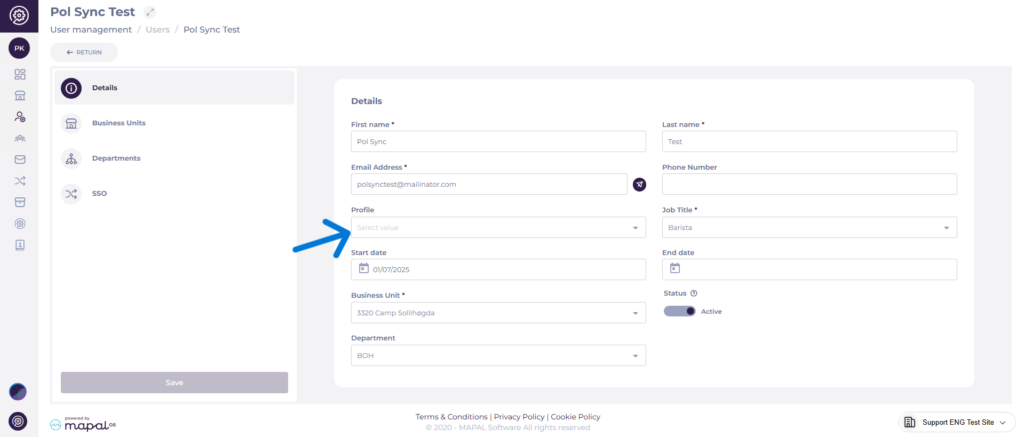
- In the Details tab, check the Profile field:
- If it is empty, the user has no permission profile and will have very limited access.
- If it is set, confirm that the selected profile is appropriate for their role.
- If the user should have access to a product (for example, Mapal One) but cannot see it:
- Assign a profile that includes permissions for that product, or
- Ask your admin to update the existing profile so that the required product permissions are enabled.
For more detail on configuring profiles and what each permission controls, see Manage user profiles in Mapal OS and User profile permissions in Mapal OS.
The user is inactive in Mapal OS
Inactive users cannot log in. This is a common cause of login errors. By default, the Users page only shows active users, so inactive accounts can be easy to miss.
- Go to User Management > Users.
- Select the Filter option.
- Under Status, select Inactive.
- Select Apply Filter.
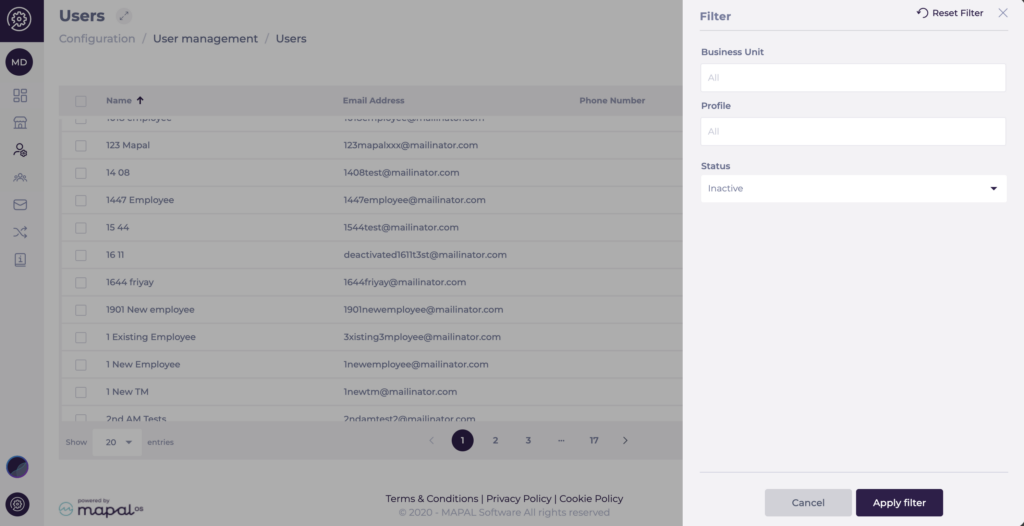
- If the user appears with a status or label indicating they are inactive, they will not be able to log in and may see an error message mentioning that their account is disabled or inactive.
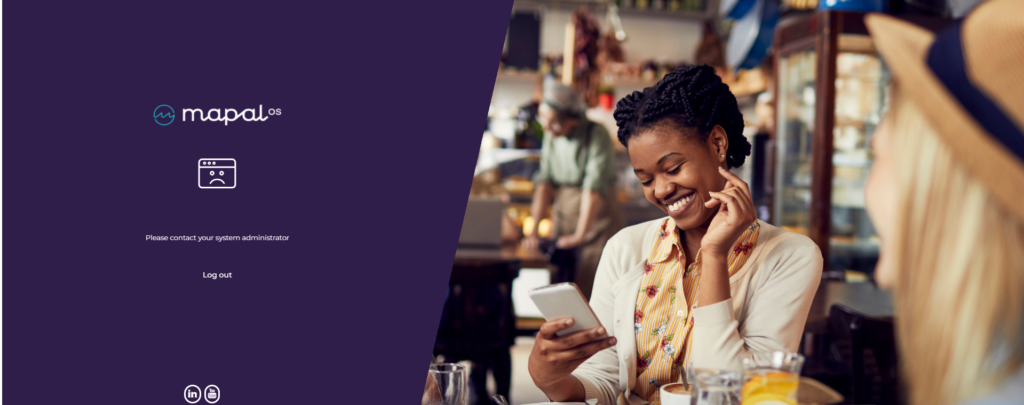
If the user should have access, reactivate the user according to your internal process, or create a replacement user if appropriate. For more information, see Manage users in Mapal OS.
Note: Only users with sufficient permissions can reactivate or create users. If you cannot change the status, contact your internal admin.
The employee record is missing (manual platforms)
Some Mapal products require both:
- A User in Mapal OS (for login and permissions), and
- An Employee record in Workforce (for scheduling, learning, or site-level access).
On manually managed platforms (where employees are not synced from an external HR system), a missing Employee record can result in login or access issues, even if the Mapal OS User exists.
Typical symptoms:
- The user logs in but cannot see any locations or operational data.
- The user cannot appear in Workforce or Flow Learning as expected.
Check with your Workforce or HR admin that:
- The employee has been created in the relevant product (for example, Workforce).
- The employee is correctly linked to the Mapal OS User (usually via email or an internal identifier).
If the employee record is missing, ask your admin to create it and link it to the correct user.
The user’s email is mismatched across systems
If your organisation uses both Mapal OS and Flow Learning (or Workforce) together, a mismatch between the User email in Mapal OS and the learner/employee email in the other system can cause login or access problems.
Typical cases include:
- The user can log in to Mapal OS but cannot access training.
- Flow Learning shows the wrong email address or a duplicate learner.
To check:
- In Mapal OS, open User Management > Users and confirm the user’s email.
- In Flow Learning, open Company > Learners and check the learner’s email for the same person.
- If the emails do not match, update or re-link them following your local process.
For detailed steps on fixing mismatches in Flow Learning, see Link a learner (with multiple links) as a manager.
The user is in the wrong company or operator
If a user’s email is linked to more than one operator or company, they may:
- Log in successfully but see “empty” data or the wrong brand.
- Appear to have no access to the expected sites.
In this case, the login itself is working, but the user is looking at the wrong operator context.
Ask the user to:
- Look for the company/operator switcher in the Mapal OS header (or product-specific switcher in Flow/Workforce).
- Open the switcher and select the correct company or operator.
- Confirm that the expected locations and data now appear.
If the correct operator is missing from the list, the user may not be linked to that operator. Your internal admin can check their assignments in User Management > Users.
Clear cache and cookies on shared devices
For shared on-site devices (back-office PCs, tablets, kiosks), cached data or cookies can interfere with login, especially if:
- Multiple users take turns using the same browser.
- The device has stored old sessions or credentials.
If the user details and status look correct in Mapal OS but login still fails on a specific device:
- Ask the user to try logging in from another device (for example, their own laptop or phone) to confirm the account works.
- On the shared device, clear cache and cookies for the browser used to access Mapal OS.
- Close all browser windows and reopen a new session.
- Go back to your usual Mapal OS login URL and try again.
As a lighter alternative, you can use a private/incognito window to avoid using cached data without deleting existing cookies.
When to escalate
If you have checked:
- The user exists and is active in User Management > Users.
- Any required Employee or Learner records exist and are correctly linked.
- The email addresses match across systems.
- The user is in the right company/operator.
- Cache and cookies have been cleared on shared devices.
…and the user still cannot log in, escalate the issue.
