


Start from: The Mapal OS dashboard.
- Select Open on the Configuration tile.
- In the left-hand menu, select Notifications.
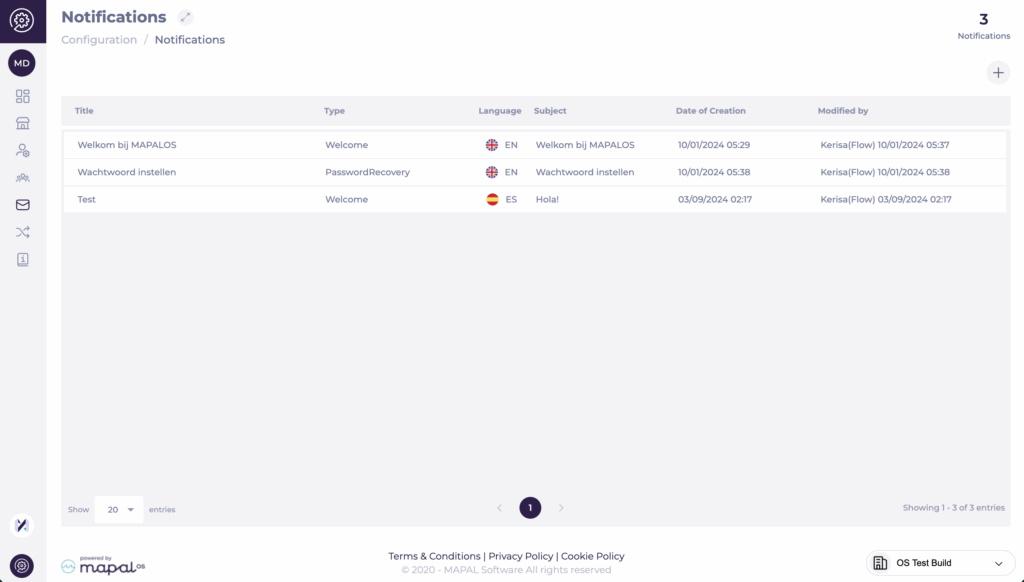
You will see a table listing all existing notification templates. From here, you can:
- Edit an existing email template.
- Create a new notification template.
Create or edit a template
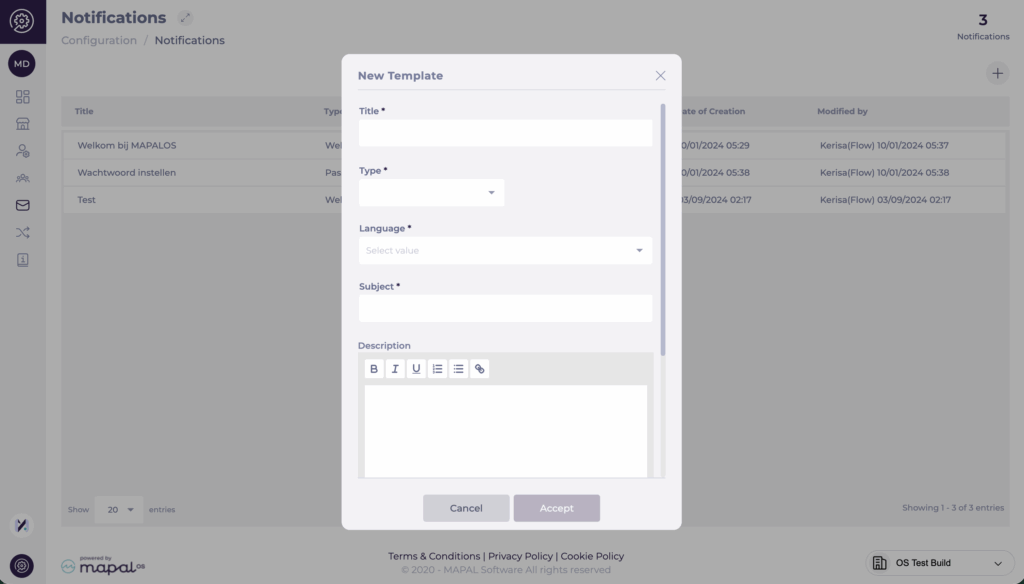
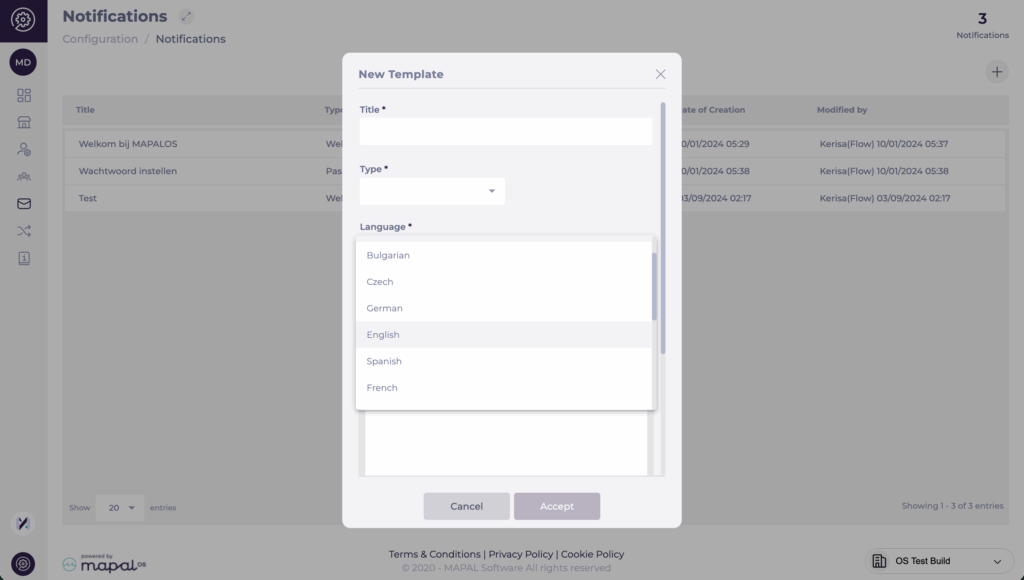
- Select Add (+) to open the New Template window. To edit, select a template from the list.
- Complete the following fields:
| Field | Description |
|---|---|
| Title* | Enter the internal name for the template. This title helps identify it later in the notifications list. |
| Type* | Choose the type of message this template will apply to (e.g., Welcome, Password Reset, Training Reminder). |
| Language* | Select the language for this message from the dropdown. You can create different versions of the same template in multiple languages. |
| Subject* | Enter the subject line that will appear in the email message. |
| Description | Write the main body of the email. Use the editor toolbar to format the text (bold, italics, lists, links). You can also upload images or files directly in this area to include attachments or embedded visuals in your message. |
After filling in all mandatory fields, select Accept to save your new template or Cancel to discard changes.
Note: Custom templates override the default system messages for the same notification type. Password setup messages will always include a system-generated setup link at the bottom of the email.
Delete a notification template
You can remove unused or test templates to keep the Notifications list clear and easier to manage.
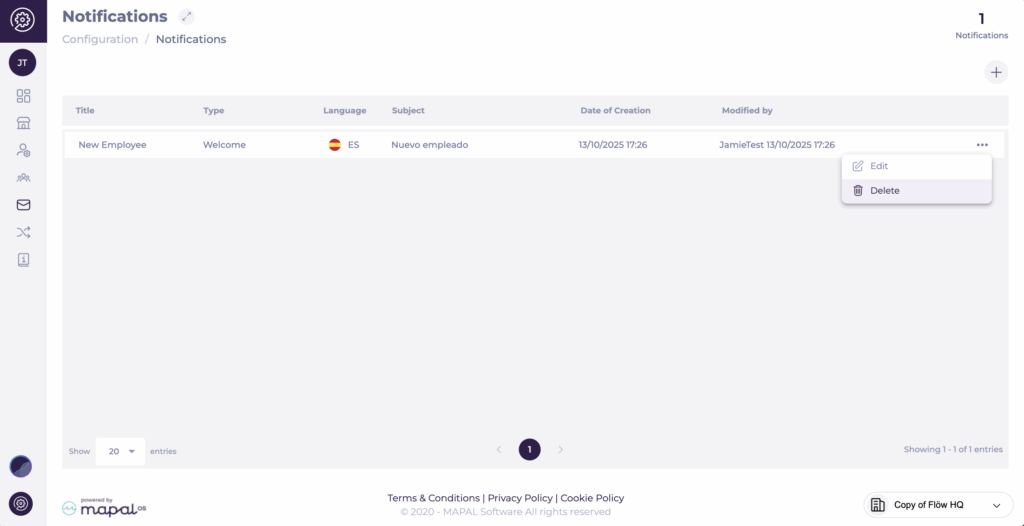
- Locate the template you want to remove.
- Use the action menu (three dots) at the end of the row and select Delete.
- Confirm the deletion in the pop-up message.
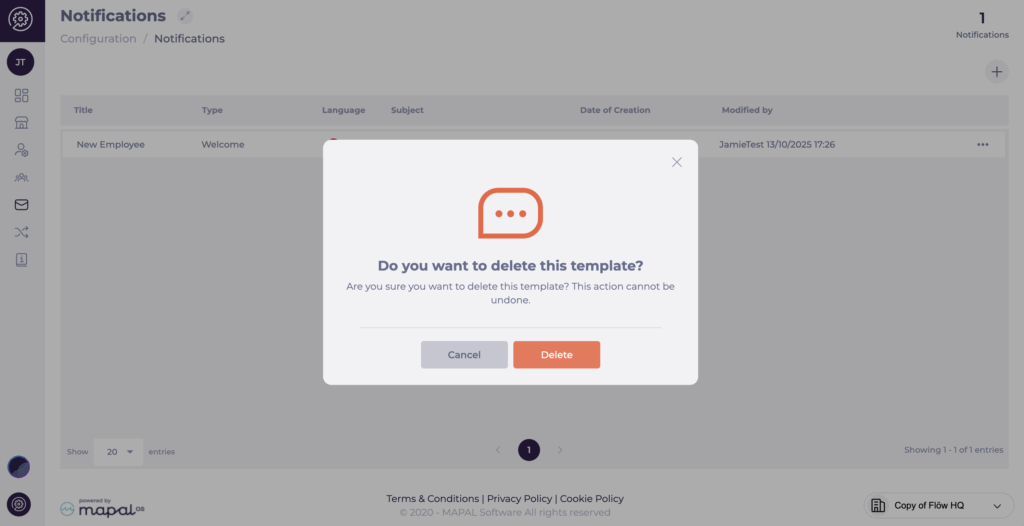
Once deleted, the template is no longer available for selection or editing, which helps reduce the risk of selecting or sending an outdated template by mistake.
Multilingual notification templates
Mapal OS supports a wide range of languages for email notifications, allowing you to tailor messages to each user’s preferred language. When creating or editing a template, select the appropriate language from the Language dropdown in the New Template window.
Supported Languages
- English
- Spanish
- French
- German
- Italian
- Portuguese
- Dutch
- Danish
- Swedish
- Norwegian
- Finnish
- Bulgarian
- Croatian
- Czech
- Hungarian
- Polish
- Romanian
- Serbian
- Slovakian
- Slovenian
You can create one version per language. If a user’s preferred language does not have a custom version, Mapal OS automatically uses the English template.
