


Start from: The Mapal OS dashboard.
Should I create an employee before adding a new user?
When creating a new user in Mapal OS, you may also want them to be set up as an employee - this will give them access to employee-only features, like learning resources.
Note that employees are not created automatically, but you can use the "Create user" form (see below) or Add a new employee to an operator in Mapal OS.
Adding a new user
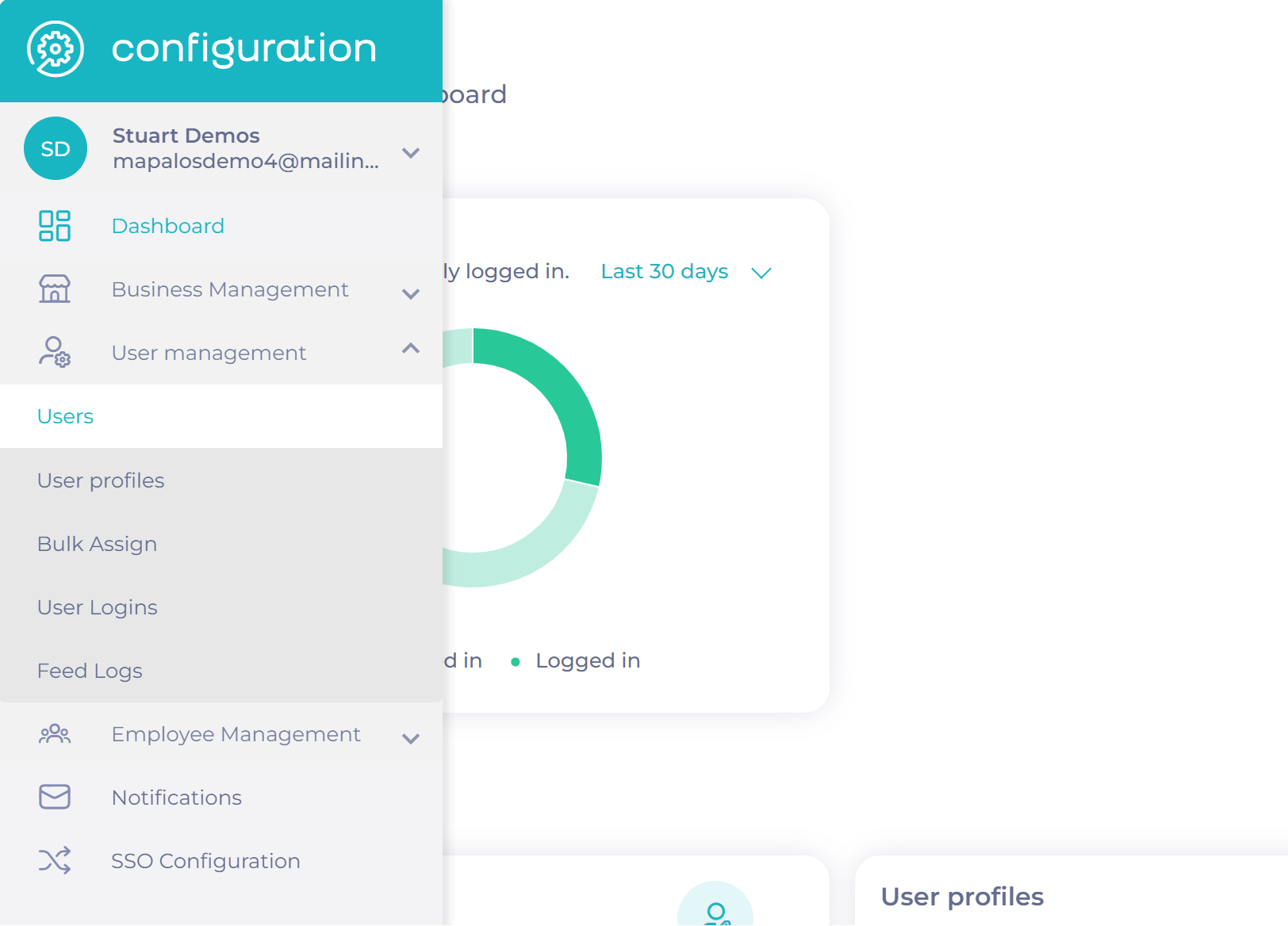
- Select User Management > Users.
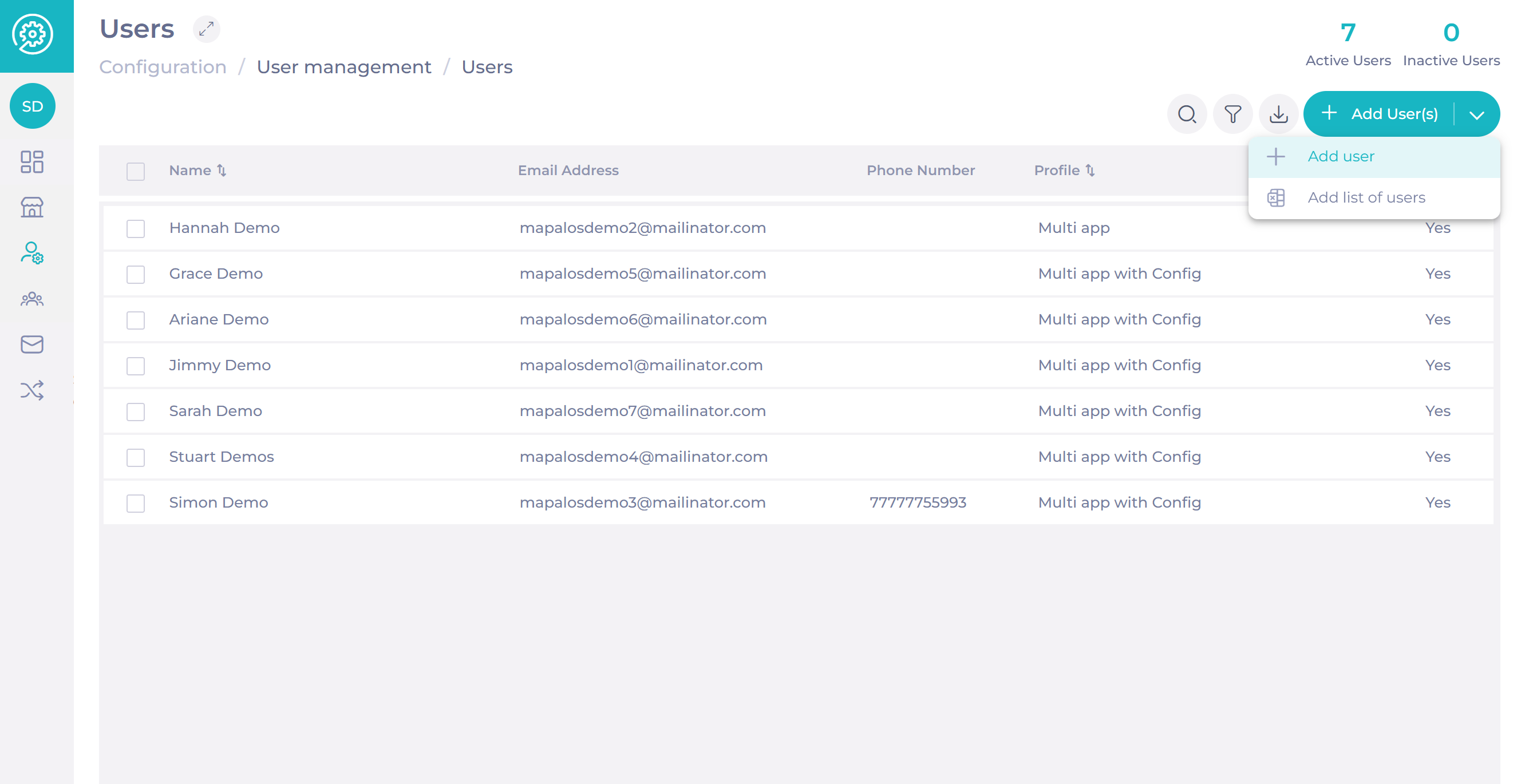
- Select Add User(s) > Add User.
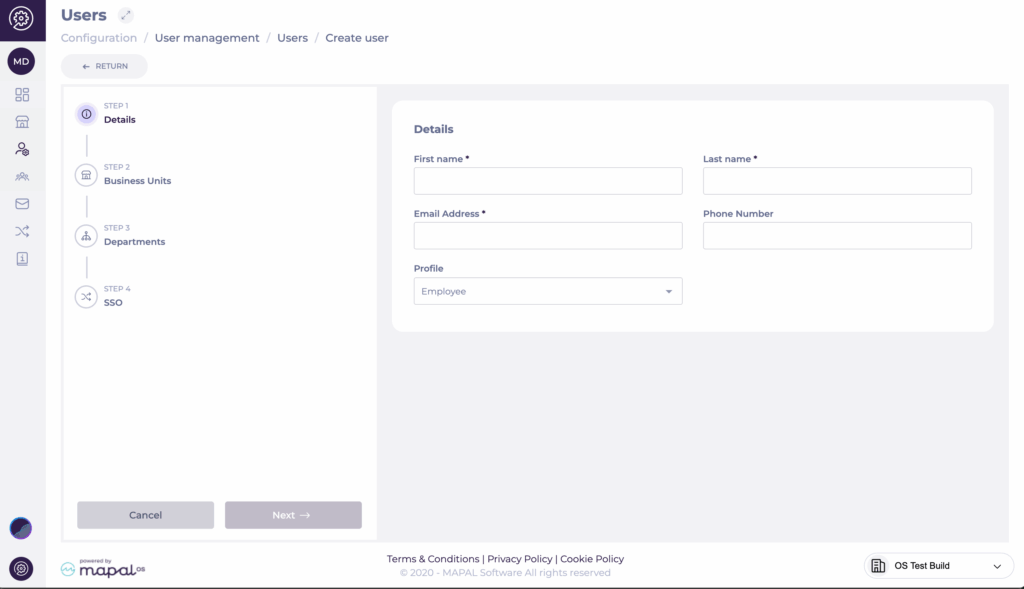
- Complete the following fields:
- First name
- Last name
- Email address
- Phone number (optional)
- Select a Profile from the dropdown menu.
- Select Create.
The new user will be created and their details pushed to the platform. The user will receive a welcome email and will be able to access Mapal OS once they set their password.
Related settings
Once the user has been created, you can manage their Business Unit, Department, and SSO configuration.
When assigning departments, you can:
- Select multiple departments using a data table.
- Apply All Departments with a single toggle.
- Filter to show only selected departments for easier review.
These options streamline access management and reduce the risk of incorrect assignments.
For more information, see Manage users in Mapal OS.
Differences for Workforce Users
If a Workforce bundle is enabled, the process for adding employees differs slightly.
To create an employee in Workforce, navigate to the Workforce platform. If a user with the same email address already exists, the system will automatically link the new employee to that user.
For further assistance, please reach out to your Customer Success manager.
