


Start from: The Mapal Manager dashboard.
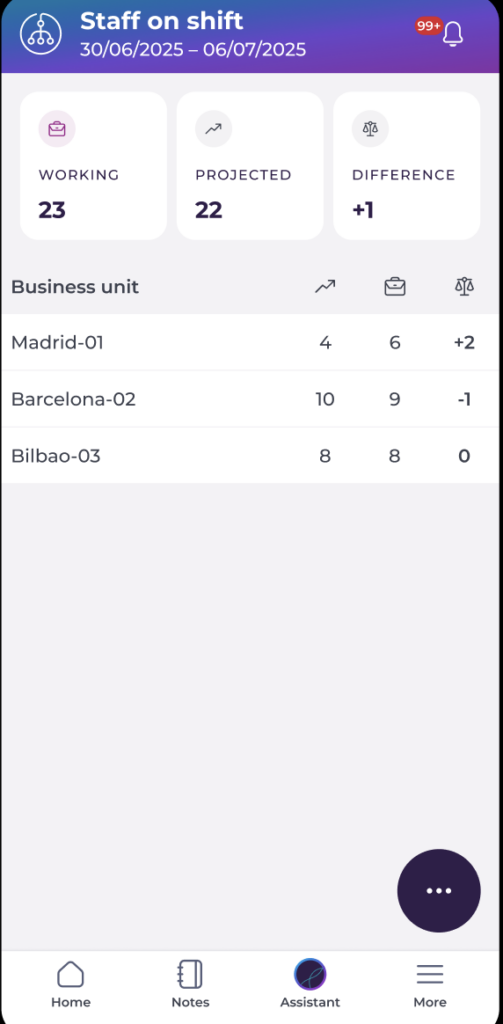
- Navigate to Staff on Shift. On this screen, you can see:
- Employees currently Working, Projected to be working, and the Difference, based on Clock-ins made.
- A list of groups (in this case, Business Units) and their respective metrics.
Open the employee shift
- Select a group (Business Unit) in Staff on Shift to see the detailed view of employees.
- Each employee row shows a clock-in status indicator under the Clock-ins column.
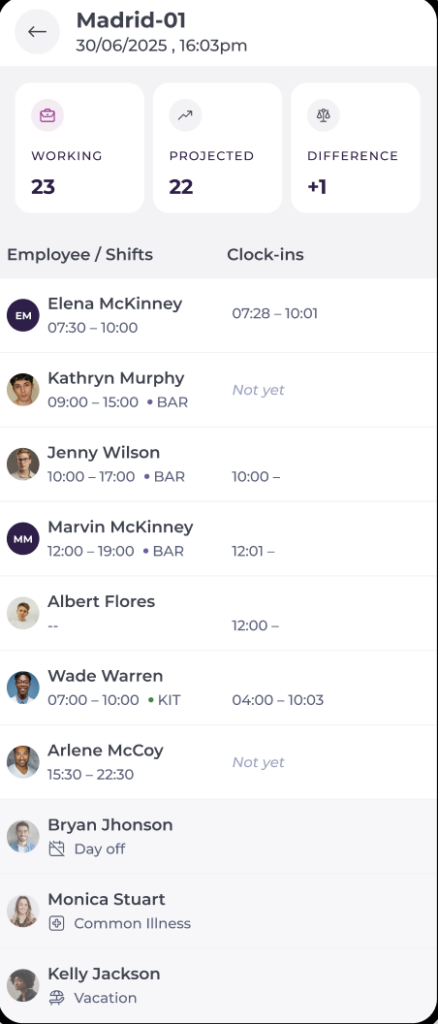
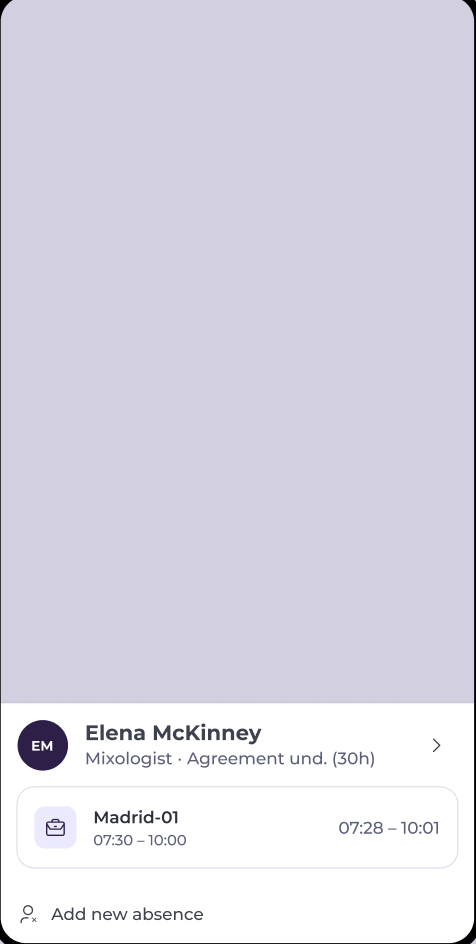
- Select an employee row to see the employee actions panel.
- The shift action panel opens, showing shift context (date, shift time, role/workstation) and current clock-in/clock-out status.
Modify or correct the clock-in
- In the shift action panel, select Modify clock-in.
Note: Clock-in corrections are permission-controlled.
- Update the relevant fields (as available):
- Clock-in time
- Clock-out time
- Shift duration (if applicable)
- Select Save to apply the change.
- Review the updated status: the corrected times and indicator refresh immediately in:
- Shift Detail
- The employee row.
Note: Changes apply only to the selected day and shift.
Add a quick note (optional)
- From the shift action panel, select Add quick note.
- Enter a short explanation (for example: “Forgot to clock in at start of shift”).
- Select Add to save the note. Notes for that shift/day are visible in Shift Detail. To open the Shift Detail screen, select the clock in information in the action panel.
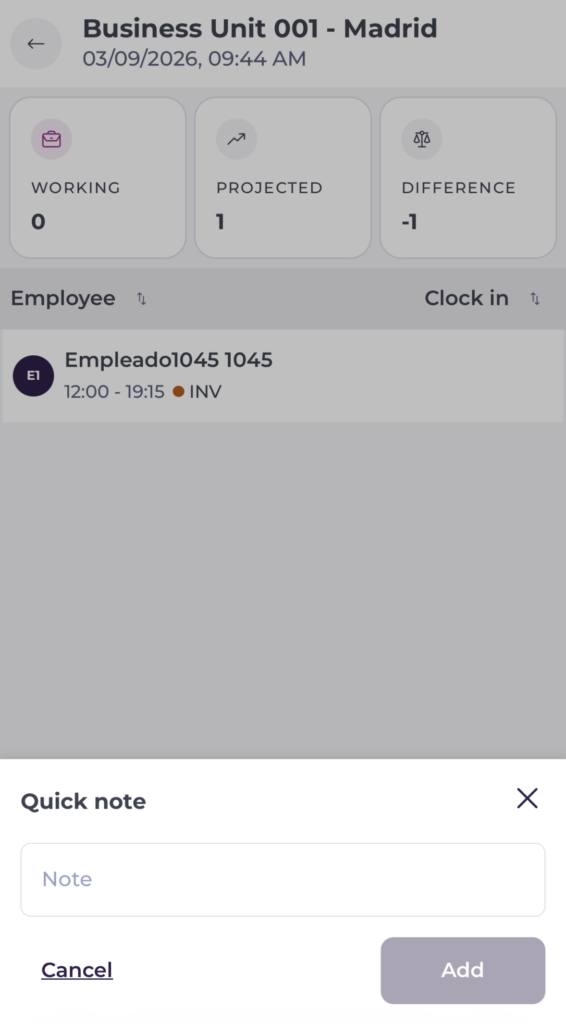
Note: Notes do not change clock-in data, but provide traceability for the correction.
