


Start from: The Engagement dashboard.
Use Configuration to manage Engagement users
User data is synced down from Mapal OS, which acts as the source of truth. You can add, delete, or edit users through Mapal OS Configuration. For details, see Manage users in Mapal OS.
When managing users in Mapal OS, you can also set their status per operator:
- Active users retain access to Engagement dashboards and (if assigned) admin permissions.
- Inactive users automatically lose admin access and visibility of Engagement dashboards for that operator.
This means a single user can be active in one operator but inactive in another. All changes are synced automatically to Engagement.
Find an employee within Engagement
- Select the Settings tab on the left side menu.
- Select Employees.
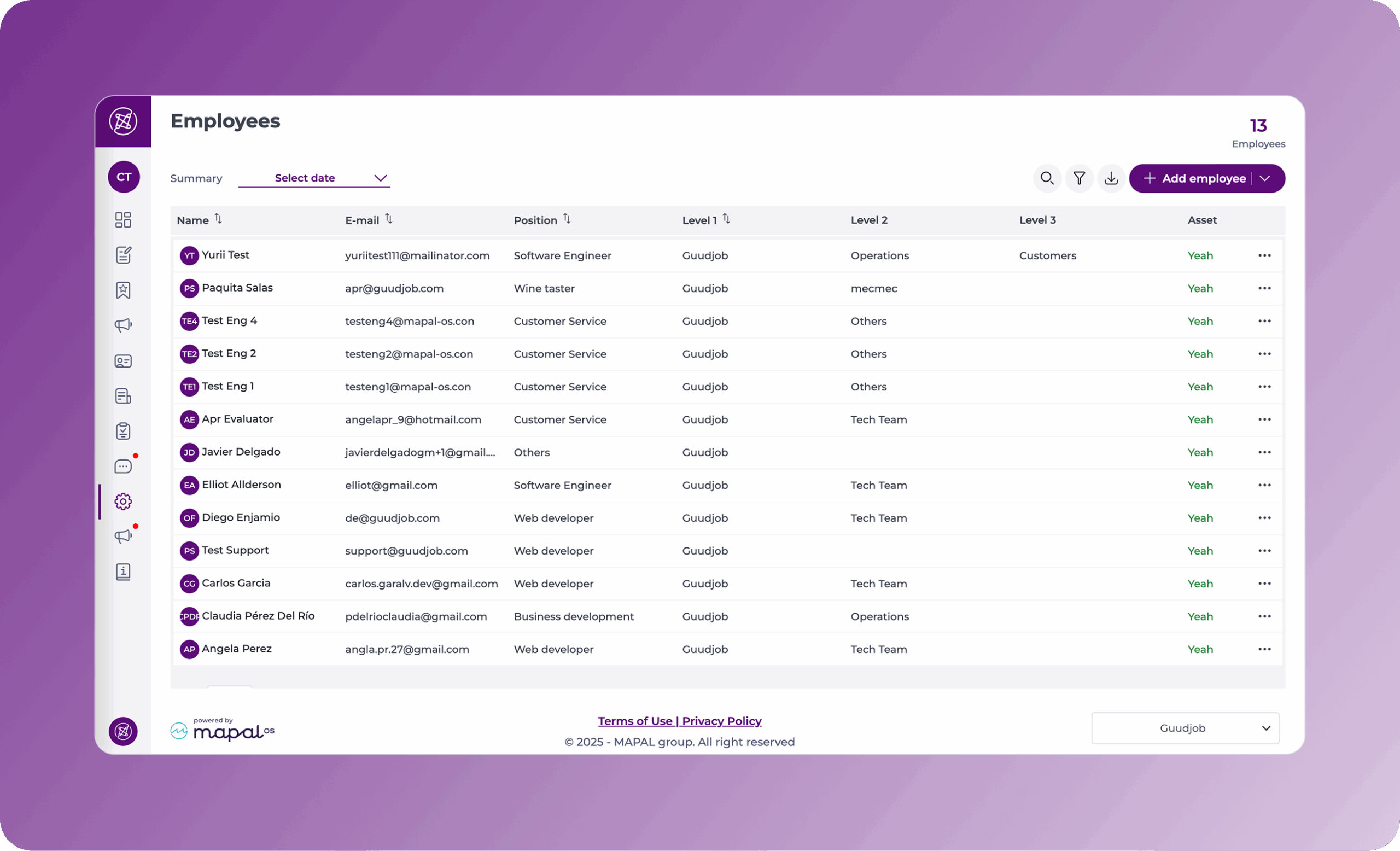
Initially, you will see all employees currently on the system.
- Use the Branches, Sections, Subsections, Departments, and Status dropdowns to filter employees.
- Use the Search for employee box to look for a specific employee.
Manage employee evaluators
From the Employees page, you can assign, update, or remove an evaluator directly, without needing to navigate to separate screens.
- Select the action menu (?) in the employee's row.
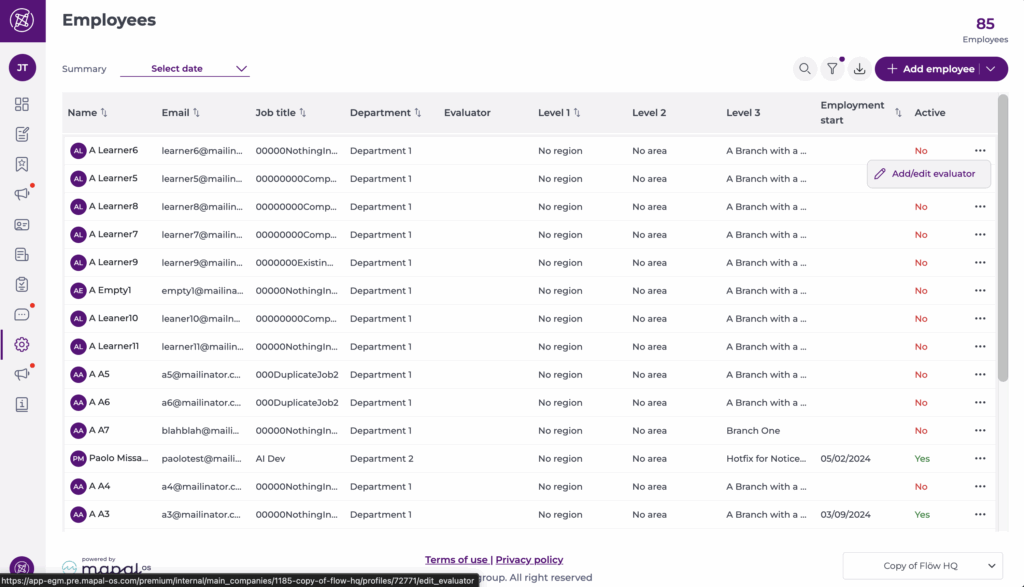
- Select Add/Edit evaluator. This opens a panel on the right where you can:
- Assign an evaluator using a searchable dropdown
- Update the existing evaluator
- Remove the evaluator if needed
- Begin typing in the field to quickly search and select the correct evaluator.
- Select Save to complete the selection.
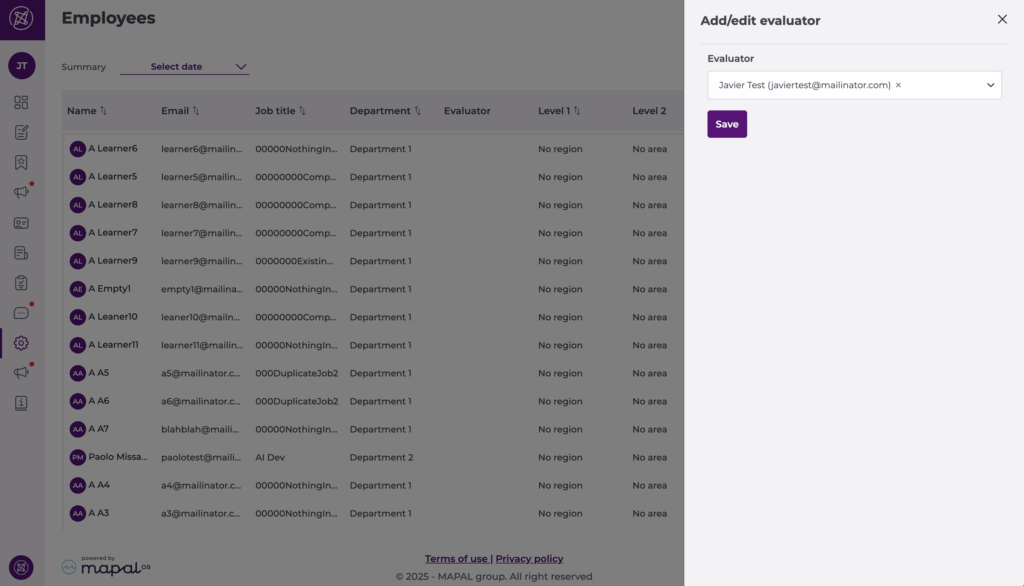
Note: The evaluator field is filtered automatically based on your permission scope, so you will only see employees you have access to.
