


Start from: the Engagement dashboard.
Create a category
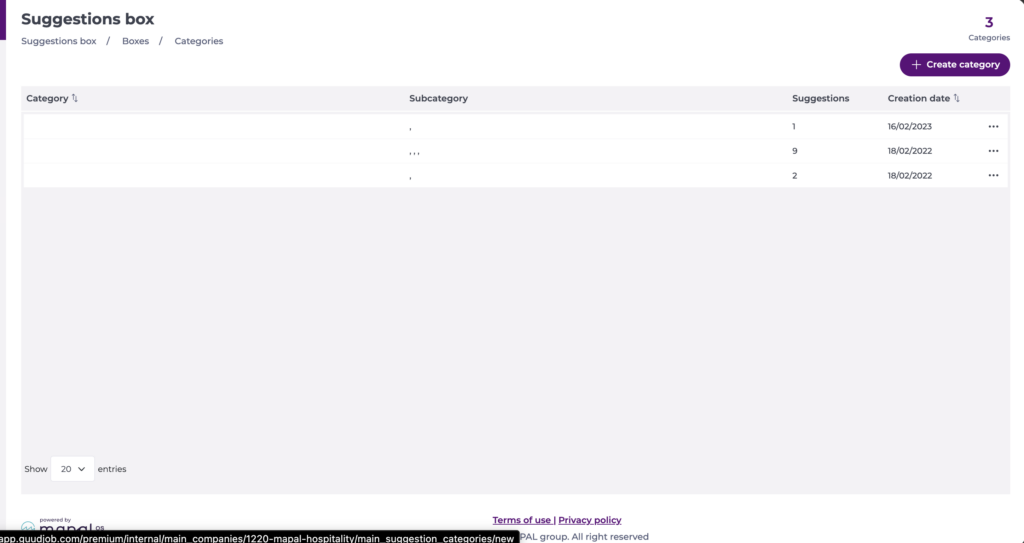
- Navigate to Suggestions box > Categories.
- Select Create category.
Step 1 - Setup
- Enter a Name for the category.
- Under Subcategories, enter a Name for the subcategory and, in Administrators, search for and select the employees who will review and respond to suggestions submitted under it. Select + Add subcategory to add another, or the bin icon to remove one.
- Under Audience, select one or more organisational levels in Employees by Level. Optionally narrow the audience using Employees by Department and Employees by Job Title.
- Select Next.
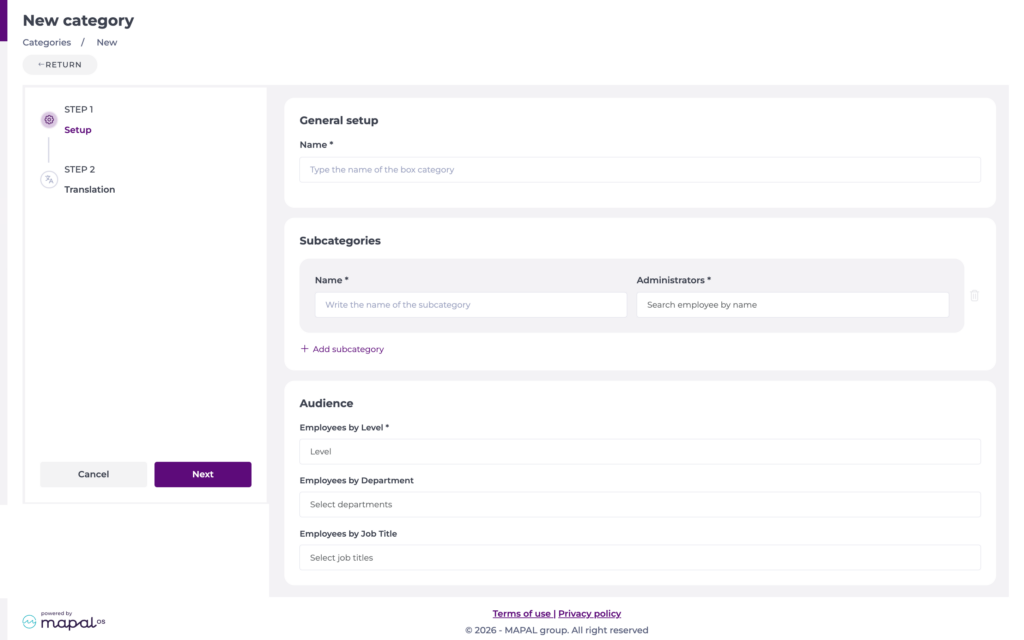
Notes: Name, Employees by Level, and at least one administrator per subcategory are required. Only the administrators assigned to a subcategory can view the suggestions submitted to it.
Step 2 - Translation
If your organisation has translation languages set up, a Translation step appears. To choose which languages are available, see Set up translation languages.
- Select a language from the list.
- Select Auto translate to generate the translation, or type it manually in the Translation field. You can edit an auto-translated result. The category and each subcategory have their own translation field.
- Repeat for each language you want to provide. A tick appears on each language once it has a translation.
- Select Save.
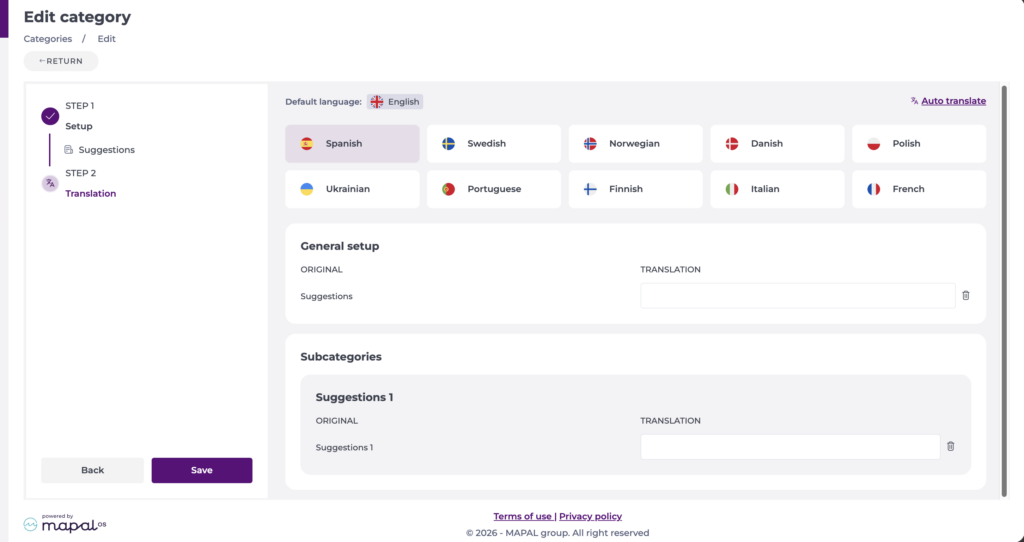
Employees see the category and subcategory names in their own language in Mapal One, or in the original language if no translation exists for theirs.
Notes: Subcategories are required for suggestion boxes to work correctly. A category without at least one subcategory is not visible as a destination in Mapal One, so employees cannot submit suggestions to it.
Create a suggestion
Suggestion boxes are created and managed through Engagement, but employees submit their suggestions directly in Mapal One under Company > Suggestion Box. To learn more, see Make suggestions about your company.
