


Start from: the Engagement dashboard.
Create an Agile feedback evaluation
- Select Agile feedback > Evaluations from the main menu.
- Select the + New evaluation button.
You will be taken into a two-step creation process:
STEP 1: Setup
This step defines the structure and rules of the evaluation.
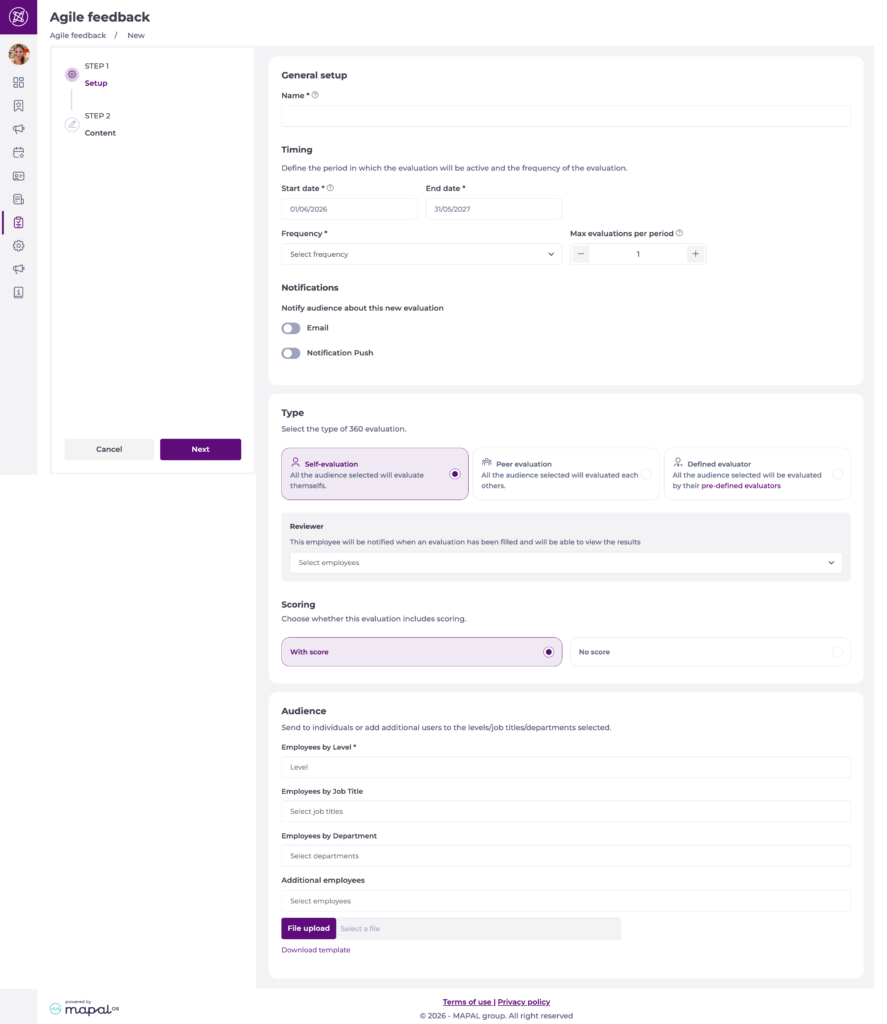
General setup
- Set a Name* for your evaluation.
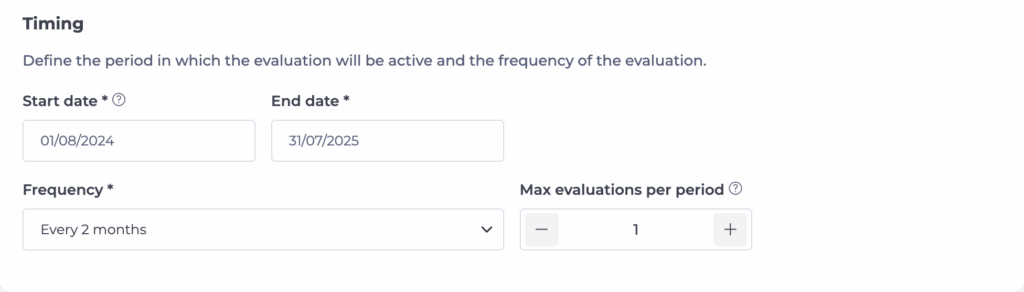
Timing
- Define the period in which the evaluation will be active.
- Start date* / End date*: The window in which employees can complete the evaluation.
- Frequency*: How often the evaluation should reoccur (e.g., monthly, every 2 months).
- Max evaluations per period: Enter the maximum number of evaluations that each evaluator can perform on a specific employee per period.
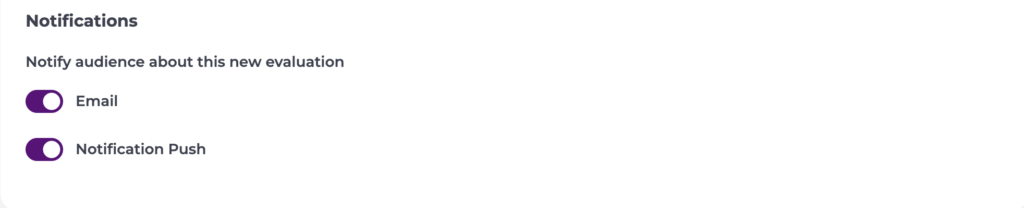
Notifications
- Choose how evaluators are informed when a new evaluation is created.
- Toggle the button for Email, Push notitification, Email & Push, or None, depending on how you want evaluators to be notified.
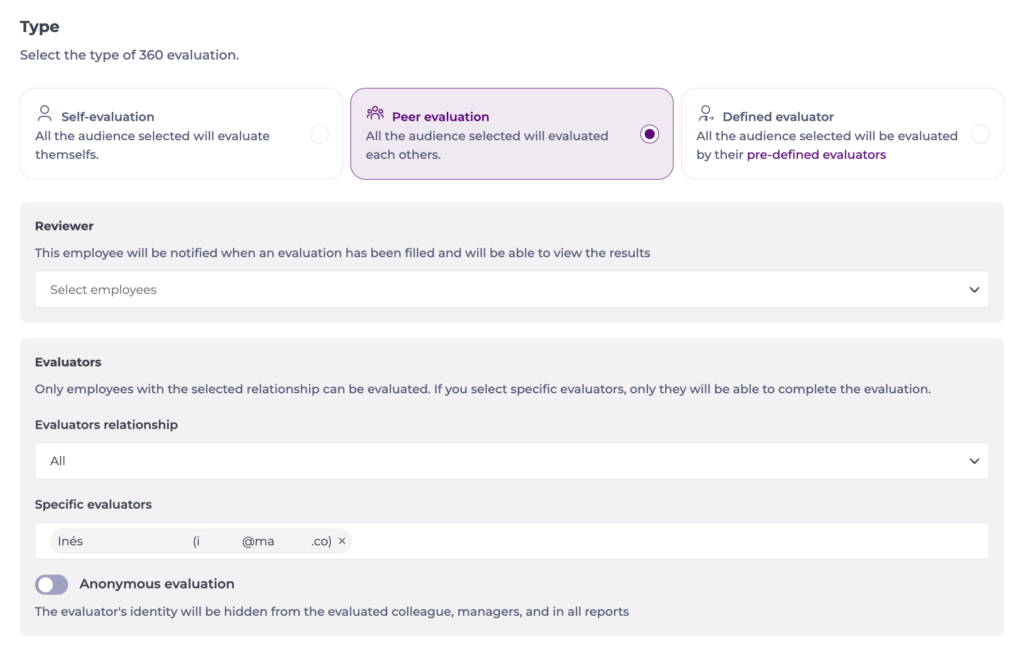
Type
Choose how feedback will be exchanged:
- Self-evaluation: All the audience selected will evaluate themselves.
- Peer evaluation: All the audience selected will evaluate each other.
- Defined evaluator: All the audience selected will be evaluated by their pre-defined evaluators.
Reviewer
Select a Reviewer to be notified when an evaluation has been filled and to be able to view the results.
Evaluators
Only employees with the selected relationship can be evaluated. If you select specific evaluators, only they will be able to complete the evaluation.
- Select an Evaluators relationship from the dropdown to restrict who can evaluate based on their relationship to the evaluated employee.
- Optionally, select Specific evaluators to limit the evaluation to named individuals only.
Anonymous evaluation
Enable the Anonymous evaluation toggle if you want the evaluator's identity to be hidden from the evaluated colleague, managers, and in all reports.
Audience
- Select who will participate in the evaluation. You may use any combination of:
- Employees by Level: Choose one or more hierarchical levels.
- Employees by Job Title
- Employees by Department
- Additional employees: Add specific individuals.
- File upload: Import a list using the downloadable template.
- When you finish configuring STEP 1, select Next to move to content creation.
STEP 2: Content
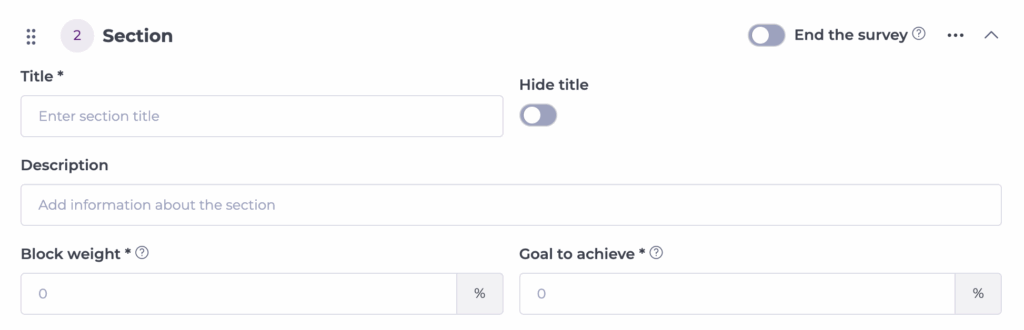
Here you build the evaluation’s questions and structure. Agile feedback forms are organised into Sections, each containing one or more Questions. You can also activate End the survey inside any section if you want that block to conclude the evaluation.
Create or edit a section
Each section includes:
- Title: Shown to the employee unless you toggle Hide title.
- Description: Rich-text description (HTML supported).
- Block weight %: For the evaluation, the total weighting of all blocks must equal 100. For example, if there are two blocks, each would be weighted at 50 and if it had 5 blocks, with even weighting, each block would be 20.
- Goal to achieve %: Target for performance analysis. Within each block, you may set a different target Goal; however, all question scores within that block must meet or exceed the target.
- New question: Add questions inside the section.
- New section: Add additional blocks.
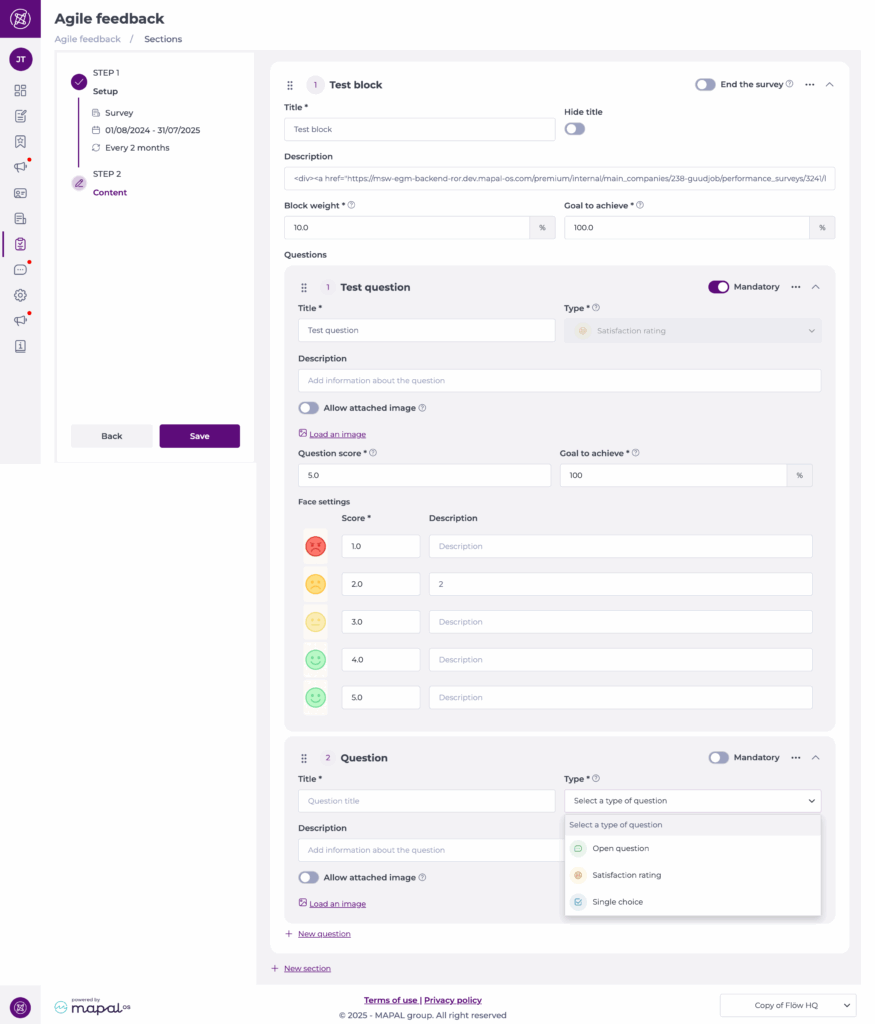
Add questions
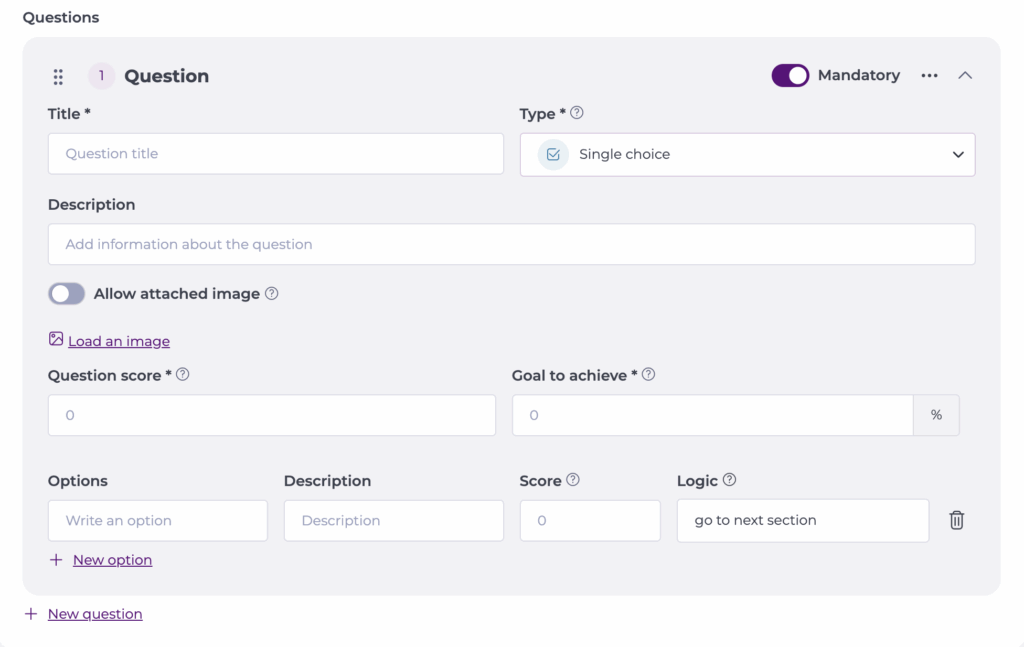
- Select New question inside any section. Each question includes:
- Title*: Displayed to the employee.
- Type*: Choose one of the available question types:
- Open question: Free-text response.
- Satisfaction rating: 1–5 face scale with editable descriptions. You can define a Score for each face, add a Description for each rating, and set Question score and Goal to achieve.
Note: The scale supports custom satisfaction faces, so you can adapt the icons and labels to your organisation’s tone and feedback style rather than using a single generic set. To access this configuration, navigate to Settings > Custom satisfaction Rating faces. - Single choice: Select one option from a list. You can define a Score and a Logic for each option, add a Description for each rating, and set Question score and Goal to achieve
- Description: Optional explanation beneath the question title.
- Mandatory toggle: Choose whether the question is required.
- Allow attached image: Enable employees to upload an image if needed.
Save and activate
Save draft
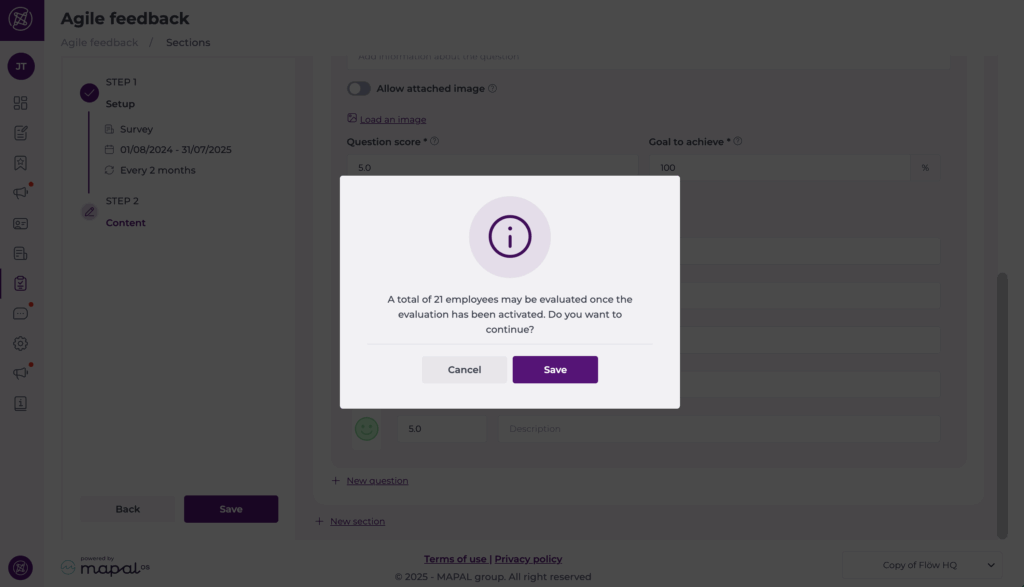
- When your evaluation is complete, select Save.
- A confirmation window appears notifying you how many users will be able to see the evaluation once activated.
- Select Save to confirm. The evaluation is now saved as a draft.
Activate evaluation
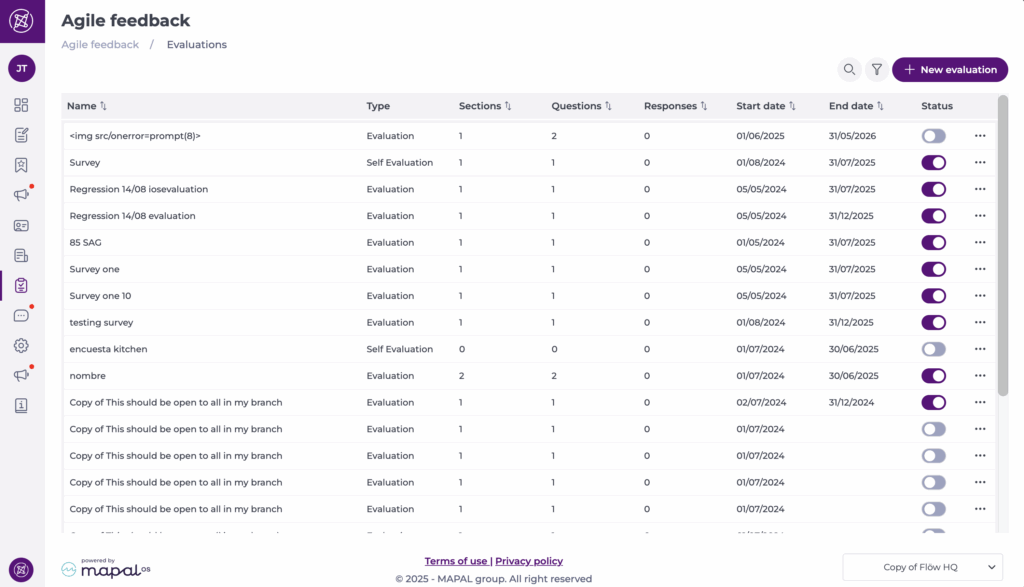
Back in the Evaluations list, you can control whether an evaluation is available for use.
- Select the toggle under the Status column to activate or deactivate an evaluation.
- When the toggle is coloured, the evaluation is active and can be used by participants.
- When the toggle is grey, the evaluation is inactive and cannot be used until it is reactivated.
Edit Agile feedback evaluations
- In the Agile feedback screen, select the action button (… ) for the evaluation.
- Select Edit.
- You can update:
- General settings in Step 1: Setup (name, timing, audience, type, etc.).
- Section structure in Step 2: Content (titles, descriptions, block weights, and goals).
- Individual questions, including question text, question type, answer options, scoring, and mandatory settings, as long as the evaluation does not yet have responses.
- Make the necessary changes and select Save when you finish.
Note: If the evaluation already has answers the template cannot be edited. To make changes, duplicate the existing evaluation using (…) > Duplicate, adjust the new copy, and then activate it for future use.
Delete Agile feeback evaluations
- In the agile feedback screen, select the action button (...).
- Select Delete.
- In the confirmation window, select Delete to complete the removal.
View and edit evaluation responses
You can review responses for an evaluation and, in some cases, edit them.
- Select the action menu (… ) for the evaluation you want to review.
- Select View answers.
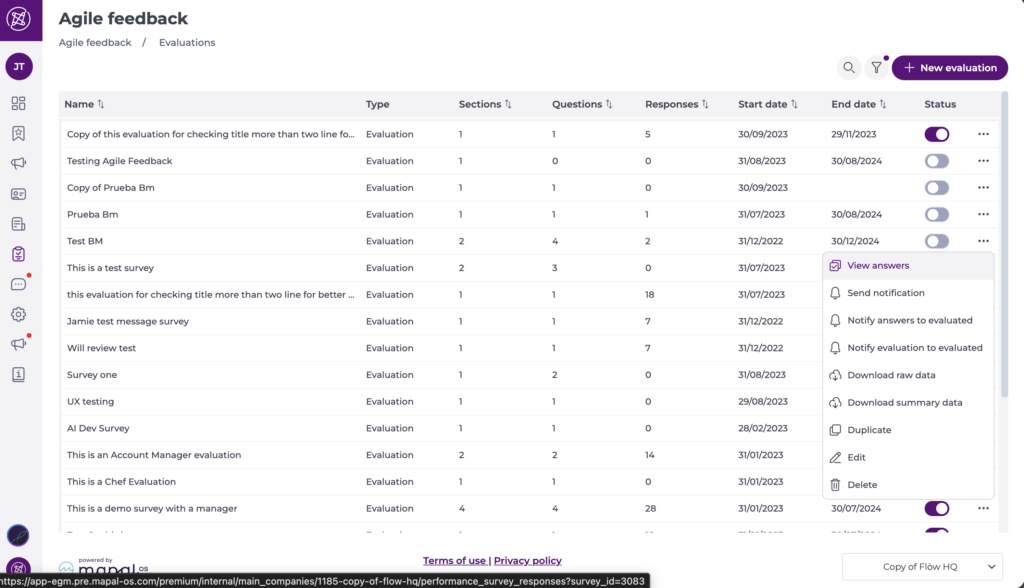
- A list of all answers for that evaluation displays. The grid shows key information such as period, evaluator, evaluated employee, percentage of completion or compliance, and validation status.
To review a specific response:
- In the answer list, locate the row you want to inspect.
- Select View answers for that row. If you are the evaluator, you can also Delete the answer if needed.
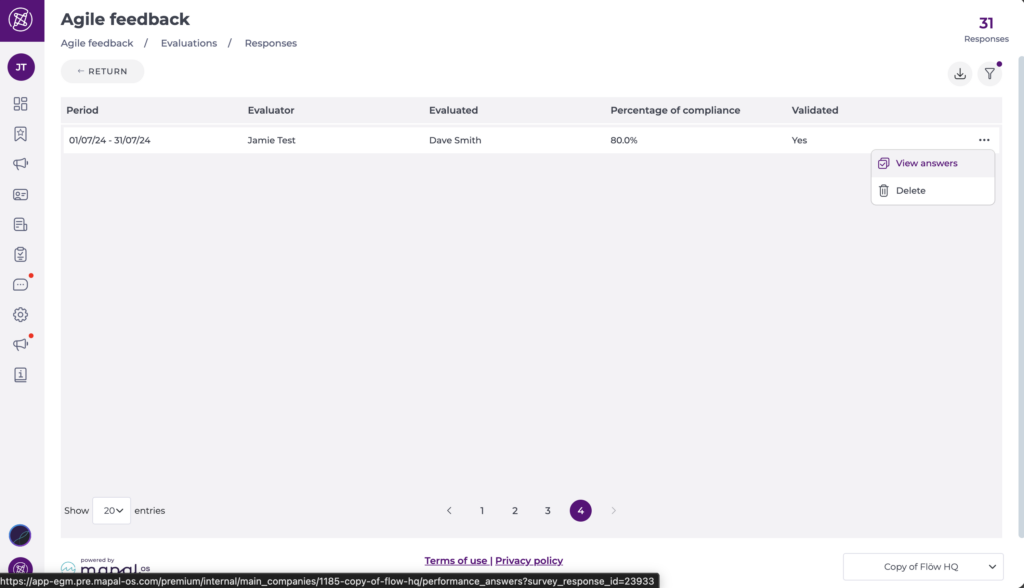
- The response page shows the full set of questions and answers.
- If you are the evaluator who submitted that response, you can update the answers by selecting Edit.
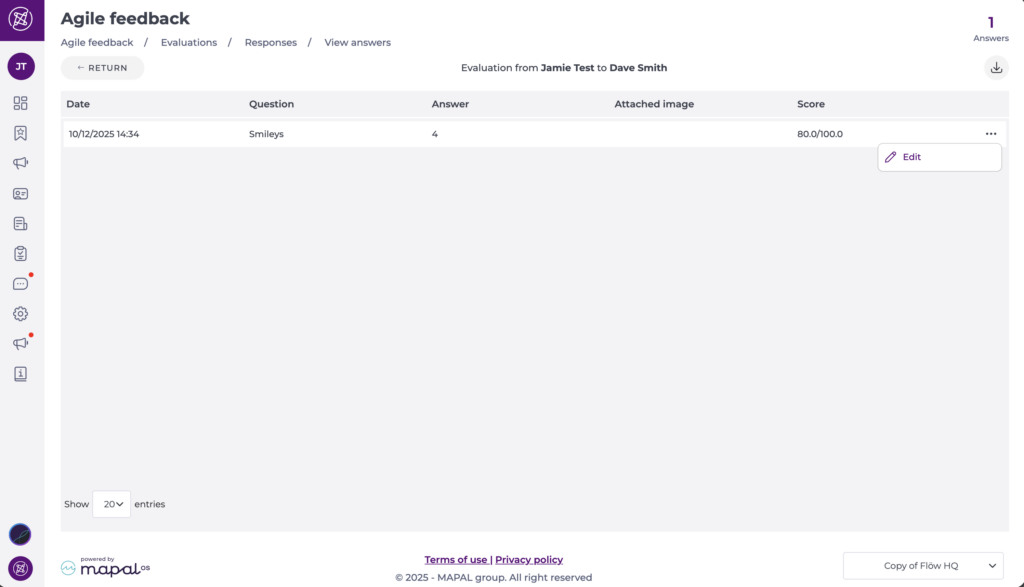
- Once you finish editing, select Save to confirm your changes.
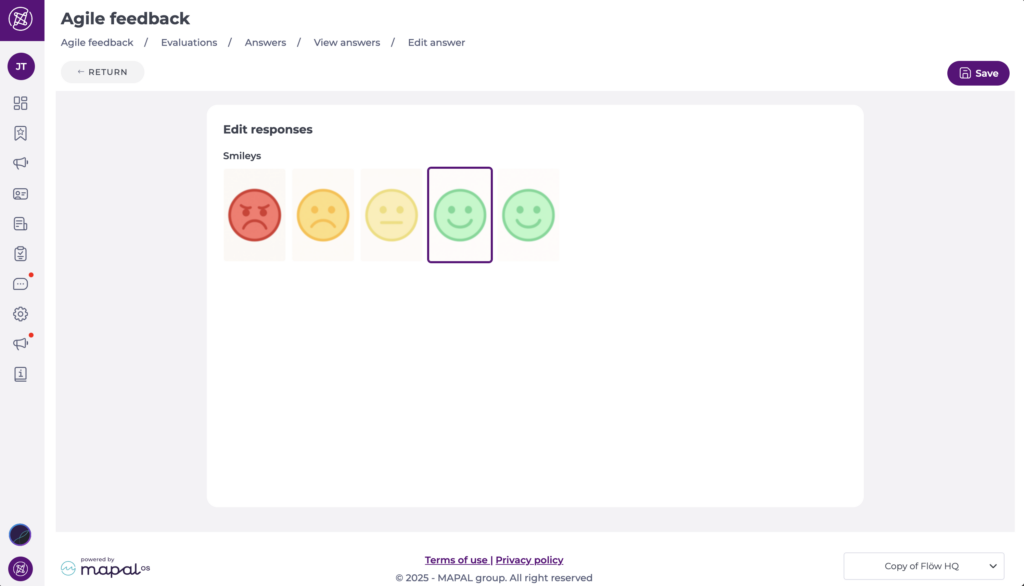
Note: You can only edit or delete responses for evaluations that you have completed yourself. If you attempt to edit or remove a response created by another evaluator, you will see one of these warnings:
- Edit: “Oops, sorry. Only the evaluator who took the survey can edit responses.”
- Delete: "Oops sorry, responses can only be removed by the evaluator who took the survey."
