


Start from: The Engagement dashboard.
- Navigate to Communications > Publications from the main menu.
View metrics for news and posts
- Locate the news post or forum post you want to analyze.
- Click on the Action menu (three dots) next to the item.
- Select Metrics per post/news from the dropdown.
- The report will be sent to your email as an Excel file, allowing you to review detailed engagement data.
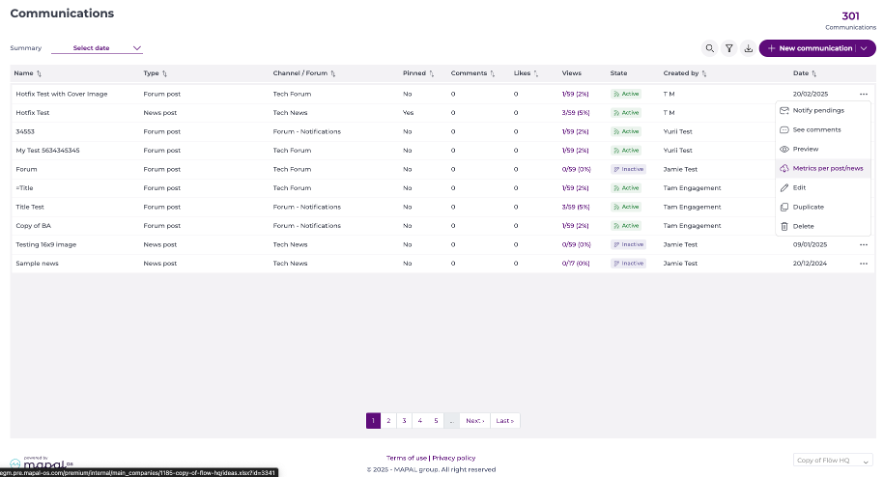
View aggregated metrics
- Navigate to Communications > Publications from the main menu.
- Select the Export button at the top of the grid.
- Select Post/news aggregated metrics from the dropdown menu.
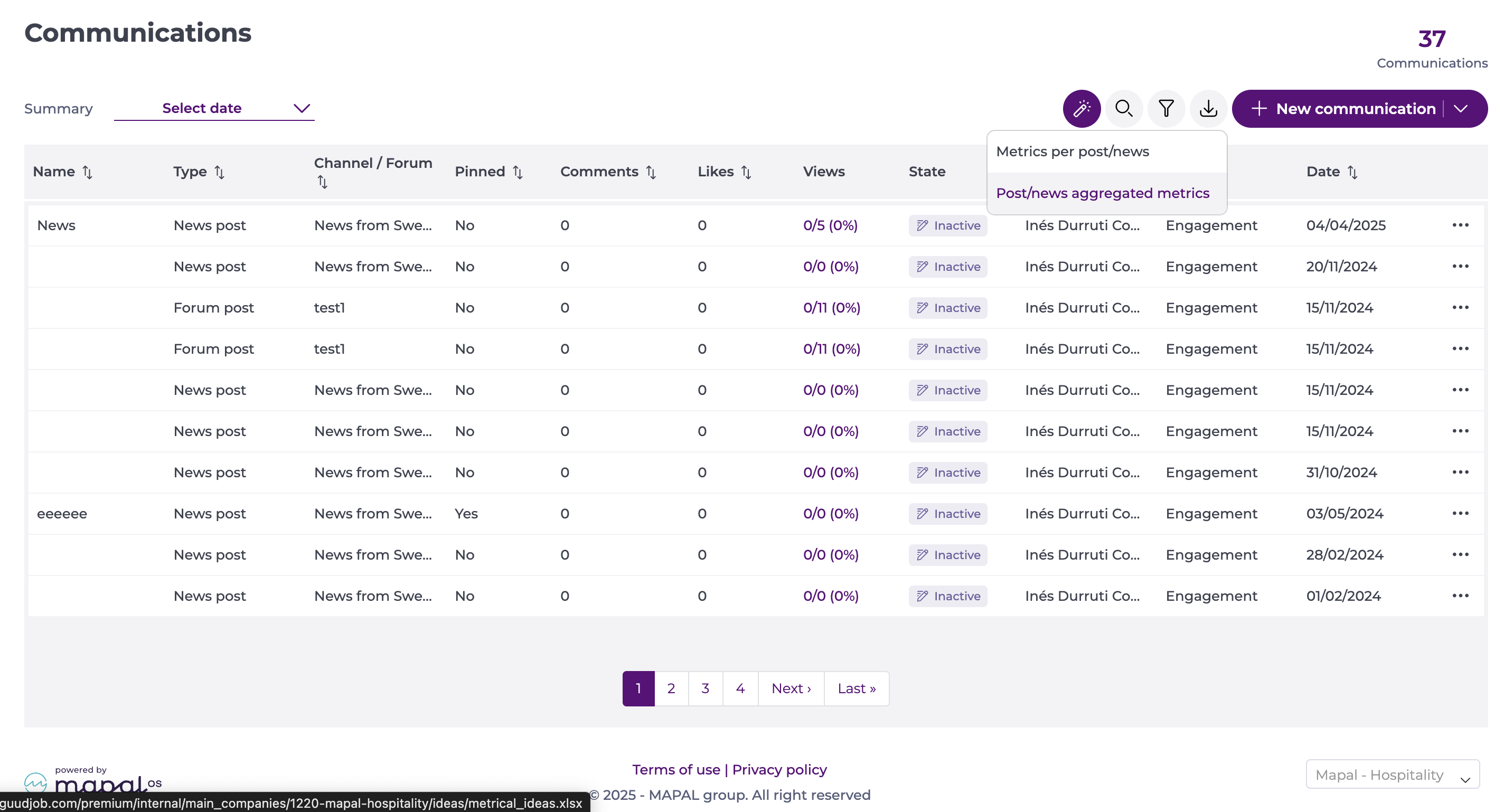
Notes: When you request an export, a confirmation message appears and you can continue using Engagement while the report generates. You receive the Excel report by email once it is ready.
- You will receive an Excel report by email showing overall figures for engagement across posts, including:
- Total number of communications sent
- % views per statement
- % engagement per release
Notes: Exports in Engagement use locale-aware separators for CSV-style data. This means the file will use commas or semicolons depending on your browser language and regional settings, ensuring the data opens correctly in your local spreadsheet tools.
