


Start from: the Engagement dashboard.
- Select Events from the main menu.
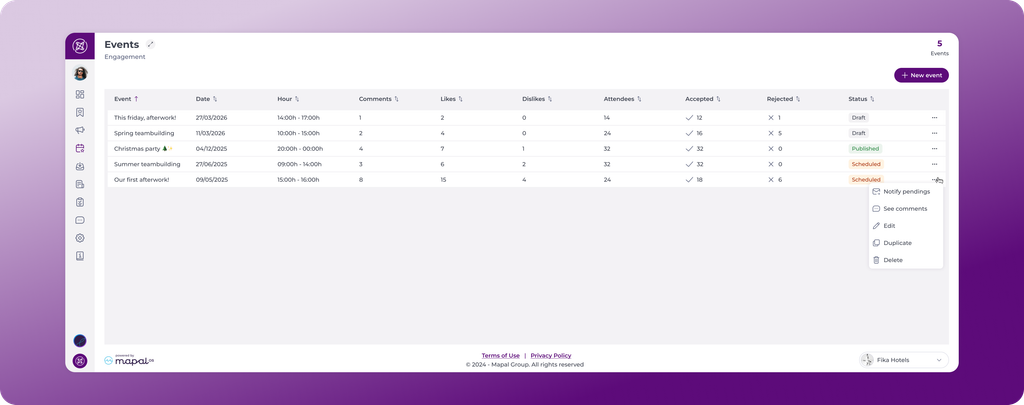
- The Events screen lists all events with their date, time, engagement metrics, attendance figures, and status.
Create an event
- Select + New event.
Step 1 - Setup
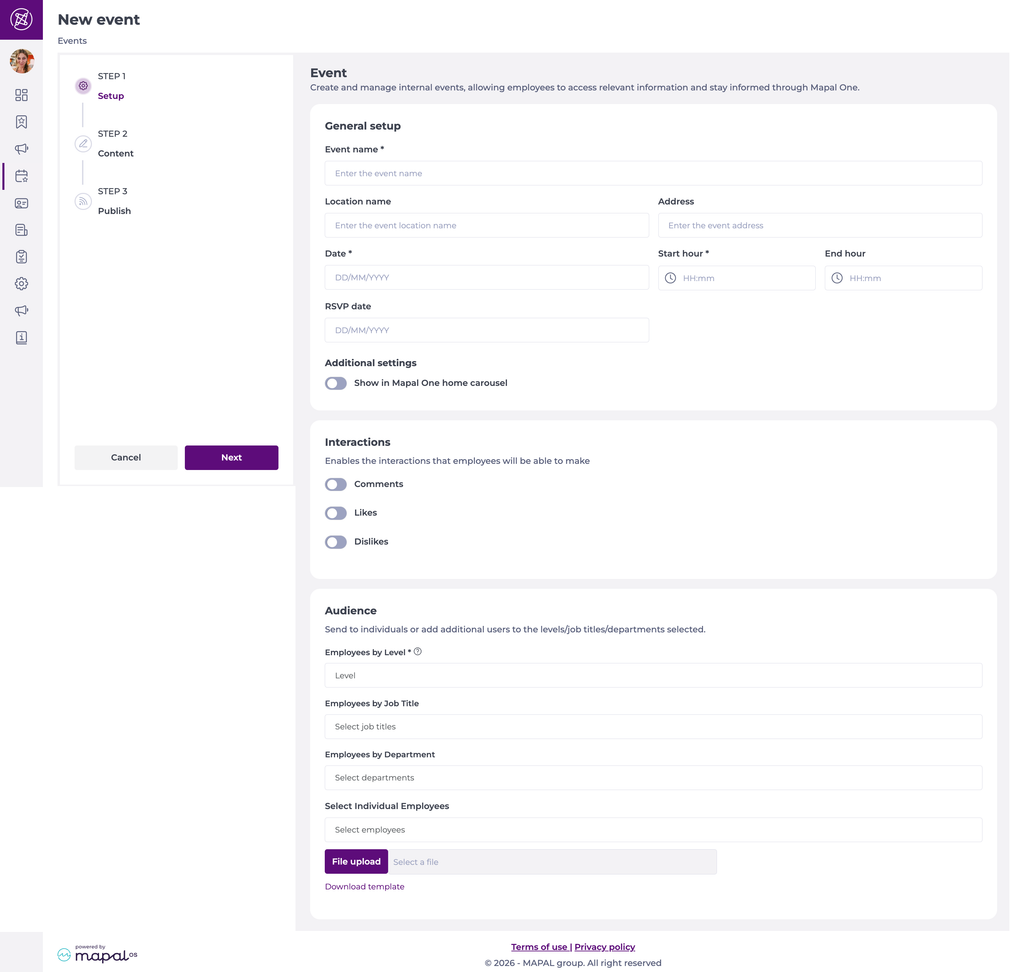
Complete the General setup:
- Enter the Event name*.
- Enter the Location name and Address.
- Set the Date*, Start hour*, and End hour.
- Set the RSVP date, the date by which employees should confirm their attendance.
- Under Additional settings, turn on Show in Mapal One home carousel to feature the event in the Mapal One home carousel.
- Under Interactions, choose which interactions employees can make: Comments, Likes, and Dislikes.
- Under Audience, select who receives the event:
- Employees by Level*
- Employees by Job Title
- Employees by Department
- Select Individual Employees
- File upload: import a list using Download template.
- Select Next.
Notes: Only active category group levels from Mapal OS can be selected. Levels deleted in Mapal OS no longer appear as audience options.
Step 2 - Content
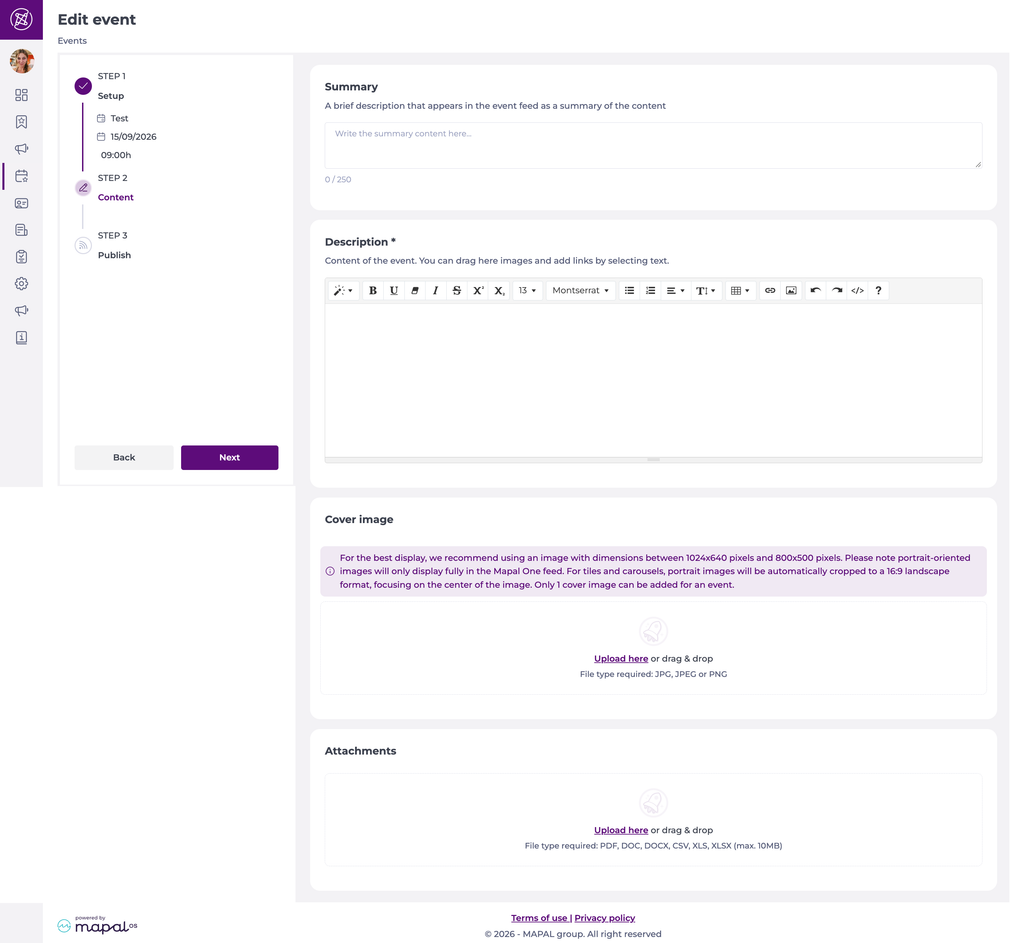
- Write a Summary, a brief description that appears in the event feed. You can write a maximum of 250 characters.
- Write the Description* of the event in the rich text field. You can drag images into this field and add links by selecting text.
- Add a Cover image (JPG, JPEG, or PNG). Only one cover image can be added for an event.
- Add Attachments if needed (PDF, DOC, DOCX, CSV, XLS, XLSX, max. 10MB).
Note: Portrait images display fully in the Mapal One feed. For tiles and carousels, portrait images are automatically cropped to a 16:9 landscape format, focused on the centre of the image.
- Select Next.
Step 3 - Translate
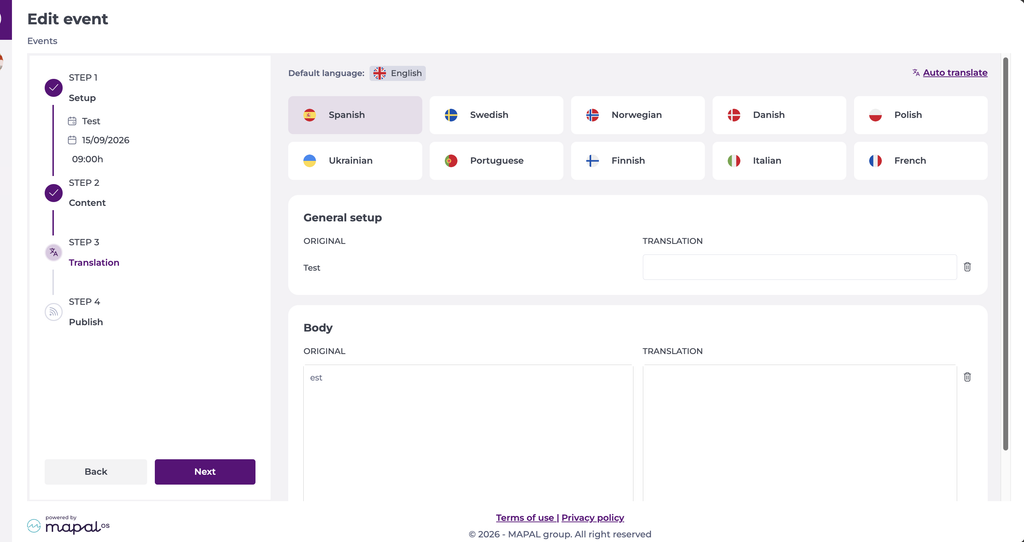
If your organisation has translation languages set up, a Translation step appears. To choose which languages are available, see Set up translation languages.
- Select the Translation step.
- Select a language from the list.
- Select Auto translate to generate the translation, or type it manually in the Translation field. You can edit an auto-translated result.
- Repeat for each language you want to provide. A tick appears on each language once it has a translation.
- Select Next.
Employees see the content in their own language in Mapal One, or in the original language if no translation exists for theirs.
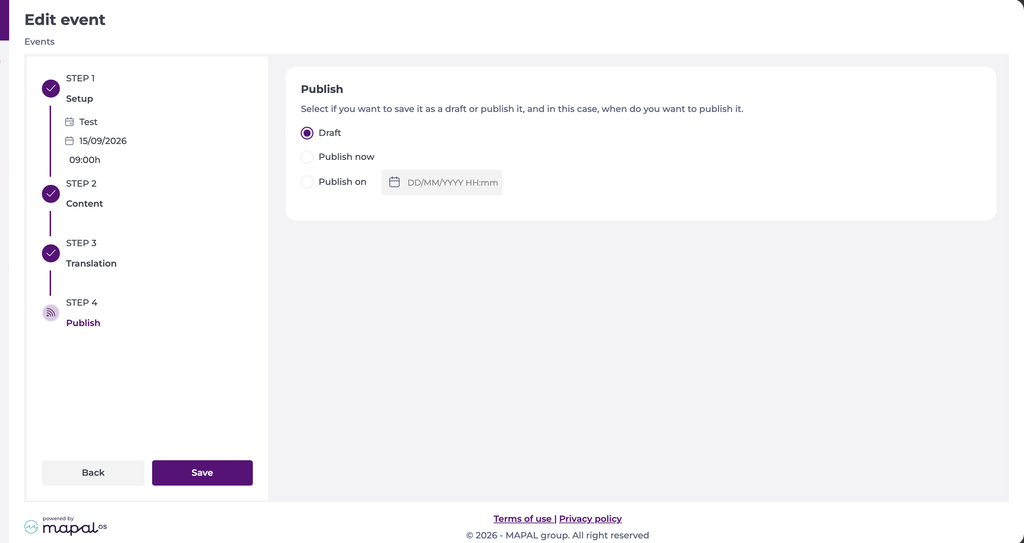
Step 4 - Publish
- Choose Draft, Publish now, or Publish on a specific date and time.
- Select Save.
Manage an event
- Each event shows one of three statuses:
- Draft: in preparation, not visible to employees.
- Scheduled: planned for a future date.
- Published: live and visible to employees.
- Select the action menu (...) in the event's row.
- Choose an action:
- Notify pendings: send a reminder to employees who have not yet responded.
- See comments: view comments on the event.
- Edit: change the event's details.
- Duplicate: create a copy of the event.
- Delete: remove the event.

For each event, the listing shows the number of Comments, Likes, and Dislikes, the total Attendees, and how many have Accepted or Rejected the invitation.
To see how employees view and respond to events, see View events and respond to invitations in Mapal One.
