


Start from: The Engagement Dashboard.
- Select Communication > News channels & forums.
- Select + New > Forum.
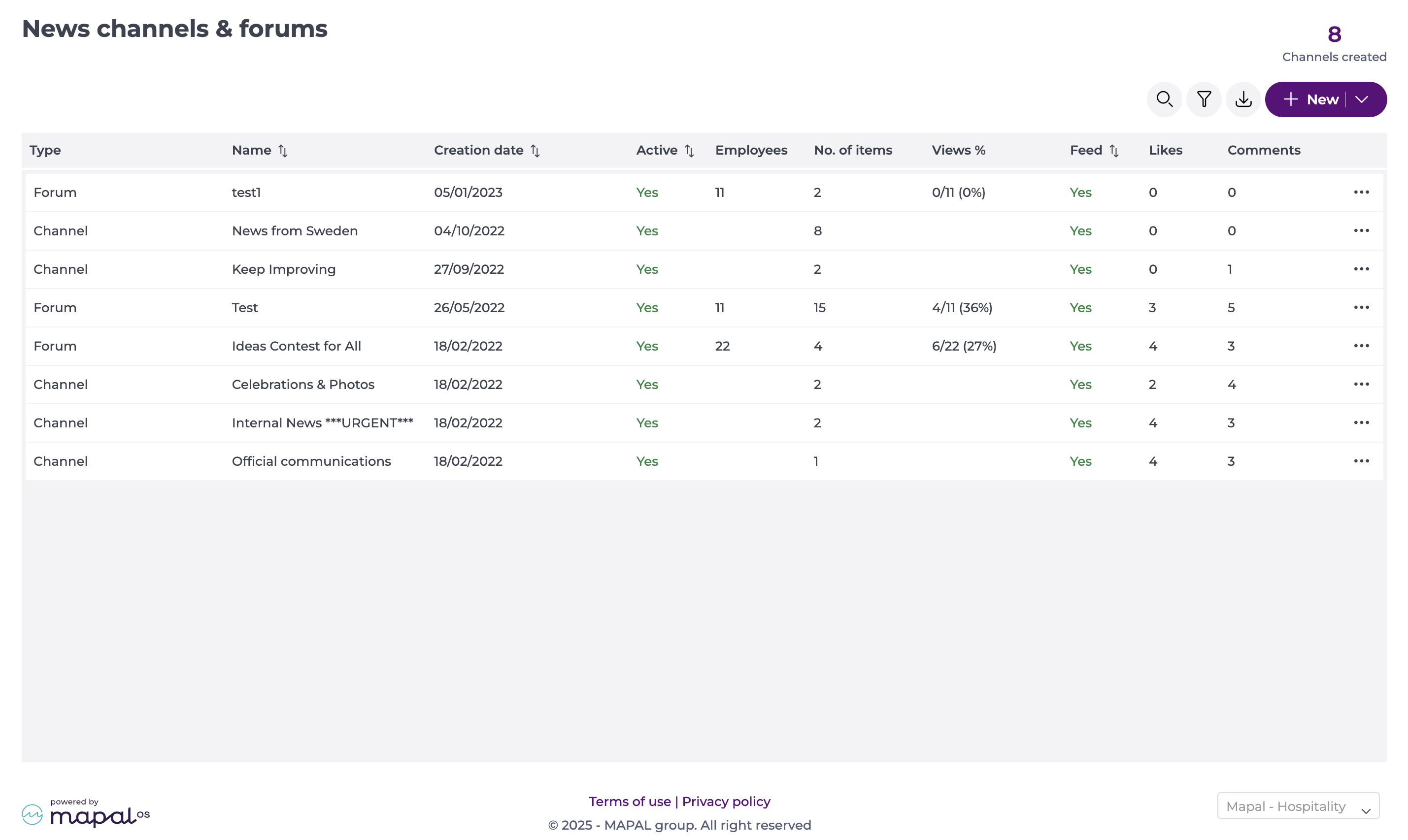
Creating a forum
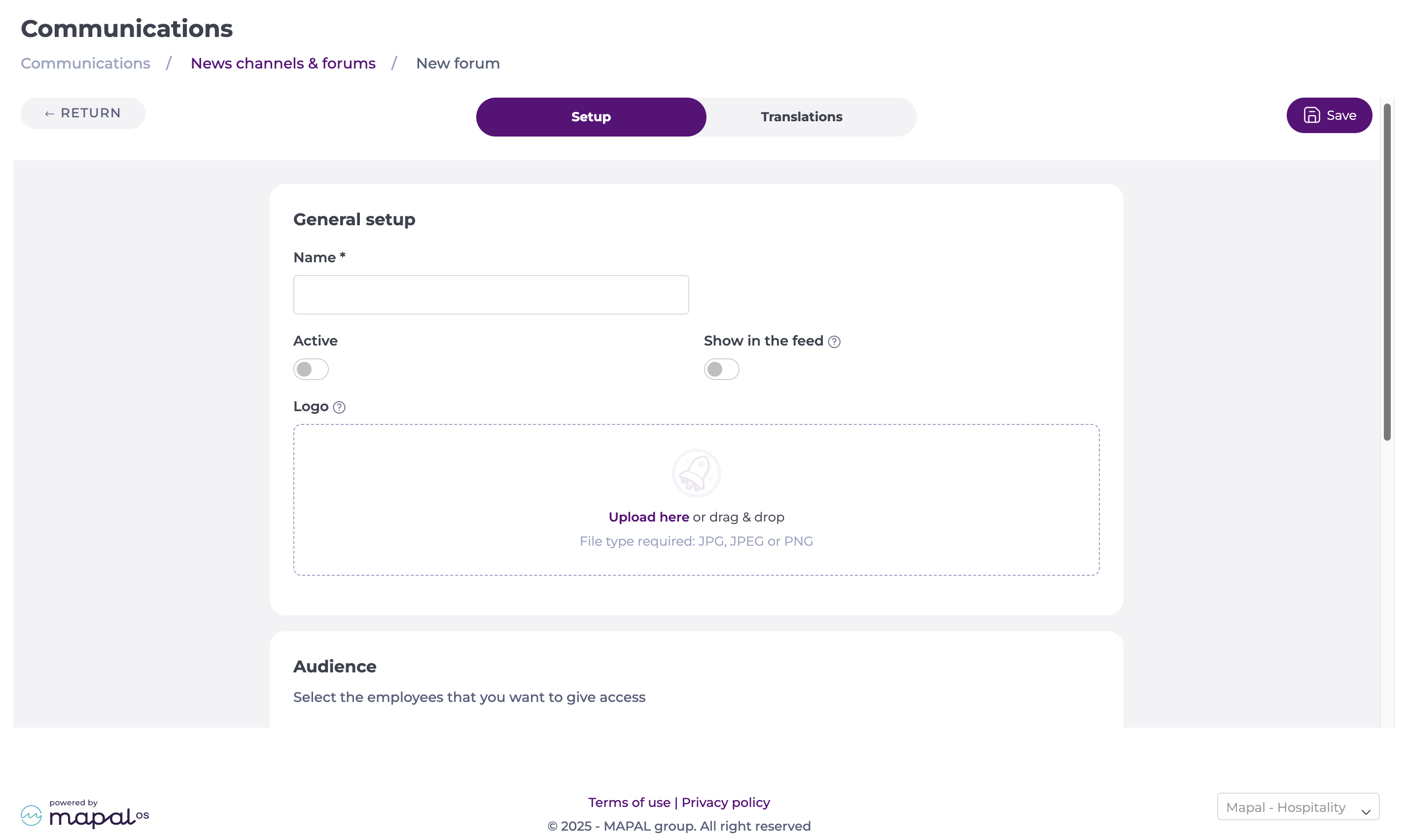
General Setup
This section allows you to provide the general setup for your new forum, such as the name, visibility, and avatar.
- Name*: Enter the forum name.
- Active: Toggle on to activate the forum.
- Show in the feed: Toggle on to make the forum visible in the feed.
- Notify the audience: Toggle on to notify members about Mapal One posts in this forum.
- Reaction controls: Toggle on/off to enable or disable likes/dislikes for posts in this forum.
- By default, reactions are enabled.
- If disabled, the reaction buttons are hidden, and existing reactions will no longer be visible.
- Only administrators with the appropriate permissions can change this setting.
- Logo: Upload an avatar image for your forum.
- Max size: 40x40.
- Supported formats: JPG, JPEG, PNG.
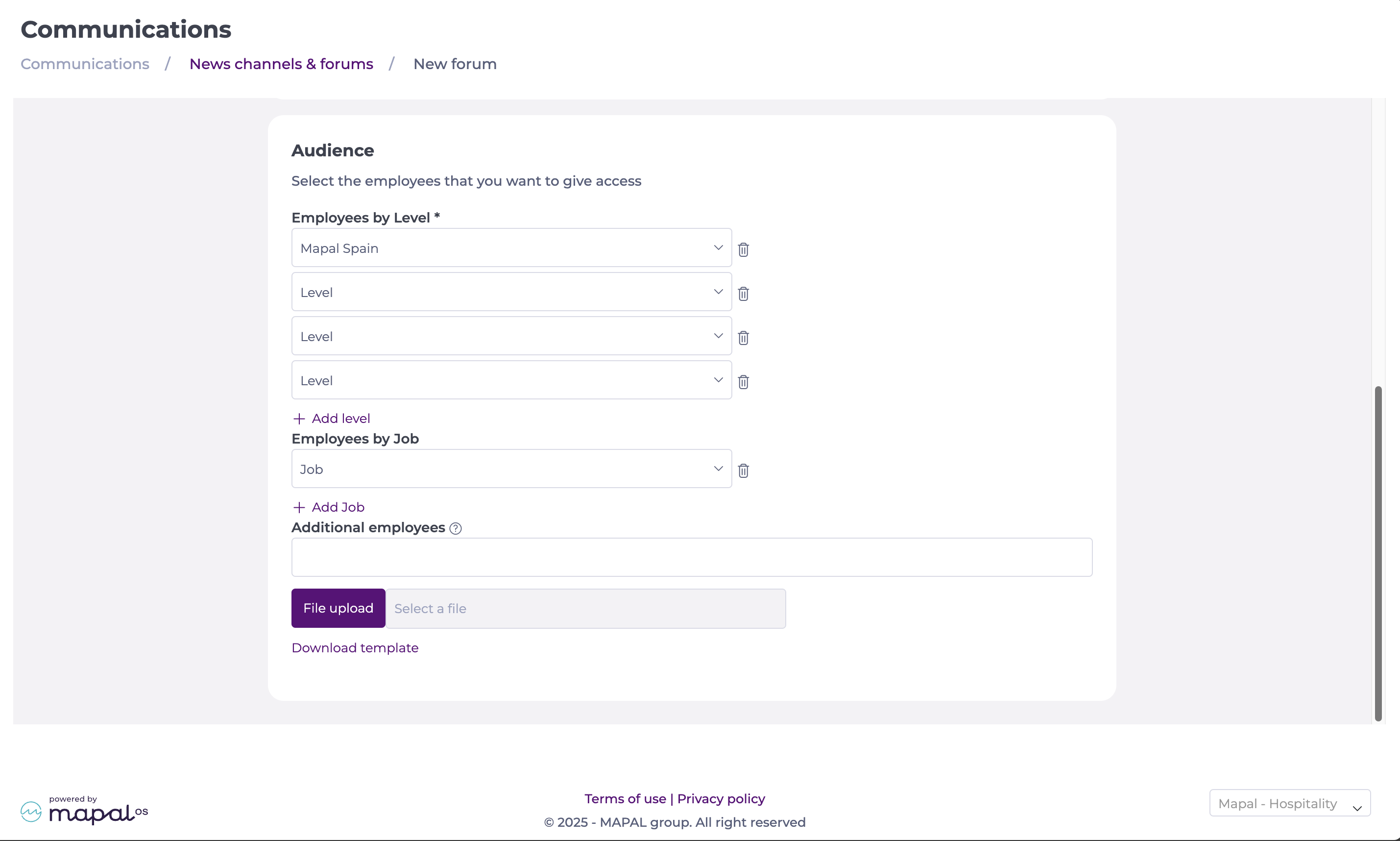
Audience
Here, you will be able to set up the employees you want to give access to this forum.
- Select the Employees by Level*. You can add different levels as needed.
Note: Select Remove if you make a mistake when adding a section.
- You can then select Employees by Job on the levels previously set up.
Note: You can select multiple Job Roles at the same time. You can also deselect as needed.
- You can also add Additional Employees beyond the selected levels. Search them by name and select them from the dropdown list.
Notes: Additional employees can be added in batch by uploading a file. The template is available by selecting Download template. Only active category group levels from Mapal OS can be selected. Levels deleted in Mapal OS no longer appear as audience options. Content that previously targeted a now-deleted level is unaffected and continues to be reported accurately.
Managing a forum
Manage an existing forum
To manage an existing forum:
- Go to Communication > News channels & forums.
- Locate the forum you wish to manage.
- Select the action menu (...) and select the option you with to take:
- Edit to make changes to the forum.
- Delete to permanently remove the forum.
You can modify forum settings, audience, translations, and notification preferences. Changes will apply immediately unless noted otherwise.

Managing notifications
Administrators can control how users are notified of forum activity.
- Navigate to the desired forum and select Edit.
- Under General setup, toggle Notify audience about Mapal One posts in this forum. Notification options are:
- Push Notification
These settings apply to all posts in that forum unless overridden at the post level. Admins can still manually override notification preferences on a per-post basis, allowing targeted control where specific posts need wider visibility.

Translate the content
If your organisation has translation languages set up, a Translation step appears. To choose which languages are available, see Set up translation languages.
- Select the Translation step.
- Select a language from the list.
- Select Auto translate to generate the translation, or type it manually in the Translation field. You can edit an auto-translated result.
- Repeat for each language you want to provide. A tick appears on each language once it has a translation.
- Select Save.
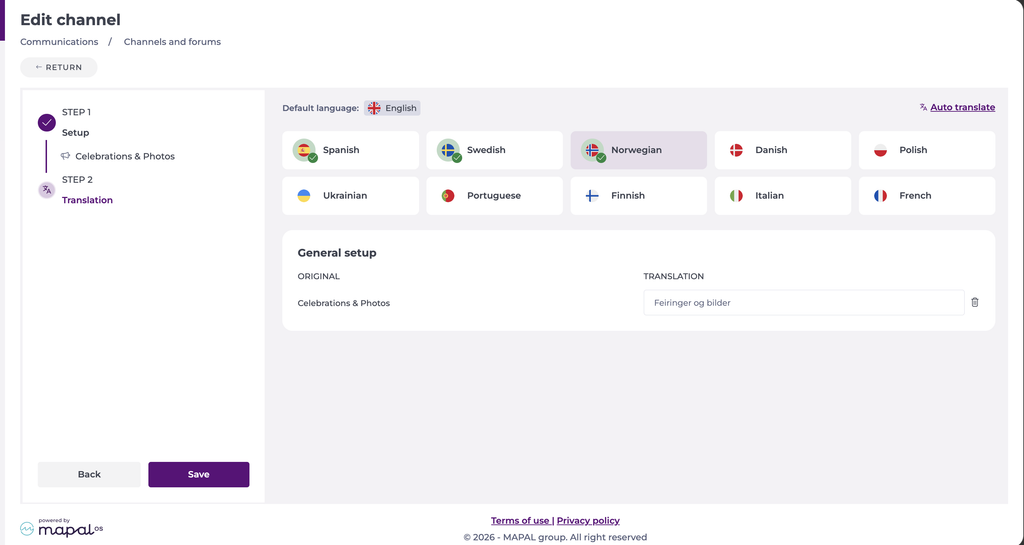
Employees see the content in their own language in Mapal One, or in the original language if no translation exists for theirs.
