


Start from: The Engagement dashboard.
Recognition Reasons
Recognition reasons are the defining motives for recognition, and it is necessary to define them to make it easier for the users to find a better definition of the recognitions, and at the same time to be able to measure as a company the most and least used reasons. Edit Recognition Reasons
- Navigate to Settings > Recognition reasons.
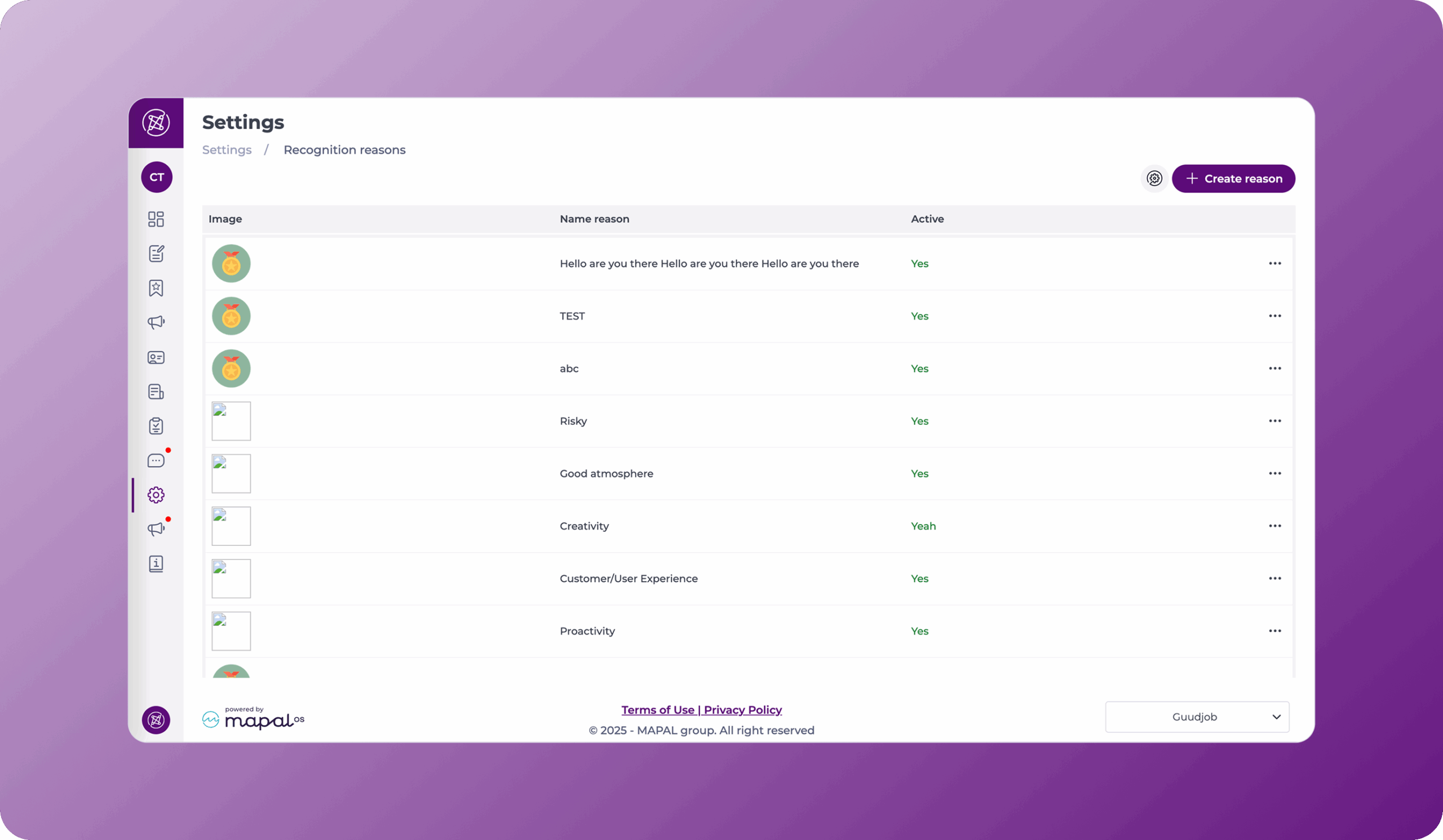
Add recognition reasons
- Select New reason.
- On the Setup tab, complete the General setup:
- Name: the name of the recognition reason.
- Description: more information about this reason. A character counter shows how many of the 50 available characters you have used.
- Active: turn the toggle on to make the reason available, or off to keep it inactive.
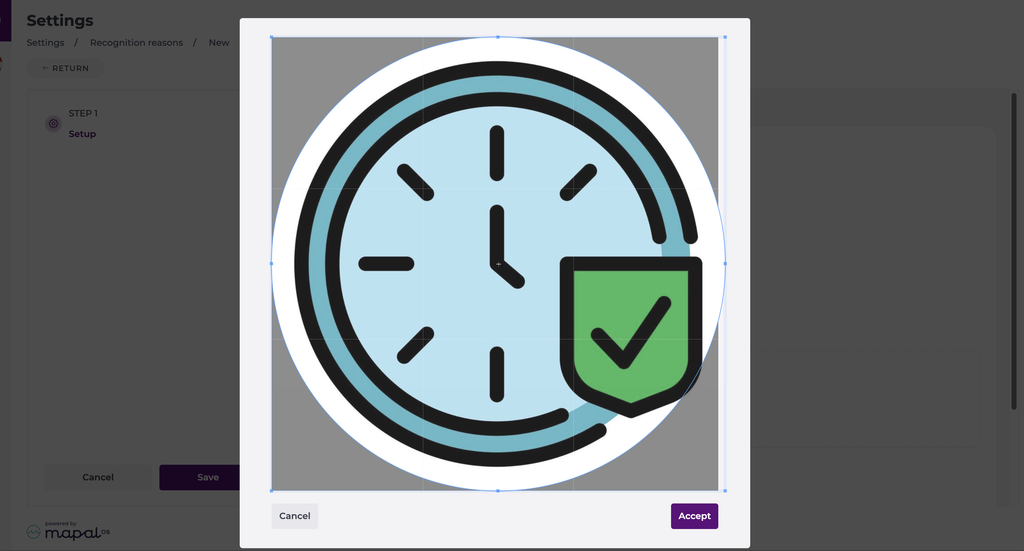
- Logo: upload an image (JPG, JPEG, or PNG). After uploading, position the image within the circular crop guide and select Accept. This helps the thumbnail display consistently in Mapal One.
- Select Next to go to the Translation step.
Notes: To choose which languages are available, see Set up translation languages.
- Select a language from the list.
- Select Auto translate to generate the translation, or type it manually in the Translation field. You can edit an auto-translated result.
- Repeat for each language you want to provide. A tick appears on each language once it has a translation.
- Select Save.
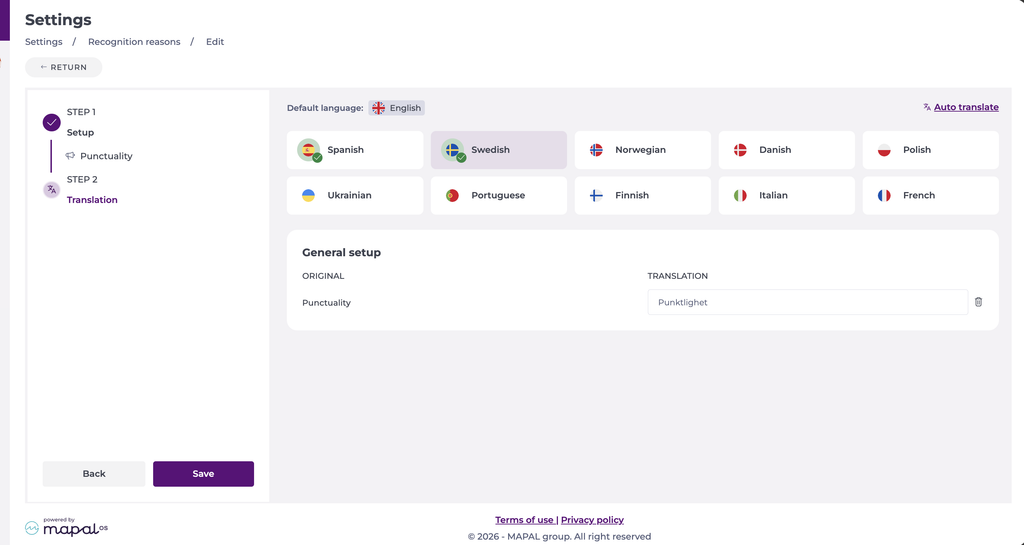
Notes: Employees see the content in their own language in Mapal One, or in the original language if no translation exists for theirs.
The new recognition reason now appears on the grid.
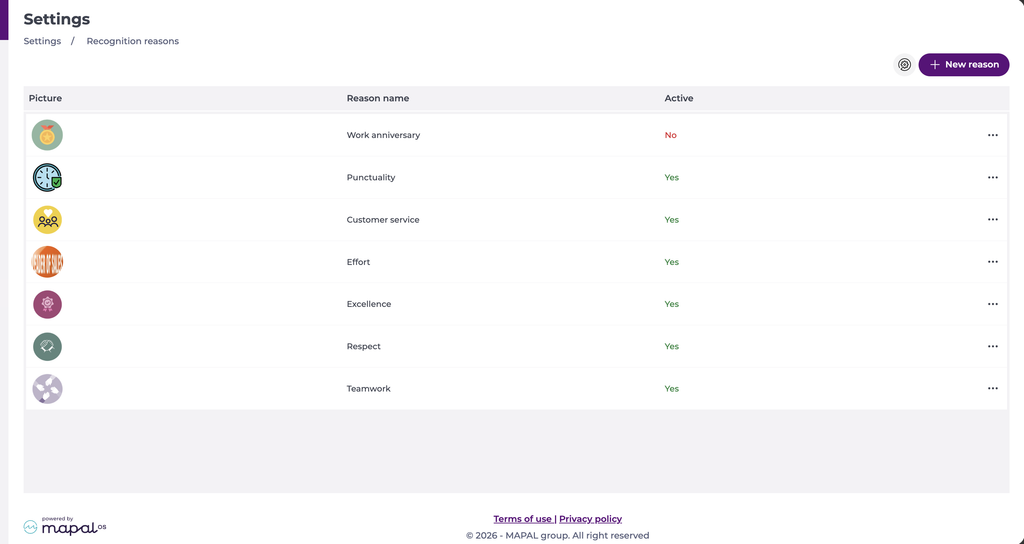
Edit & Delete recognition reasons
Edit
- Locate an existing recognition reason from the list.
- Select the Action button (three dots) at the far right of the recognition reason’s row.
- Select Edit. The Modify reason window will appear, make all the changes needed.

- Select Save.

Delete
- Locate an existing recognition reason from the list.
- Select the Action button (three dots) at the far right of the recognition reason’s row.
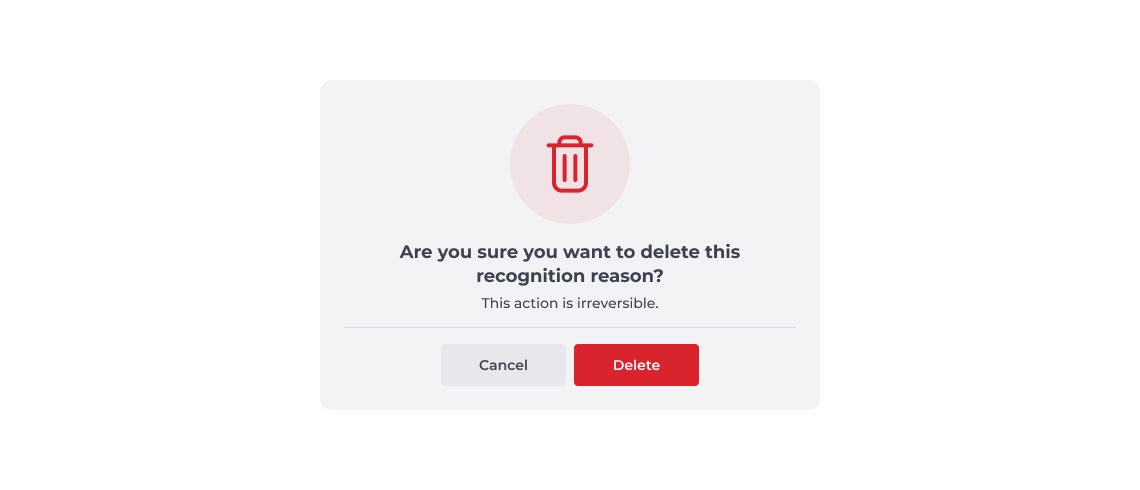
- Select Delete. A confirmation window will appear at the center of the page.
- Select Accept to complete the deletion.
Recognition configuration
Venue Managers can configure how many recognitions each employee is allowed to give per month. This setting helps promote meaningful recognition without overwhelming the system or users with excessive entries.
- Select the Recognition configuration button at the top of the page.
- In the How many recognitions can each employee give per month? field, enter the desired number.

Note: 3 recognitions per month is the recommended number.
- Select Save to apply the configuration.
