


Start from: The Mapal One dashboard.
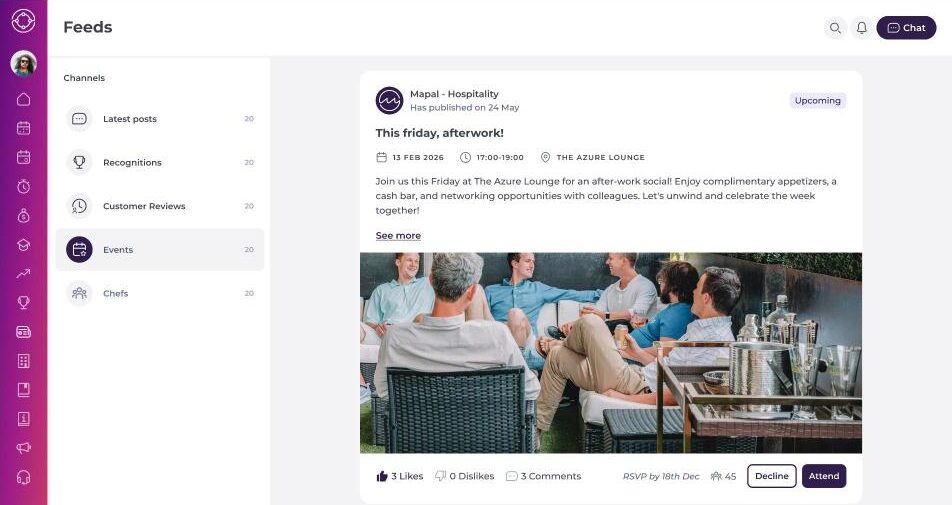
Find an event
- Select Feed from the main menu.
- In Channels, select Events.
- Each event post shows the publisher, the event title, date, time, location and a short description.
- Select See more to open the event page.
Note: You only see events your company has sent to you.
Each event post has a status badge:
- Upcoming: you have not responded to the event yet.
- Attending: you have accepted the event.
- Declined: you have declined the event.
- Attended: the event has taken place and you attended.
- Unanswered: the event has taken place and you did not respond.
View event details
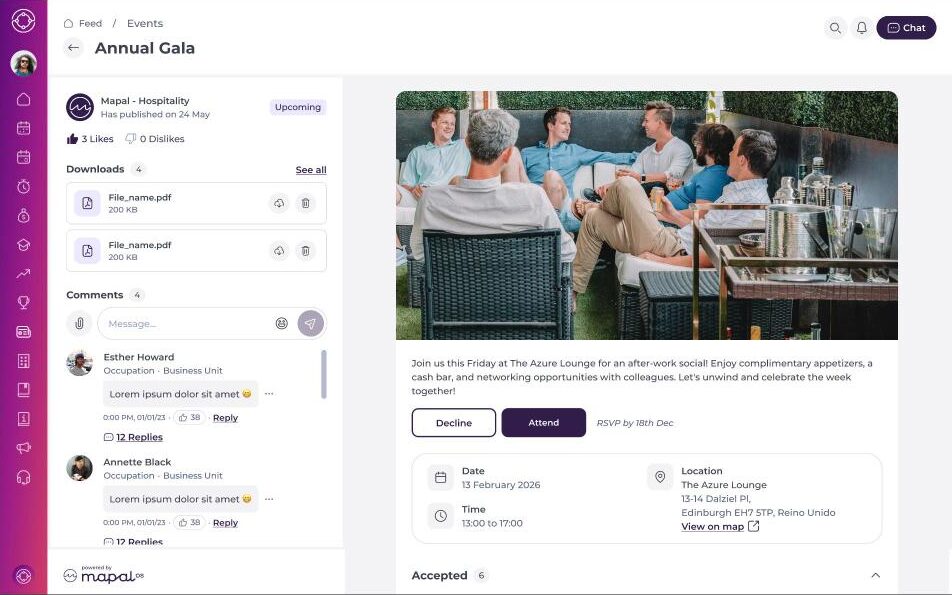
The event page shows:
- The event image and full description.
- Date, Time and Location. Select View on map to see the location on a map.
- Downloads: documents attached to the event. Select See all to view the full list.
- Comments: comments from your colleagues. You can add your own comments and reply to others. Comments, Like and Dislike may not be available for some events, depending on how the event is set up.
- Accepted, Declined and Pending: lists of colleagues who have accepted, declined or not yet responded. Select a list to expand or collapse it.
Respond to an event
- Select Attend or Decline. You can respond from the event post in the Feed or from the event page.
- If you select Attend, the message Event joined successfully appears and the status changes to Attending.
Note: Some events show a response deadline, for example RSVP by 18th Dec. Respond before this date. If you have not responded, you may receive a reminder.
Change your response
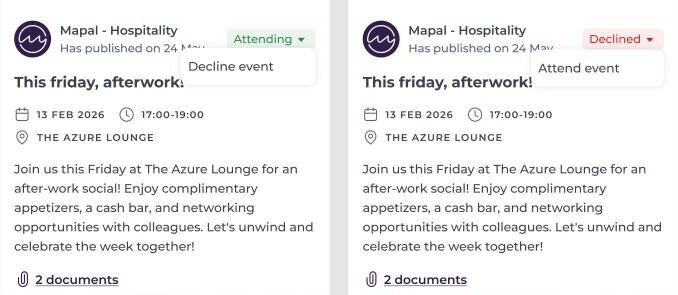
- Select the status badge on the event post or event page.
- If you are attending, select Decline event.
- If you have declined, select Attend event.
Events you accept also appear in your schedule. See Review your Mapal One schedule.
Note: On iOS, update the Mapal One app to the latest version to see events.
Events are created and managed in Engagement. For more information, see Create and manage events in Engagement.
