


Start From: The Mapal One dashboard.
- Select Schedule from the main menu.
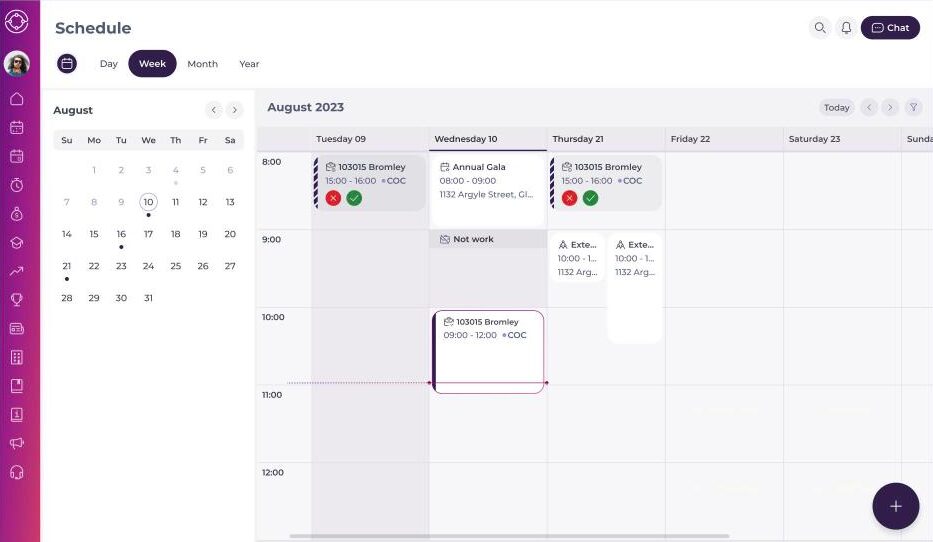
The schedule represents your daily work agenda, which you can customise with the Day, Week, Month or Year controls. You can also use the Calendaricon to view a specific date. When in the Month View, you can select a day (if it contains an event) to be taken to the Day View.
In the schedule, different types of events (e.g., shifts, holidays, absences) are marked with distinct visual indicators, making it easy to understand the schedule at a glance. All relevant due dates are displayed, categorized by product or project, helping employees stay on top of their responsibilities.
Learning items
Here you can find the various learning items assigned to you, such as external trainings, noticeboards, online modules, workbooks, and collections. You can track their training progress and upcoming sessions. Training sessions, whether scheduled or unscheduled, are listed in the Scheduler.
Each learning item is distinguished by a different icon, and you’ll be able to see the statuses, times, and other details related to each of them.


Career items
Track career activities assigned to you, such as appraisals, competencies, and goals. Each career item is distinguished by a different icon, and you’ll be able to see the statuses, times, and other details related to each of them.


Company items
Company items allow you to see incomplete, complete, and overdue performance surveys within the company.

Events
Events you accept appear in your schedule in the Day, Week, Month and Year views, alongside your shifts, absences and learning items. Each event shows the event name, time and location.
- Select an event to open the event page.
Note: Events you have not responded to, or have declined, do not appear in your schedule. To respond to an event, see View events and respond to invitations in Mapal One.
Shift & Absences
Employees can manage absences and shifts within the scheduler:
Notes: The shift and holiday information you see depends on the settings configured for your organisation in Workforce, including visibility rules and previous-year holiday settings. If Shifts or Holidays are disabled for you, the related information and actions are removed, though the rest of your schedule remains visible.
- Holidays & Absences: Allows employees to view their assigned holidays and submit time-off requests, helping with vacation planning and ensuring appropriate staffing levels. View and manage holidays, IT absences, and other leave requests with options such as Preference, Mark as Viewed, and Viewed.
- Shifts: Employees can easily view their assigned shifts, submit shift requests, and manage shift proposals.
