


Start from: The Mapal One dashboard.
- Select Feed from the main menu.
In the Feed screen, you will identify the latest items of interest across the company divided into different channels, such as news posts, forums, reviews, recognitions, and publications around custom topics, such as company areas, events, among others.
To see company events and respond to them, select the Events channel. See View events and respond to invitations in Mapal One.
- To find a news item, select the specific Channel you want to consult, for example, Latest posts.
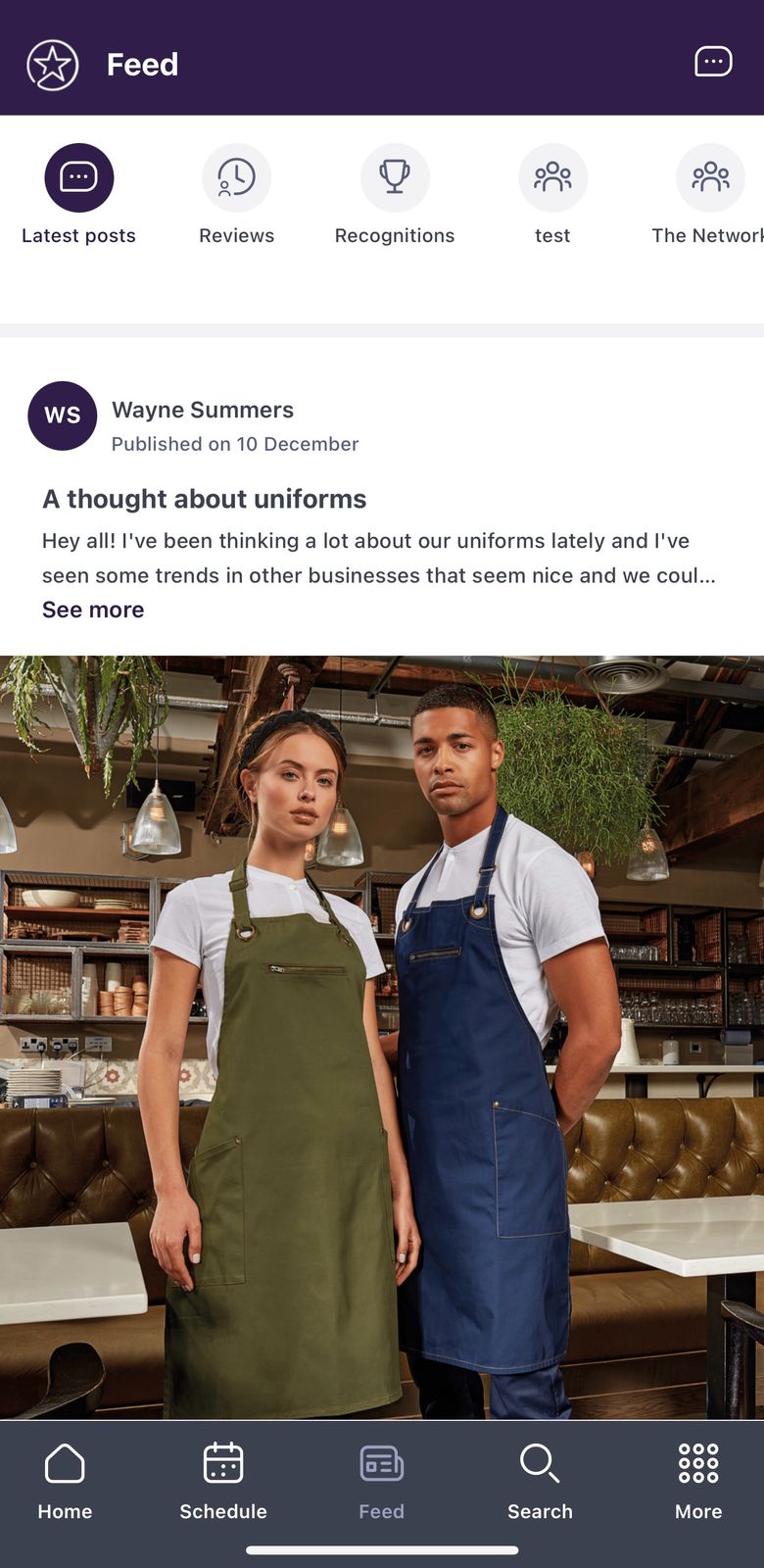
- You will see a feed with all the publications of that channel organized chronologically from newest (top) to oldest (bottom).
- Select See more on the specific news item you want to consult to see the full details of the publication.
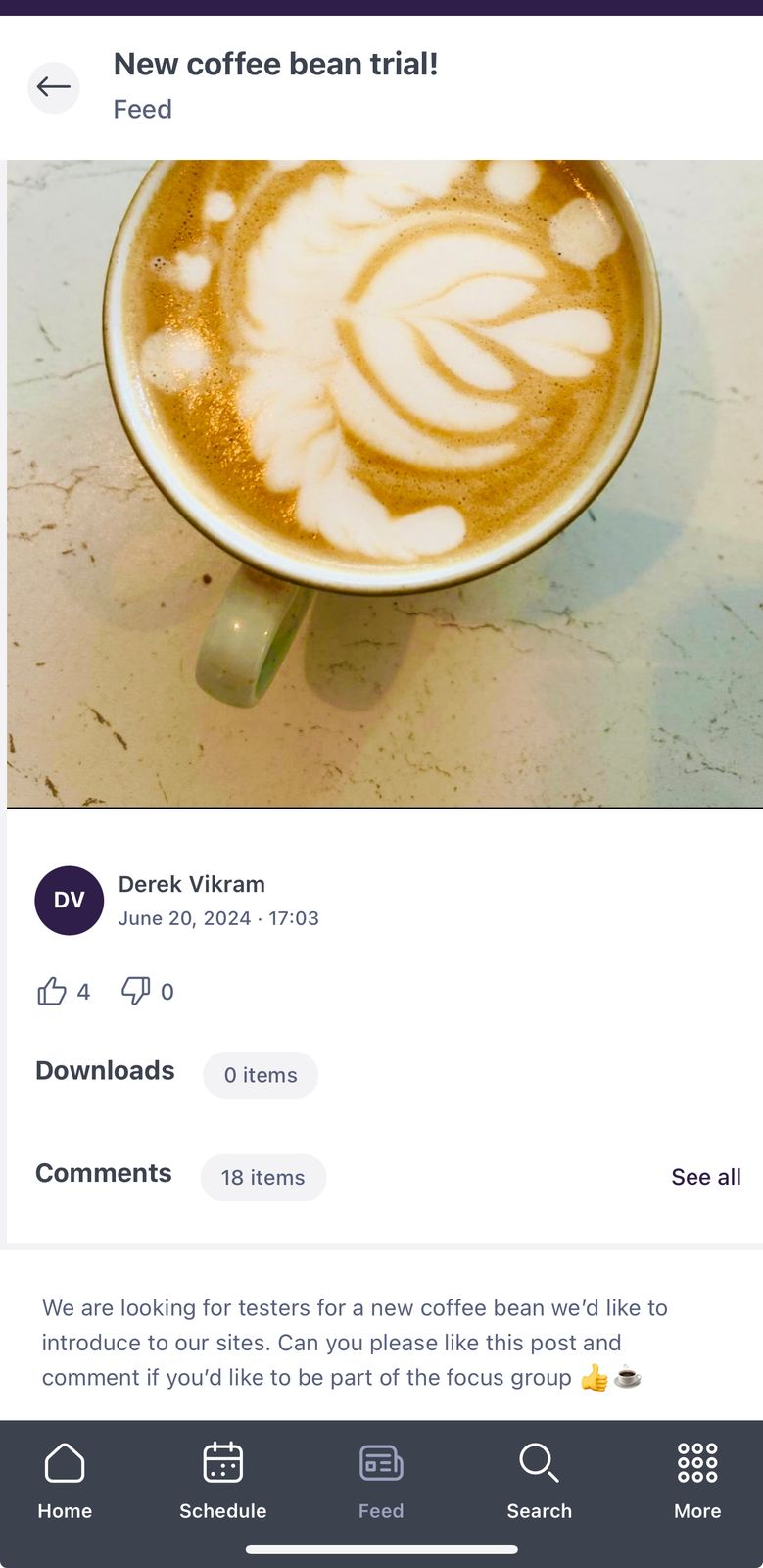
- Once inside the news item, you can:
- Post Comments on the item. You can use emojis, GIFs, images, and tag colleagues.
- React to the content using the Like and Dislike buttons. You can see who has liked or disliked forum posts or news posts:
- On desktop, hover over the Like or Dislike icon and click See all to view the full list.
- On mobile, perform a long press to view the list.
Notes: Comments and interactions may be disabled for some posts, depending on their configuration.
- Use the I’ve read this communication button to confirm you have gotten the information.
- Download attached documents.
- You can also Flag comments by selecting the three dots (...) menu and pressing Flag.
Note: Flagged comments appear to Engagement admins with the Can moderate reported messages permission. They decide whether to remove the flag or delete the comment/post.
