Start from: the Engagement dashboard
- Navigate to Chat > Reported messages.
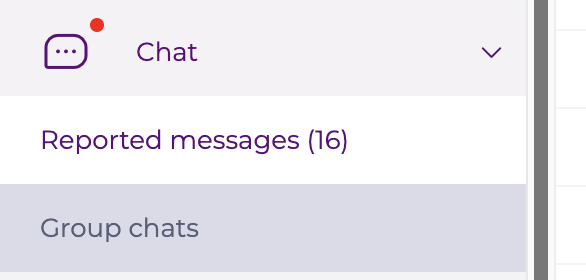
- The number of pending reported messages appears next to the menu name in brackets, helping you easily identify when new action is needed. A dot also appears on the chat icon to indicate when there are pending items to review.
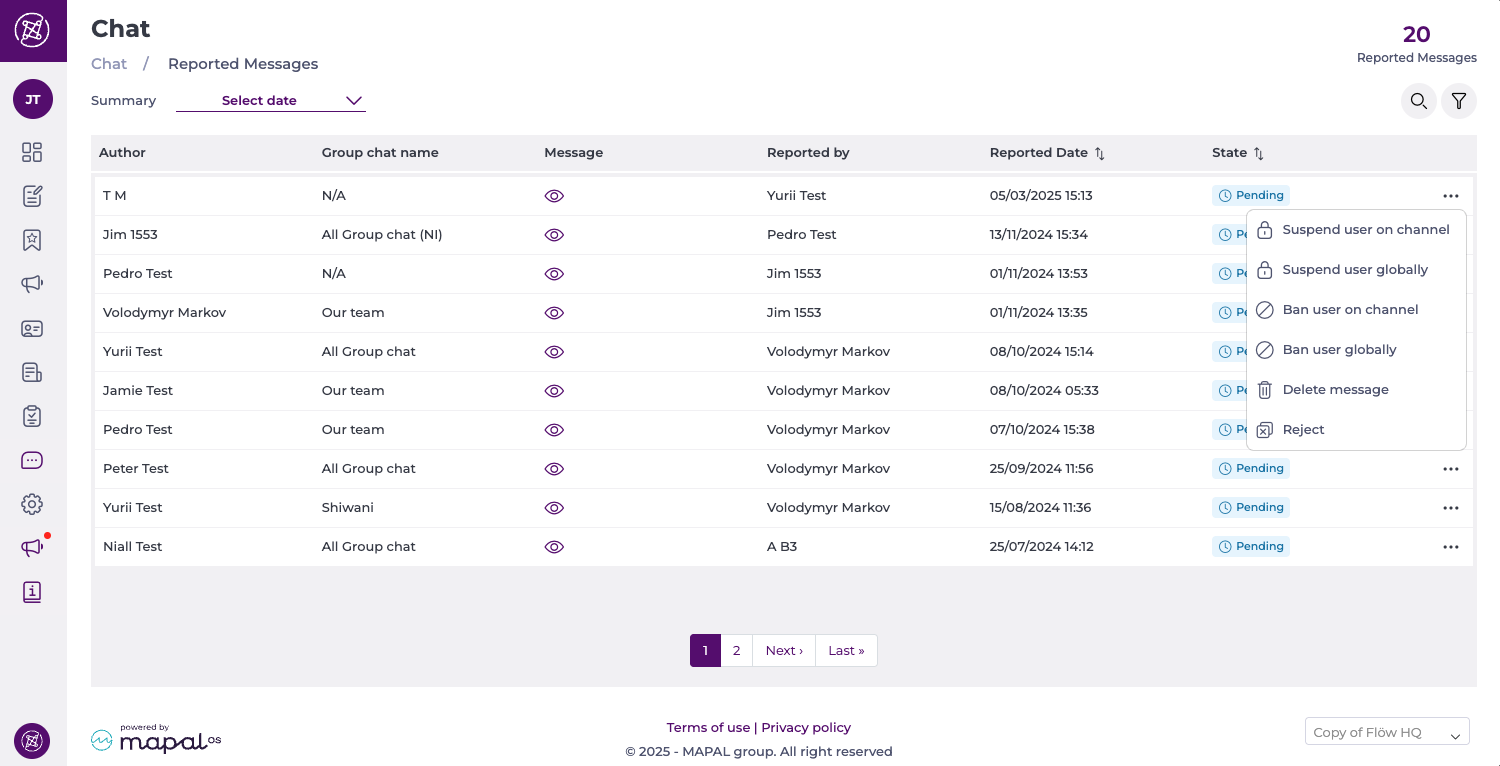
- Each report in the grid includes:
- Author: shows who sent the reported message.
- Group chat name: displays the name of the chat or group where the message was posted (for example, Our team or All Group chat).
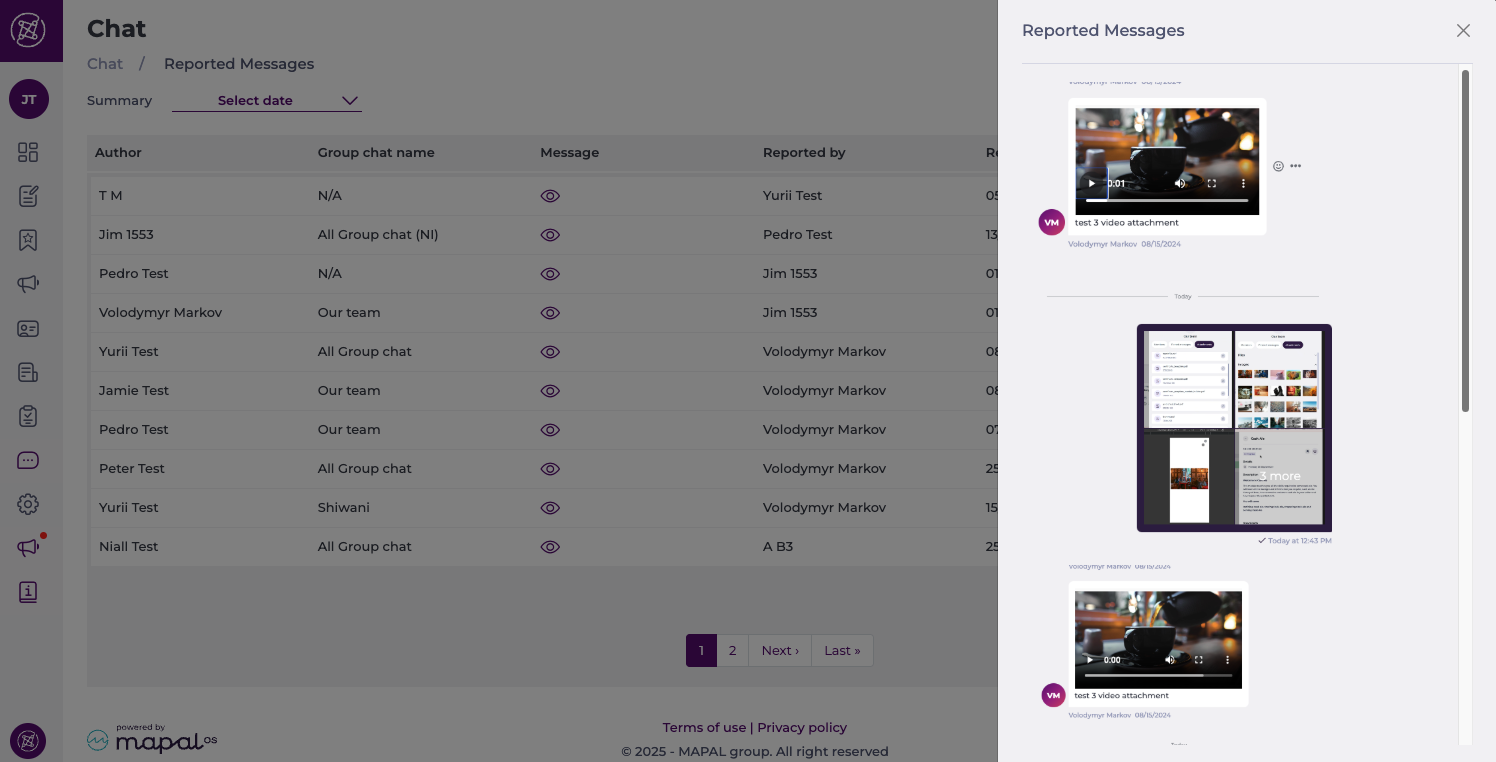
- Message: includes a preview of the reported content. Select the eye icon to open the full message, including any attached images.
- Reported text or images: appear in the Message column.
- Reported voice notes: appear in a dedicated Reported voice notes section.
- Reported by: indicates who flagged the message as inappropriate.
- Reported date: shows when the message was reported.
- State: displays the current moderation status, such as Pending, Reviewed, Rejected, Deleted, or Suspended.
- Select the Action menu (three dots) in the message's row to take various types of actions:
- Suspend the user on channel: This will disable the user from using the channel for 24 hours; hover over the suspended status tag to find out when the suspension is due to end.
- Suspend user globally: This will disable the user from using the system for 24 hours; hover over the suspended status tag to find out when the suspension is due to end.
- Ban user on channel: This will permanently ban the user from the channel. You can Remove the channel ban later.
- Ban user globally: This will permanently ban the user from the system. You can Remove the global ban later.
- Delete message: This will remove the message from the users’ view, but it will stay on the system for managers to view.
- Reject: The flagging is rejected. This is mostly used when the message was flagged by mistake or does not break any rule.
Note: Only Engagement admins with the Can moderate reported messages permission can access the Reported messages page and take moderation actions. This permission does not require full Level 0 access, making it suitable for local or regional moderators.