


Start from: the Engagement dashboard.
The Group chats feature allows users to create and maintain group chats across the business from within the Engagement platform. For managers, it means there’s no admin necessary to add or remove users from group chats, and employees will be added and removed automatically. While group chats are managed through Engagement, employees will use the chat feature through their Mapal One accounts.
Group chats with restricted access
If an administrator with restricted access creates a group chat, it will only include users within their permitted access range. Group chats created in Mapal One are visible on the Group Chat Admin page, where administrators can view and edit members as needed.
Group chat in Mapal One
Team members can access chat through Mapal One and engage with colleagues using the following features:
- Chat one-to-one or in groups.
- React to messages with Likes and other emoji reactions.
- Find keywords in previous conversations using search.
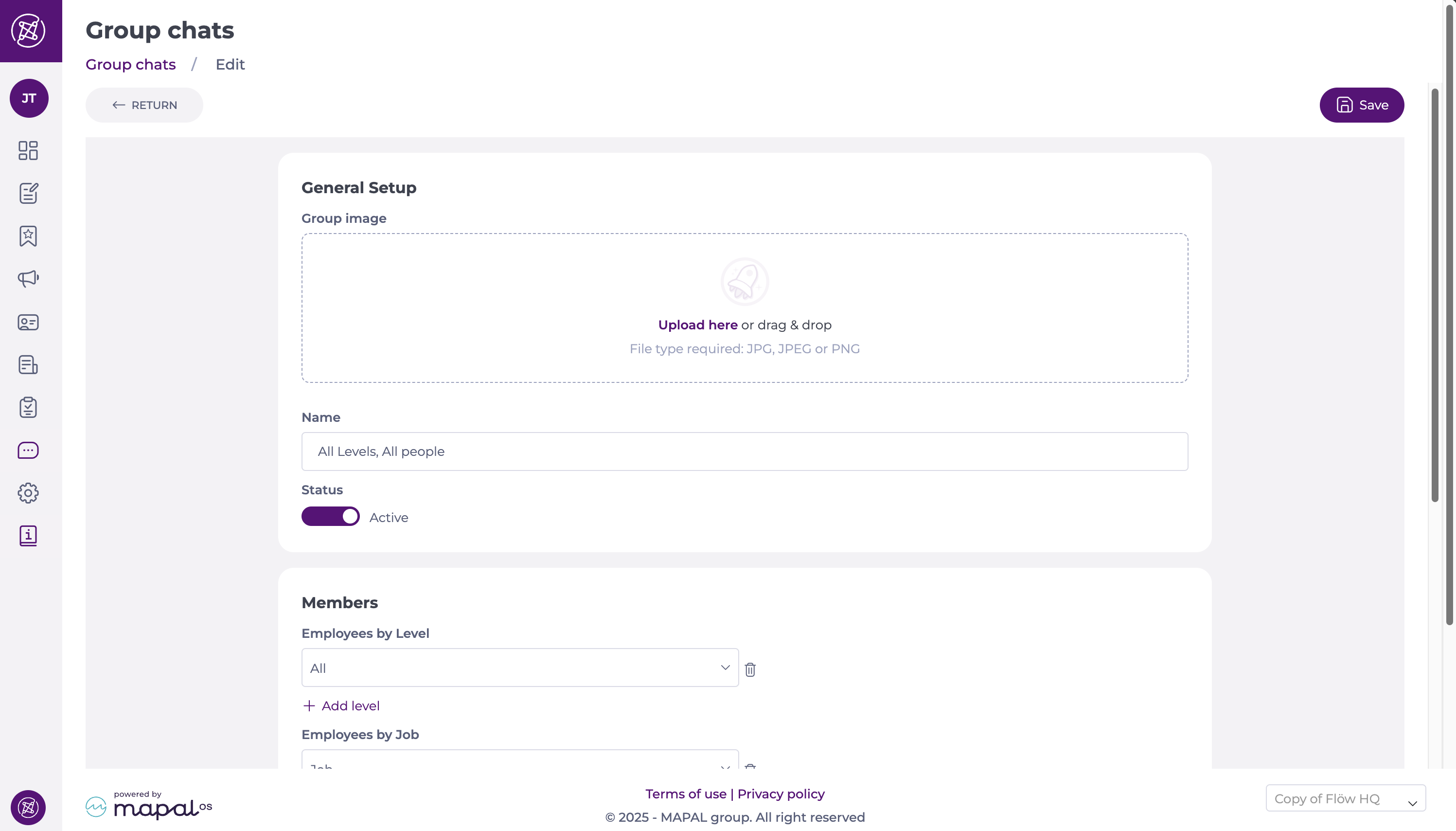
Create a group chat
- Select Chats > Group chats from the main menu.
- Select + New group.
- Enter a name for the new group chat. Select the File upload button to add a Group image for the chat.
- Toggle status to select between active and inactive - this allows you to create your group chat - and ensure it is ready - before sharing with active users.
Adding members to a chat
When selecting members, you can:
- Pick individual users directly.
- Filter by Job or Department to add groups of users. Levels are only needed if you want to filter users by their access level.
Note: At least one member must be selected to create the group chat.
- Once members are selected:
- Add administrators to manage the group chat.
- Select Save at the top right of the page to finalise.
Add or remove users from existing group chats
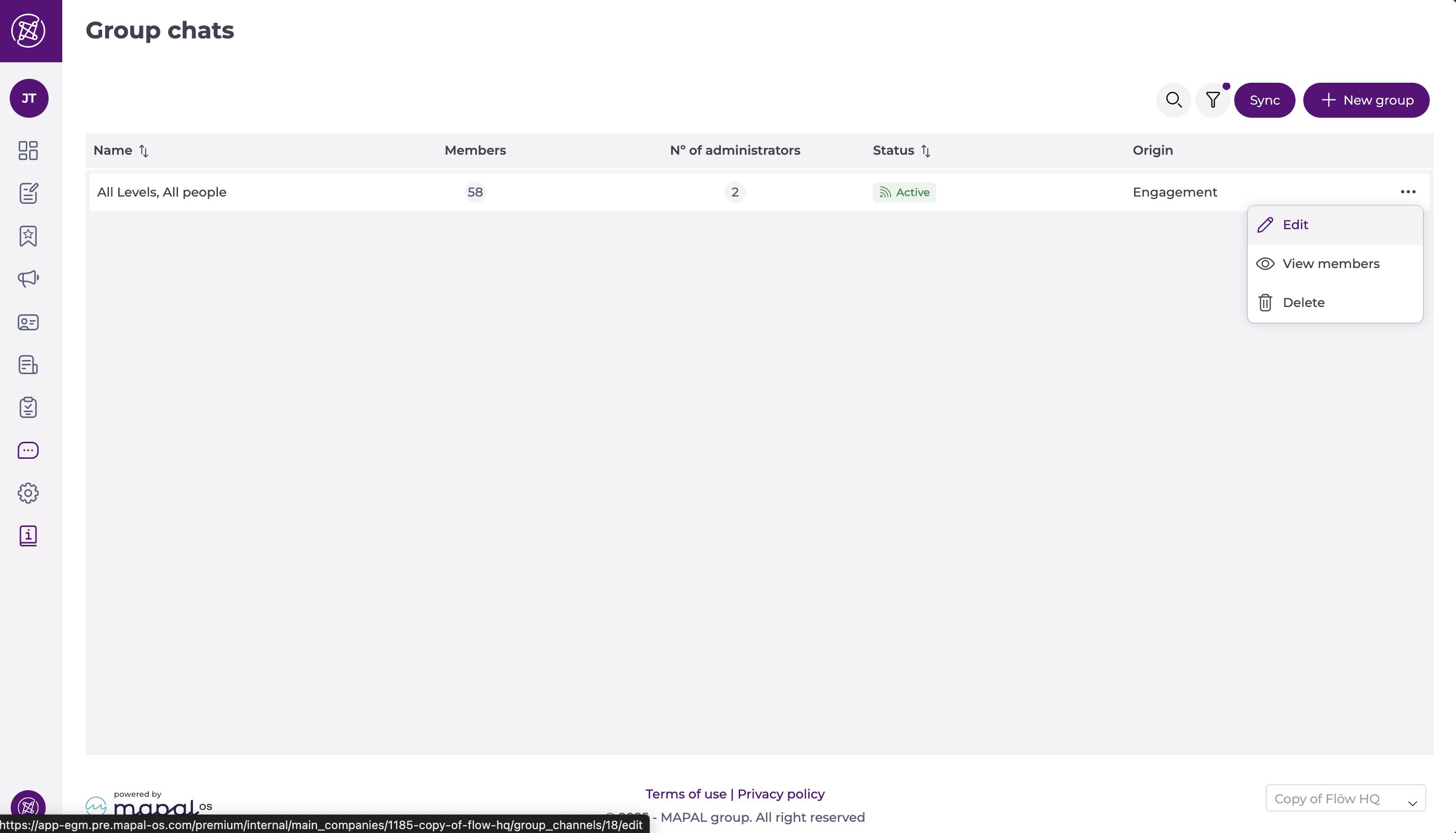
- Select the three dots next to an existing group chat.
- Select Edit.
- Add new members to the group chat in the Members section, or you can delete existing ones by clicking on the recycling bin icon next to members’ names.
Notes: You can view a detailed list of all chat members by selecting the View members option in the action menu.
Moderate group chats
Users can flag inappropriate text messages, images, GIFs, or voice notes. Flagged content is sent to the moderation queue, where admins can review and act. See Manage chat moderation for flagged messages for more information.
