


Start from: The Engagement dashboard.
- Navigate to Push surveys & polls.
- Select + Add new and then select Poll from the dropdown menu.
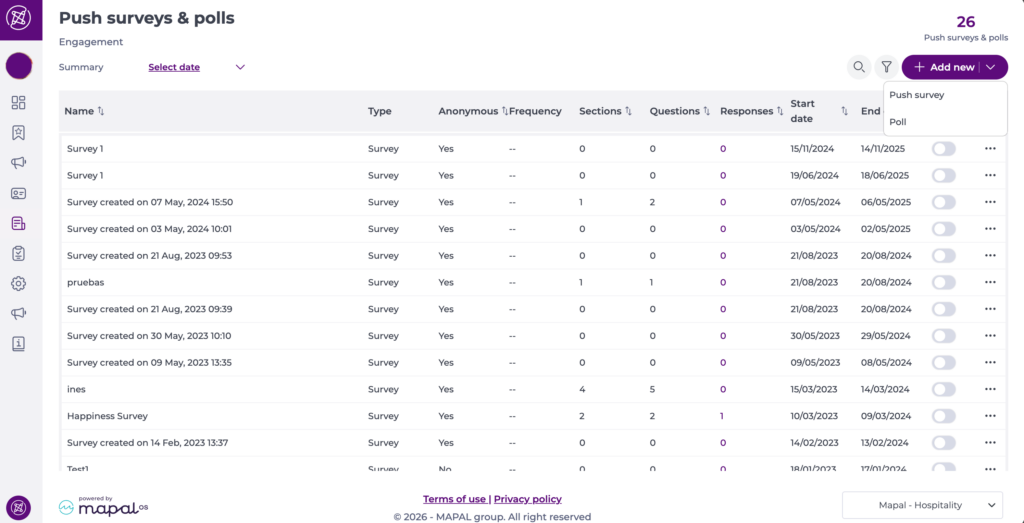
Step 1: Setup
- Enter a Name for the poll. This is required.
- Optionally, add a Description and upload a Cover image (JPG, JPEG, or PNG).
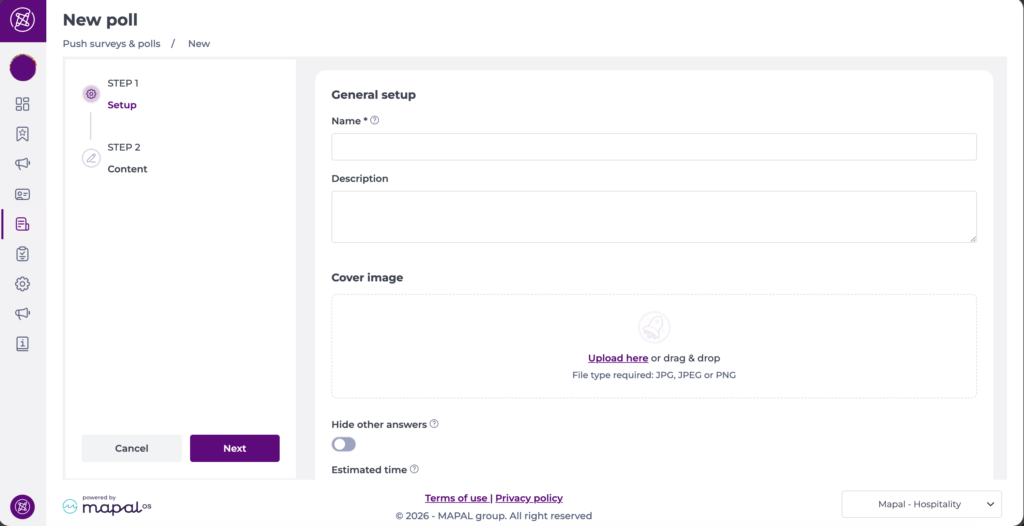
- Enable Hide other answers if you want to prevent employees from seeing other responses before submitting their own.
- Set an Estimated time in minutes to indicate how long the poll takes to complete.
- Under Timing, set a Start date and End date to define the period in which the poll will be active.
- Under Notifications, enable Email or Notification Push to alert your audience when the poll goes live.
- Set a Reminder before the end date if you want employees to receive a reminder a set number of days before the poll closes.
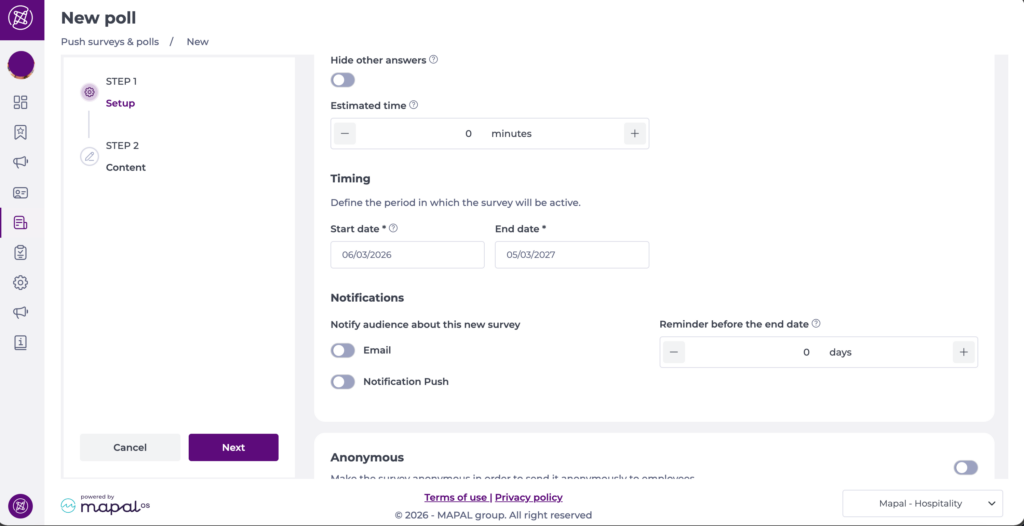
- Enable Anonymous if you want responses to be submitted anonymously.
- Under Audience, select the employees who will receive the poll. You can filter by Level, Job Title, or Department, add specific individuals in Additional employees, or upload a list using File upload.
Note: At least one Employees by Level value is required before you can proceed.
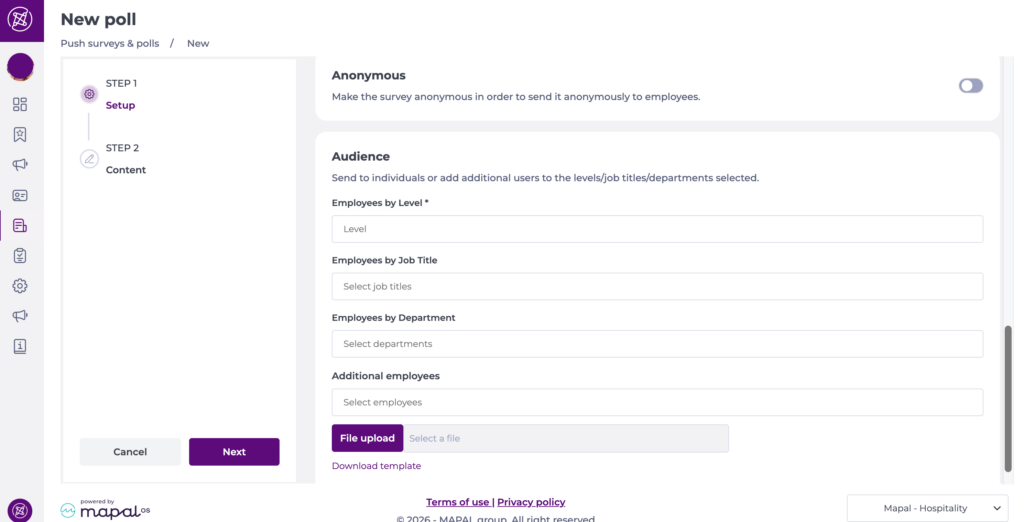
- Select Next to move to Step 2: Content.
Step 2: Content
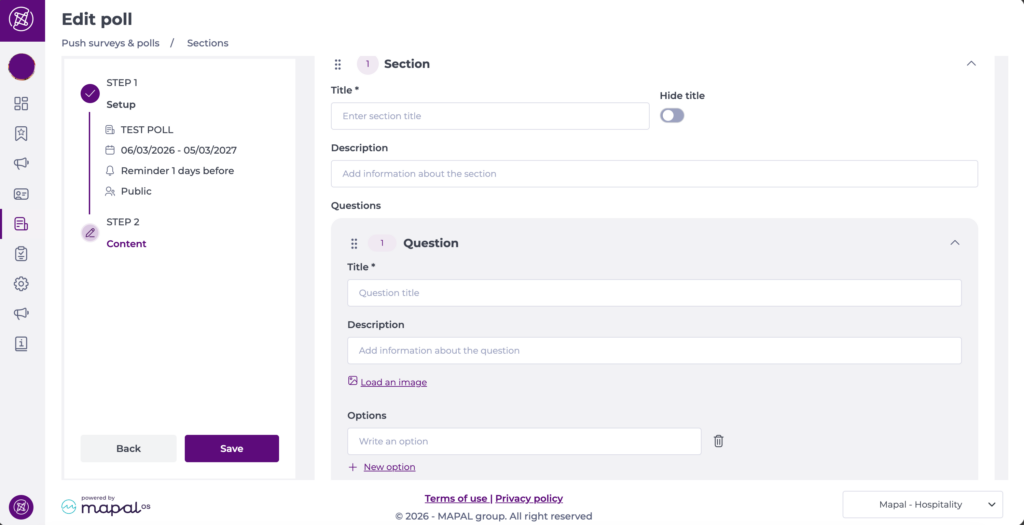
- Enter a Title for the section and, optionally, a Description. Toggle Hide title if you do not want the section title to be visible to respondents.
- Under Questions, enter the Title of your poll question and an optional Description.
- Select Load an image to attach an image to the question if needed.
- Under Options, enter the answer choices. Select + New option to add additional options.
- Select Save to publish the poll.
Note: A poll supports exactly one question. If you need to collect responses to multiple questions, create a push survey instead.
