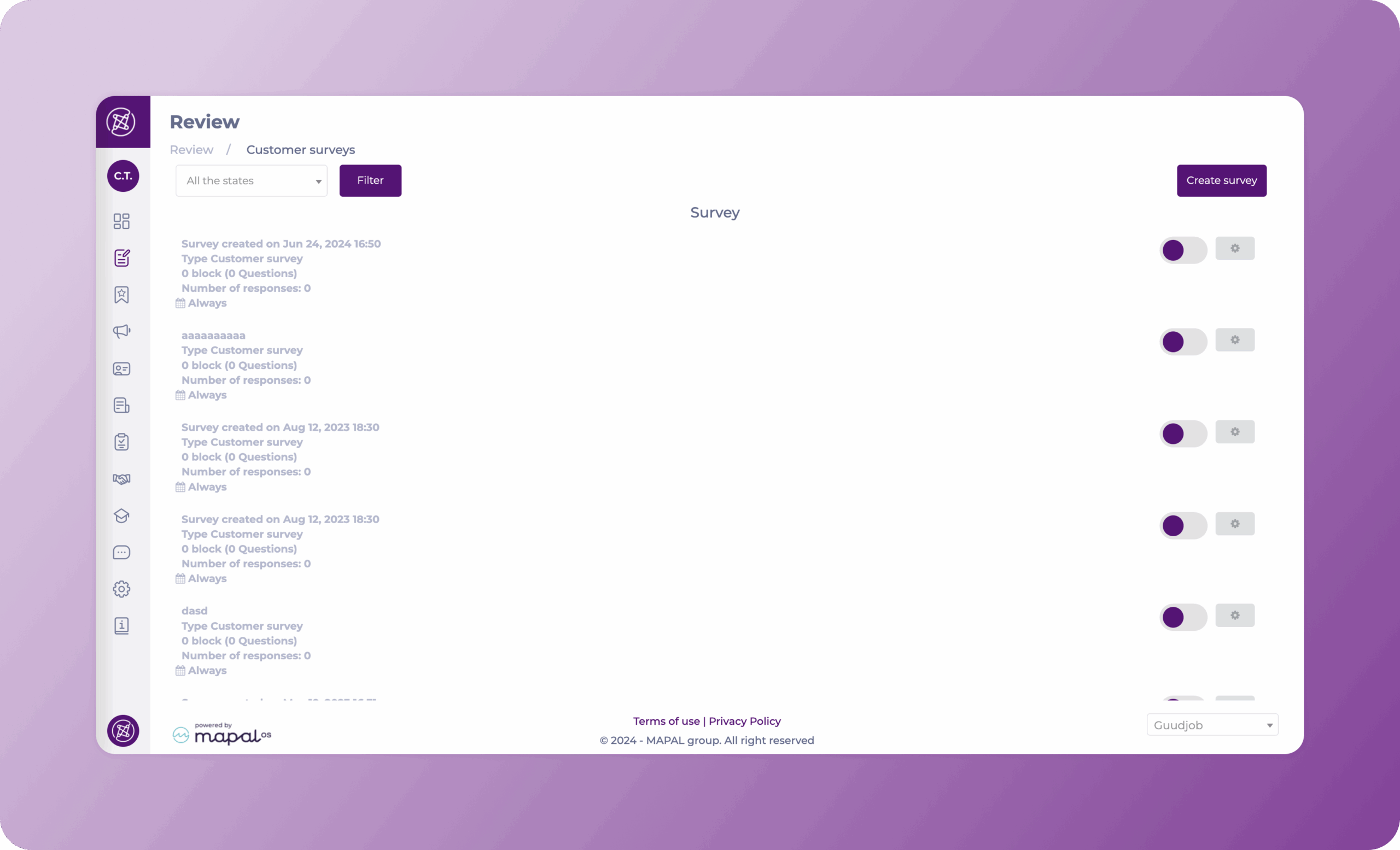
Start from: The Engagement dashboard.
- Navigate to Review > Customer Survey.
- Select Create Survey.
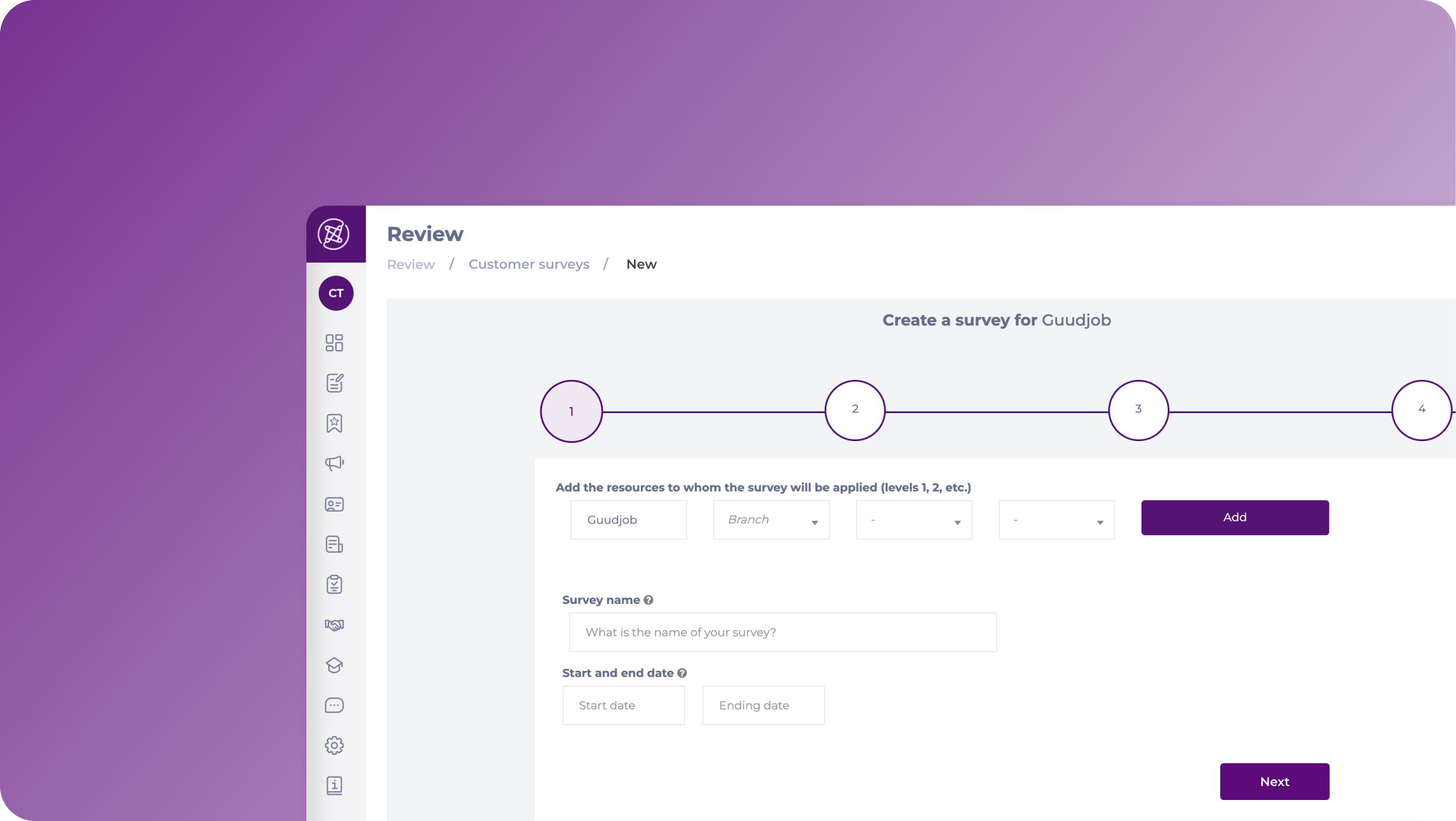
The Create a survey page appear. Here, you will need to complete 4 steps:
Step 1
The first step is where all the general settings are placed.
- Add the resources to whom the survey will be applied, these could be branches, sections, etc.
- Assign a Survey name.
- Set a Start and End date for the survey.
- Select Next.
Step 2
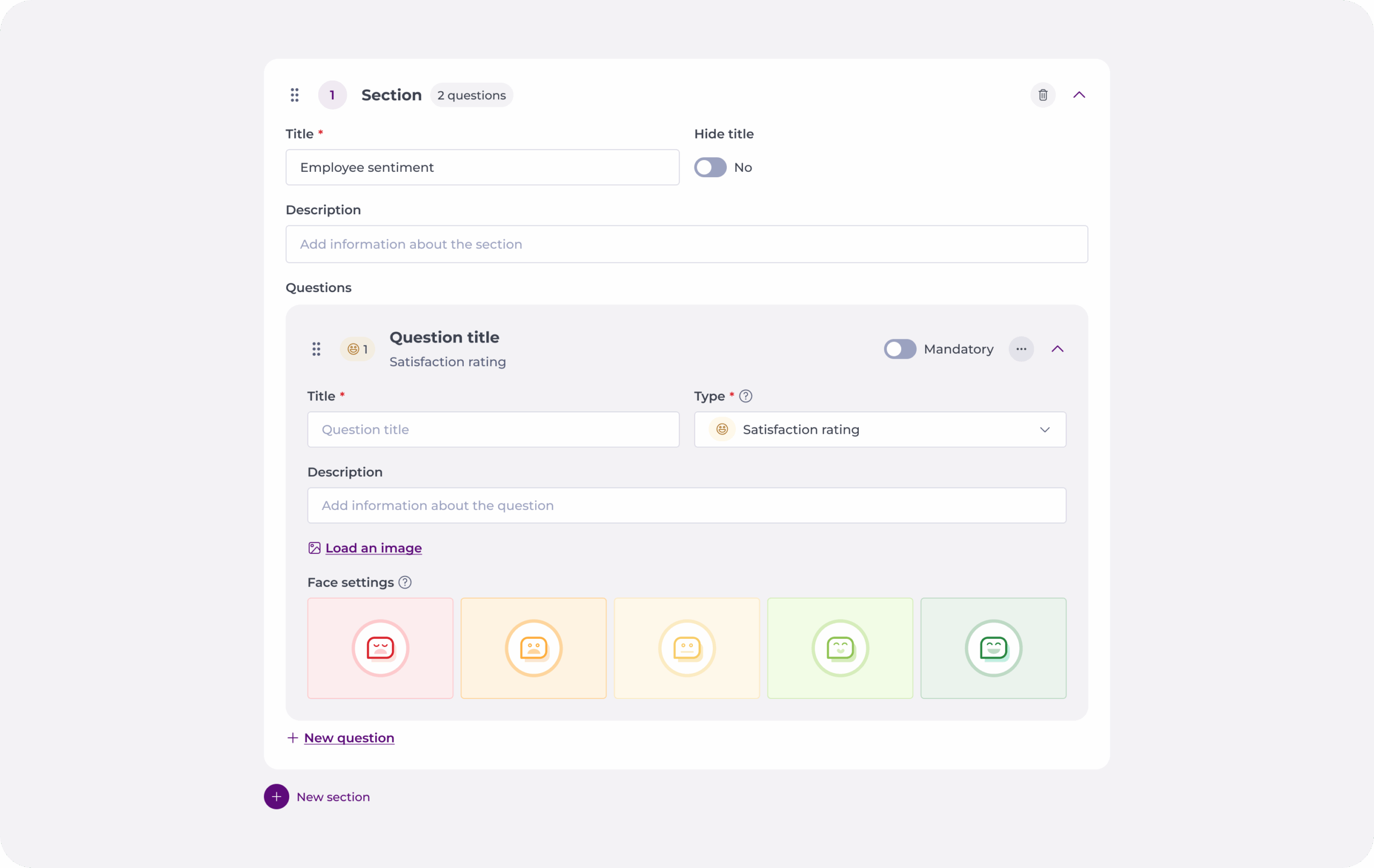
In this section, you can configure the blocks and sections for the survey.
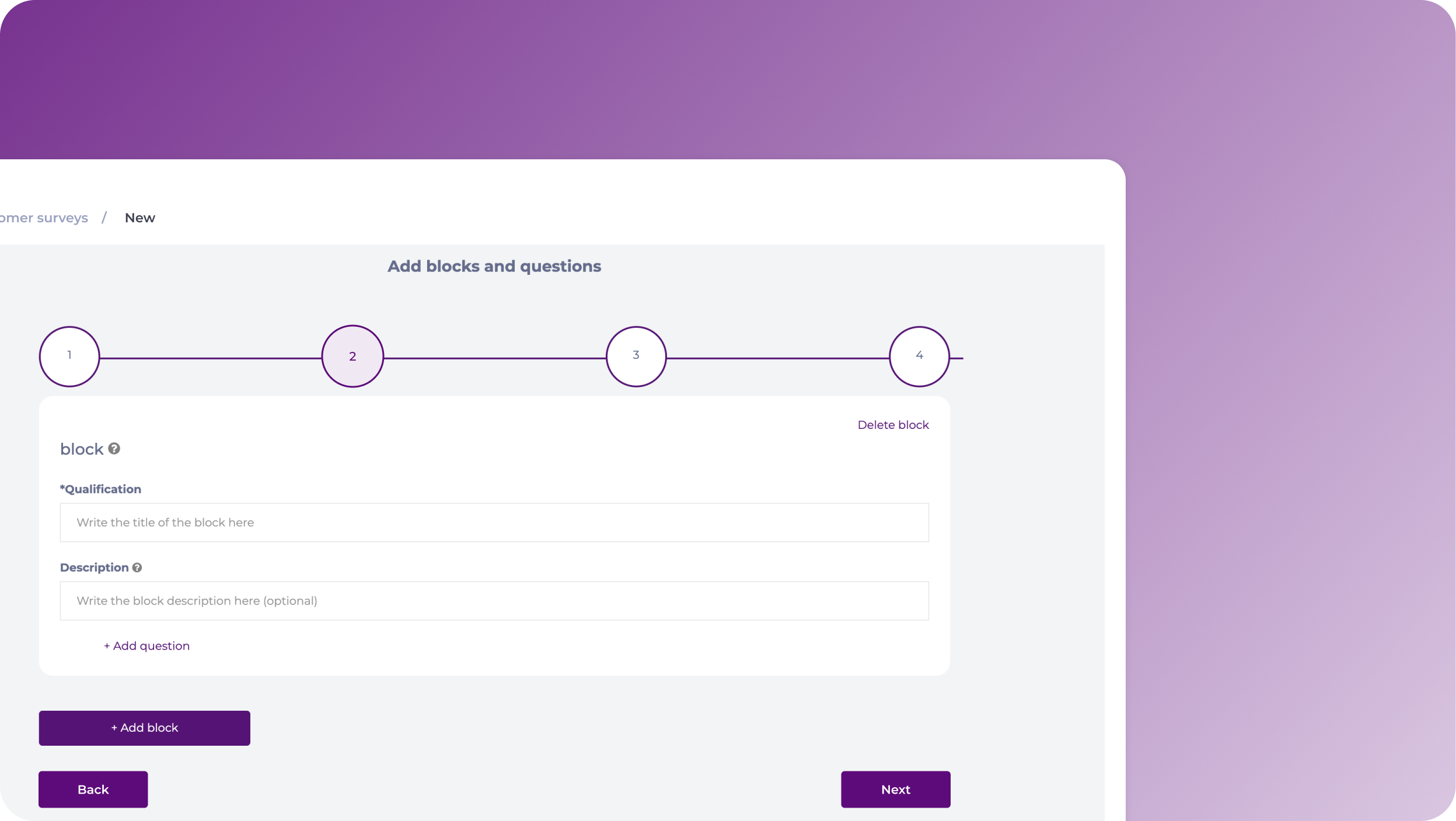
- Add a Title and a Description to your block.
- Select + Add question to start creating the questions under that block.
- For the questions, you will need to set:
- Title
- Description
- Question Type
- Is it Mandatory?
- Picture (optional)
- Once you finish configuring the question, you can select + Add question to create more questions under that block, or + Add block to create a new block with different questions.
Notes: You can use the Delete block and Delete question buttons to remove elements.
- When the configuration of questions and blocks is completed, select Next.
Step 3
In this section, you can preview your survey and check its functionality.
If the questions and block are configured correctly, you can press Next; if you want to make changes, select Previous.
Step 4
The step 4 consists of the activation of the survey. No action is needed. You will be automatically redirected to the Surveys grid, where you will be able to see your new survey.
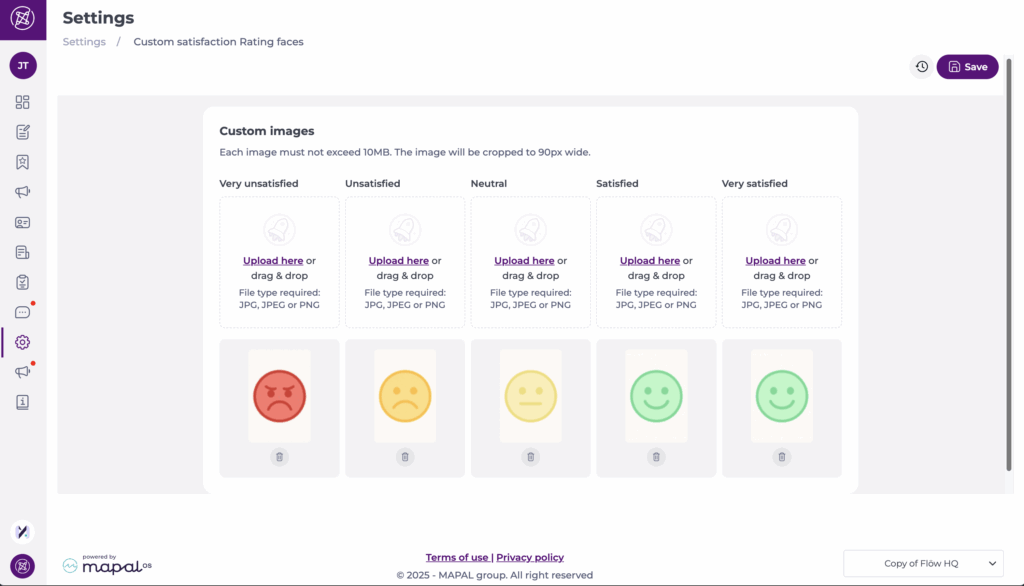
Custom satisfaction rating images
Level 0 Admins can configure custom satisfaction rating images that replace the default emoji icons when creating satisfaction rating questions in push surveys.
To set custom images:
- Navigate to Settings > Custom satisfaction Rating Images.
- Upload the images you want to use.
Notes: Each image must not exceed 10 MB. Images are automatically cropped to 90px wide.
Once uploaded, these images will apply automatically to all satisfaction rating questions in surveys.
Tip: Use consistent branded icons (e.g., stars, faces, company graphics) for a professional and recognisable customer experience.