


Start from: the Engagement Dashboard.
- Select Push Survey from the main menu.
- The Push Survey screen displays a list of all surveys.
Note: To activate a survey and notify employees, ensure the activation toggle is turned on. The appearance of this toggle may vary based on company branding.

Edit a push survey
- Select the action button (three dots) > Edit.
Note: You can only edit surveys that have not received any responses. Once a survey has responses, only Step 1 remains editable:
- Name
- Timing (End Date)
Note: Survey administrators can update the end date of a non-recurring survey even after it has been published and received responses.
- Notifications
- Anonymous toggle and field visibility
- Audience
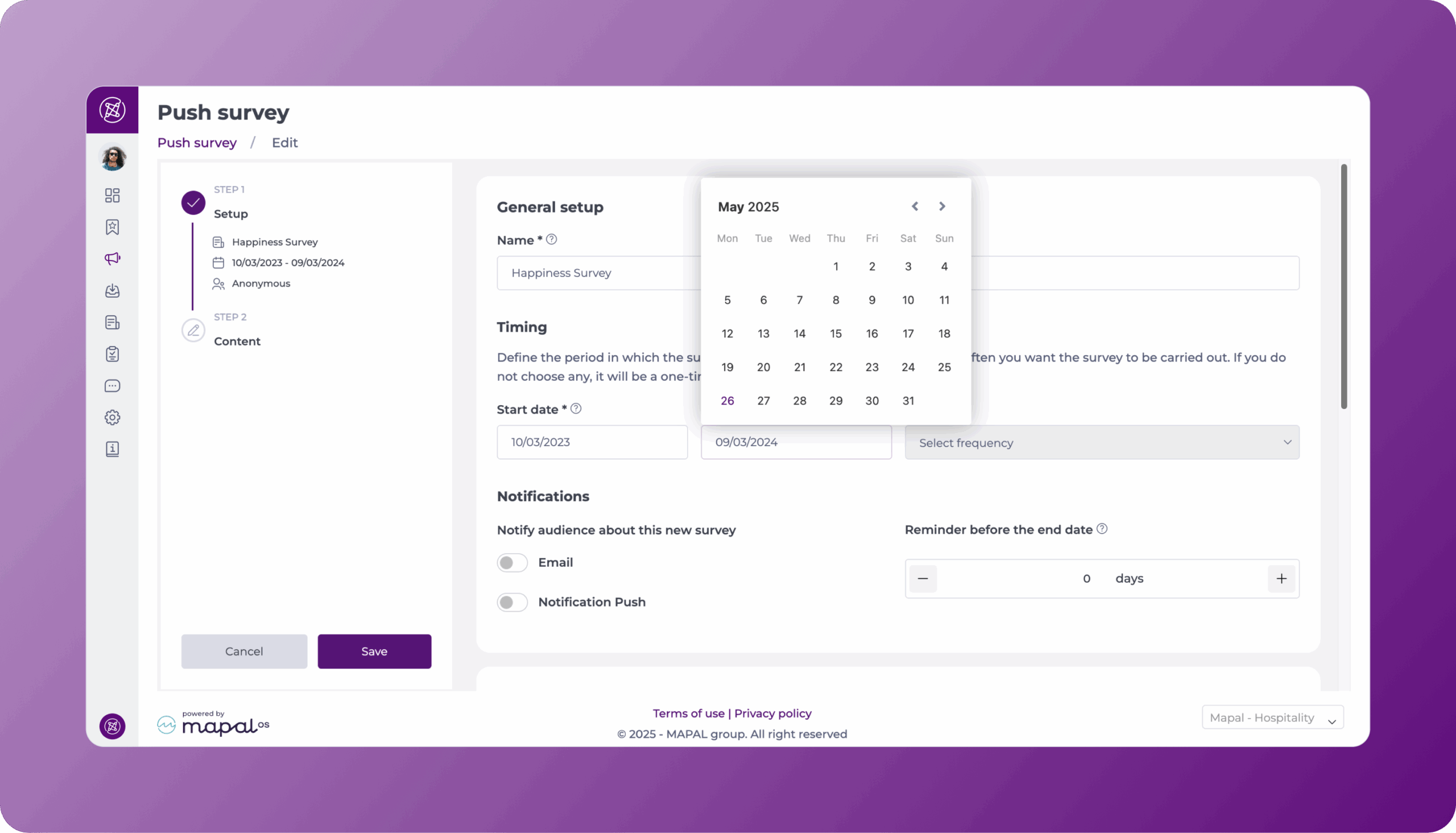
Important: The survey end date can be edited up until this date is reached, however, once the item expires, it cannot be edited or reactivated.
View the answers
- Select the action button (three dots) > See answers.
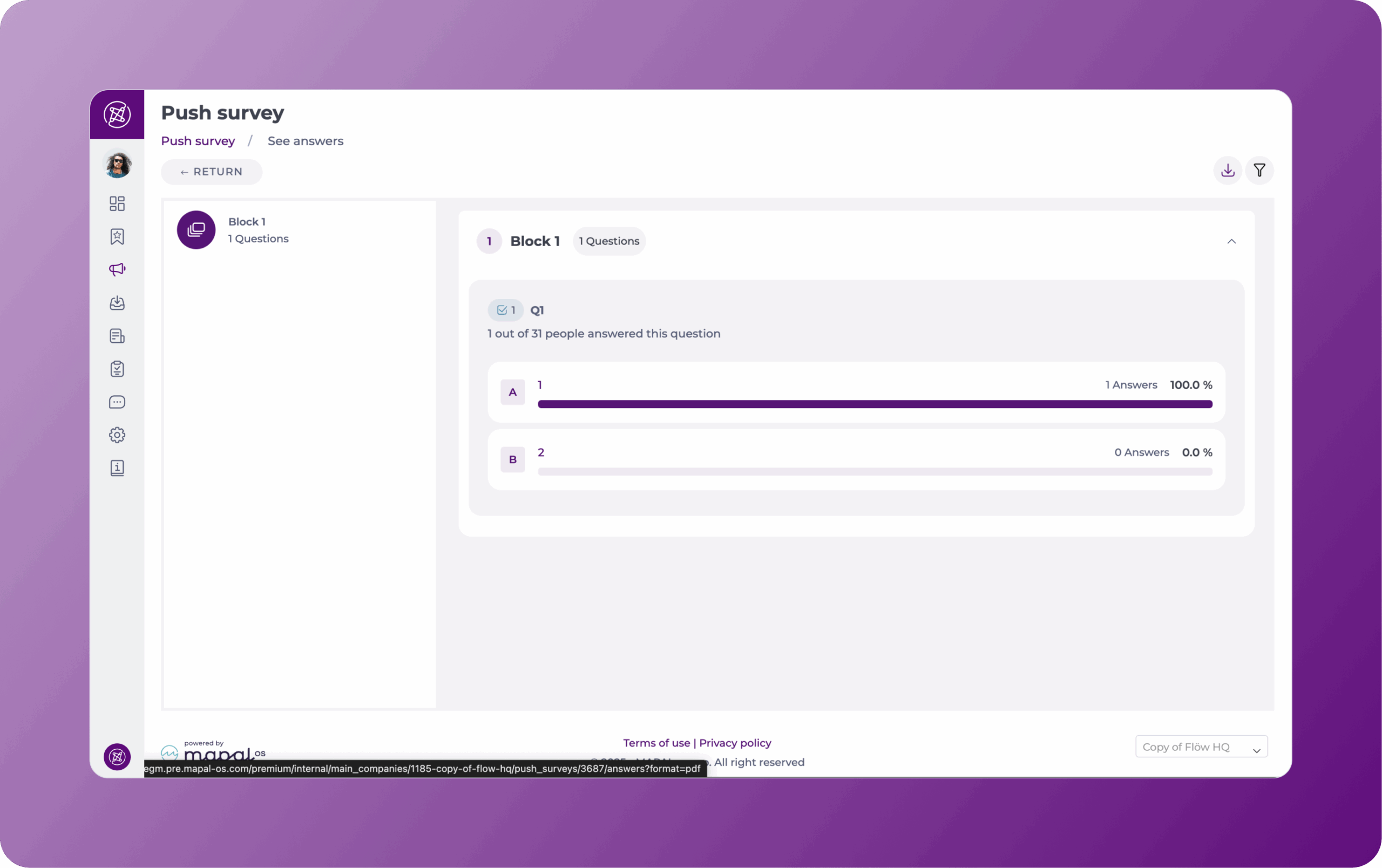
- The See Answers screen shows:
- Total number of responses.
- Summary of results per question
- For non-anonymous surveys, filter by:
- Levels (Level 1, 2, 3)
- Job Title
- Department
- For anonymous surveys, filtering depends on your field visibility settings.
Note: When creating or editing an anonymous survey, you can select which non-identifiable user fields (e.g., Job, Department, Level) will appear in the results. These will then appear as filters in this screen.

Survey response completion metrics
Completion rates for push surveys are calculated dynamically based on the number of currently active employees at the time of viewing. This means that completion metrics may update during the survey window as employees join or leave the organisation.
Notes:
- Response data is retained for historical visibility even if respondents become inactive. Survey responses remain in the system for record-keeping and analysis purposes, even after an employee's status changes.
- Because completion rates reflect the current active employee count rather than a fixed snapshot taken at launch, the percentage shown may fluctuate over the course of the survey.
View respondents
- In the Push Survey screen, locate the Responses column.
- Select the number shown in this column for the survey you want to review.
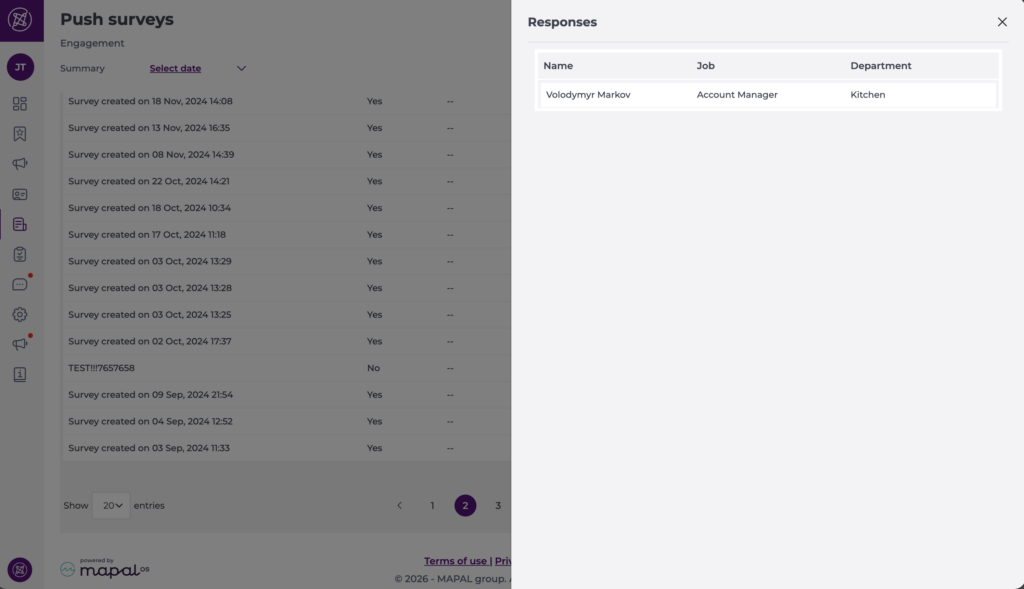
- A Respondents drawer opens, showing a list of survey respondents.
- For non-anonymous surveys, the drawer typically shows:
- Name and email of each respondent
- Completion status (e.g. Completed, Pending)
- For anonymous surveys, only the non-identifiable fields you chose as visible (such as Level, Job Title or Department) are shown. Names and emails are not displayed.
- For non-anonymous surveys, the drawer typically shows:
This drawer lets you quickly review who has responded without downloading any files.
Export answers
Export to your email
- Select the action button (three dots) > Download.
- You will receive the results via email.

Export in PDF
- Select the action button (three dots) > See answers.
- Select the Export button.
- The results will be downloaded to your device in PDF.
Survey detail export (CSV)
For deeper analysis, you can export a detailed CSV file that provides a structured view of responses.
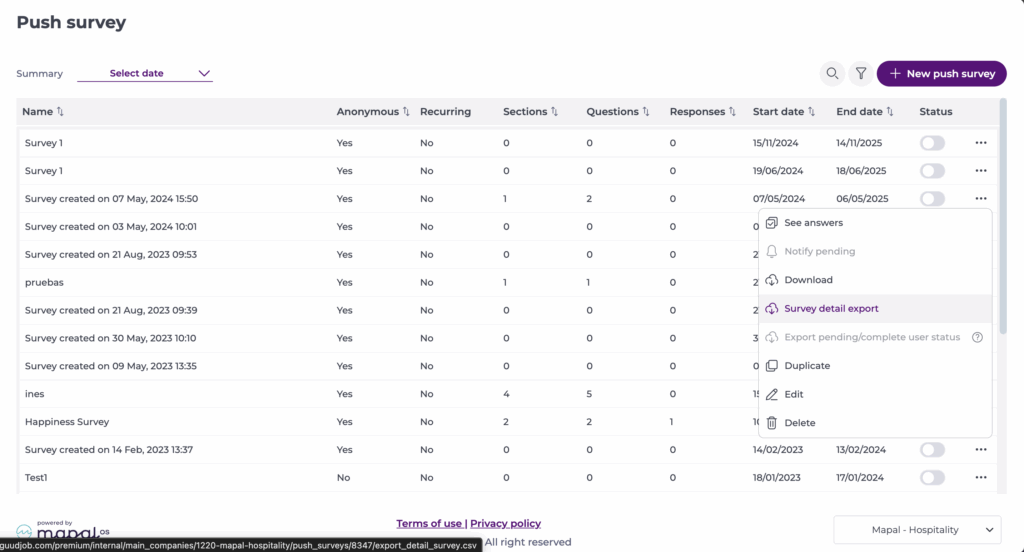
- Select the action button (three dots) > Survey detail export.
This export includes:
- Question-level data for each response.
- Question text and section information.
- Selected options and corresponding values.
- User-related fields where applicable.
The resulting CSV can be opened in spreadsheet or BI tools to perform more advanced analysis, comparisons, and reporting.
Export survey status per user
- Select the action button (three dots) > Export pending / complete user status
- You will receive a report via email, with the following columns:
- Email address
- Employee name
- Level 1
- Level 2
- Level 3
- Job
- Department
- Completed survey (Y/N)
Filtering and sorting
Use the filtering functionalities to refine your view and export information orderly.
- Sort by: You can sort surveys by most fields, including name, number of sections, questions, responses, start date, and end date. Sort by selecting the field - you should see the icon turn to an "up" arrow.
- Filter by Status (Active, Inactive, or Scheduled): Select the filter icon and choose the status from the dropdown.
- Filter by Time: Click on Select date at the top left of the grid. You can now select a specific timeframe to order your view, such as Today, Yesterday, Last week, Last month, or a custom date range.
