


Start from: The Compliance central overview.
Manage your own access
- Navigate to My Profile.
- Select the Access Rules tab.
- In the Forms section, toggle a form on or off to control its visibility. Forms are grouped by folder; select a folder to expand it and see the forms inside.
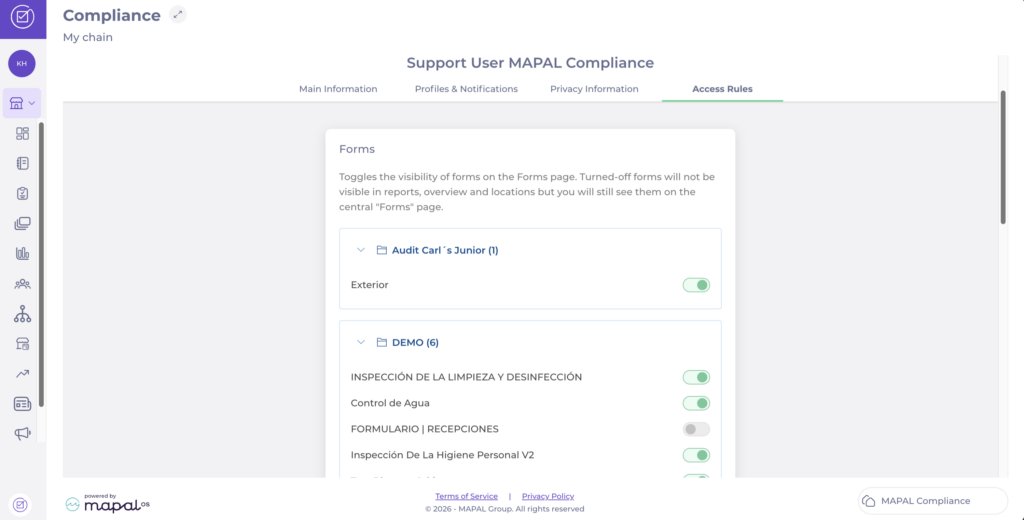
Notes: If permissions are not set up for your role, the toggles will appear greyed out and you will be unable to move them.
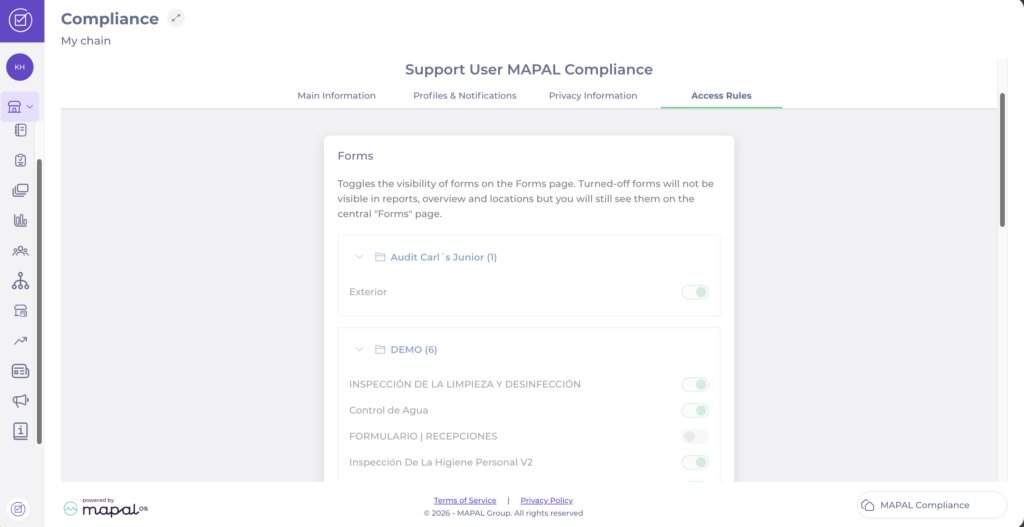
Control whether users can manage their own Access Rules
As an administrator, you can control whether users assigned to a profile are allowed to manage their own Access Rules. When this is turned off, those users can still view their assigned forms, modules, and areas/checklists, but cannot modify them.
- Navigate to People > Profiles from the main menu.
- Select the profile you want to configure. A list of permissions will open.
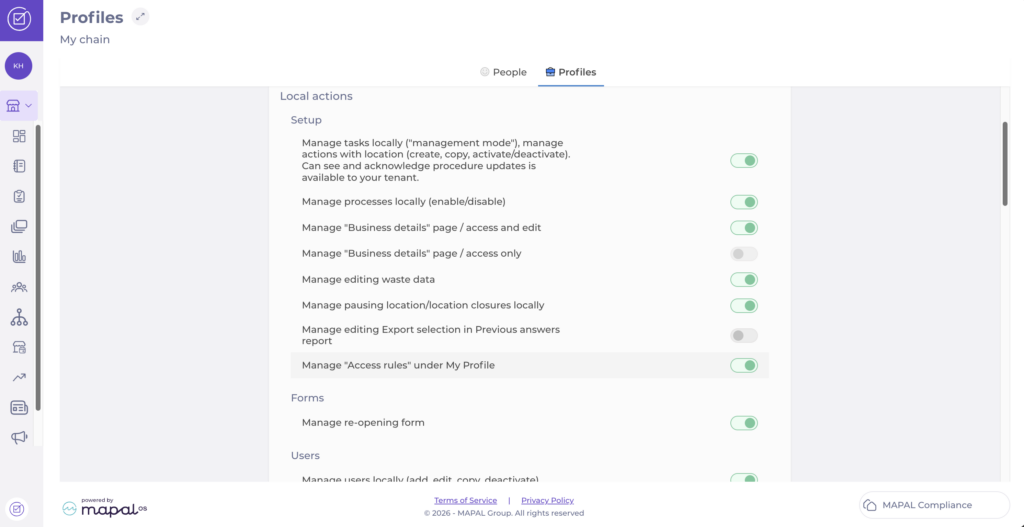
- Under Local actions > Setup, find Manage "Access rules" under My Profile.
- Toggle the setting On or Off.
- If the toggle is On, the Access Rules tab will be automatically activated for the users with the profile.
For more information about profile permissions, see Manage permissions for modules, forms and checklists.
