Start from: The ‘create task’ or 'edit task' page in an unpublished form.
It is possible to add deviations to your daily tasks and tasks in a form. It is a good way to follow up any issues and problems that may occur at your unit.
Deviations can be generated by Checkbox/button, Interval (number), and Dropdown answer types. See Create a task within a form for more information.
The different deviation types available are:
- Regular: A basic deviation flow for a direct action. Comments are optional.
- Regular, comments required: A basic deviation flow that requires the user to enter a comment for the action taken.
- Corrective: A deviation flow with a direct and corrective action. Comments are optional.
- Corrective, comments required: A deviation flow with direct and corrective action that requires the user to enter a comment for the actions taken.
- Corrective – one step, comments required: A deviation flow with direct and one-step corrective action that requires the user to enter a comment for the actions taken.
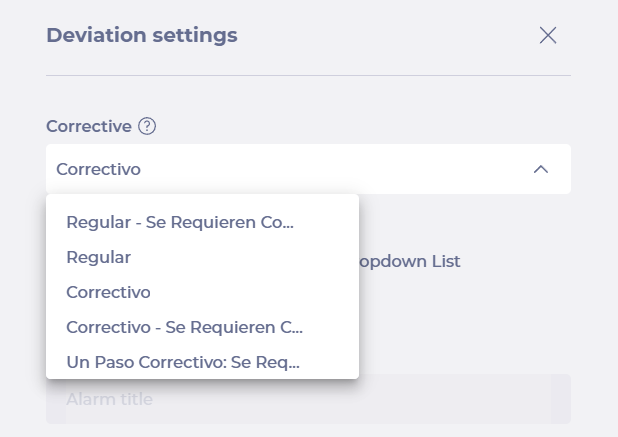
To set up deviations, see Understand deviation settings in forms.
Deviation description (multi-select)
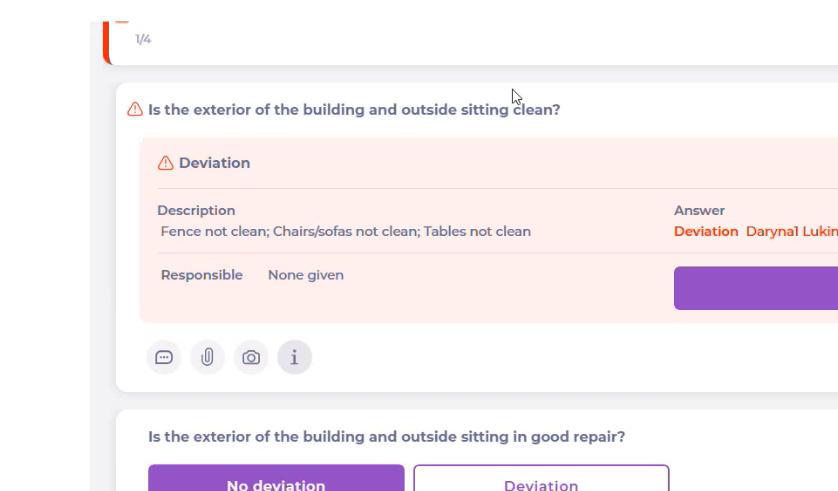
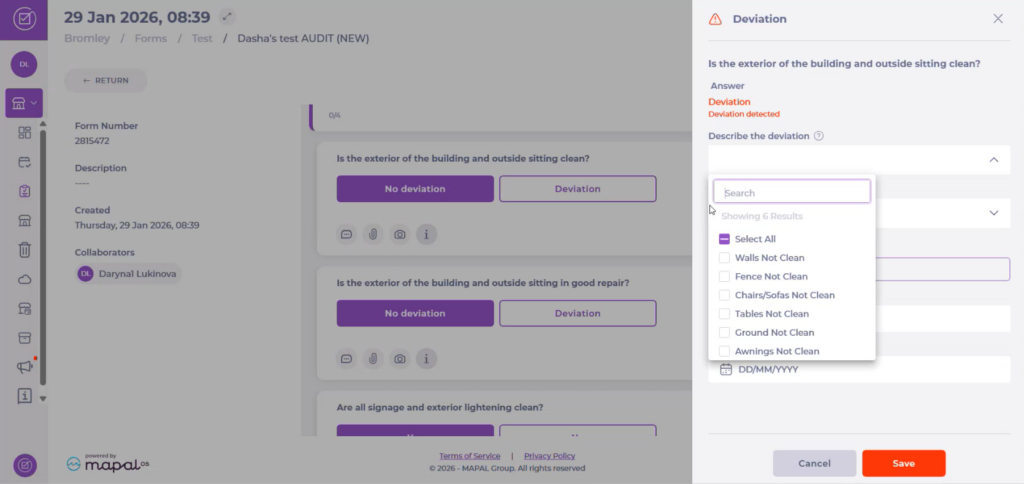
When a deviation is triggered, the Describe the deviation field can support multi-select. This means users can select more than one deviation description (for example, Walls Not Clean + Tables Not Clean) to capture the full issue in a single deviation record.
The selected values are saved together and displayed in the deviation summary.