


Start from: The Compliance overview page.
- Select Overview from the main menu.
- Select a tab at the top to switch between views: Overview, Daily Schedule, Forms, Deviations, or Attachments.
Overview tab
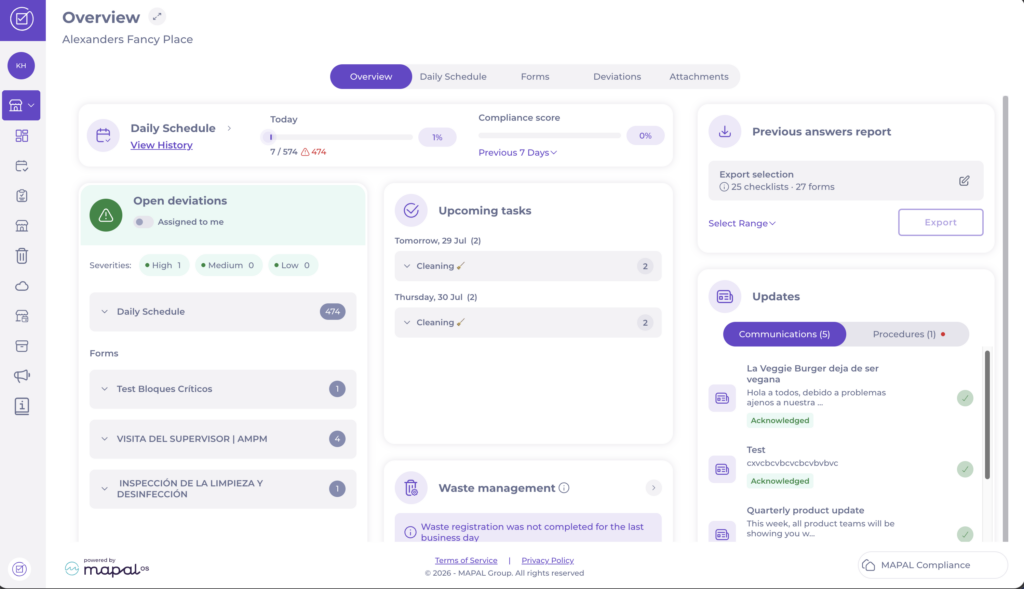
The Overview tab brings together the location's headline metrics and updates.
- Daily Schedule and Compliance score: These appear together in a single header at the top of the tab. The Daily Schedule area shows the day's progress with a completion bar, the number of tasks completed out of the total, and the number of open deviations. Select View History to see past daily schedules, or select the arrow to open the full Daily Schedule tab. The Compliance score area shows the location's overall compliance percentage, covering the Previous 7 Days by default; select the dropdown to choose a different period.
- Open deviations: Displays deviations that are currently open. Toggle Assigned to me to show only deviations assigned to you. Deviations are grouped by source, such as Daily Schedule and Forms, and broken down by severity: High, Medium, and Low. Select an entry to view further details.
- Upcoming tasks: Shows scheduled tasks that are already available to complete, grouped by their upcoming date. Each date shows the number of available tasks and can be expanded to see them. Select an upcoming date to open it in the Daily Schedule.
- Previous answers report: Lets you generate a date-specific export of historical compliance records. The Export selection shows how many checklists and forms are included; select the edit icon to refine the selection, choose a range under Select Range, then select Export. For more detail, see Download data for auditing ("Previous answers report").
- Forms: Summarises forms for the location, showing the number of Ongoing forms and Open deviations. Select the arrow to open the full Forms tab.
- Waste management: Shows the location's waste registration status. Select the information (i) icon for more detail about the card. If waste registration has not been completed, a status message indicates this, for example: "Waste registration was not completed for the last business day." Select the arrow to open the full waste view.
- Updates: Divided into two tabs, Communications and Procedures. The Communications tab shows messages and announcements. The Procedures tab provides access to procedural documents relevant to the location. In both tabs, where acknowledgement is required, an item displays a green Acknowledged status once confirmed and remains visible for 2 months.
Daily Schedule tab
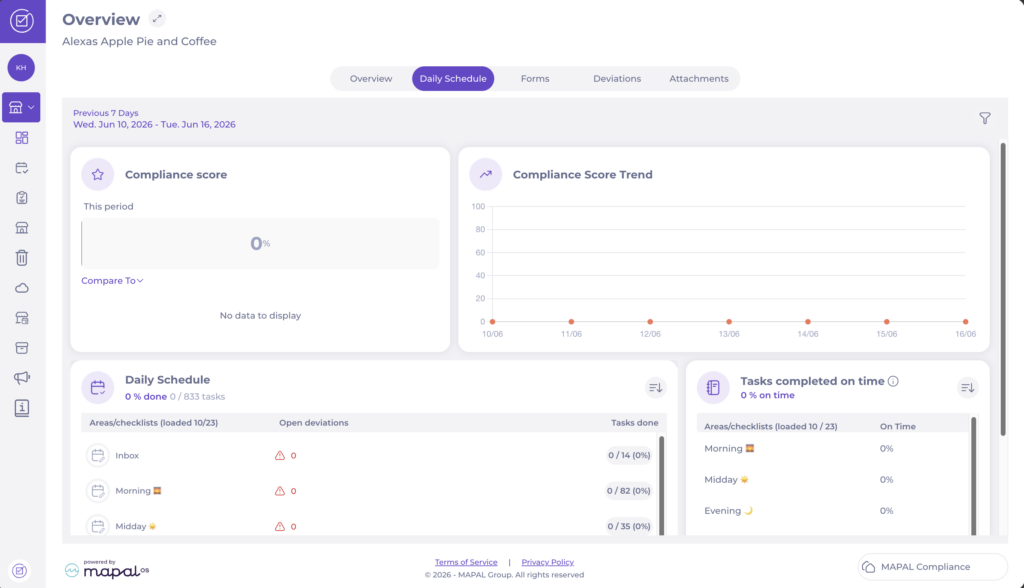
The Daily Schedule tab shows task completion and compliance for the selected period, shown at the top (for example, Previous 7 Days). Select the filter icon to adjust the view.
- Compliance score: Shows the compliance percentage for this period, with a Compare To option to compare against another period.
- Compliance Score Trend: Plots the compliance score across the days in the selected period.
- Daily Schedule: Lists areas/checklists with their open deviations and tasks done, showing the percentage completed and the number of tasks. Select the sort icon to reorder the list.
- Tasks completed on time: Shows the percentage of tasks completed on time, broken down by area/checklist. Select the sort icon to reorder the list.
Forms tab
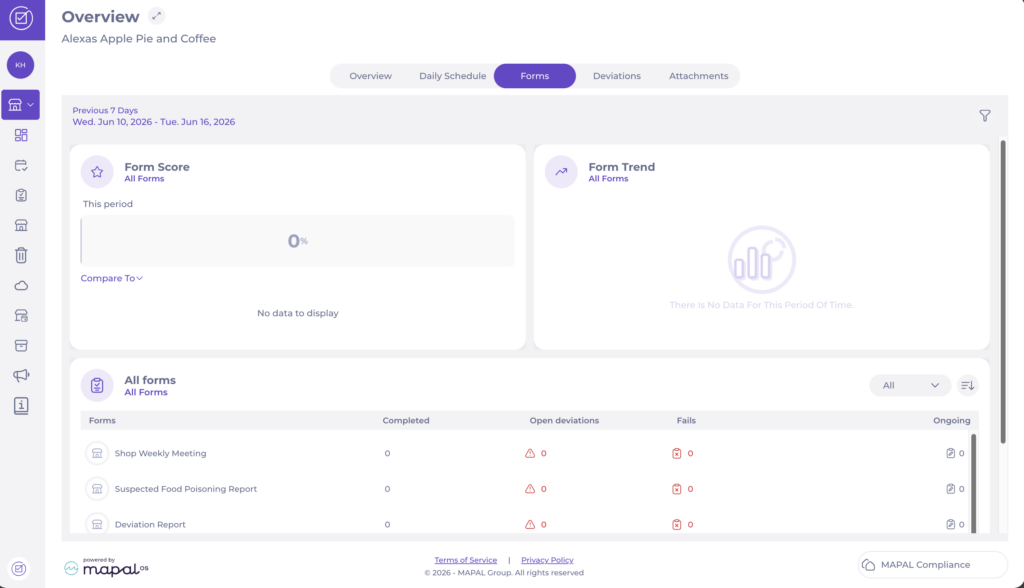
The Forms tab shows form performance for the location over the selected period.
- Form Score: Shows the score for All Forms this period, with a Compare To option.
- Form Trend: Plots the form score across the selected period.
- All forms: Lists each form with its number of Completed, Open deviations, Fails, and Ongoing instances. Select the dropdown to filter and the sort icon to reorder the list.
Deviations tab
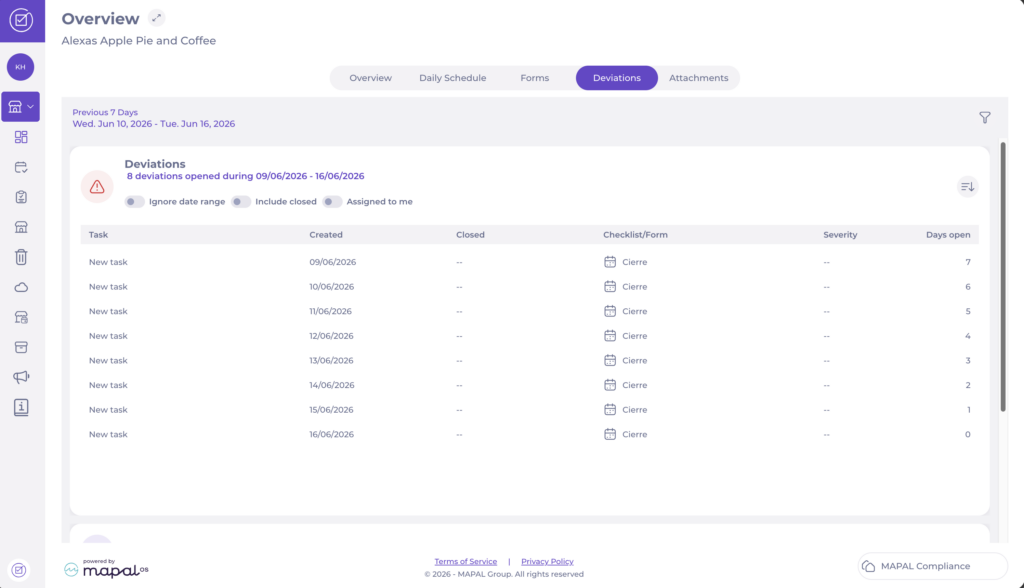
The Deviations tab lists all deviations for the location over the selected period, with a count of how many were opened in the range.
Use the toggles to change what is shown:
- Ignore date range: View all deviations regardless of date.
- Include closed: Include closed deviations in the results.
- Assigned to me: Show only deviations assigned to you.
Each row shows the Task, Created date, Closed date, Checklist/Form, Severity, and Days open. Select the sort icon to reorder the list.
Attachments tab
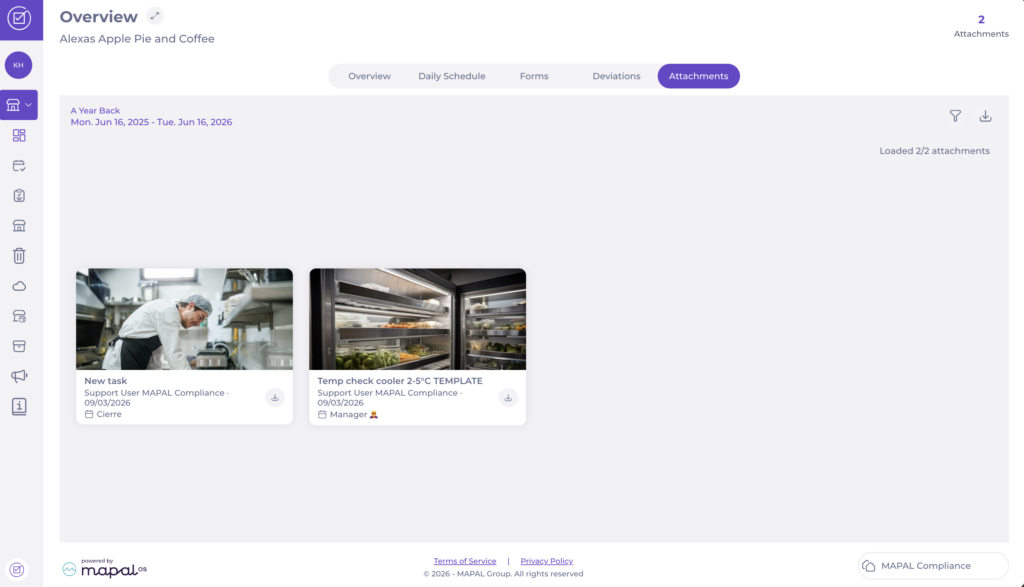
The Attachments tab provides a view of images and files added to tasks at the location over the selected period. Select the filter icon to adjust the view and the download icon to export attachments. For more information, see Moderate images and attachments on Compliance.
