


Start from: The Compliance overview page.
View a task's history
On the web:
- Select Choose a site and set your site.
- Select the Date and the desired Area/Checklist in the Area/Checklist panel on the Daily Schedule screen. This opens a task list.
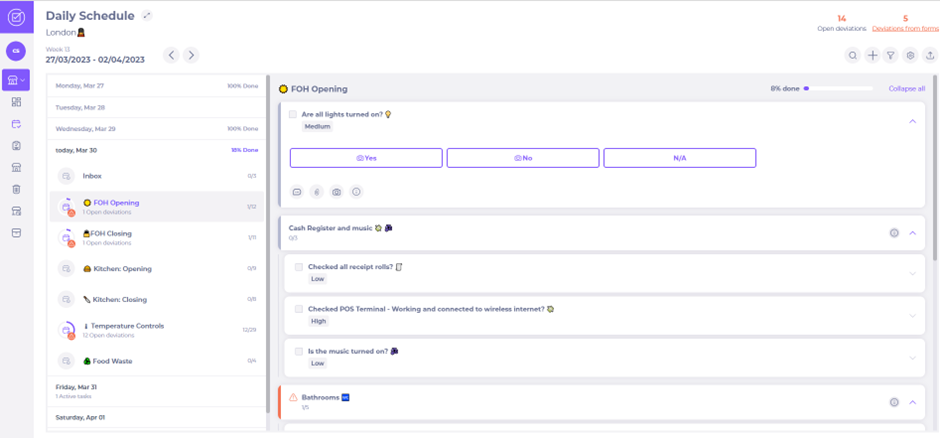
On the app — starting from the overview page:
- Select your site to open the list of zones/checklists in the Daily Schedule.

- Select the Date and the desired Area/Checklist in the Area/Checklist panel on the Daily Schedule screen. This opens a task list.

On both web and app:
- Select the desired task to open it.
- Select the information icon to open the task details.
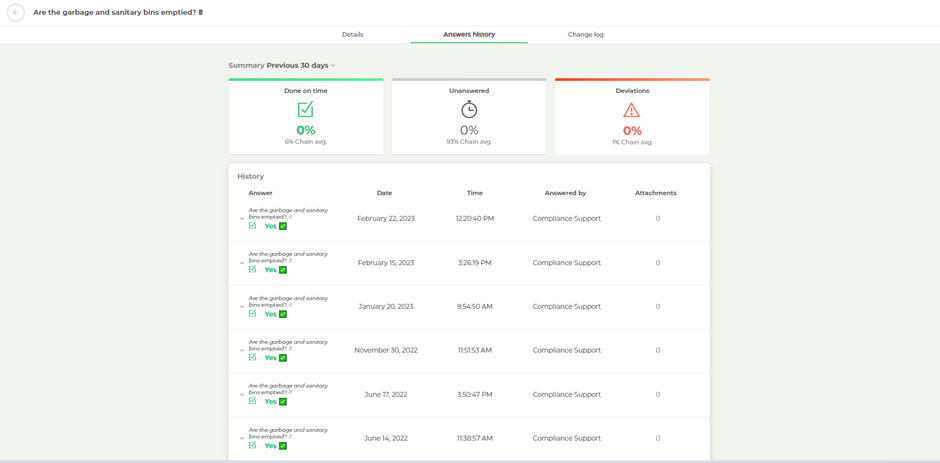
- Select the Response History tab to open the task history. On the app, you may need to scroll through the tabs to find Response History.
Note: The history is read-only and cannot be downloaded.
Web:
App:
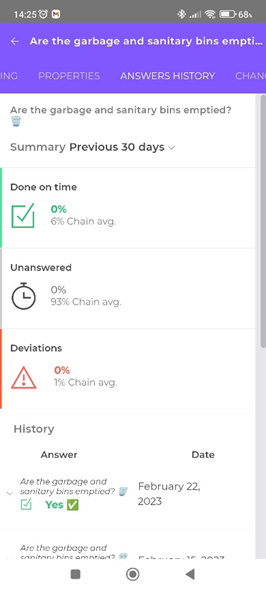
The full task history is displayed: the response, date, time, the name of the person who responded, and any submitted photos or comments.
- Select a response to view the photo or comment, if one was added.
- Select the Summary dropdown above the overview panels to choose the time period displayed:
- Last 7 days
- Last 30 days
- One quarter
- One half-year
- One year
- Select the arrow icon to close the task window and return to the Area/Checklist window.
A specific task's history over a given period can be used to verify that tasks have been completed correctly and that no deviations are pending. This helps you confirm that your site is compliant with current regulations.
