Start from: The Compliance overview.
Task structure
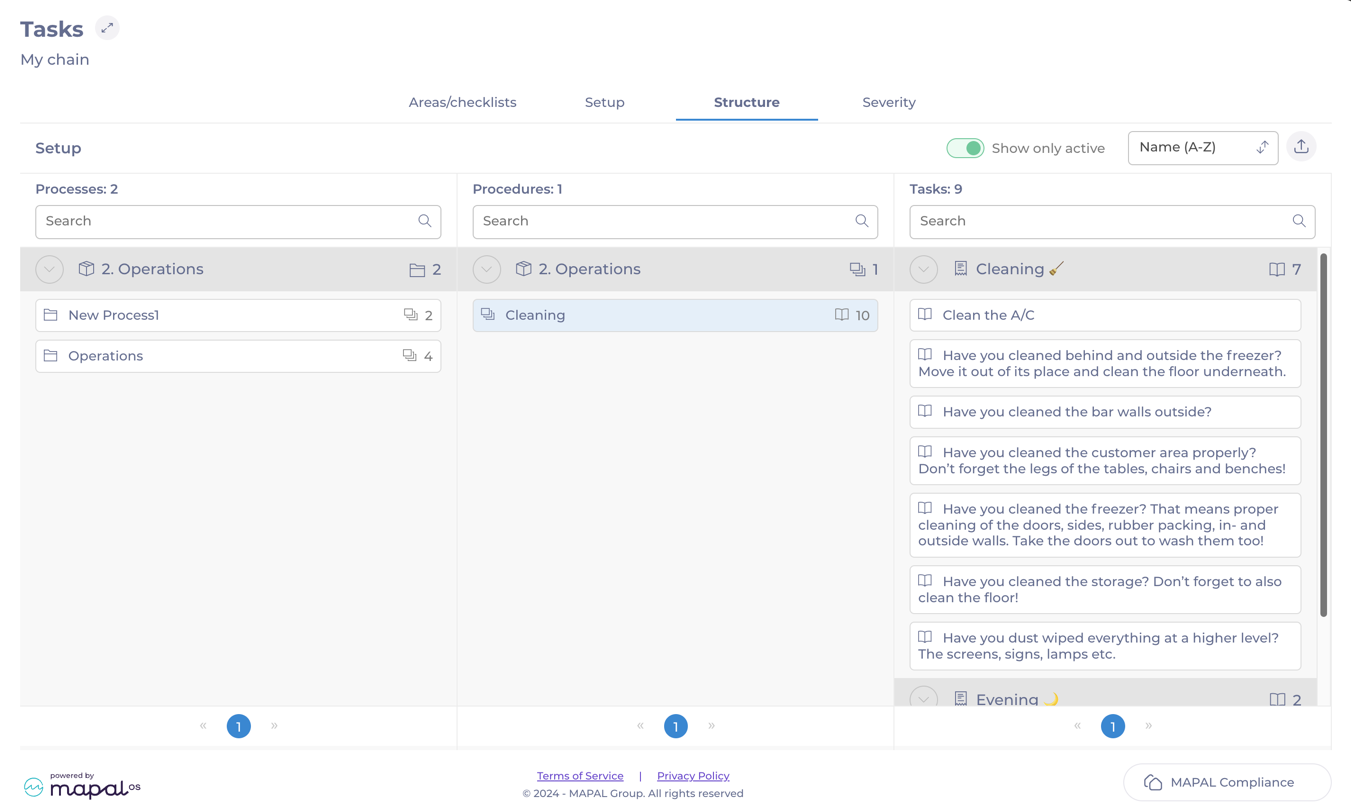
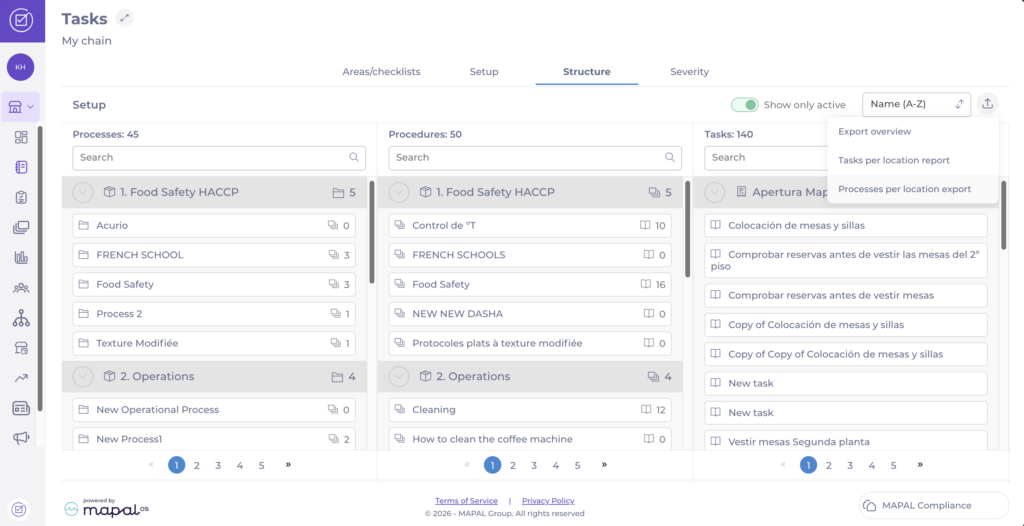
The Structure page provides a complete overview of the customer’s setup, showing how modules, processes, procedures, and tasks are interconnected. While this page does not allow edits, it enables central users to review and verify the setup for accuracy and consistency.
Task Structure Screen
- Navigate to Tasks > Structure.
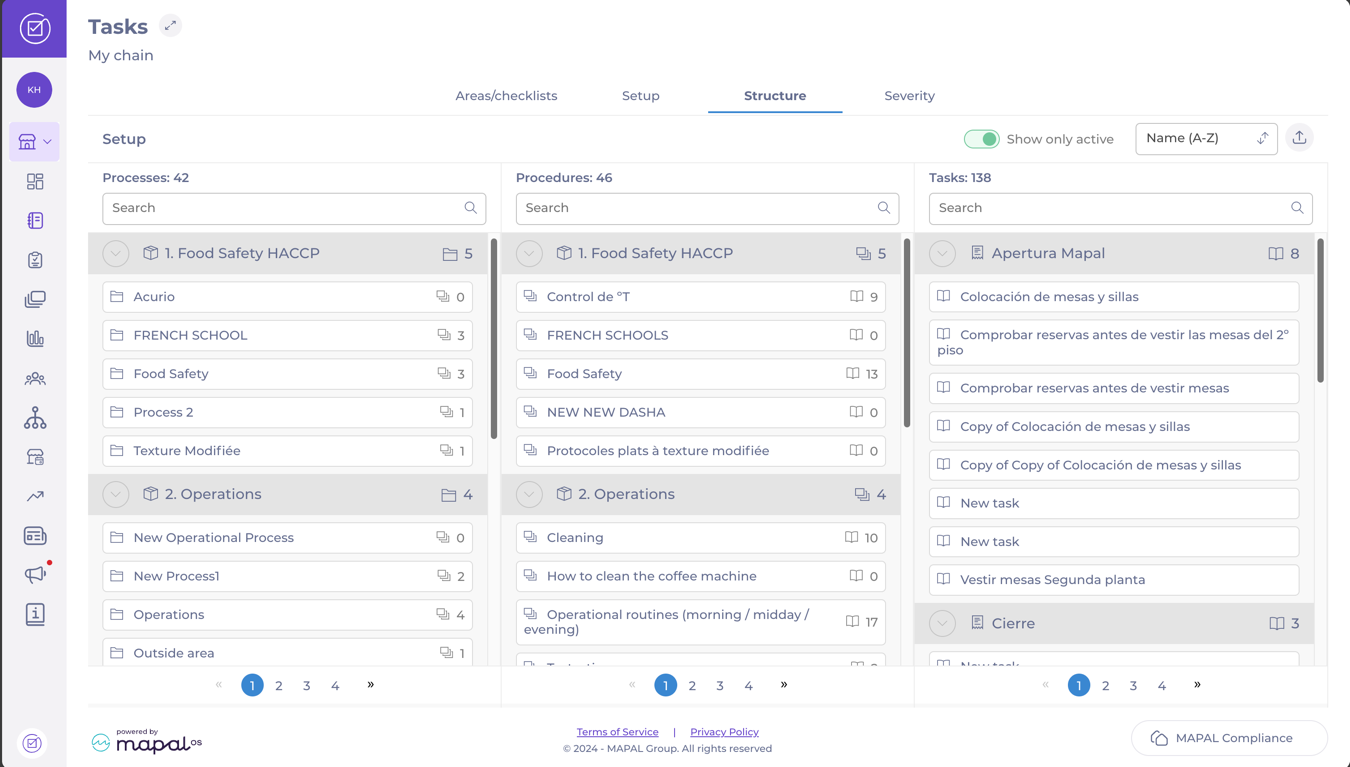
- The page displays a hierarchically ordered tree that shows information from general to specifics:
- Modules : contain processes, procedures, and tasks.
- Processes : contain procedures and tasks.
- Procedures : contain Tasks
 .
.
- On this screen, you will also be able to perform some actions, such as:
- See the exact number of Processes, Procedures, and Tasks.
- Use the Search bar to find specific tasks per name.
- Decide if you want to Show only active or everything.
- Sort the list per name or sequence.
- Export the filtered list you are seeing on the screen in .xls format.
Export tasks per location
You can export a Tasks per Location report, showing which central tasks are active across each location. For every central task, the report displays the location-level status: active, paused, or deleted.
- Select the export button.
- Select Tasks per location report.
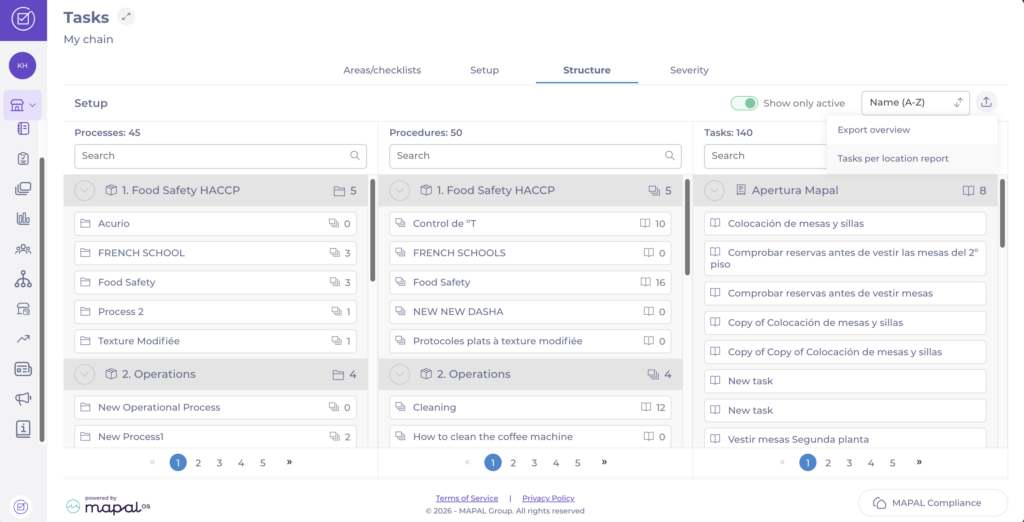
Use this report to audit rollout coverage, verify that tasks are correctly activated across sites, and identify configuration gaps or inconsistencies.
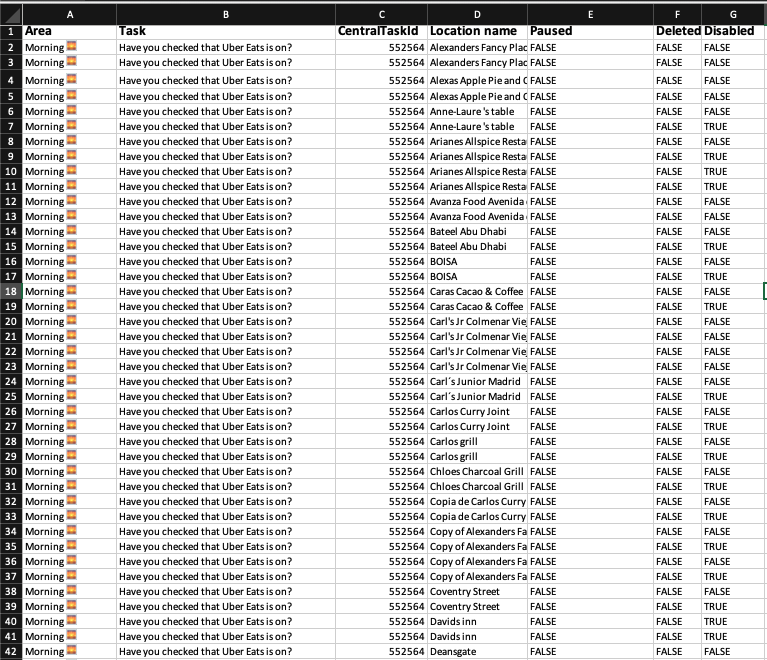
Note: This report reflects the current state of central task deployment and does not allow edits. Any changes to task setup must be made through the central configuration.
Export processes per location
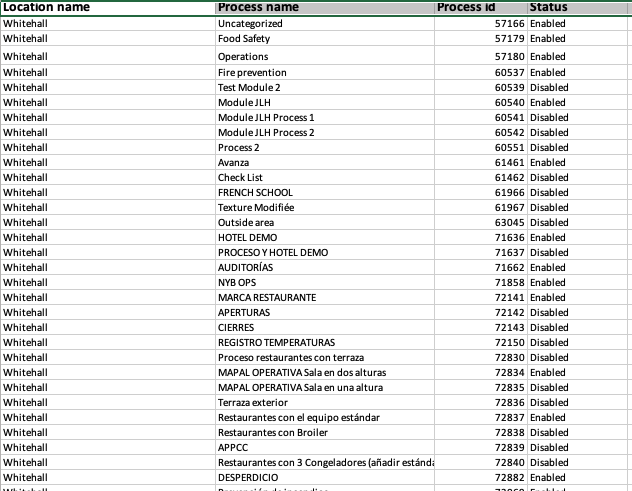
You can export a Processes per Location report, showing which processes are enabled or disabled across each location.
- Select the export button.
- Select Processes per location report.
See particular tasks
- Find the specific module on the tree and select it to see all connected processes or procedures, for example, “Operations”.
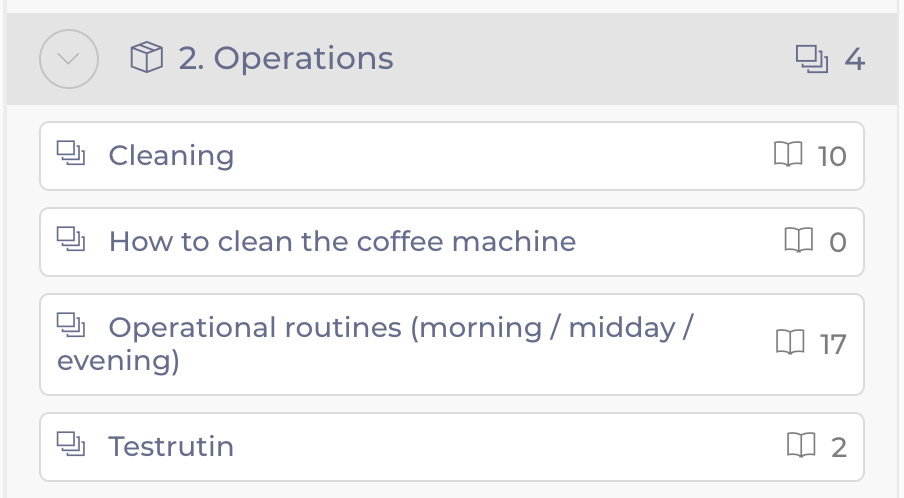
- Below, you will see the attached Processes or Procedures. Select one, for example, the “Cleaning” procedure.
- You will now see all Tasks (right) and Processes (left) attached to that Procedure.