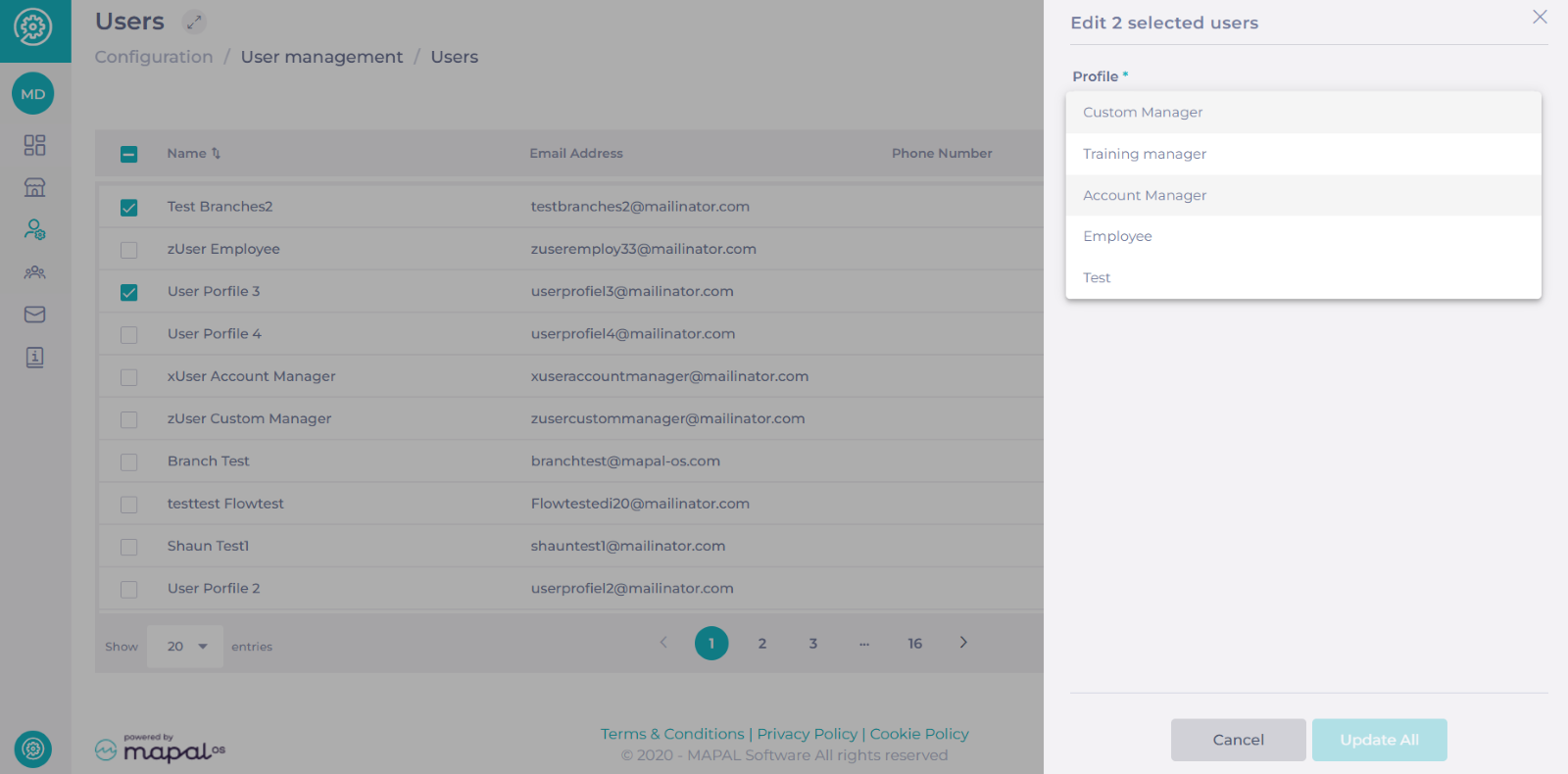
Notes: To set up a profile in Compliance, you will first need to create a Mapal OS profile in the Configuration tool and enable it for Compliance.
To know more about this process, see Manage user profiles in Mapal OS.
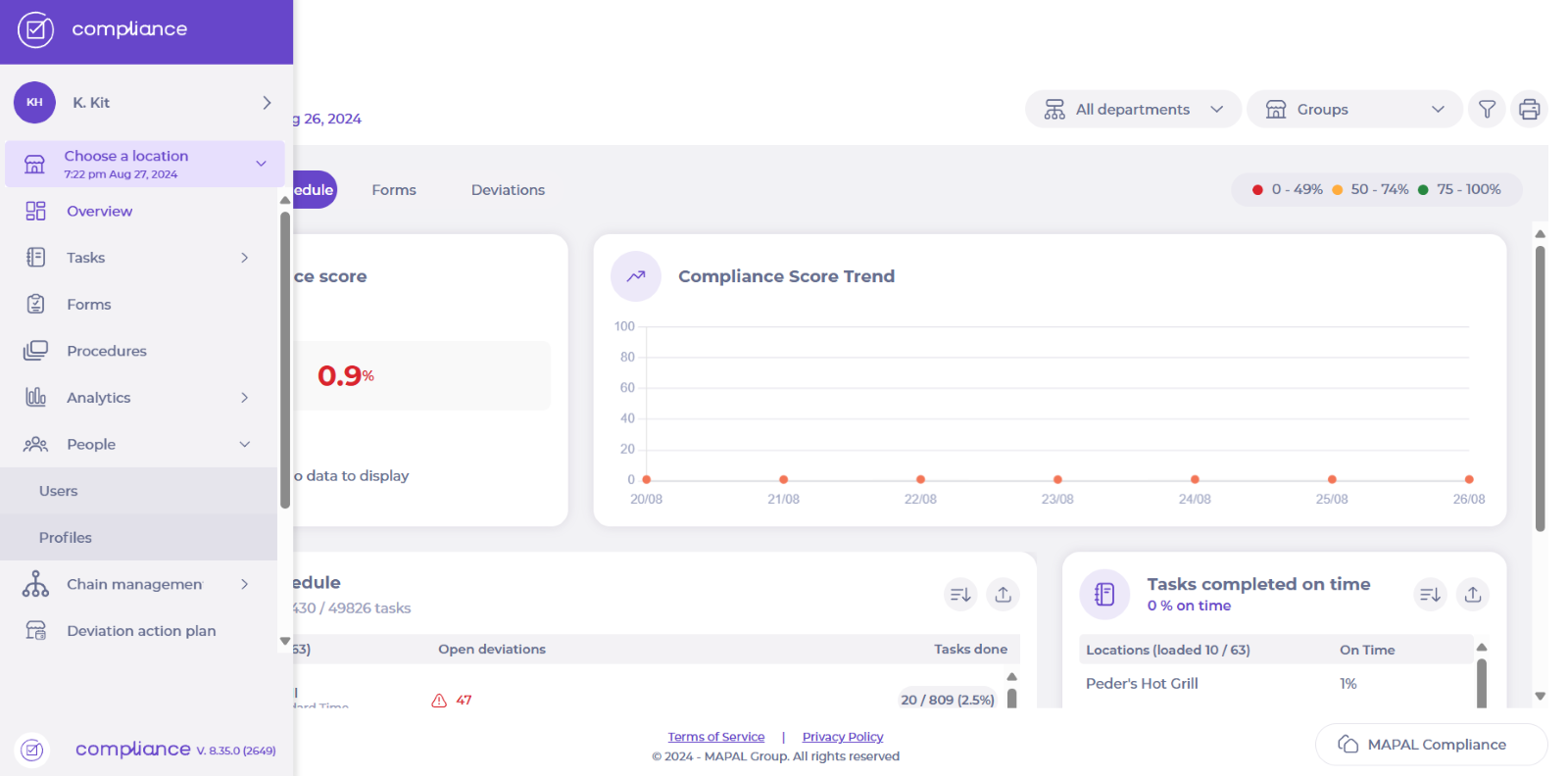
Start from: The Compliance dashboard.
- Select People > Profiles from the main menu.
Here you will see the profiles created in Mapal OS and enabled for Compliance.
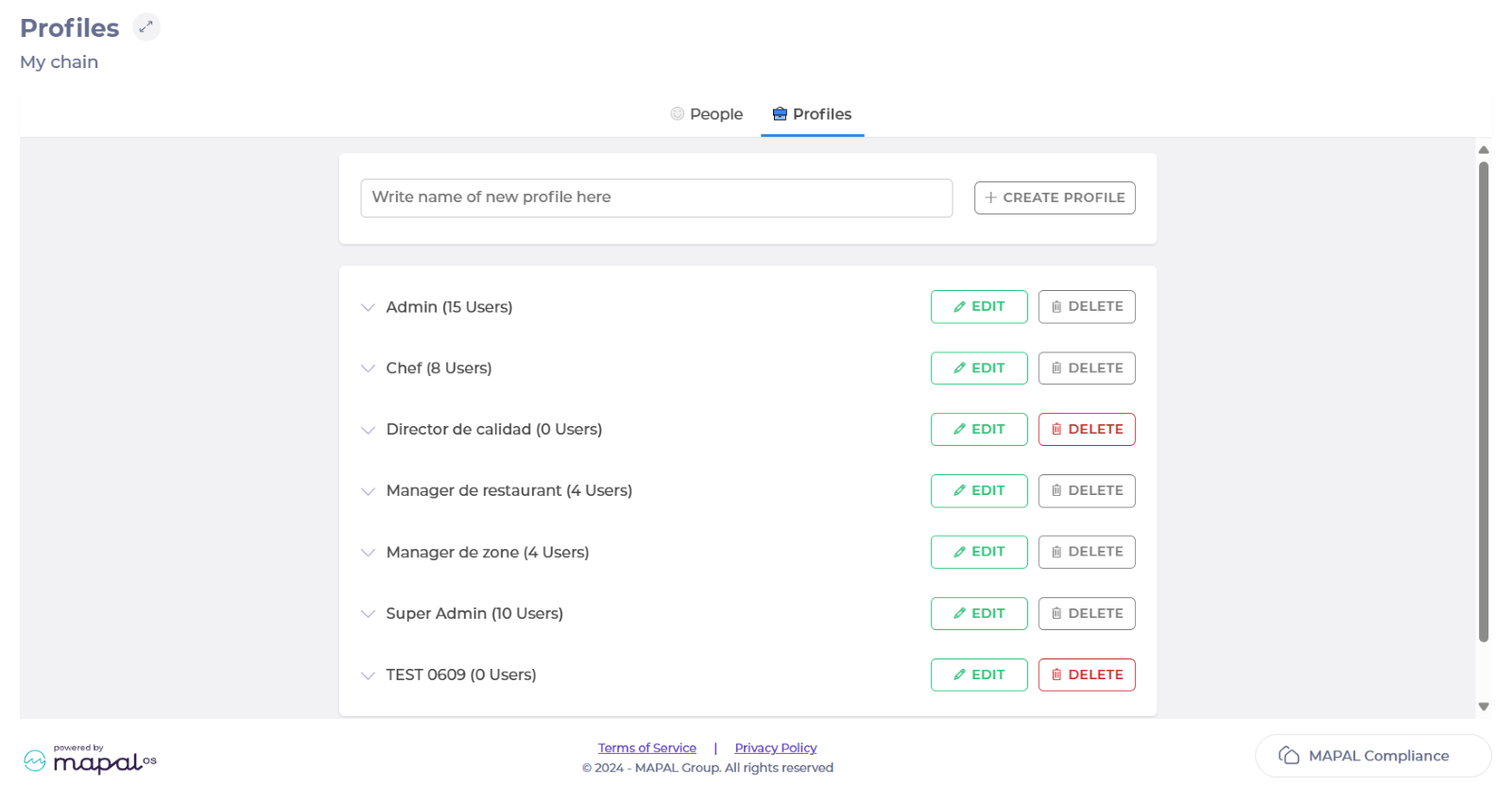
- Select the name of the specific profile you want to grant accesses to.
- A list with all possible permissions will unfold.
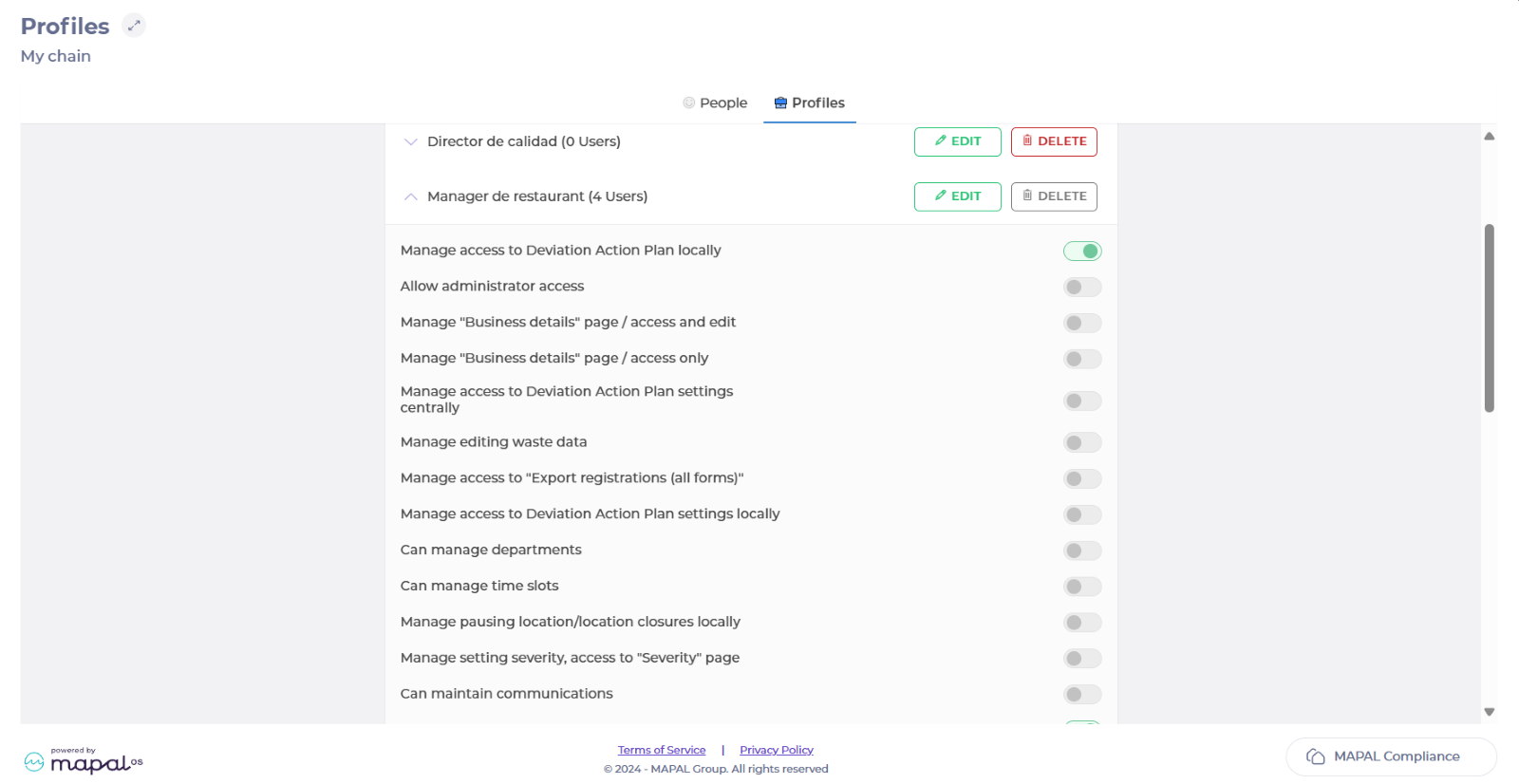
- To grant access to modules, forms, and checklists, toggle the following options:
- Manage forms centrally, access to "Forms" page
- Manage modules centrally, access to "Setup" page
- Manage tasks centrally (create, copy, delete, restore)
- Manage tenant tasks
- Manage re-opening form
- Manage tasks locally ("management mode"), manage actions with location (create, copy, activate/deactivate). Can see and acknowledge procedure updates is available to your tenant.
- Manage "Access rules" under My Profile.
The Manage "Access rules" under My Profile option controls whether users assigned to this profile can manage their own Access Rules in My profile. When it is turned off, those users can still view their assigned forms, modules, and areas/checklists, but cannot modify them. For more information, see Manage your own access to forms and checklists.
When you are done granting accesses to that profile, you can go back to Mapal OS and assign the profile to the respective user or users.
To know more about how to assign profiles in Mapal OS, see Assign user profiles in bulk on Mapal OS.