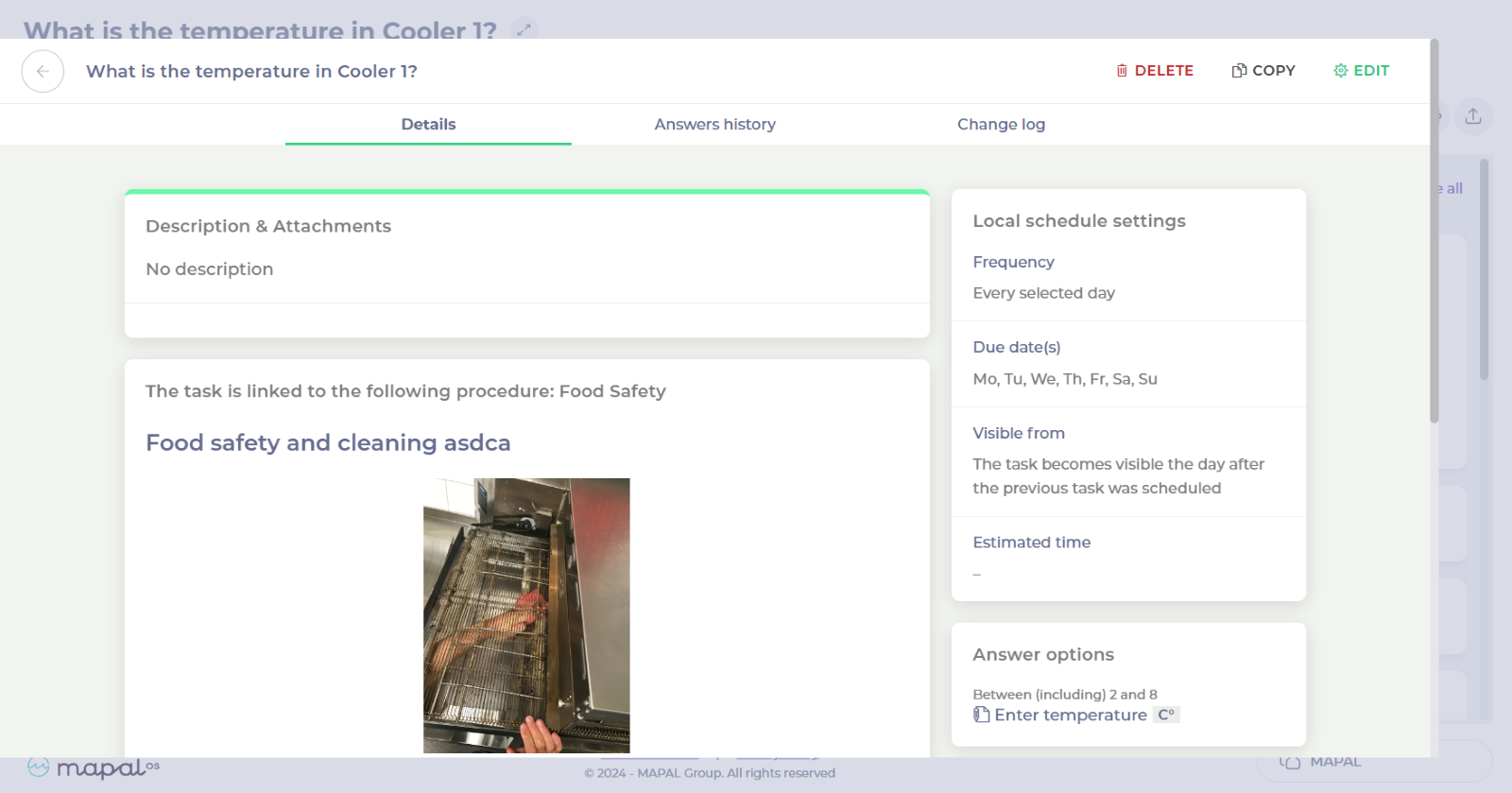
Start from: The Daily Schedule.
There are two routes to locating the task you wish to duplicate. This shows how to do it via the Daily Schedule, you can also copy a fridge or freezer task via My Location.
Locate and copy a task via the Daily Schedule
- Select Daily Schedule.
- You'll be able to see the areas per tiles or checklists. Select the area where the task you want to duplicate is.
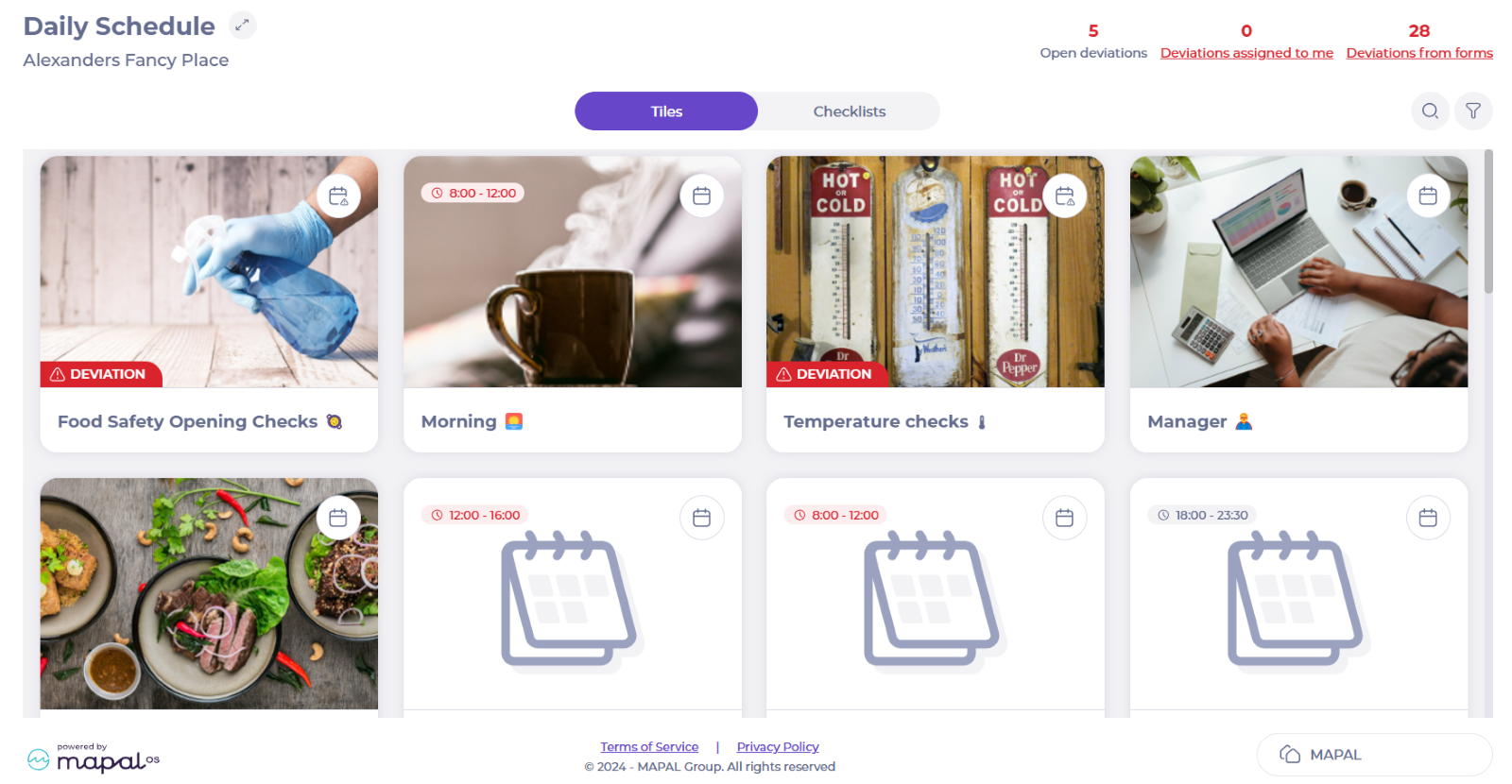
- Once in the checklist view, select the navigation arrows to change the active week if necessary.
- Select the relevant day to view the areas containing the tasks.
- Select the area or checklist that you require (for this example, Temperature checks) to open the task list.
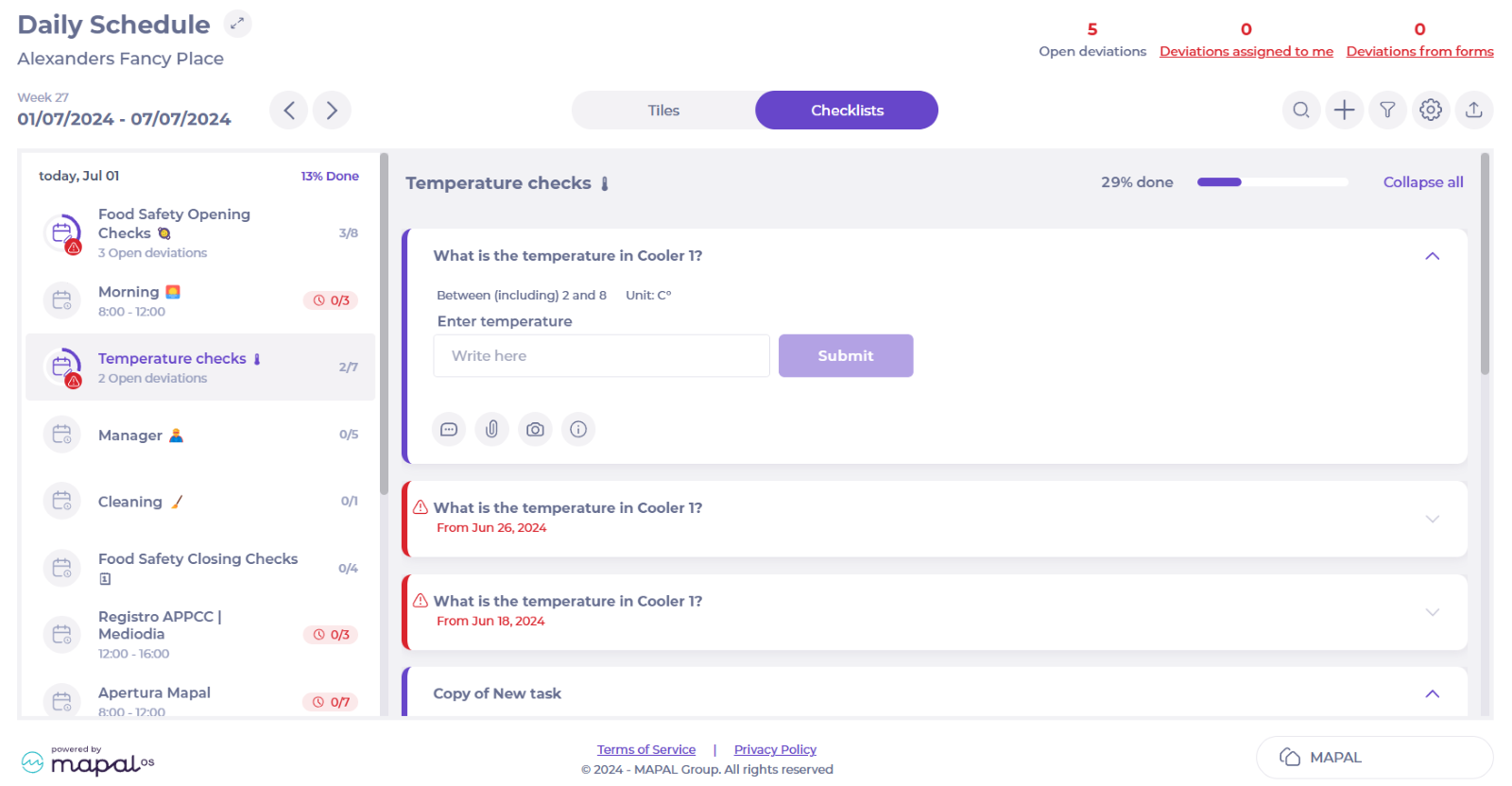
- Scroll through the task list to locate the task you want to copy OR select Search to search for a relevant task. For example, enter 'production' to show tasks with 'production' in the title.
Note: Try to copy a task with the same settings as the new one you want, so that the settings, answer options and scheduling are also duplicated.
- Select the task name OR the corresponding icon to open the task. You should see the answer (i.e. what the correct status of the check should be) in the open task.
- Select the settings icon to open a window showing the task settings. These are located in the Answer options panel.
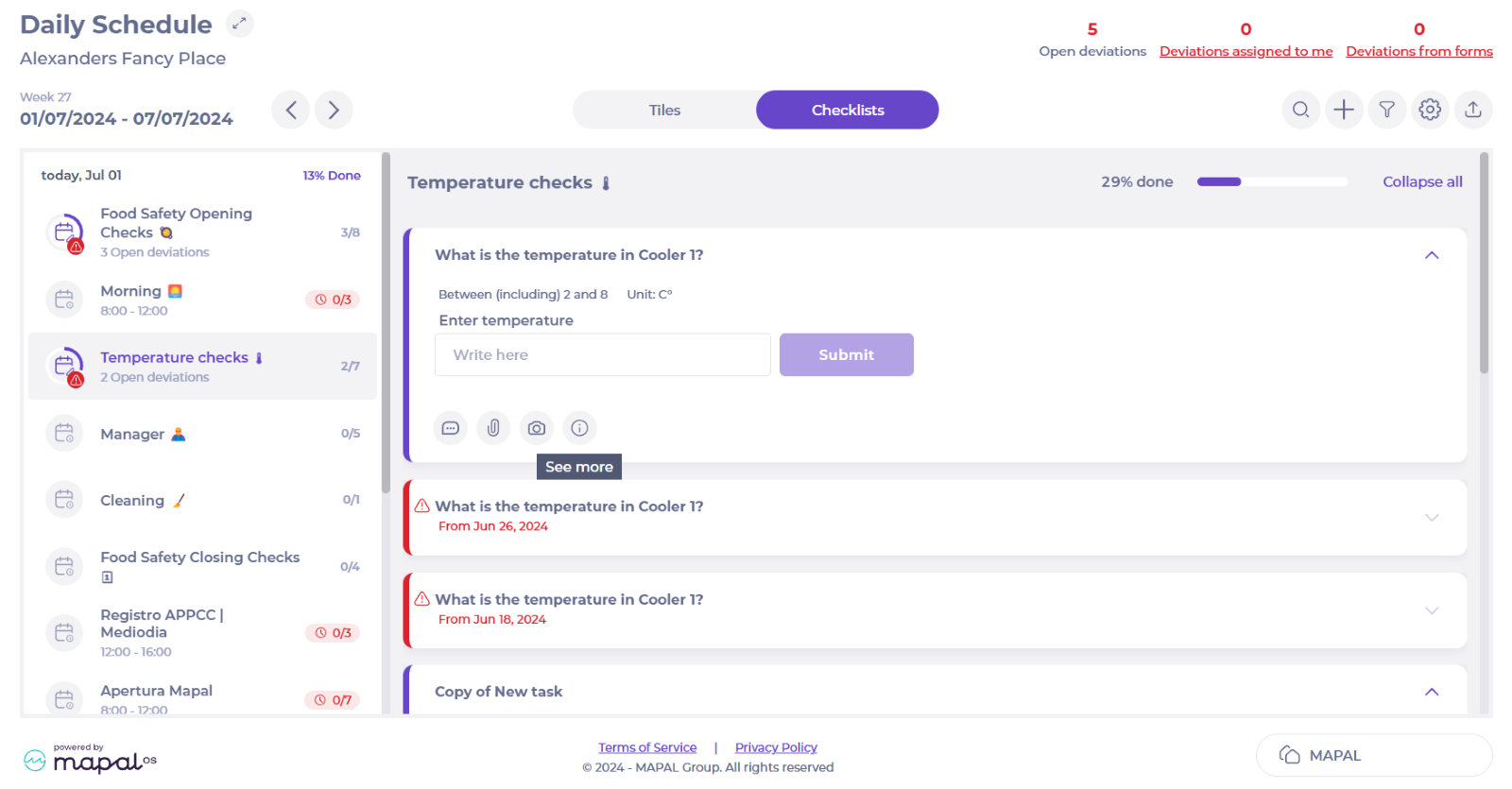
- Select Copy to duplicate the task. This will open the Task label pop-up for your new task.
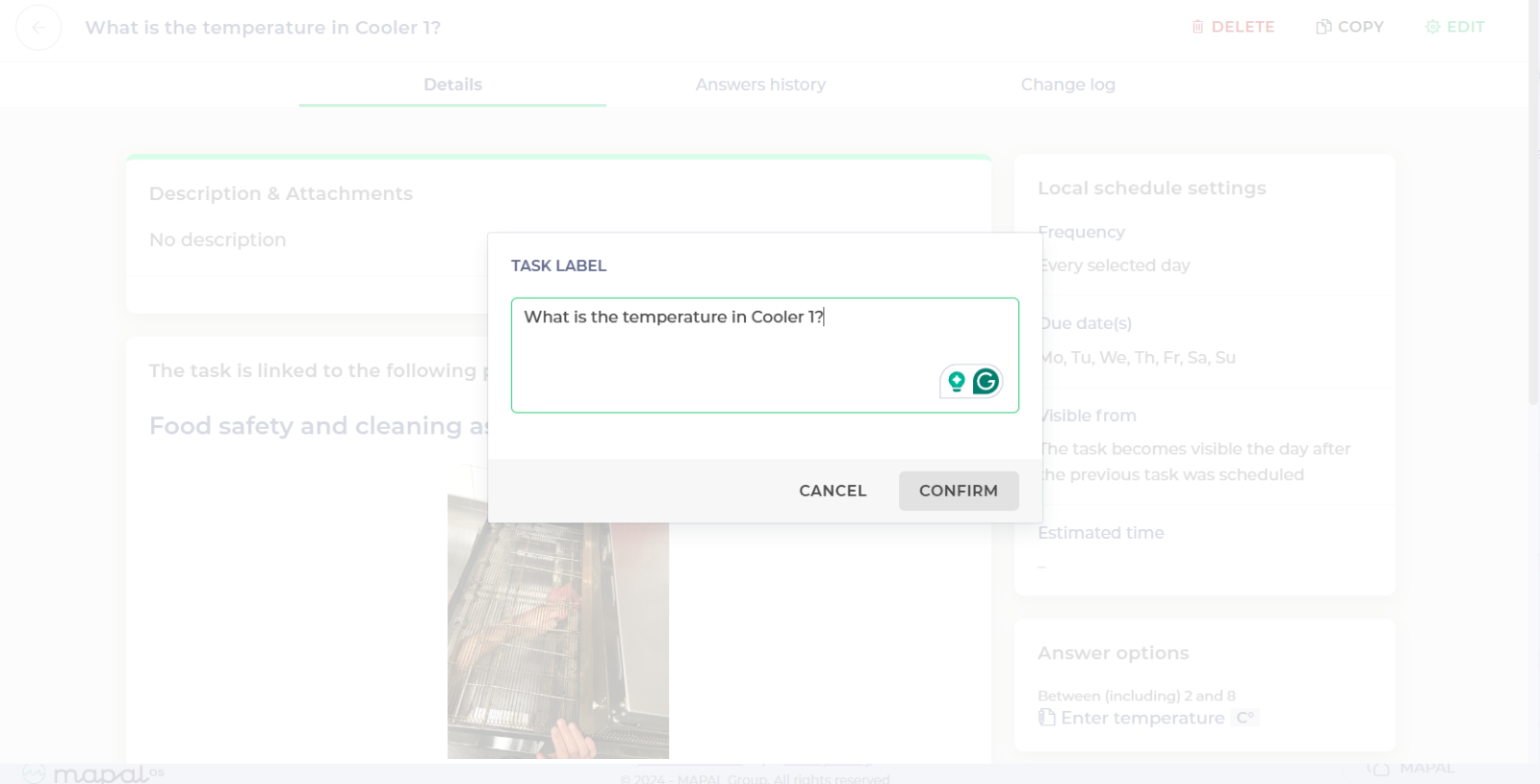
- Amend the label to reflect the name of your new task.
- Select Confirm to save the new task label and return to the area list OR select Cancel to return without saving.