


Note: Time slots must be created at a central level, although they can be managed at a local level. See Create time slots on tasks for more information.
- Select My location > Time slots.
- Select the Information (i) button to know more about what time slots are and how they work.
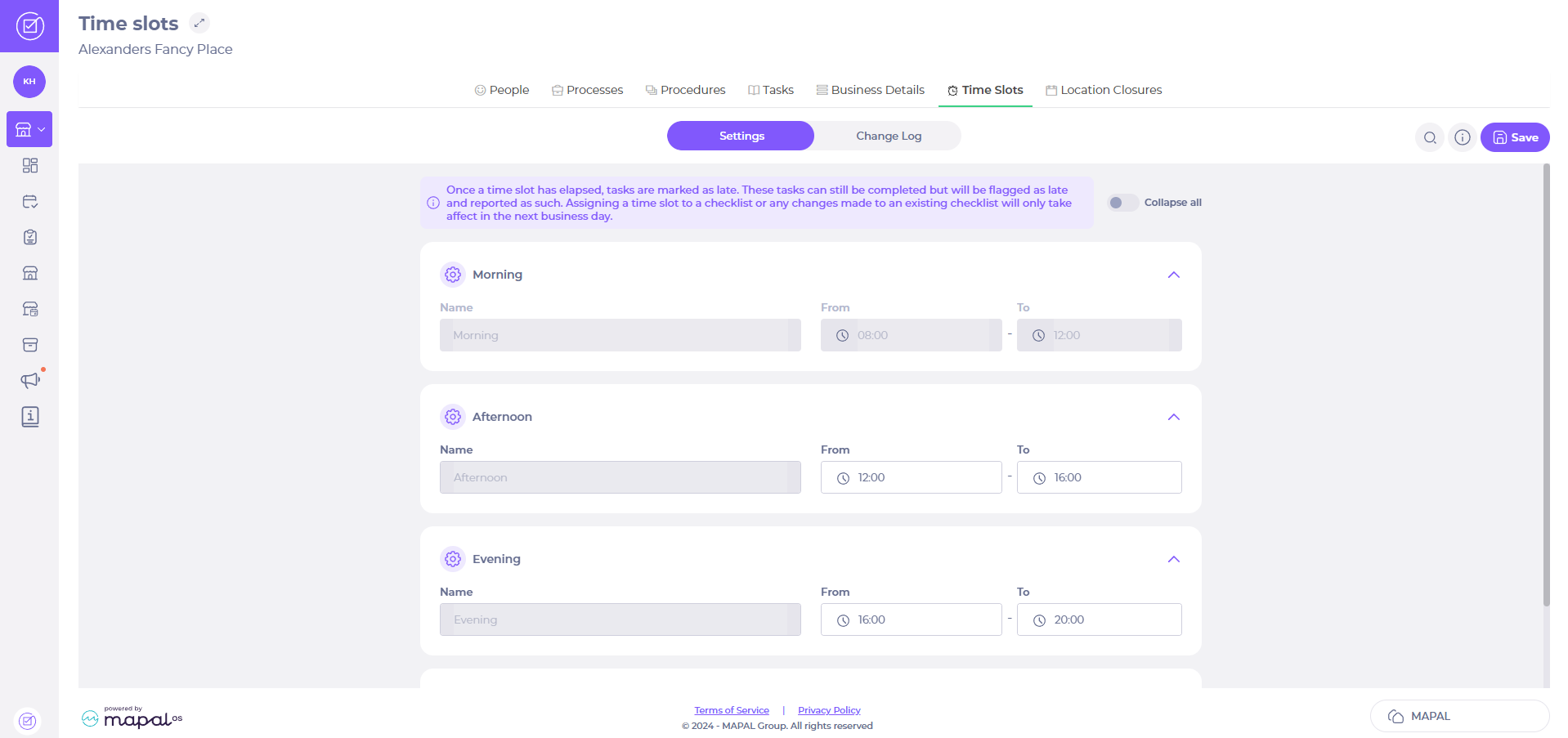
- Select your chosen times on the time slot you wish to edit, using the From and To fields.
- Select Accept.
- Select the Save button when you finish editing the time slot hours.
Note: locations can only change the specific times for each time slot; they cannot change their names or add new ones.
View changes made to time slots
- Select the Change Log tab.
You will see a record of all past changes to time slot hours.
