


Start from: The Daily Schedule.
Locate a form
- Select Forms from the main menu to open the Forms page.
- Select Filter and choose an option to filter the forms.
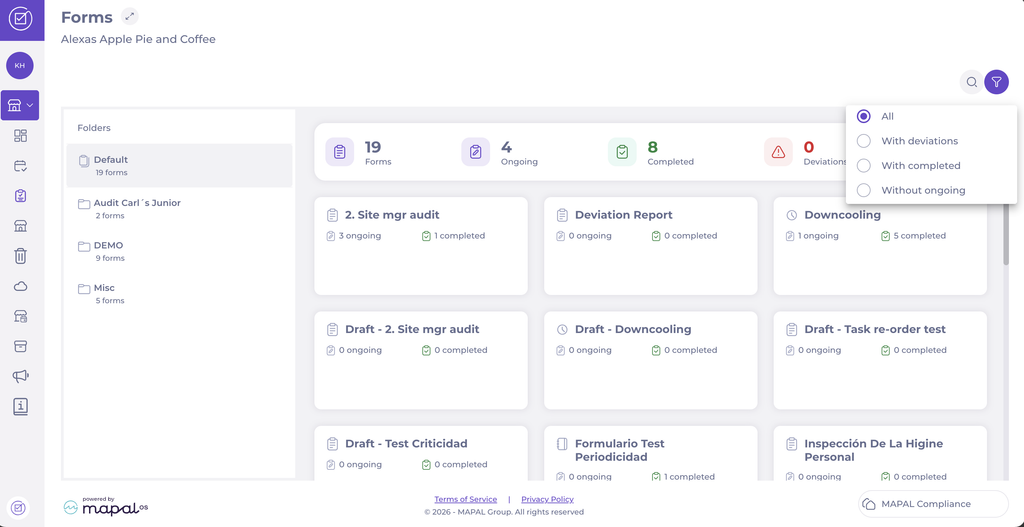
- Select Search to search the forms by Name or by Form Number. Searching by Form Number lets you open a specific revision directly.

- You can also open forms by selecting the required folder from the folders list and opening the form from the forms list.
Fill out a form
- Select Start new to begin a new instance of the selected form.
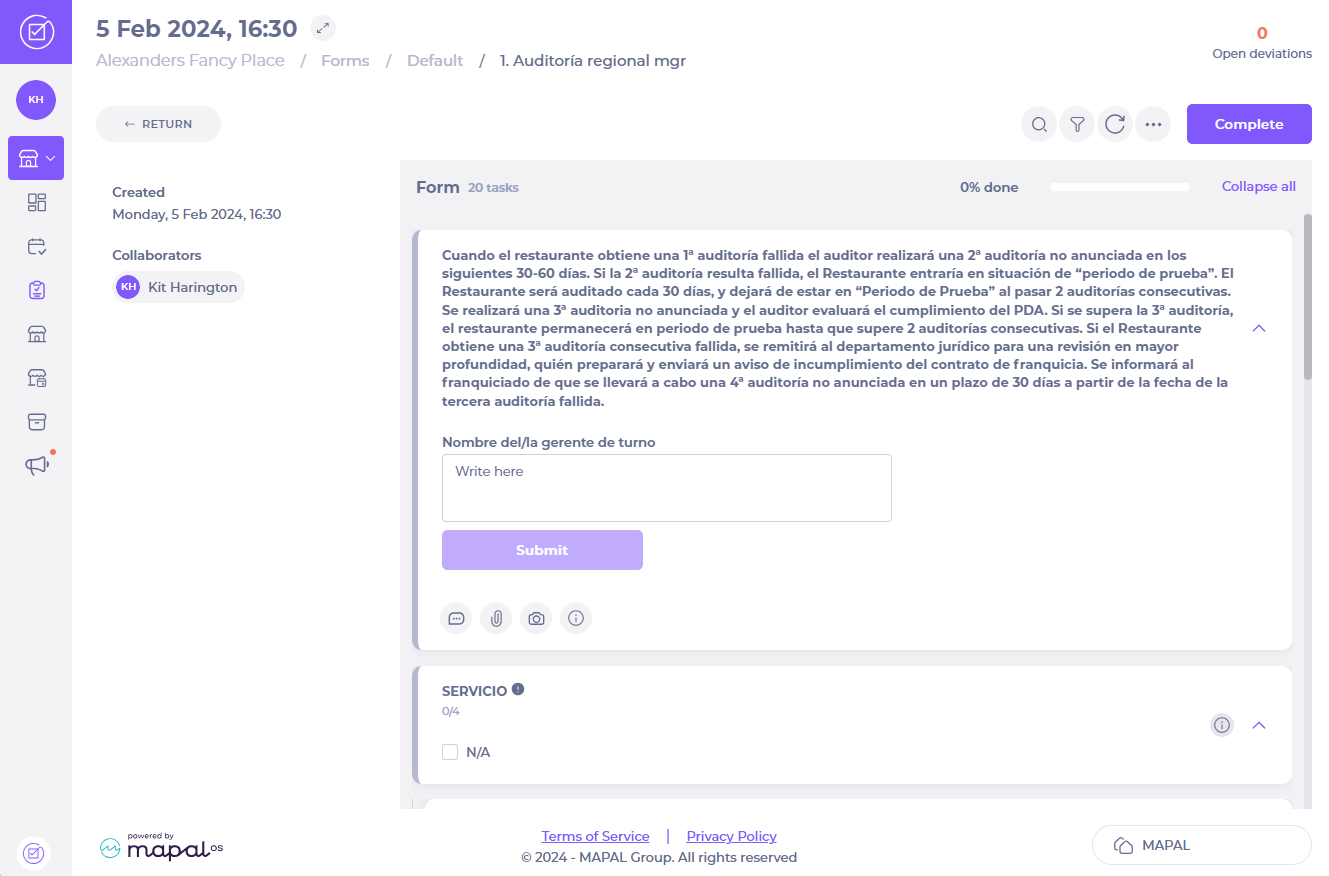
- Go through the tasks in the form and answer the questions in each one.
Note: When you mark a question as Not applicable, a confirmation pop-up will appear before the answer is applied.
- You can add supporting information to each of your answers using the following options:
- Select the comment icon to add a comment in the Write here field, then select the save icon to save it in the Task Feed.
- Select the attachment icon and choose a file to upload, then select the save icon to save it to the Task Feed.
- Select the camera icon to take a photo and save it to the Task Feed.
- Select the information icon to view further task details including Description, Attachments, Answer history and Change log.
- Select the action icon to add an action. Fill in the fields and select Save to record actions associated with this task in the Task Feed.
Note: This option is only available in meeting agenda forms.
- Select Complete once you have answered all questions and any uploaded materials have been attached. The task will close automatically and return you to the Form page.
Note: If a deviation pop-up appears when answering the questions or completing the form, complete the fields and select Save to record actions associated with the task in the Task Feed.
Complete a form
Comments and changes to the form will update the Task Feed immediately. When Complete is selected, the form will be registered as complete on the system.
