
Answer a task on the app
- Select the hamburger menu > Daily schedule.
- Select the Area/checklists that contains the task you want to answer.
- Locate the specific task you’d like to answer and complete it, as described above.
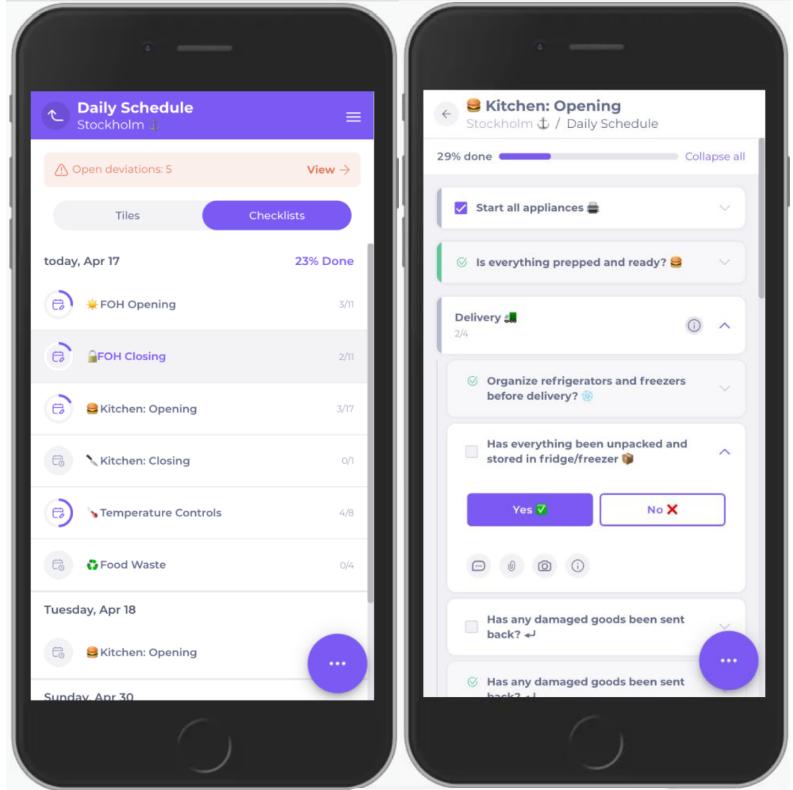


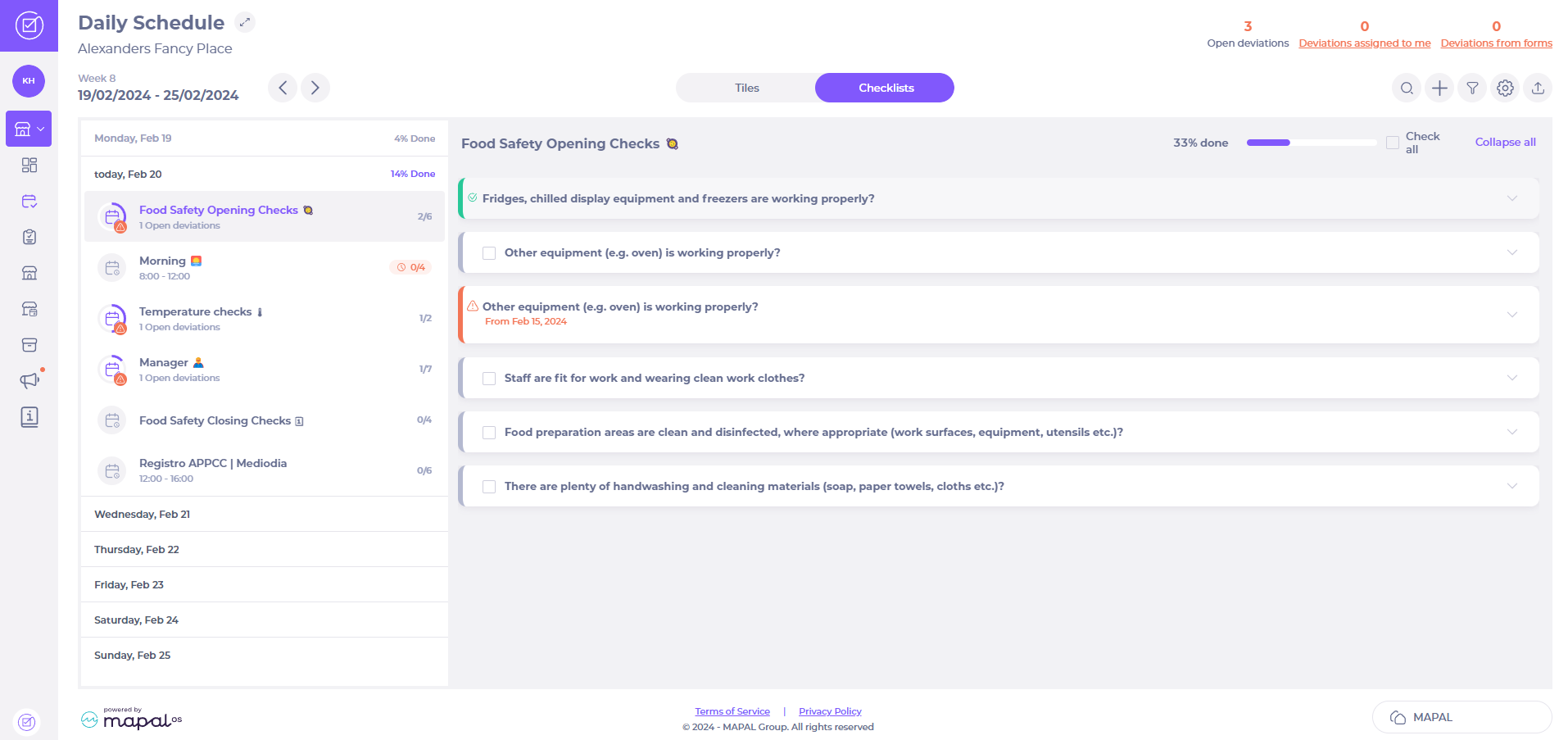
To stay on top of compliance duties, it's important to ensure scheduled tasks are answered regularly. This article describes this process for both the web and app versions of Compliance. Note that daily tasks can only be seen on the day they are due, and not in advance. Only tasks that you can answer will be shown, and you answer all of them, even if they are upcoming.
As a food service manager, you may need to log a deviation that is not…
Temperature control tasks require temperature measurement with an external thermometer. You can connect your Bluetooth…
One of the most common workflows in Compliance, you can manage, edit, and delete tasks…
It is possible to filter deviations on the Daily Schedule and on the Overview page,…
If you're looking to simplify the view on the Daily Schedule, it's possible to hide…
As a store manager, you want to create local tasks within a local area on…
To stay updated on team communications and related documents,you may need to know about comments…
Compliance allows you to add documents (called Attachments) to the daily schedule. These can be,…
teams or managers can sometimes forget to answer tasks, either because they didn’t have time,…
Compliance allows you to add documents (called Attachments) to the tasks on your Daily schedule.…
