


Start from: The Compliance central overview.
Create a downcooling form
- Navigate to Forms.
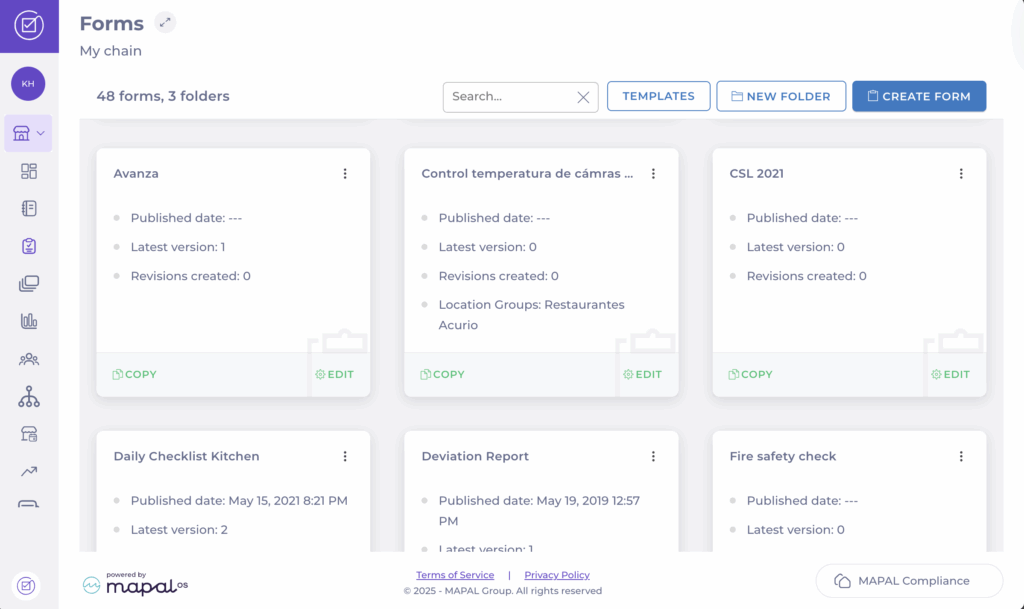
- Select Create Form. Follow the standard procedure in Create a form.
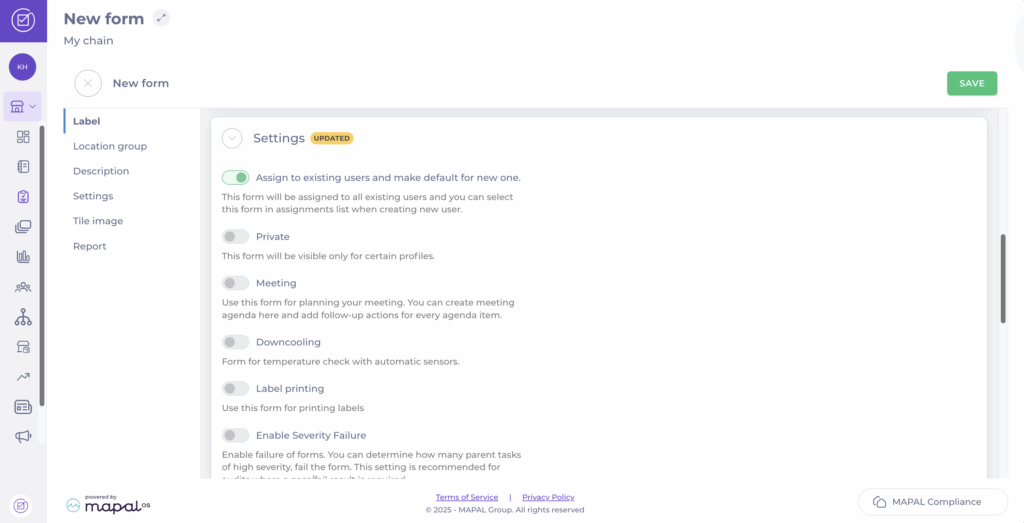
- In the Settings section, activate the Downcooling toggle.
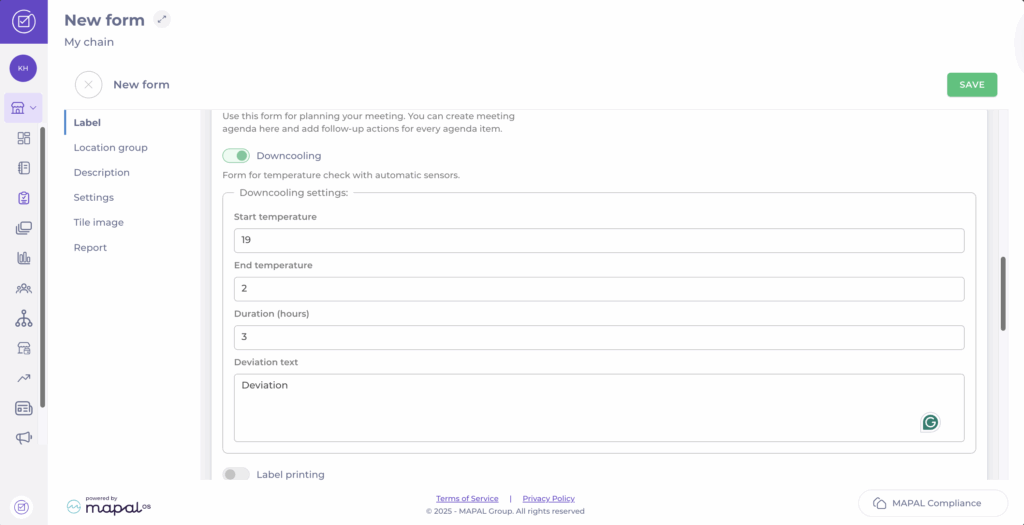
- Register a Start temperature.
- Register an End temperature.
- Set a Duration (hours).
- Set a Deviation text. This will appear when a deviation is registered.
- Select Save.
Create a downcooling task
- Once the form is created, select + Empty draft inside of it.
- Open the new empty draft, and select + New task.
- Fill in the name of the task and set the Severity.

- Scroll down to Answer options. For downcooling tasks, you must configure two button answers: one positive option and one option that creates a deviation.
- In the first row, set Answer Type to Button and enter a positive Button label, for example, Within limits or Compliant. Leave the Add a deviation button unused for this option.
- Select + Add answer option. A second row appears.
- In the second row, again set Answer Type to Button and enter a non-compliant Button label, for example, Out of limits or Not compliant. Select Add a deviation and choose the deviation you want to trigger when this button is used.

- Add any wanted Description, for example, how they can measure temperature and how to handle any deviations.
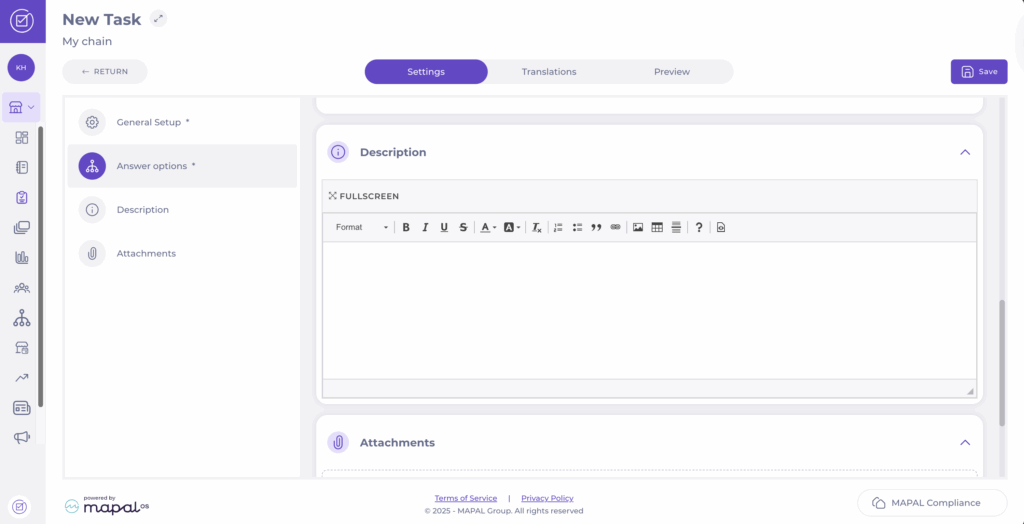
- Add an Attachment if needed, for example, a guide or an informative document related with the task.

- Select Save.
The task will now appear within the form, and you will be able to log data. To know more about this process, see Manually record downcooling data in a form.
