


Start from: the Compliance overview dashboard.
The Central overview page is divided into four main tabs: Daily Schedule, Forms, Deviations, and Attachments. Each tab has its own filtering options.
Select the tabs at the top to switch between views.
Daily Schedule
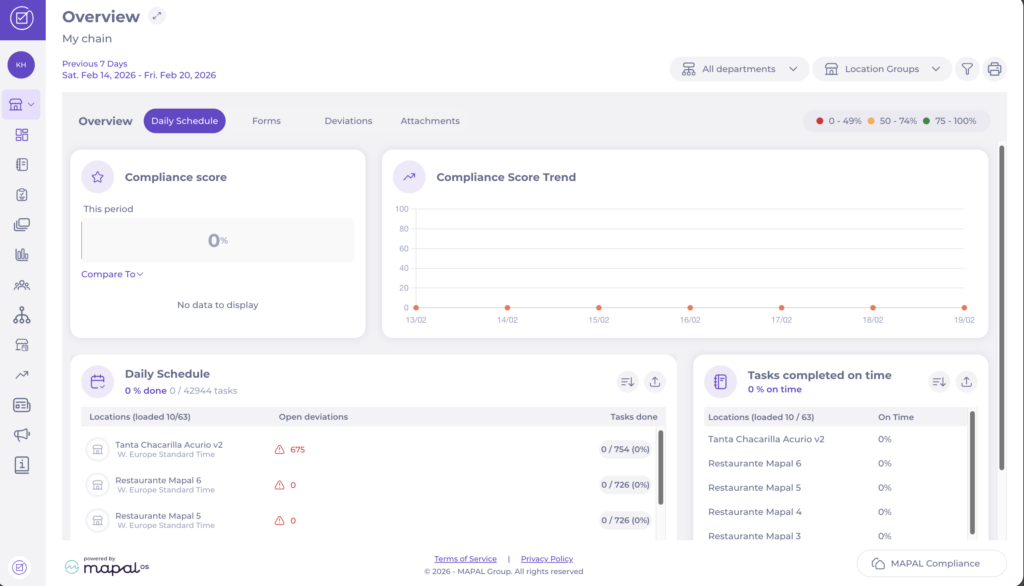
This tab shows an overview of task completion and compliance scores across all your locations.
- The Daily Schedule card displays the total number of completed tasks out of total tasks across all locations. Select it to view the full list of locations.
- The Compliance score section shows the overall compliance percentage for the current period. You can select other periods to Compare To.
- The Compliance Score tile shows how locations have complied to their tasks and checklists over time.
- The Tasks completed on time tile shows the percentage of tasks completed timely per location.
Daily Schedule filters
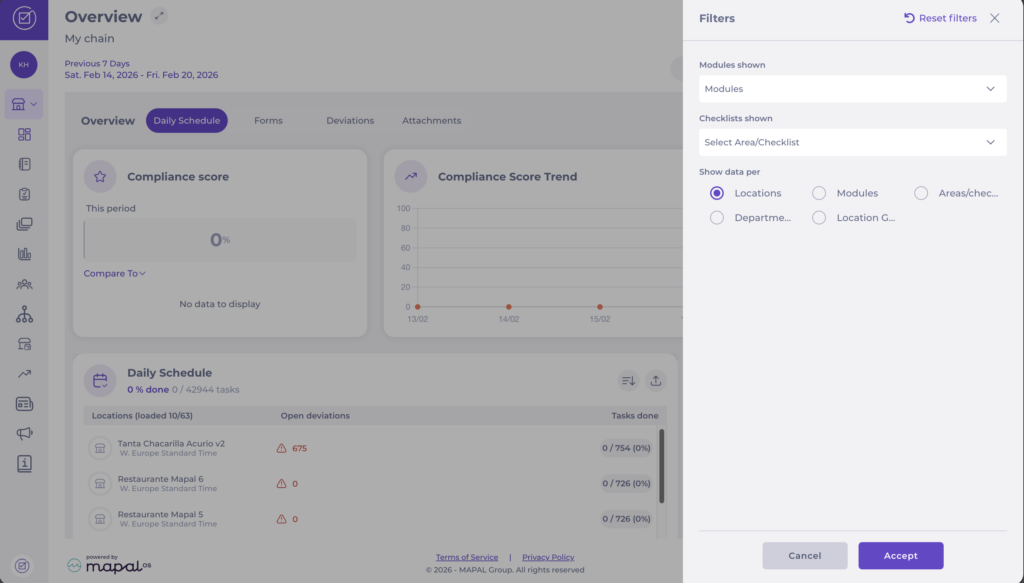
Select the three dots button to access the filter options:
- Select a specific period of time to visualize.
- Select a Location Group.
- Modules shown: Filter by specific modules.
- Checklists shown: Select Area/Checklist to narrow down results.
- Departments shown: Filter by department.
- Show data per: Choose how to group data: by Locations, Modules, Areas/checklists, Departments, or Location Groups.
Forms
This tab shows forms status for all locations.
- Select the arrow next to Form breakdown to see a list of locations with completed forms, the number of created and open deviations for a specific form, and the number of ongoing forms that a particular location has.
- Select Compare to under the Form score section to view the locations' form scores in comparison to other periods of time.
- The graph under the section Form trend shows the number of completed forms, deviations and scores for the locations. Note: If the form has no points, it will not be shown.
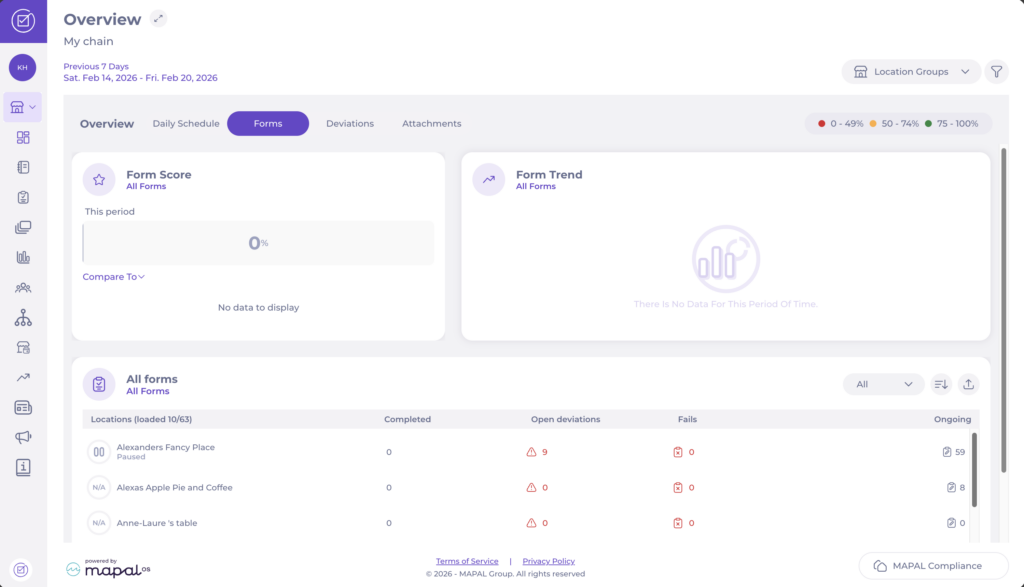
- The All Forms section shows a list of locations with:
- completed forms,
- the number of deviations created and opened,
- the number of ongoing forms for each location.
- Select the Sort button to view the status of specific forms or locations.
- When sorting the information, a circular graph appears around the location icon, showing the compliance score based on the selected filters.
- Select the Export button to download this information as an Excel file.
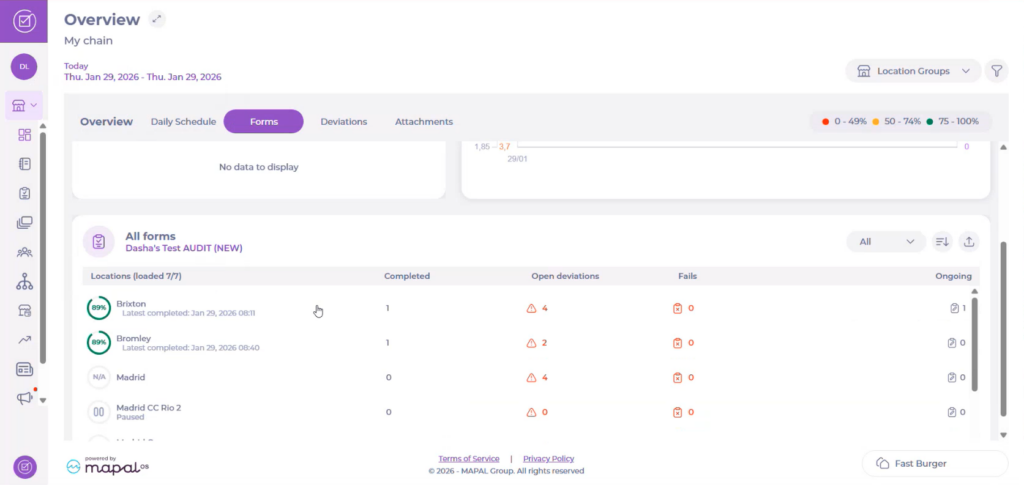
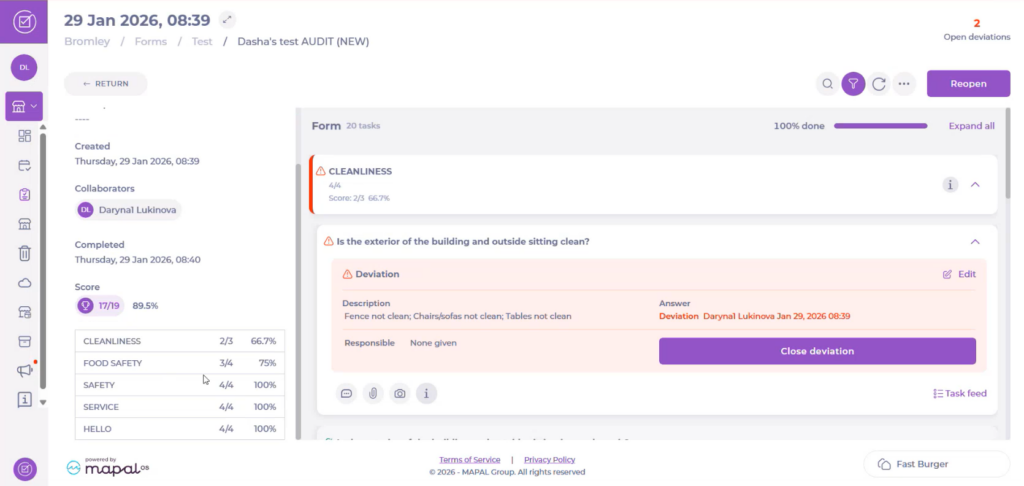
Note: if your forms use scoring, opening a completed form also shows the score per parent task, helping you identify which parts of the form influence the overall score.
Forms filters
Select the three dots button to access the filter options:
- Select a specific period of time to visualize.
- Select a Location Group.
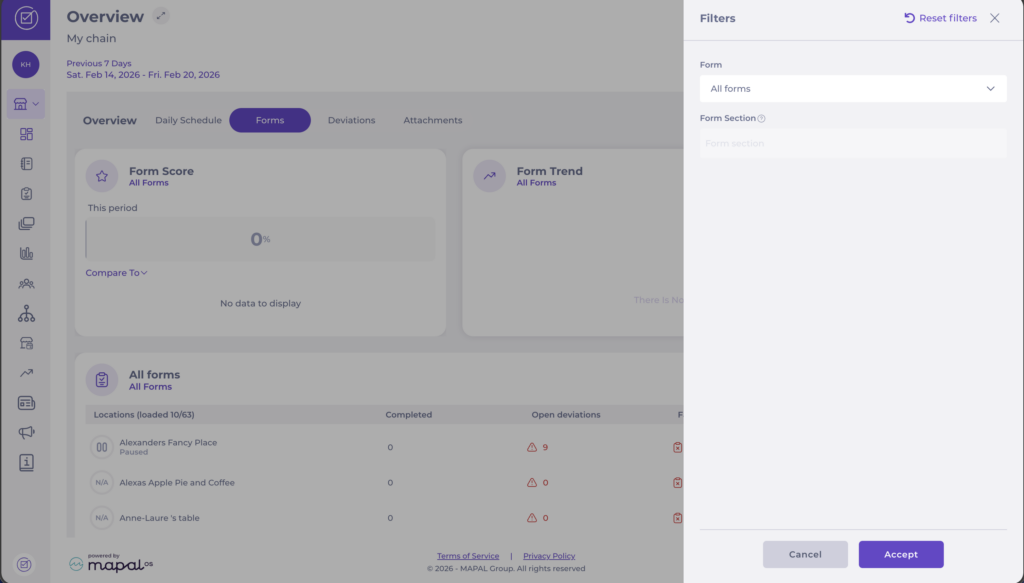
- Form: Select specific forms or view all forms.
- Form Section: Filter by form sections (parent tasks within the selected form).
Note: It is possible to filter by multiple forms and compare these results across different time periods. For example, an organisation might perform both a summer and a winter audit. By selecting both audit forms, users can generate a combined report that displays scores and data across the entire organisation for both audits.
Deviations
This tab shows deviations across all locations, including a summary and a list of tasks with the most deviations.
- Select Deviations to view the full list of open deviations across your locations.
- The Tasks with most deviations section displays tasks ranked by severity, number of deviations, and affected locations.
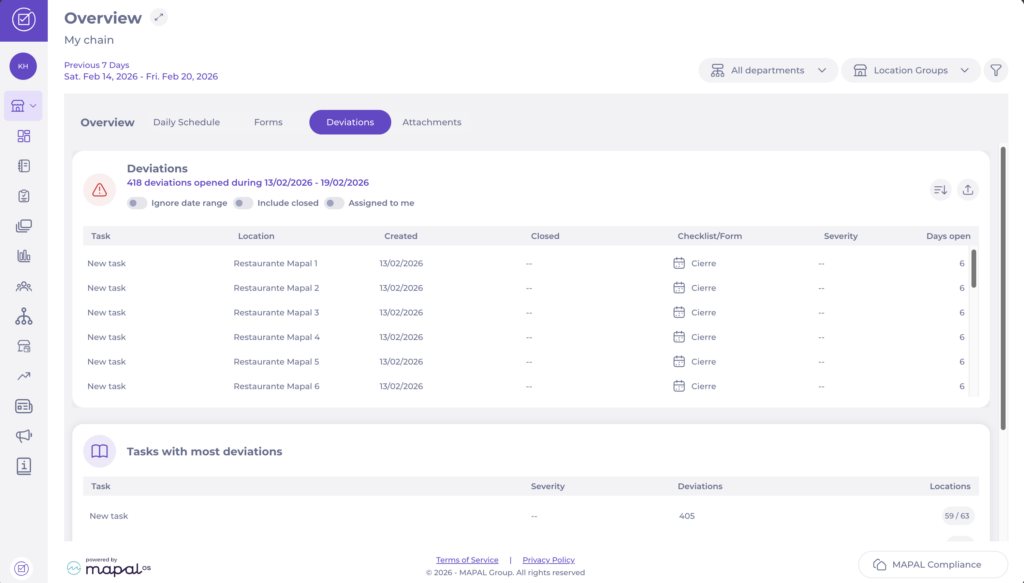
When viewing the deviations list, you can:
- Ignore date range: View all deviations regardless of date.
- Include closed: Include closed deviations in the results.
- Assigned to me: Filter to show only deviations assigned to you.
Each deviation card shows the location, checklist/form, severity, days open, and closed status.
Deviations filters
Select the three dots button to access the filter options:
- Select a specific period of time to visualize.
- Select a Location Group.
- Select a Department.
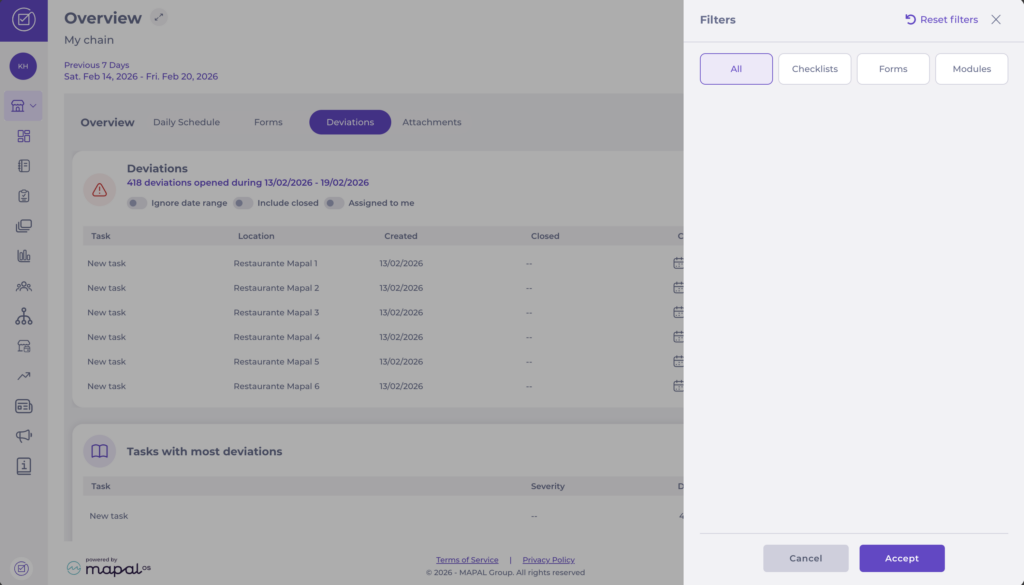
- Select if you want to see All Deviations, or see them per Checklists, Forms, or Modules.
Attachments
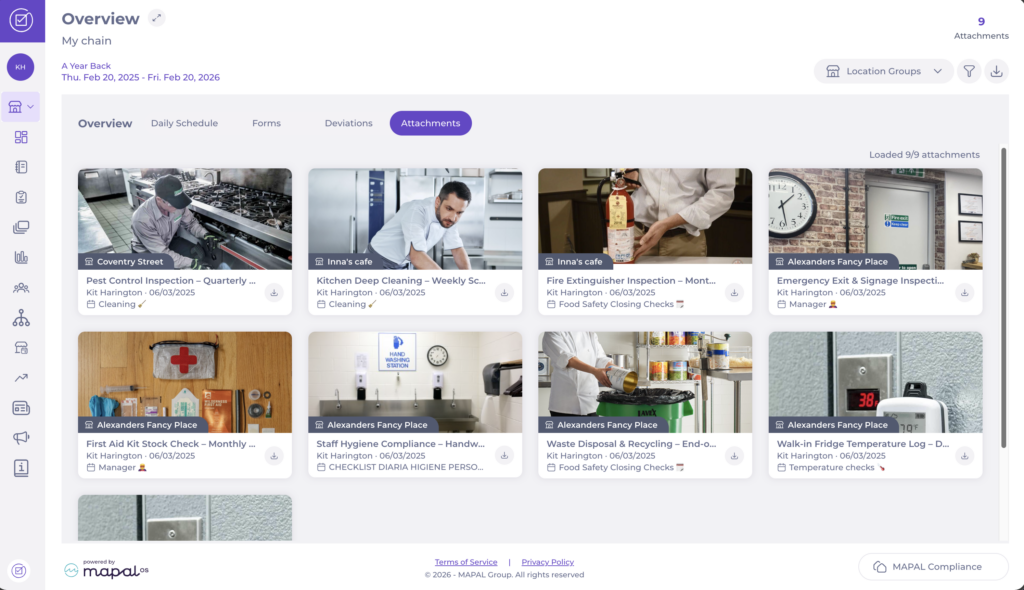
This tab provides a centralised view of all uploaded images added to tasks across your locations.
- Select the Attachments dropdown to view all attachments.
- Each attachment card displays the location, task name, user who uploaded it, date, and category.
- Select the download icon on any attachment to download it directly.
Attachments filters
Select the filter icon to access the filter options:
- Select a specific period of time to visualize.
- Location Groups: Filter attachments by specific location groups.
- Show: Filter by attachment source: All Attachments, Checklists, or Forms.
For more information about how to manage attachments, see Moderate images and attachments on Compliance.
