


Start from: The Daily Schedule.
Add a task
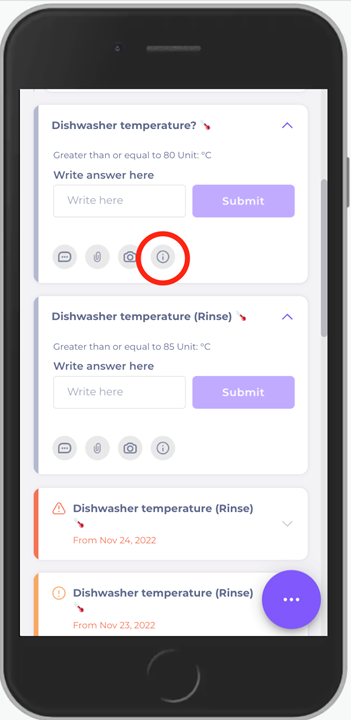
- Select a specific task.
- Select the information "i" icon.
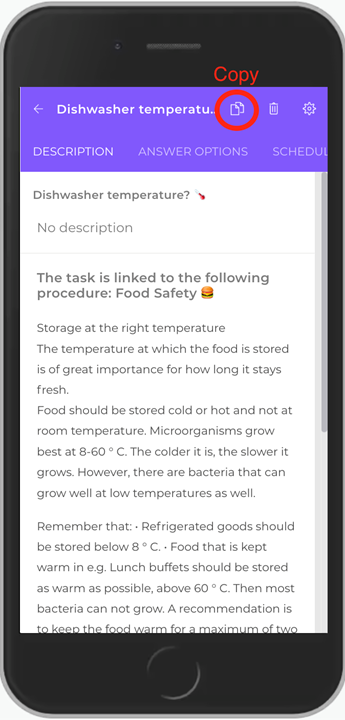
- Select Copy (two paper sheets icon).
- Enter the name of your new task.
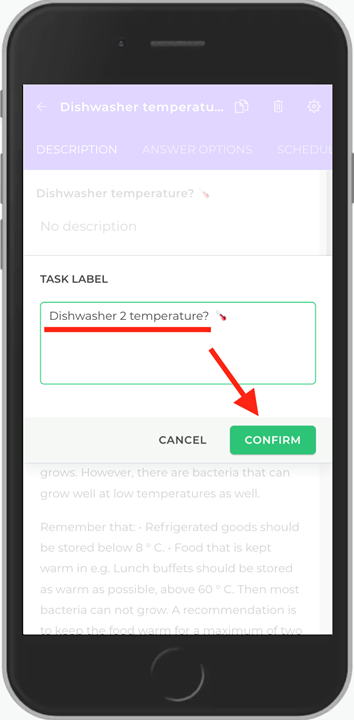
- Select Confirm.
Note: when you add or "create" a new task by duplicating an existing task and re-naming it, please make sure that the settings of the task that is being copied agrees with the new task you are creating (ex. temperature and scheduling). You cannot create a new task from scratch.
Edit a task
- Select a specific task.
- Select the information "i" icon.
- Select the gear icon to edit settings.
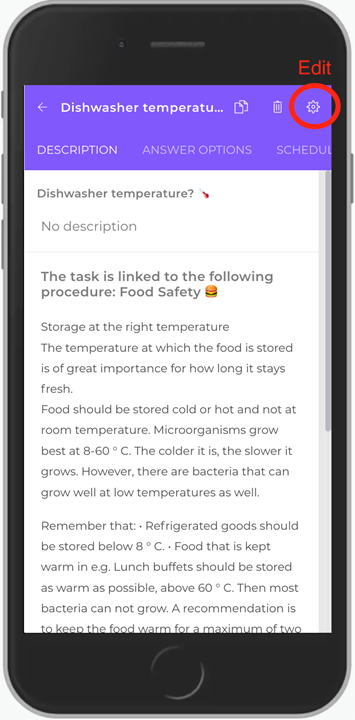
- Re-name the task.
- Click anywhere on the screen so that a yellow field appears.
- Select Save.
Change scheduling
- Select a specific task.
- Select the information "i" icon.
- Select the gear icon to edit settings.
- Select the Scheduling tab.
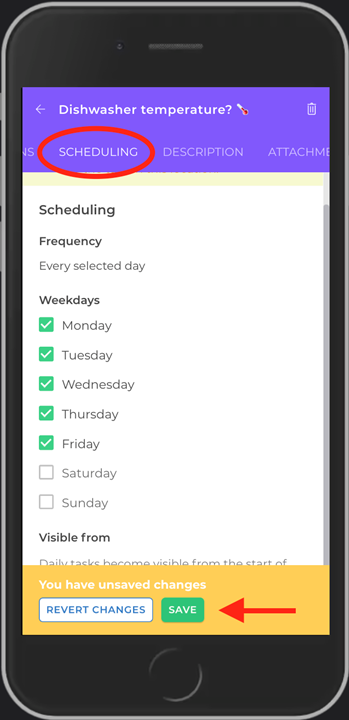
- Set the days you want the task to take place.
- Click anywhere on the screen so that a yellow field appears.
- Select Save.
Delete a task
- Select a specific task.
- Select the information "i" icon.
- Select the gear icon to edit settings.
- Select the trash bin icon to delete the task.
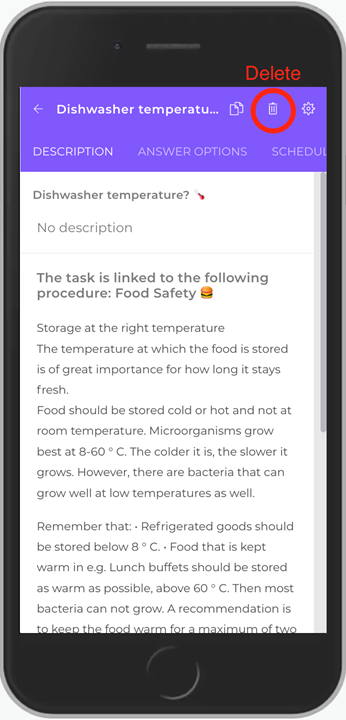
The question Are you sure you want to delete this task? appears.
- Select Yes.
