


Start from: the Compliance Local Overview.
- Select the Attachments tab.
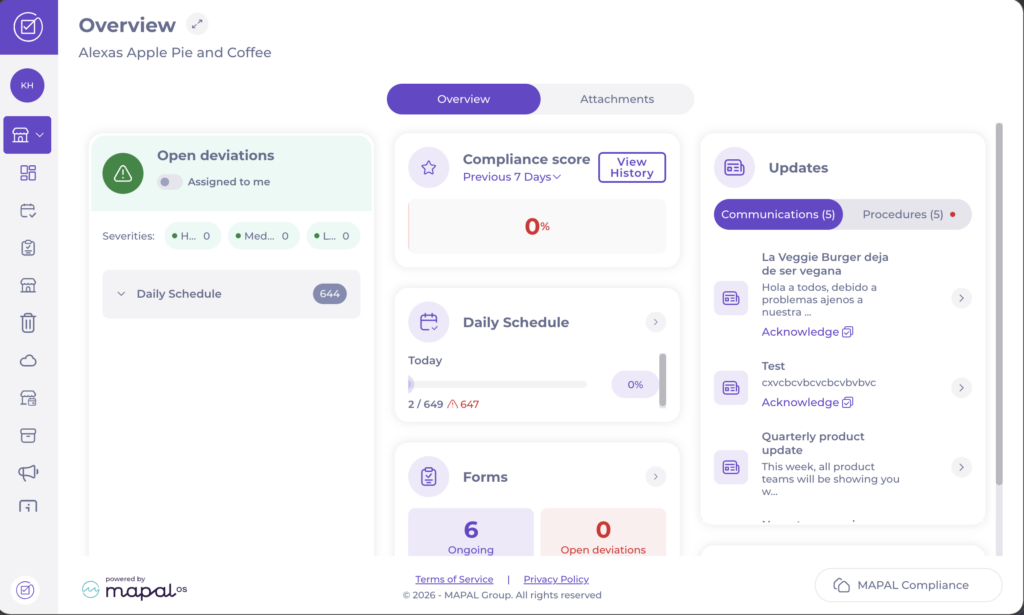
Browse attachments
The Attachments tab displays all uploaded files for the selected date period as a grid of image tiles. Each tile shows the file name, author, upload date, and the associated form or task.
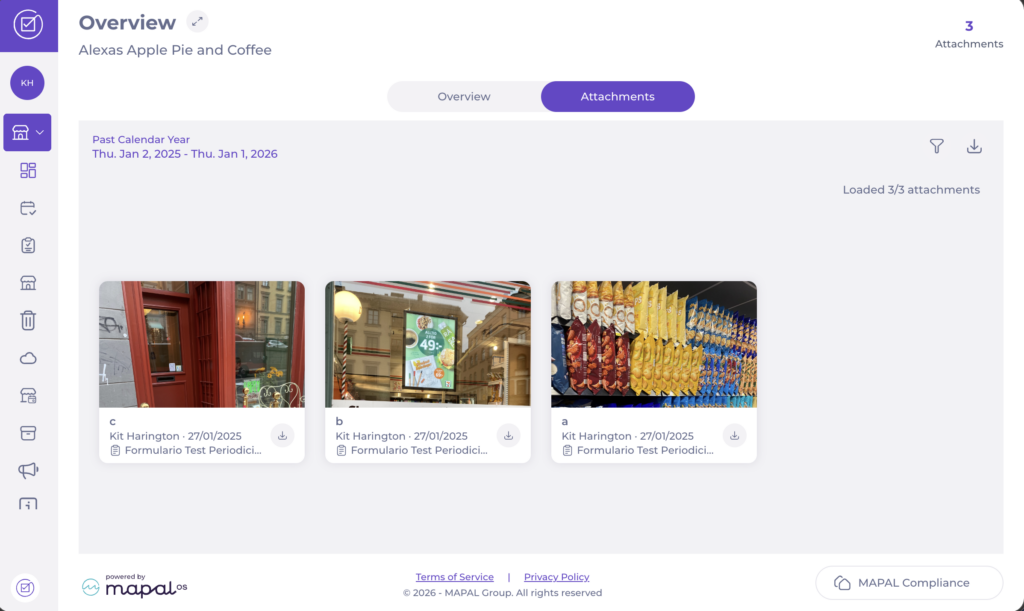
- Select the date range to filter by period. Available options include Today, Previous 7 Days, Previous 30 Days, A Year Back, Past Calendar Month, Past 3 Calendar Months, Past Calendar Year, and Custom range.
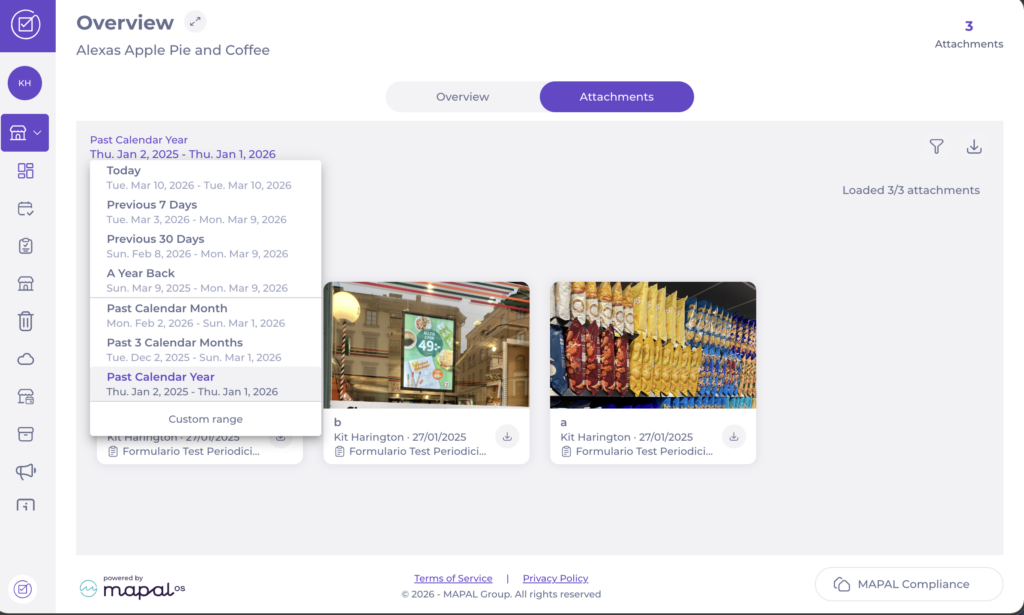
- Select the filter icon to narrow results by type. Select All Attachments, Checklists, or Forms, then select Accept.
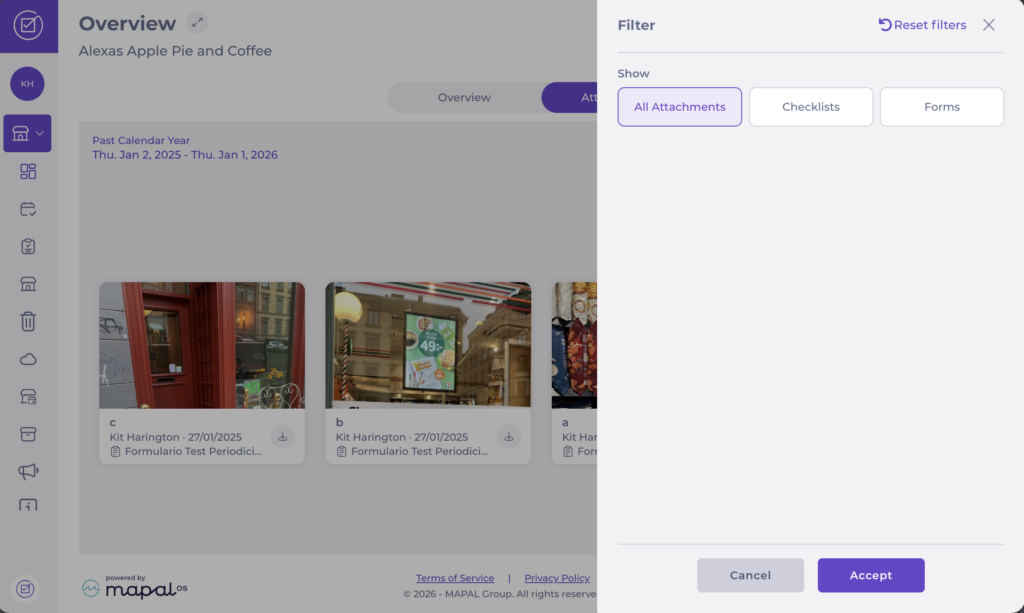
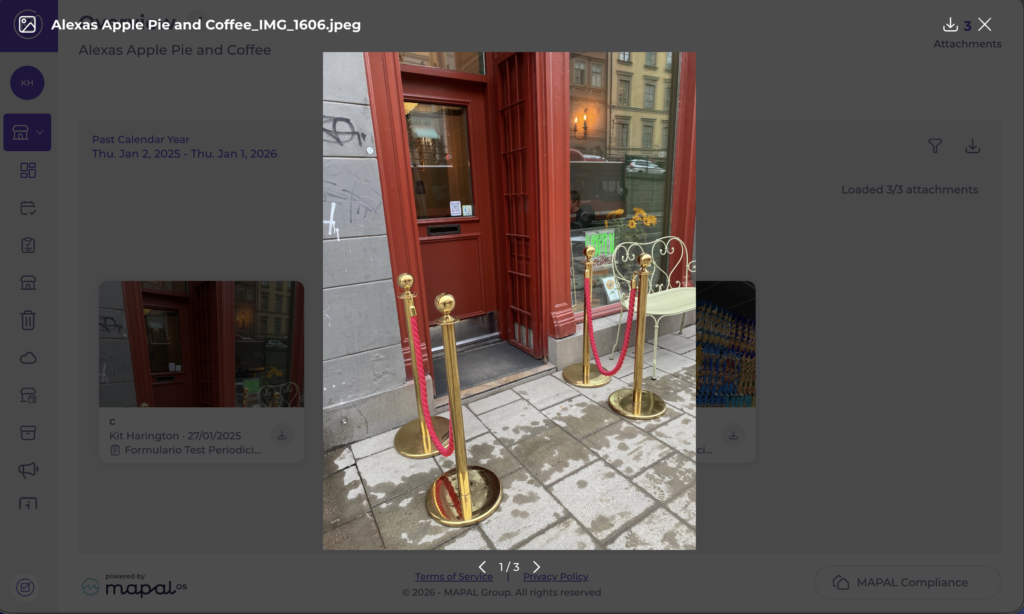
- Select an image to open a larger preview.
- Select the download icon on a tile to download that file individually.
Download all attachments as a batch
- Apply any filters to narrow down the results, if needed.
- Select the download icon to download all attachments currently visible in your filtered view as a compressed .zip file.
Note: Attachments from deleted tasks or forms are not included in this view. To view attachments at a central level, see Moderate images and attachments on Compliance.
