Start from: The Flow Learning dashboard.
- Navigate to Learning & Development > Goals.
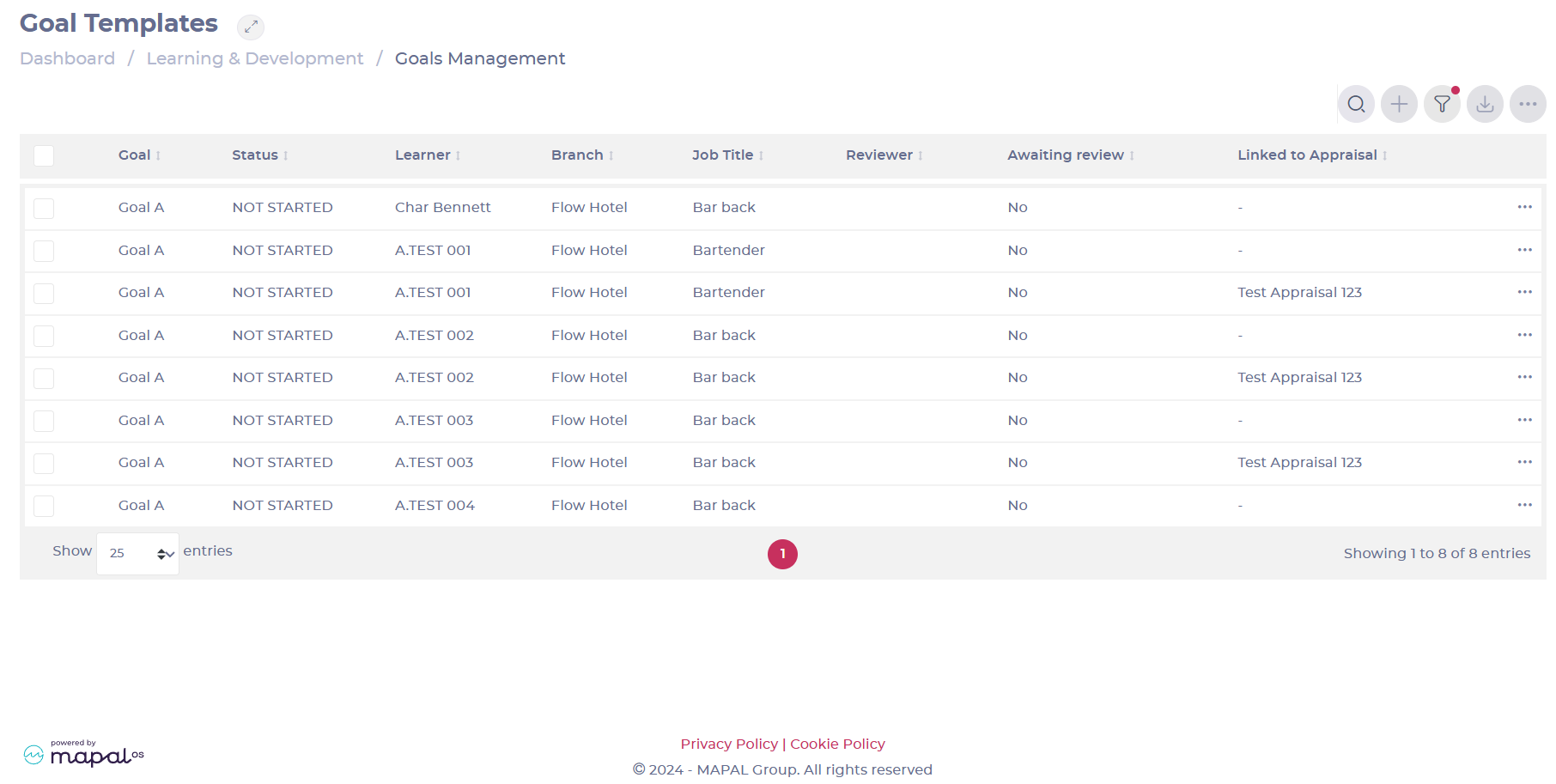 This screen displays a list of all Goals. In this table, you will be able to see:
- Goal: The Goal name.
- Status: Shows the specific status of the Goal, which can be Complete, In progress, or Not started.
- Learner: The learner that has the specific Goal assigned.
- Branch: The branch of the learner.
- Job Title: The specific job role for which this Goal is created.
- Reviewer: Shows is there’s a reviewer assigned to the Goal.
- Awaiting review: Shows if the Goal is awaiting review.
- Linked to Appraisal: Shows if the Goal is assigned to an appraisal. This field displays the specific name of the appraisal linked.
Filter Goals
The Goals Management screen facilitates the process of locating existing Goal with the Filter feature.
- Select Filter.
- Refine the parameters to find the Goals you are looking for. You can use the Awaiting review options, Learner Statuses, Goal Statuses, Branches, etc.

Reviewing Goals as a manager
Editing a Goal leads to a review process. This is where you can choose to approve the Goal , or suggest amendments to the learner. Once signed off, you can visit this section to view the progress your learner is making within their Goals.
- Select the three dots button in the Goal’s row.
- Select Edit.
- The Goal settings screen will open. Here, you can add new tasks and objectives by selecting + Add Objective.

Edit the due date of an assigned goal
Goal deadlines may need to be adjusted due to operational changes, learner availability, or revised expectations. The due date of an assigned goal can be edited directly from the learner profile without any additional administration.
- Navigate to Company > Learners and select the learner from the list.
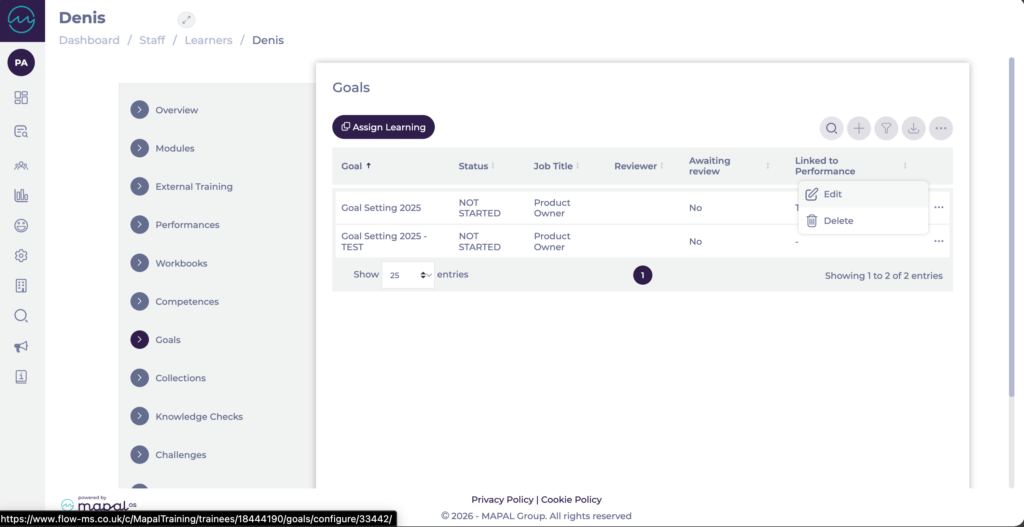
- Select Goals to open the list of goals assigned to the learner.
- Select the … button in the goal's row and select Edit.
- Select the Due Date field to open the date picker.
- Select the new due date.
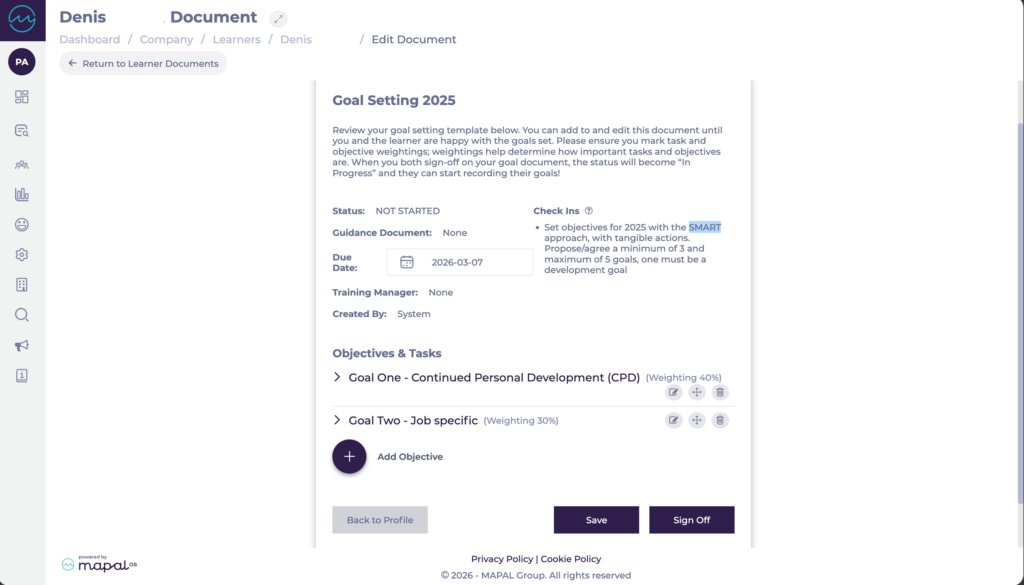
- Select Save to confirm the change.
Note: Adjusting a due date does not affect the goal's content or progress. Only the deadline is updated.
Delete Goals
Individually
- Select the three dots button in the Goal’s row.
- Select Delete.

As a batch
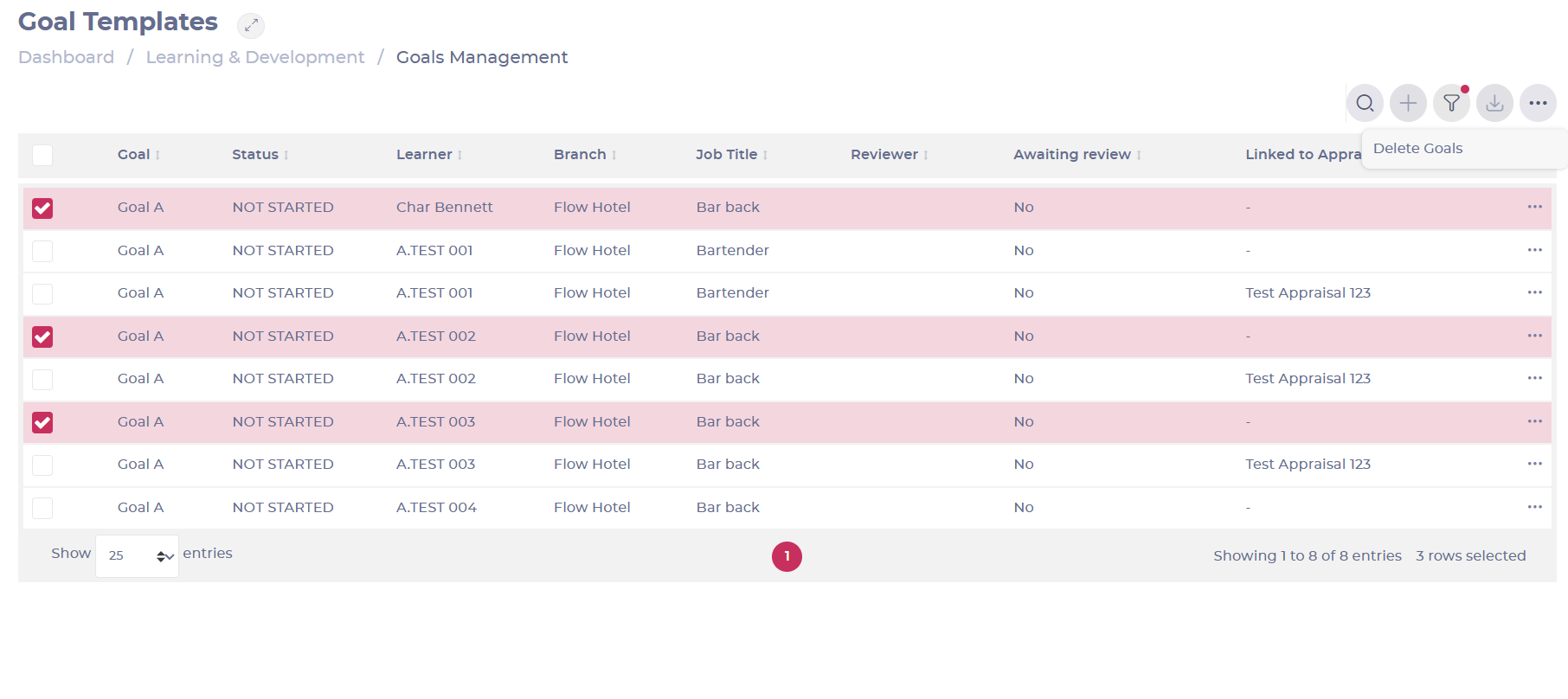
- Check the boxes of the Goals you wish to delete.
Note: You can select the checkbox at the header to select all Goals in the list.
- Select the three dots button at the top of the page.
- Select Delete Goals.