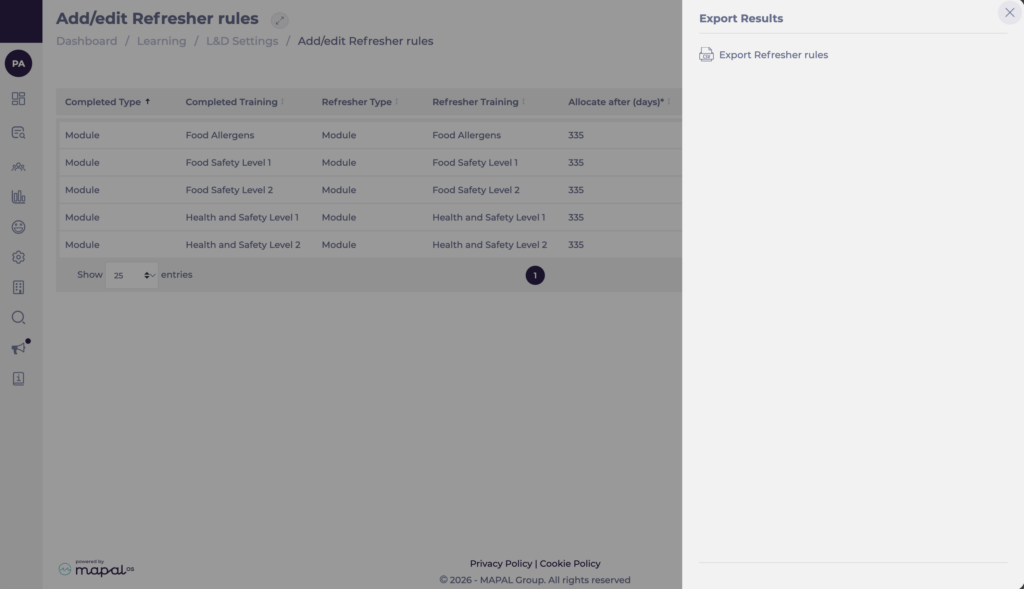
Start from: The Flow Learning Dashboard.
How refresher rules work
Refresher rules are triggered by completed items on a learner’s profile. When a learner completes the relevant training, Flow waits the configured number of days and then allocates the refresher module. The refresher module must be included in the learner’s Training Structure for the allocation to happen automatically.
If an External Training (historical training) item is completed and a refresher rule is set, the system automatically assigns the chosen refresher training after the defined number of days. This refresher can be a module, a workbook or another External Training item, depending on how you configure the rule. When an External Training item is included inside a Collection and is subject to a refresher rule, it is also refreshed automatically according to that rule, in the same way as other training items.
Workbooks follow the same logic. When a workbook is included in a Training Structure and subject to a refresher rule, it is issued automatically according to the refresher schedule. You can also use different training types to trigger a workbook refresher: a workbook can be refreshed when the learner completes a module, an External Training item, or another workbook. This gives you flexibility to design follow-up activities and blended refresher paths that combine on-screen training with workbook-based tasks.
View refresher rules in the grid
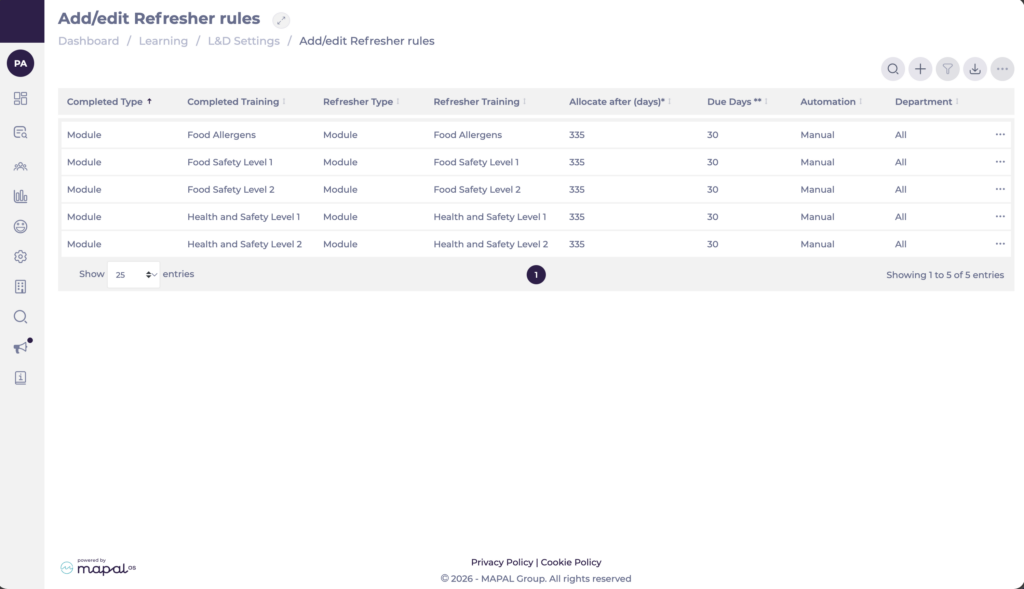
The Add/edit Refresher rules screen lists one row per rule, with key details in each column so you can quickly see the scope of every refresher rule without opening it individually:
- Completed Type and Completed Training show which item triggers the refresher.
- Refresher Type and Refresher Training show what will be allocated.
- Allocate after (days) and Due days show the timing.
- Automation indicates whether the rule is Manual or Automated.
- The Department column shows where each rule applies (for example, “All” or a specific department).
Assign refresher rules
- Navigate to: Learning & Development > L&D Settings > Add/edit Refresher rules.
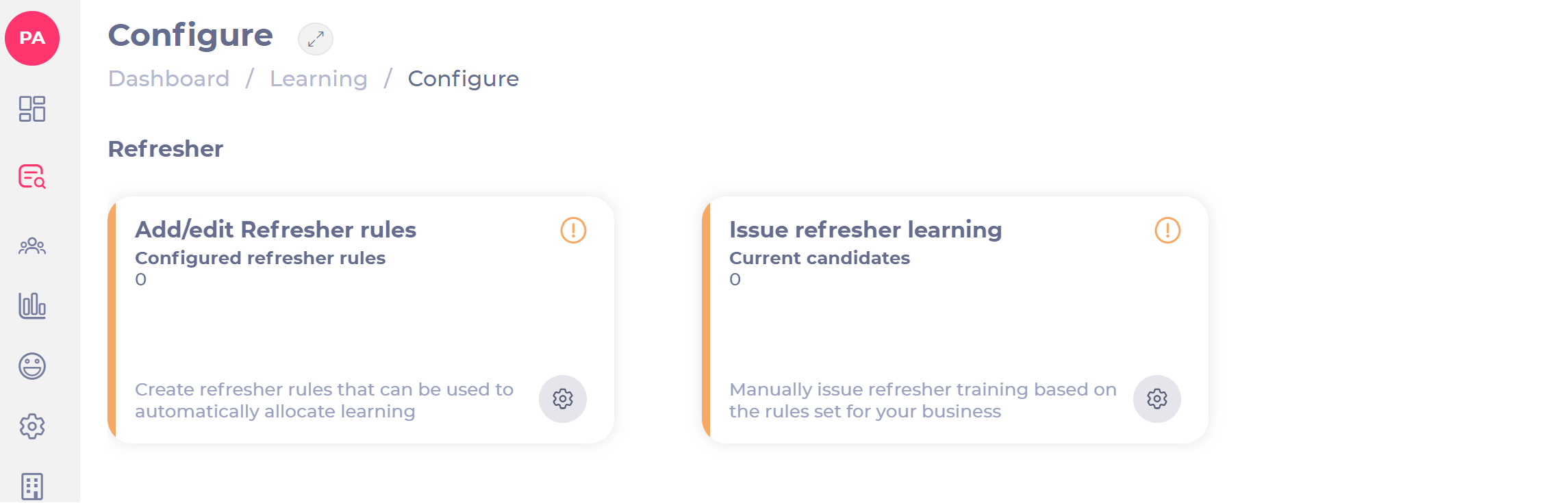
- Select the + icon. A new pop-up window will open.
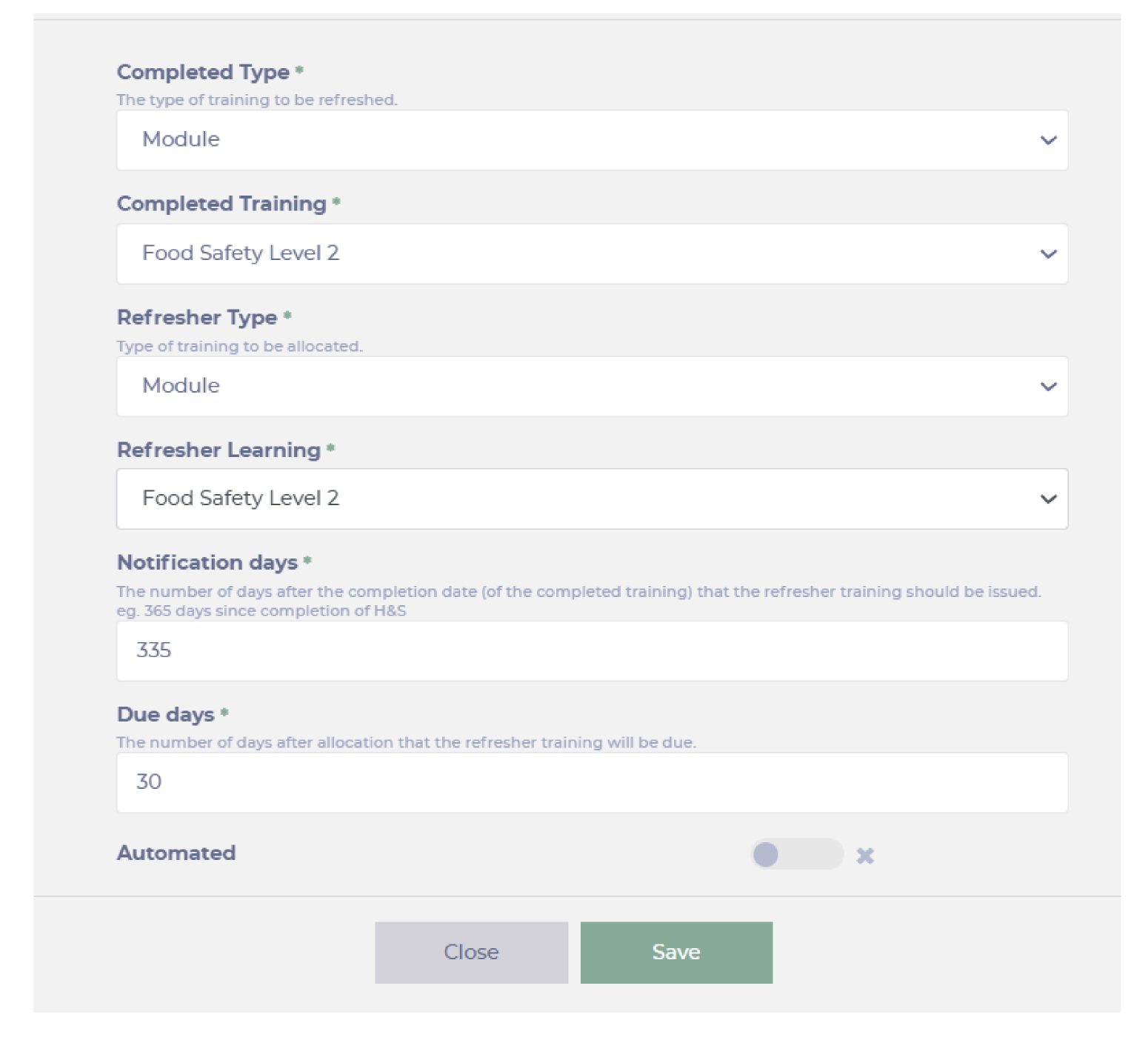
- Fill the following fields:
- Choose the training to be refreshed in the Completed Type dropdown menu.
- Choose the training that has been completed and needs to be refreshed in Completed Training dropdown menu.
- Choose the training to be allocated in the Refresher Type dropdown menu.
- In the Notification days section, enter the number of days after the completion date that the refresher training should be issued
- In the Due days section, enter the number of days after allocation that the refresher training will be due.
- Activate the Automated toggle switch if you want the training to be automatically assigned and issued. If an automated rule is added, the training item (Refresher module) must be included in the training structure for that employee. If not, you will have to manually assign the training.
Example: If a learner has completed an external training module “A” and a refresher rule is set for module “B”, the system will automatically assign module “B” (if it is in the learner’s Training Structure).
Note: Ensure that the refresher module is present in the Training Structure, as it is required for the refresher to be automatically issued. There is no mechanism to override the automatic rules by adding a training record mapping.
If Module A refreshes with Module B, after completion the system will revert to Module A unless Module B has its own refresher rule. For example, if H&S 1 refreshes with H&S 1, the cycle continues as expected. However, if H&S 1 refreshes with H&S 2, then H&S 2 needs its own refresher rule to continue the sequence; otherwise learners will be assigned H&S 1 again.
You can also issue refresher learning manually. To learn more, go to Issue refresher learning manually.
Overriding automated refresher rules
- Automated refresher training can be issued even if the refresher item does not exist in a learner’s Training Structure.
- This feature is controlled by a company-level toggle, which applies to all automated refresher rules once enabled.
- To activate this option for your organisation, contact your Mapal Customer Success Manager.
Note: There is no mechanism to override refresher rules by adding a training record mapping.
Export refresher rules
- Select Export at the top right screen.
- In Export Results, select Export Refresher rules.
- A .csv copy of what you see in your grid will be downloaded to your device.