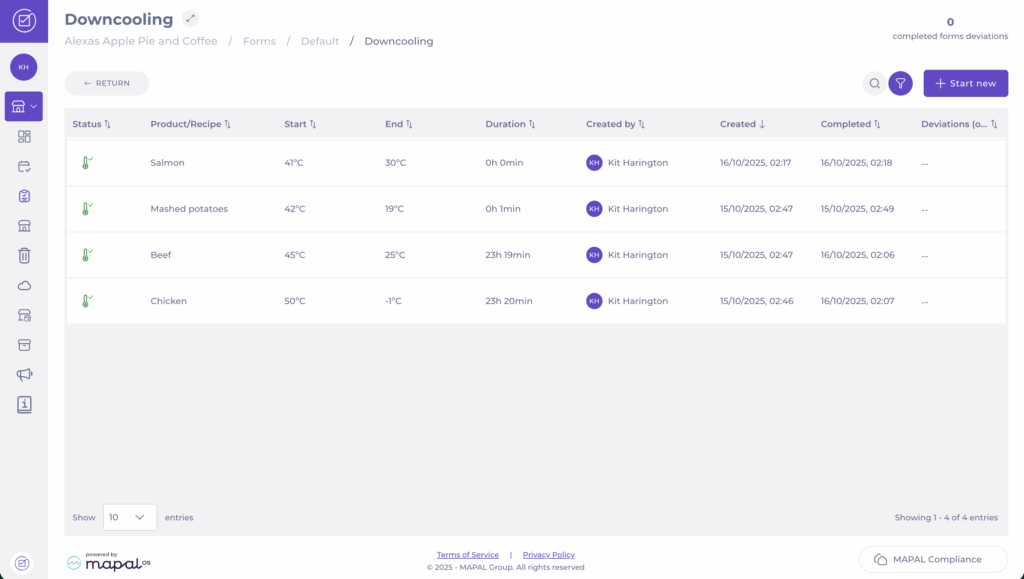
Start from: The Compliance overview:
- Navigate to your location’s Overview page.
- In the Open deviations tile, you may see separate tabs for Daily Schedule and Forms.
- Open the relevant deviation report from the list.
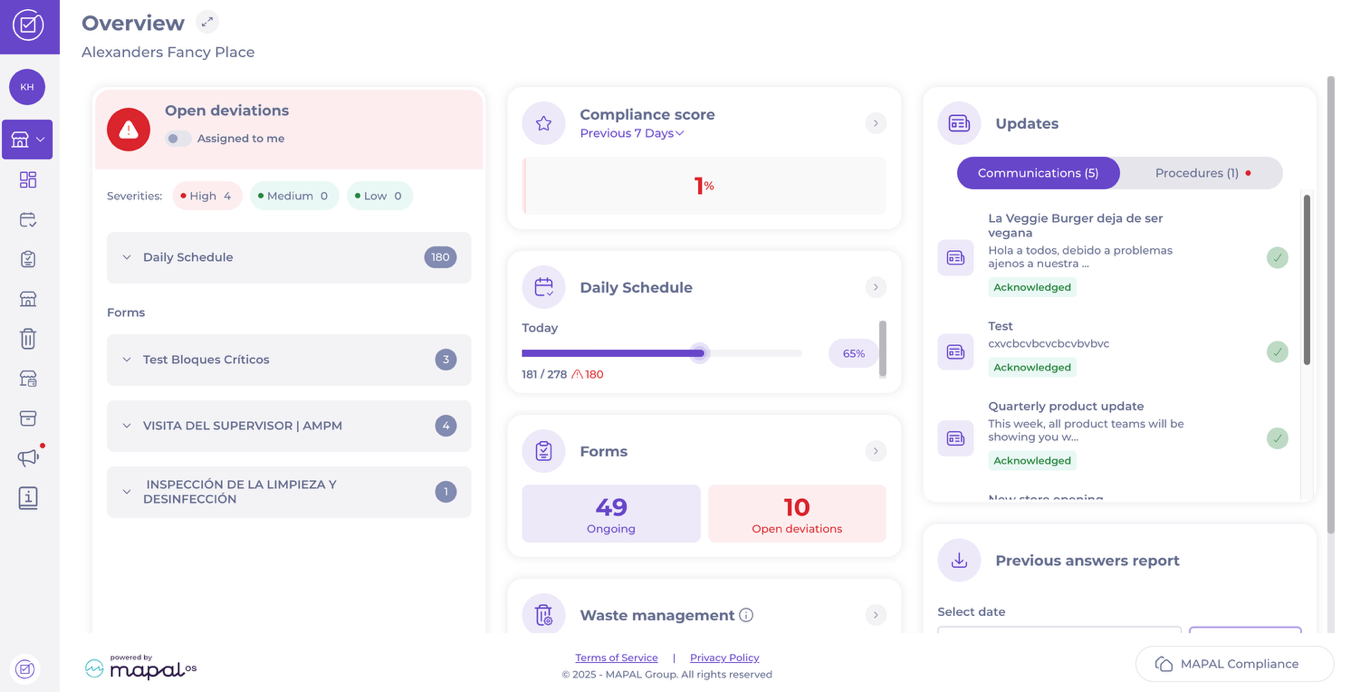
- You can also respond deviations from within the Daily Schedule if the deviation originated there.
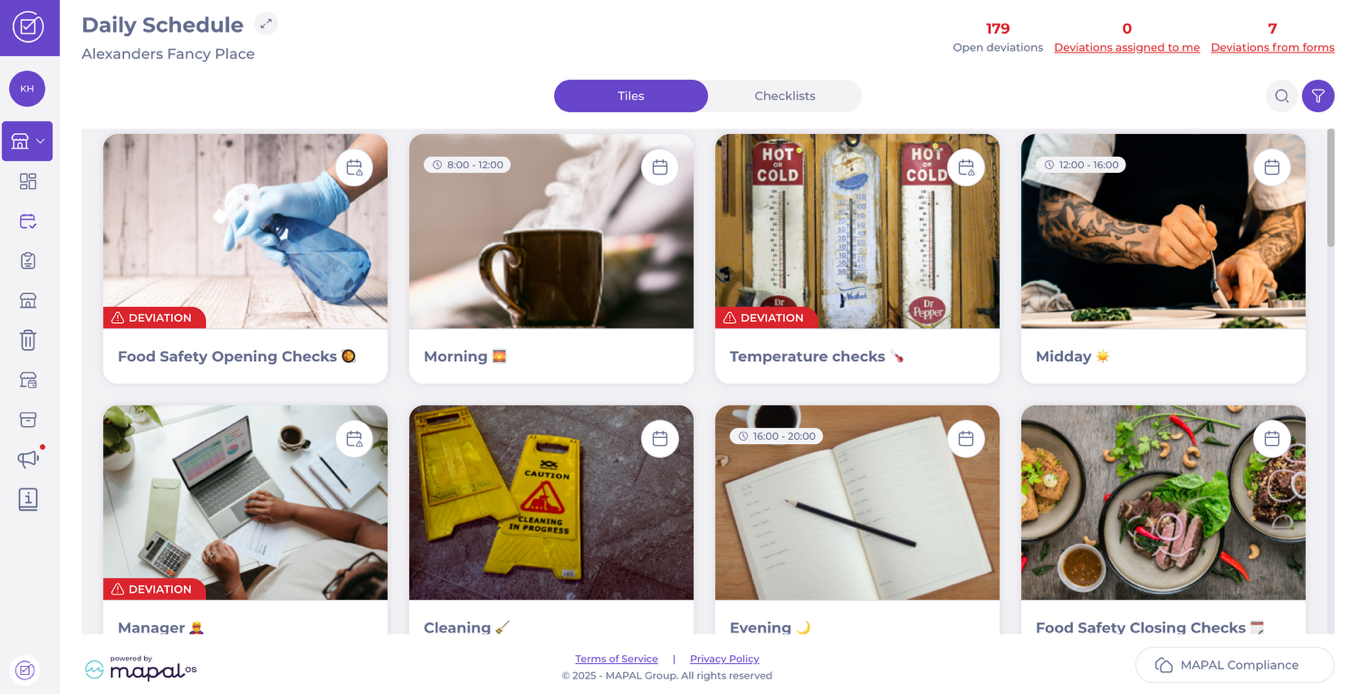
- In the Forms section, deviations may appear in the top summary, but are not clickable. You need to open the related form to respond.
Respond to a regular deviation
- Locate the deviation.
- Depending on the configuration, two types exist:
- No comment required: select Close deviation directly.
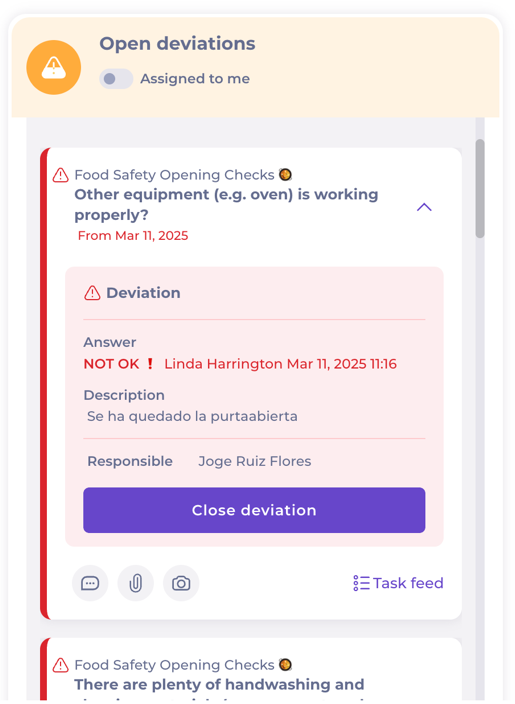
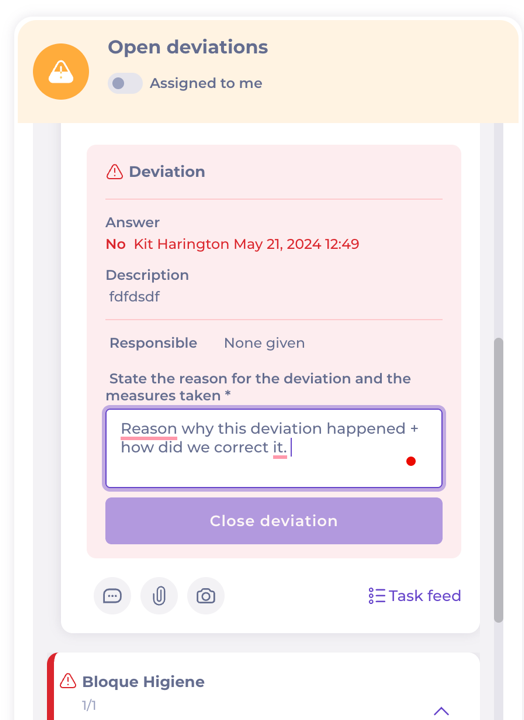
- Comment required:
- Enter the reason in State the reason for the deviation and the direct actions taken*.
- Describe both why it happened and what you did to resolve or prevent it.
- Then select Close deviation.
Respond to a corrective action deviation
- Locate the deviation.
- The Direct action panel appears in your deviation. Here, follow the same steps as in a regular deviation (as above) to close the direct action.
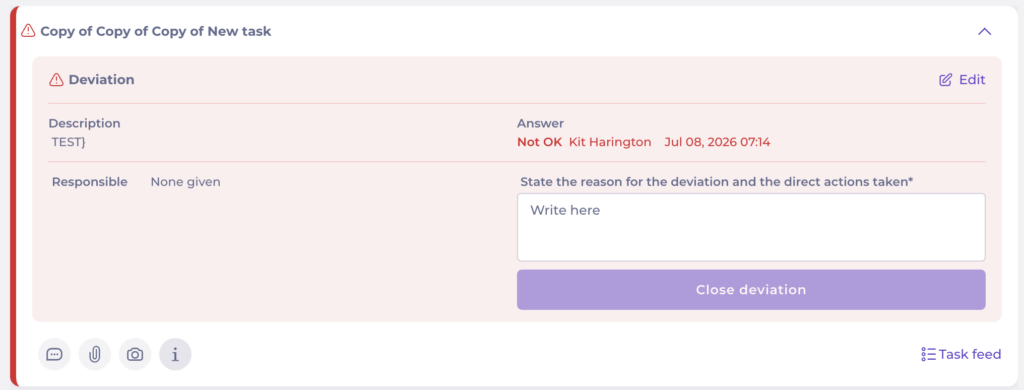
- Now you will see the Create corrective action button in your task. Select it.

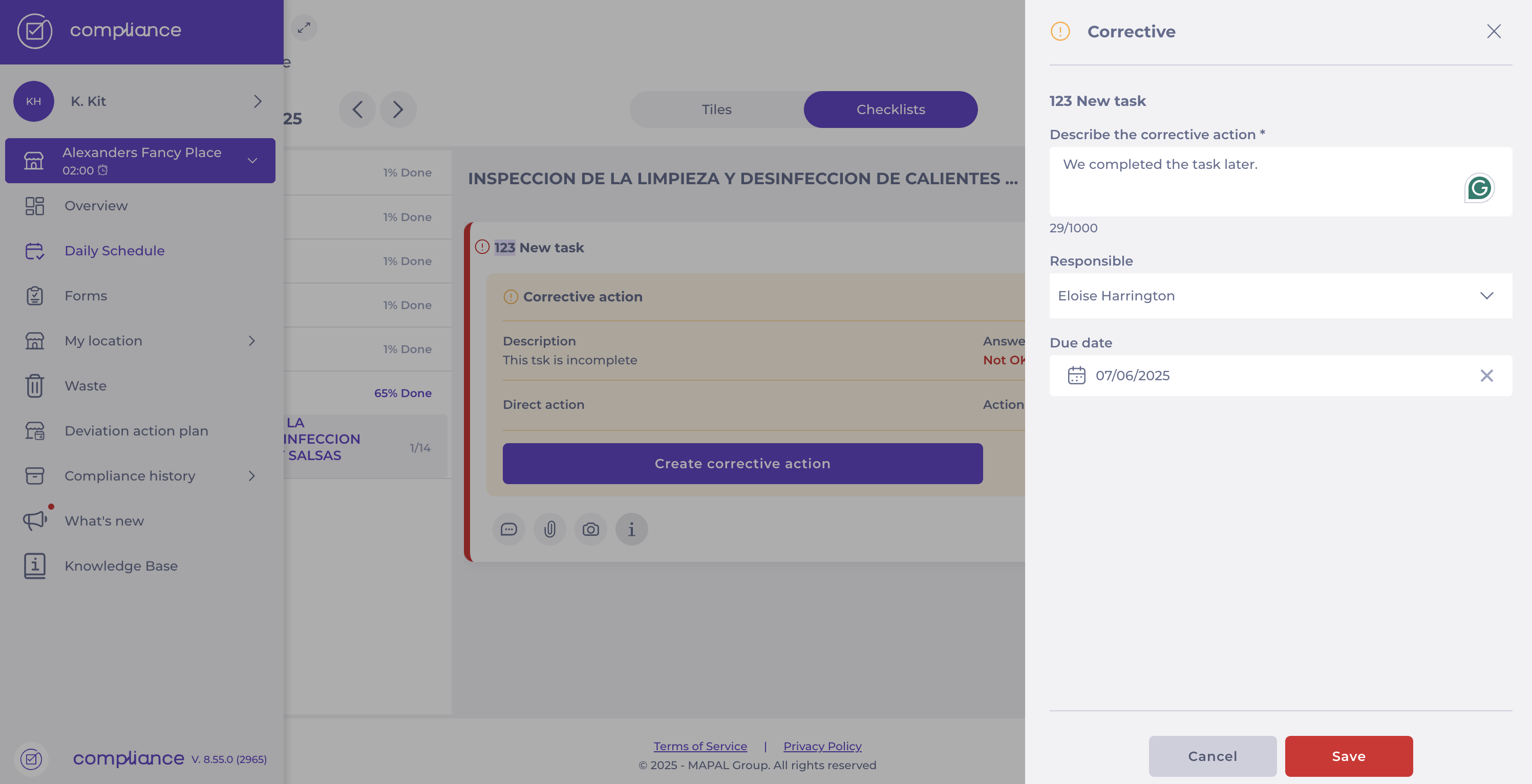
- In the Corrective panel, fill out:
- Describe how the corrective actions were implemented and how you ensured this does not happen again*
- Select a Responsible user.
- Set a Due date.
- Select Save.
- Back in the task, in the Corrective action section, complete State the reason for the deviation and the direct actions taken*
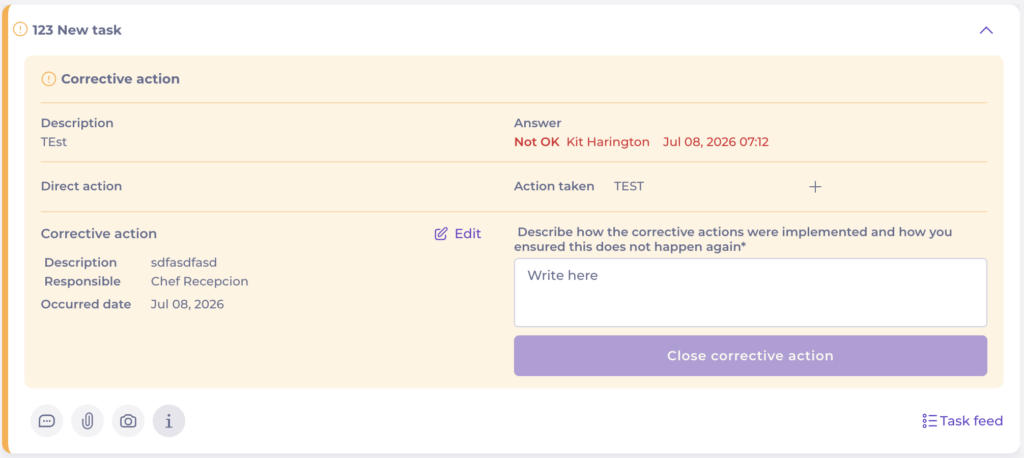
- Select Close corrective action.
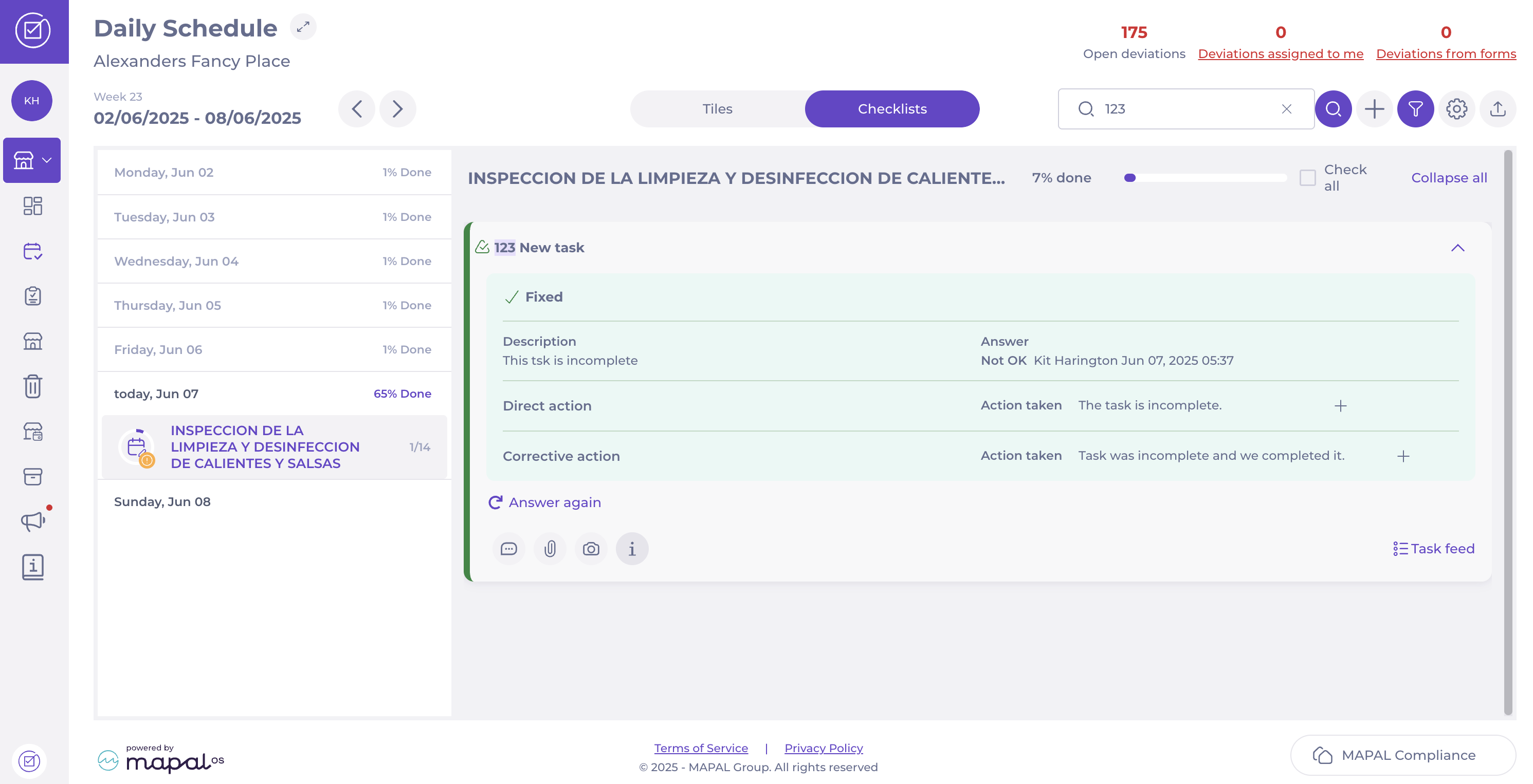
Note: Like regular deviations, some corrective action deviations may not require a comment, depending on how they are set.
Identify downcooling deviations
Deviations from downcooling are logged just like any other compliance task. They appear in deviation reports and must be investigated and resolved (e.g., repairing faulty equipment, discarding food). Once action is taken, the deviation can be closed in the system.
- Successful example: Item cools from 40 °C to 19 °C within the hour? marked as successful downcooling.
- Failure example: Item cools only to 25 °C within the hour? system raises a deviation.
To see deviations related to downcooling:
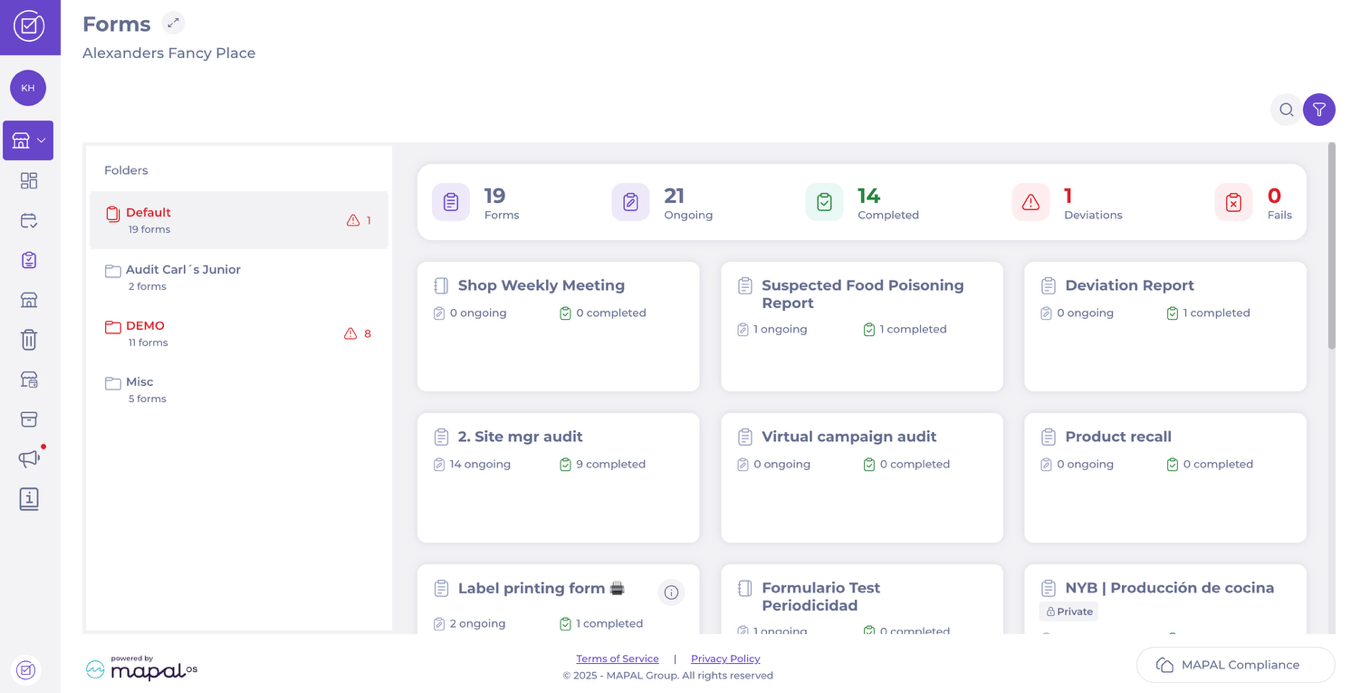
- Navigate to Forms > [Specific downcooling form].
Note: Downcooling forms must be configured in order for them to work. To know more, see Create a downcooling form.
- There, you’ll see a list of downcooling tasks with a Deviations (Open / Total) column indicating any linked issues.
- A Completed Forms Deviations counter at the top right shows the total number of deviations linked to downcooling forms.