


Some companies choose to rename 'appraisals' to something that works better for their company. If Appraisals is part of your package and you are having trouble locating it on your system, please get in touch with your Mapal Customer Success Manager.
Start from: A new appraisal form.
Sign off settings
Sign off settings are in Step 1 of the Edit Appraisal page.
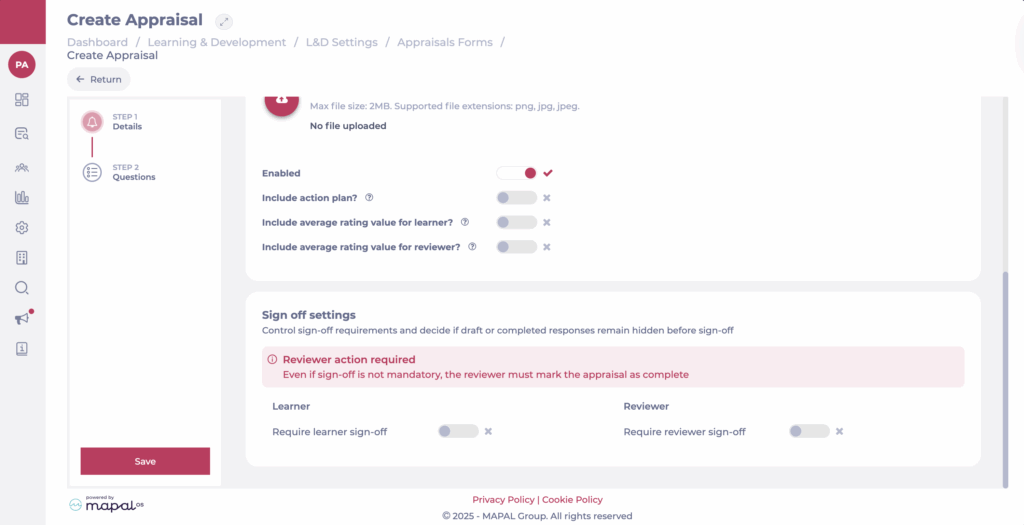
Sign off configuration control who needs to sign off an appraisal, and decide whether draft or completed responses remain hidden before sign-off.
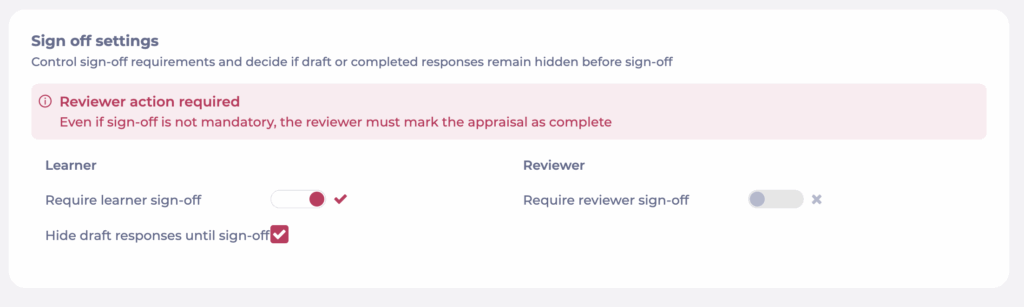
Learner
- Require learner sign-off: Toggle on if the learner must formally sign off their appraisal.
- Hide draft responses until sign-off: When enabled, the reviewer will only see the learner’s answers after the learner signs off.
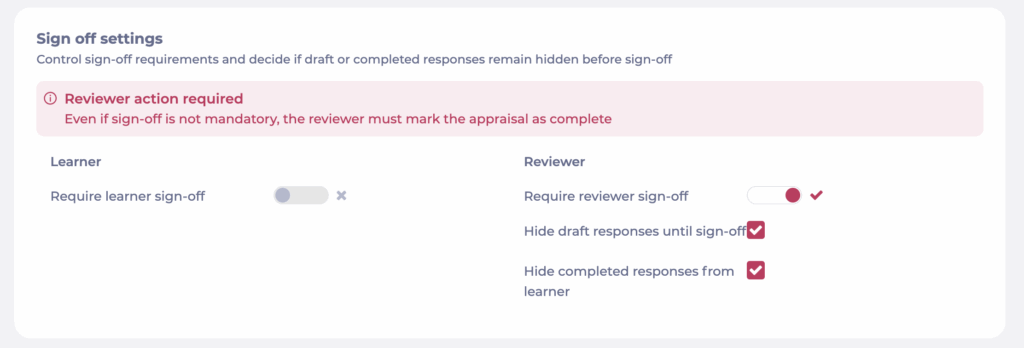
Reviewer
- Require reviewer sign-off: Toggle on if the reviewer must sign off the appraisal before it is marked complete.
- Hide completed responses from learner: The reviewer’s responses remain hidden from the learner, even after sign-off.
- Hide draft responses until sign-off: When enabled, the learner will only see the reviewer’s answers after they have signed off.
Choosing the right settings
- Use no sign-off required for lightweight appraisals where responses can be shared openly.
- Use learner sign-off required when you want learners to confirm their input before sharing with their manager.
- Use reviewer sign-off required when final validation by the manager is essential.
Note: Even if sign-off is not mandatory, the reviewer must always mark the appraisal as complete.
- Combine both toggles for full dual sign-off when accountability on both sides is required.
Note: When full dual sign-off is enabled (required for both learner and reviewer), draft responses will not be visible to either party until they have signed off.
