


Start from: The Flow Learning dashboard.
Download the certificate template
Before uploading a certificate to Flow Learning, you need to add dynamic fields to your file. Download the relevant template to copy the dynamic fields from:
Available dynamic fields
Each template includes the following dynamic fields:
- Modules: Learner's Name, Course Completed, Date Completed, Certificate Number.
- Collections: Learner's Name, Collection Completed, Date Completed, Certificate Number.
- External training: Learner's Name, External Training Completed, Date Completed, Certificate Number.
Add dynamic fields to your certificate
- Open your certificate in Adobe Acrobat.
- Select Prepare Form on the left-hand panel.
- The dynamic fields from the template will be visible. Hold Shift, select the dynamic field boxes, then press CTRL+C to copy them.
- Open your own certificate file in Adobe Acrobat and select Prepare Form.
- Press CTRL+V to paste the dynamic fields onto your certificate. Adjust the boxes so they align with the relevant fields on your file.
- Save the file as certificate_template.
Note: The file must be saved with the exact name certificate_template. If the file name is different, the certificate will not work.
Upload your certificate
Once you have added the dynamic fields and saved the file, you can upload it to the platform.
- For SCORM modules, upload the certificate when adding a new module or by editing an existing one.
- For Collections and External Training items, follow the same process within the relevant section.
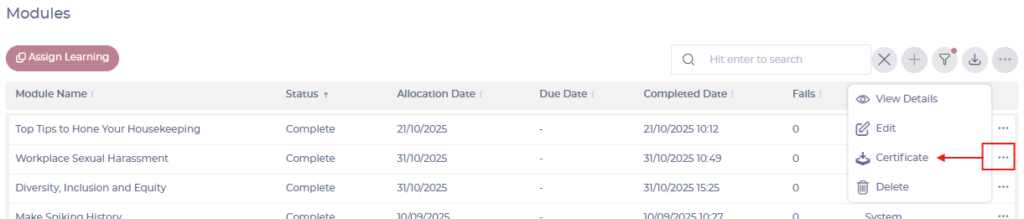
Note: If you upload a certificate to an item that learners have already completed, the system will update those records. The new certificate will be available to learners via their library in Mapal One, and managers can view it via the learner's profile in Flow Learning. Only completed items will generate a certificate.
