


Start from: The Flow Learning dashboard.
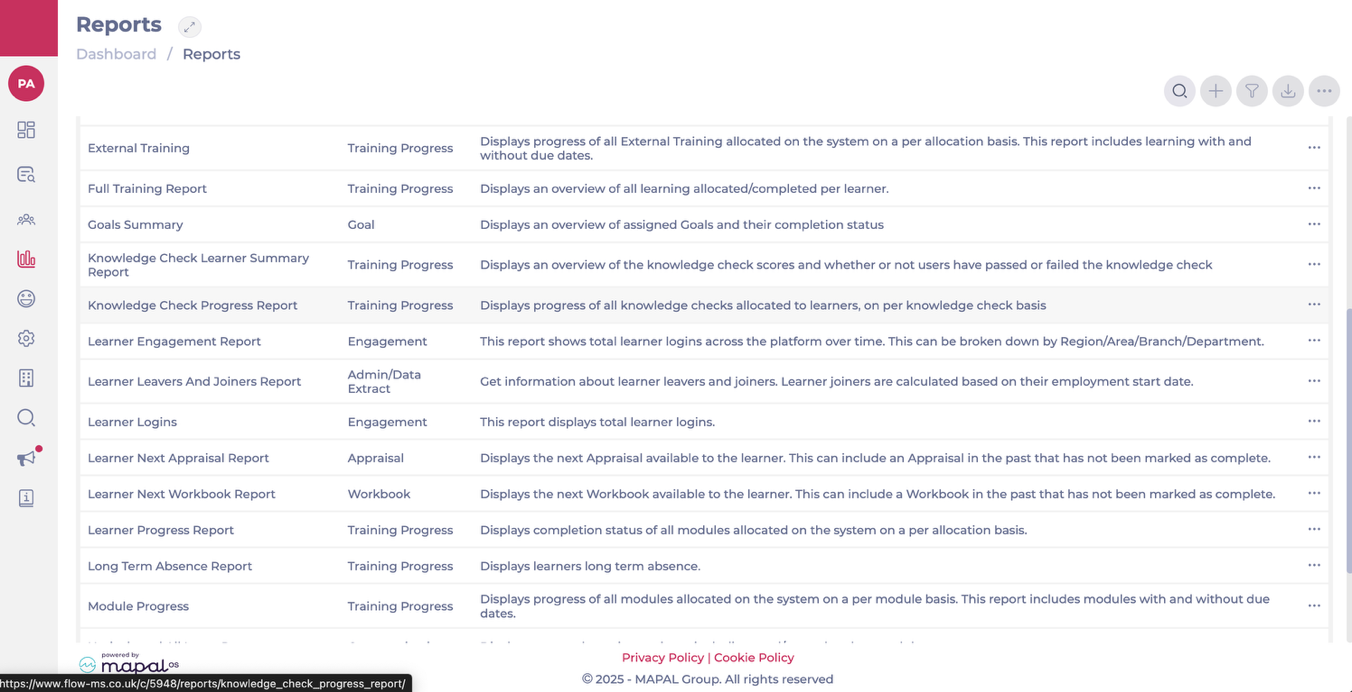
- Navigate to Reports.
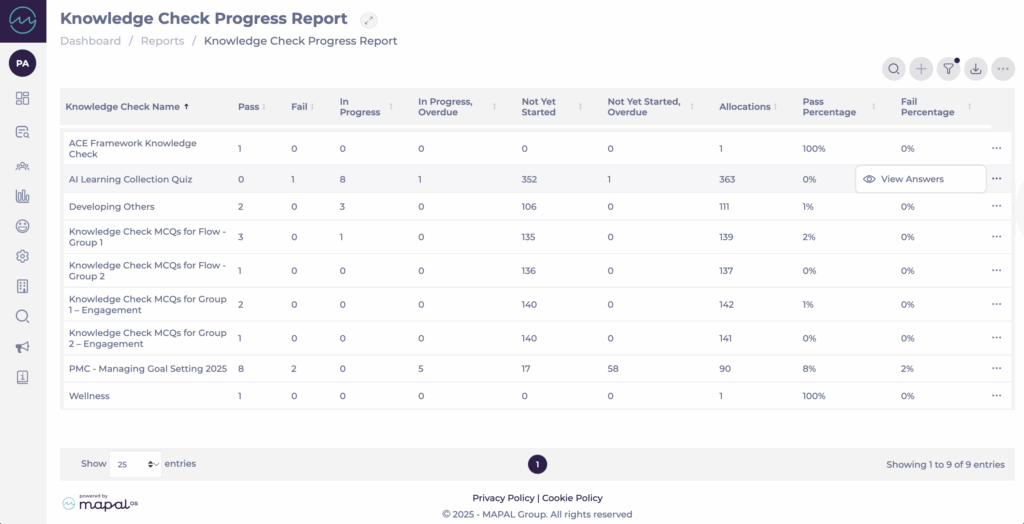
- Select Knowledge Check Progress Report.
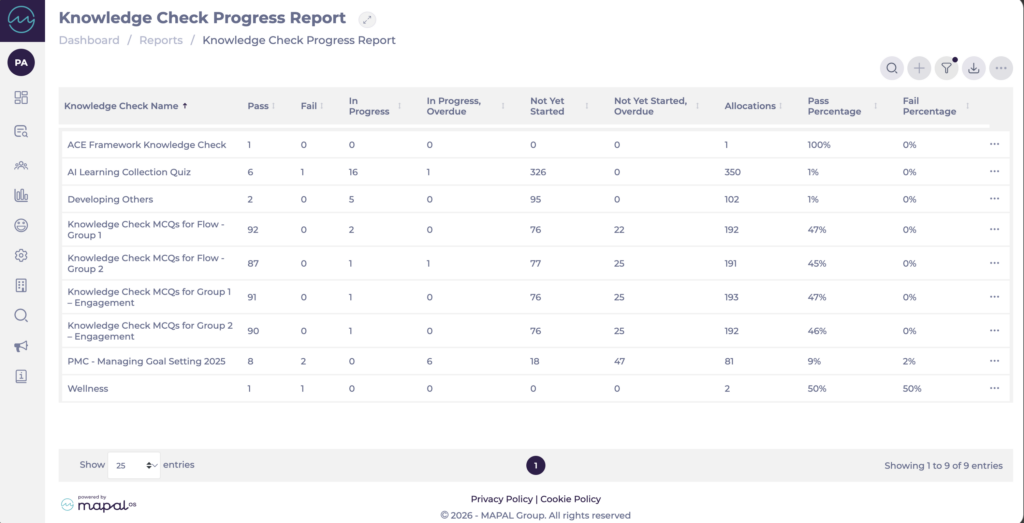
- Review the summary for each assigned Knowledge Check, including:
- Allocations: total number of learners assigned.
- Pass and Pass Percentage: number and percentage of learners who have passed.
- Fail and Fail Percentage: number and percentage of learners who have failed.
- In Progress: learners currently working through the Knowledge Check.
- In Progress, Overdue: learners who are in progress but have passed the due date.
- Not Yet Started: learners who have not yet begun.
- Not Yet Started, Overdue: learners who have not started and have passed the due date.
- Completed Date: the date on which each learner completed the Knowledge Check. This column is sortable and is also included in the exported file.
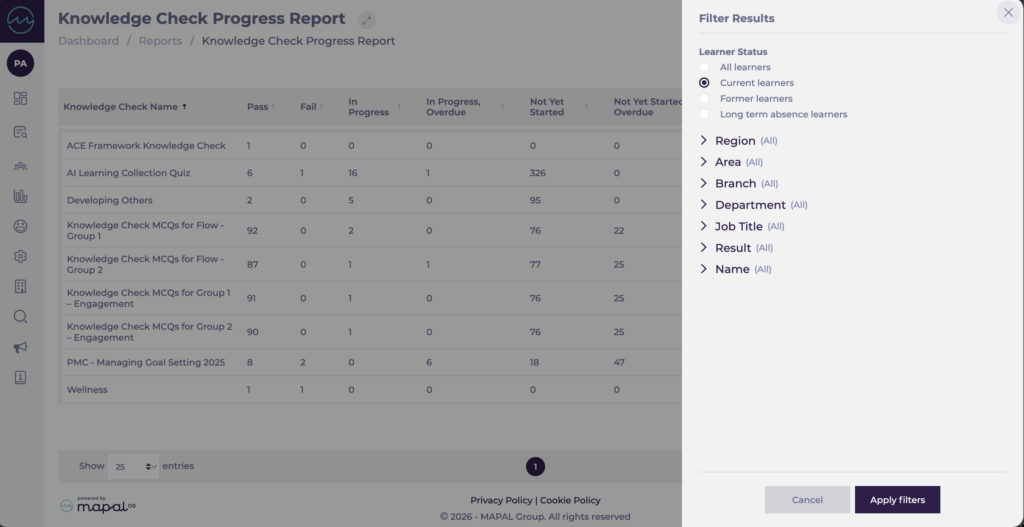
- Use the Filter to narrow data by:
- Status
- Section
- Division
- Region
- Area
- Branch
- Department
- Job Title
- Result
- Name
- You can also use the Search tool to find specific items per name or keyword.
- Select Export to download the report in Excel format.
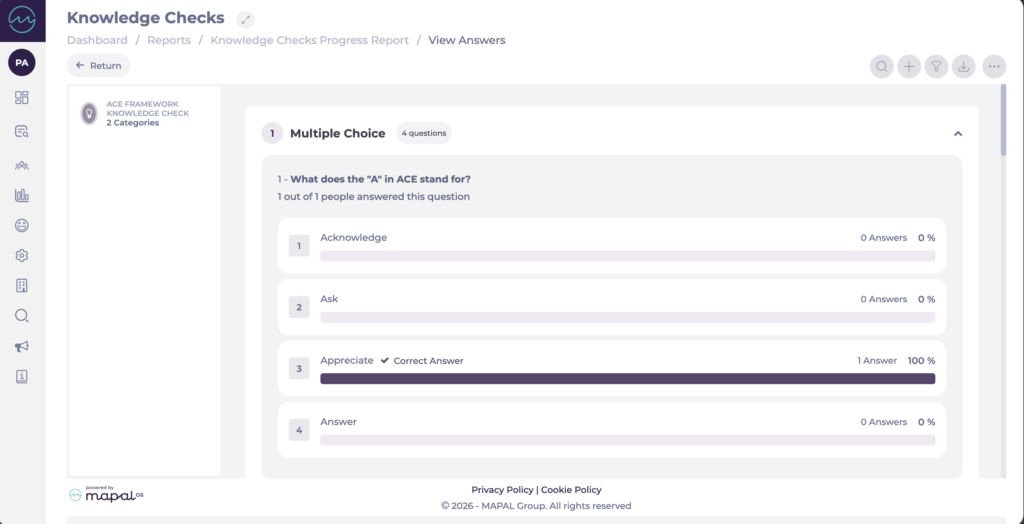
- Select the three-dot menu (...) next to a Knowledge Check and select View Answers to see how learners have answered individual questions.
Note: Answer data is shown for all completed attempts — both pass and fail — along with the number of learners who selected each option.
Smart Analysis in Knowledge Checks
For a deeper view of how learners are engaging with your Knowledge Checks, open the Answers Report.
- Locate the specific Knowledge Check on the list, and select the three dot (...) menu.
- Select View Answers.
- In the answeres screen, select the Smart Analysis icon at the top of the screen.
- Smart Analysis uses AI to review the visible data and highlight:
- Common themes across incorrect answers.
- Question types or topics that learners struggle with.
- Patterns that suggest whether the issue is with knowledge retention or question design.
- Insights appear in a chat-style panel, showing key trends and recommendations for action.
Note: Smart Analysis only reviews the data currently visible on your screen. Adjust your filters (e.g., timeframes, job roles, or departments) before launching the assistant if you want broader or more specific results.
For more detail on how Smart Analysis works, see Smart Analysis for Learning and Development.
