


Start from: The Engagement dashboard.
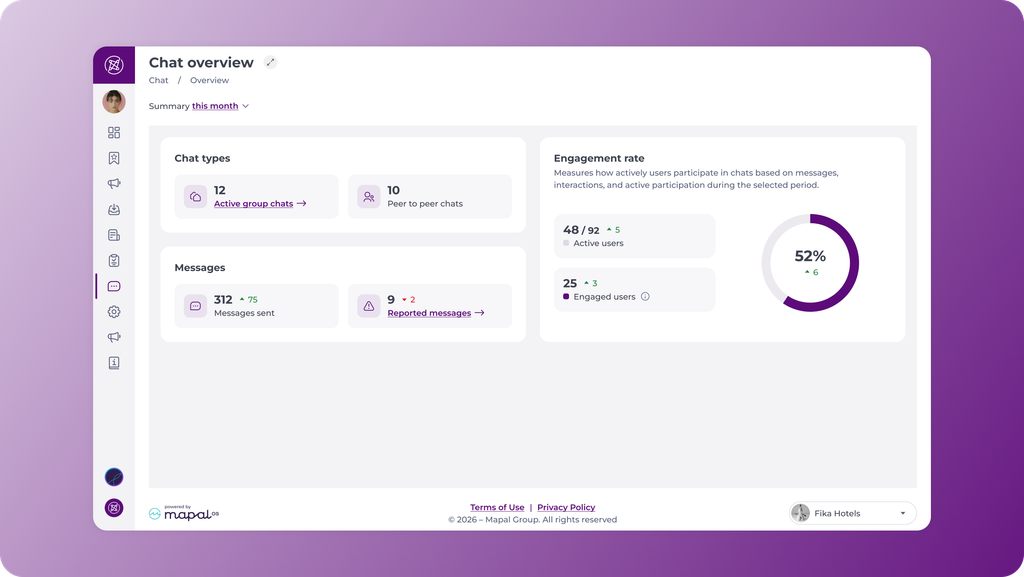
- Navigate to Chat > Chat overview.
- Select the Summary period control and choose the timeframe you want to review.
The period applies to every widget on the screen, so all figures and comparisons cover the same timeframe.
Review chat types
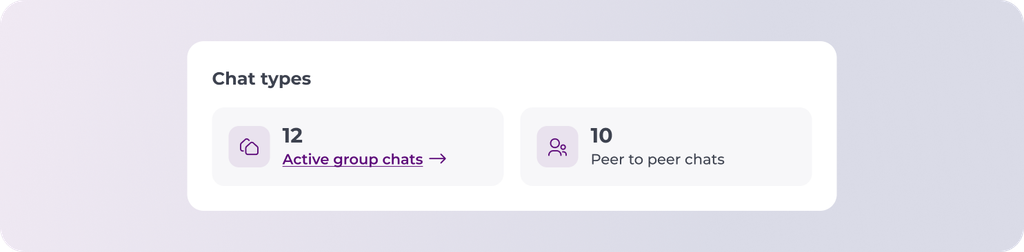
Chat types shows the formats in use across the organisation during the selected period.
- Active group chats: the total number of active group chats. Select Active group chats to open the group chats area and review activity in detail.
- Peer to peer chats: the total number of active one-to-one conversations between employees.
Comparing the two figures shows the balance between group collaboration and direct communication.
Review message volume and moderation
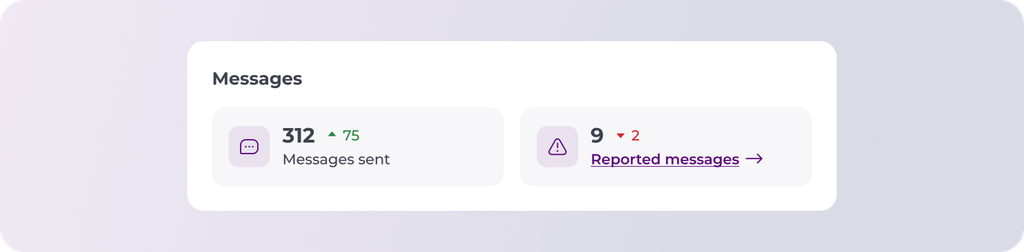
Messages covers message volume and flagged content.
- Messages sent: the total number of messages sent during the period.
- Reported messages: the number of messages flagged by users. Select Reported messages to open the reported messages area, where flagged content can be reviewed and managed.
Note: monitoring reported messages helps maintain a safe and appropriate communication environment. A rise in this figure is worth investigating promptly.
Review the engagement rate

Engagement rate measures how actively users take part in chats, based on messages, interactions and active participation during the selected period. It is based on participation rather than chat membership, so it reflects genuine use rather than how many people have been added to a chat.
- Active users: shown as a ratio against the total number of users with access to chat.
- Engaged users: the number of active users who actually sent messages. Select the information icon beside the label to see this definition in the interface.
- The donut chart shows the overall engagement percentage for the period.
Understanding the trend indicators
Most figures on this screen carry a trend indicator comparing the selected period with the previous one. An upward green indicator shows an increase and a downward red indicator shows a decrease.
Notes: for Reported messages, a downward indicator means fewer messages were flagged than in the previous period.
