


Note: This screen is deprecated. For the current workflow and screenshots, please refer to the Workforce 2.0 version of this guide: Manage employee details .
Start from: The Workforce module.
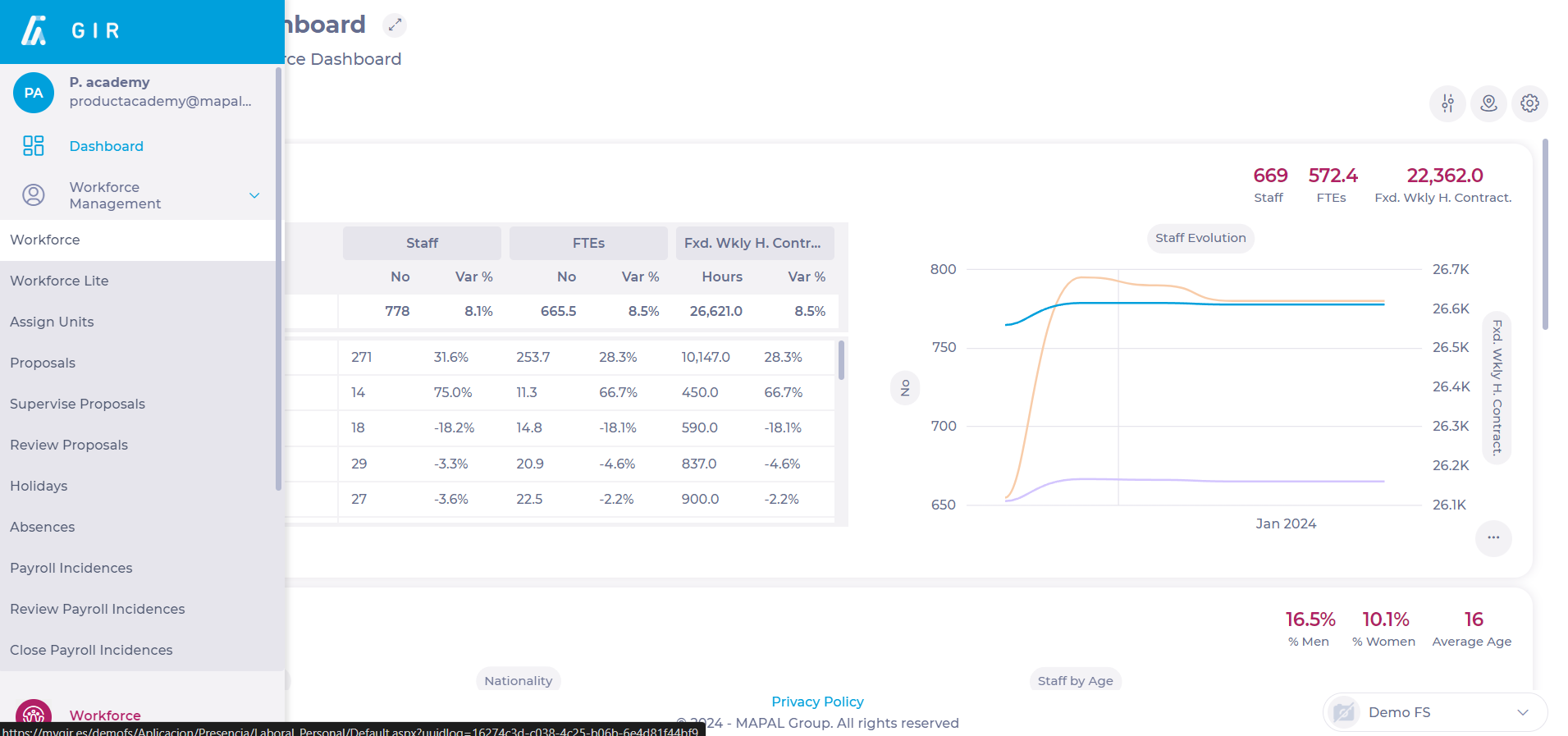
- Select Workforce Management > Workforce from the main menu.
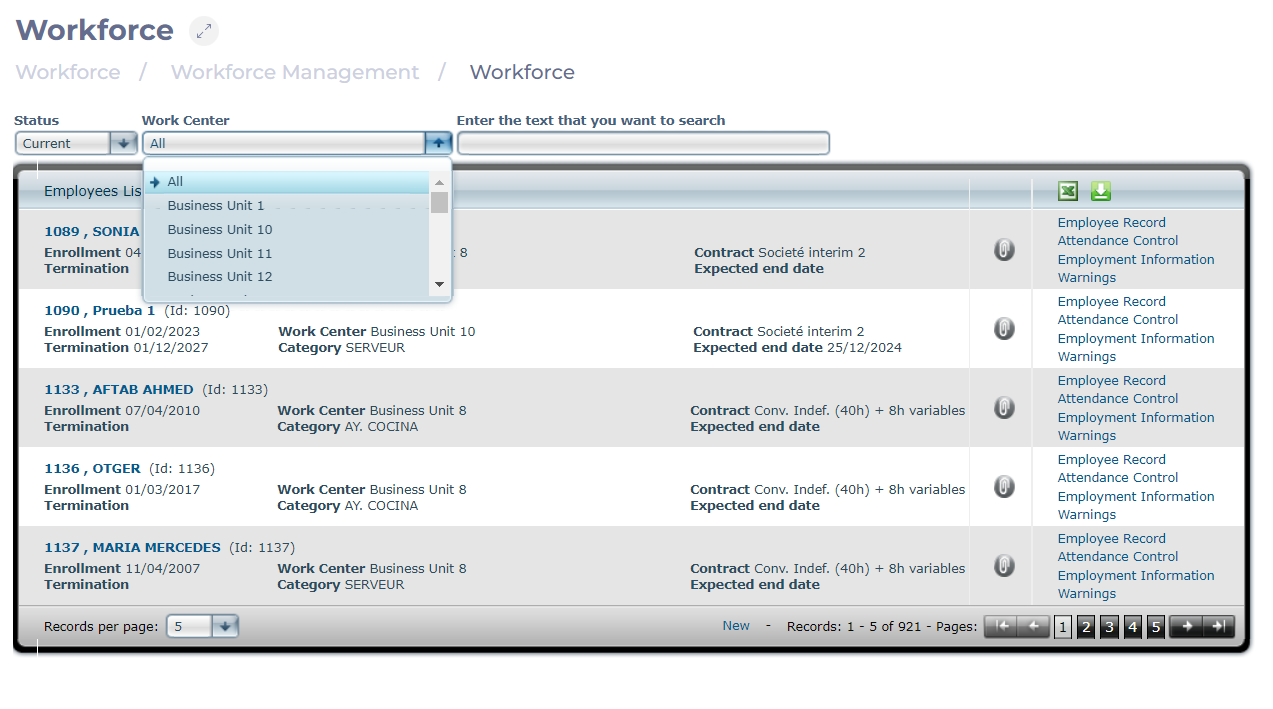
- To find the employee to edit, you can filter by Status and Work Center. In the same way, you can enter the text you want to search for directly.
- In the employee's field, select the Employee Record option.
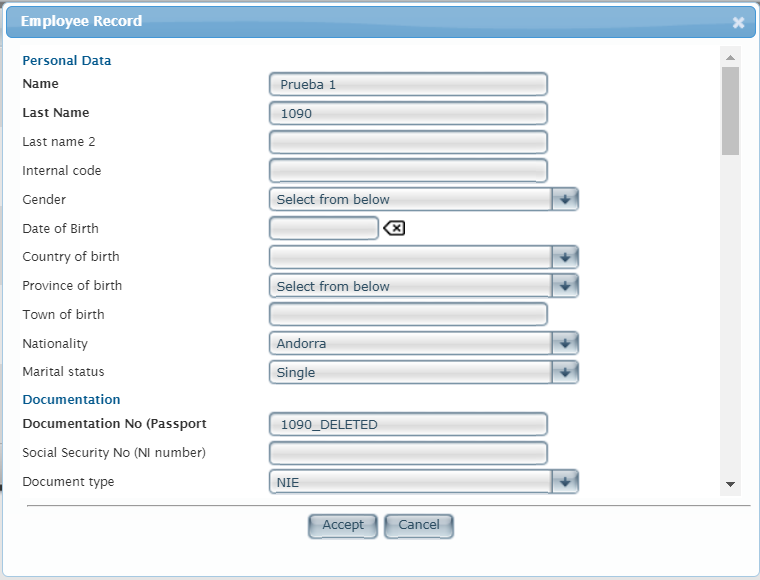
- In the Employee Record pop-up window, you will be able to edit all the data related to the employee, such as:
- Personal Data: Basic employee information, including first name, last name, gender and date of birth.
- Documentation: Details related to the employee's legal and identification documentation, necessary for administrative purposes.
- Address: Employee's residence data.
- Contact Data: Employee's e-mail addresses and telephone numbers.
- Family: Data related to the employee's family members and dependents.
- Emergency Contact: Contact details of a person established by the employee to be contacted in case of work emergencies.
- Other data: Employee's bank details, as well as details of recruitment, training, salary and disabilities.
- Additional information: Additional comments about the employee or his/her hiring.
- Access to GIR Staff: The level of access to GIR Staff for this employee is established. It also allows you to manually reset the employee's password and credentials.
- After entering and editing the employee information to be edited, select OK to save the changes OR Cancel to discard them.
Note: Only users with specific permissions can access employee records and edit the information on them.
