


Start from: The Configuration Dashboard
Manage users through Mapal OS
For companies on Mapal OS, your should activate users on the Mapal OS dashboard.
- In Mapal OS, select User management > Users.
- Follow the process to manage your users accordingly.
Note: if you're not sure whether you are on Mapal OS, contact your customer success manager.
Manage users through GIR
- Select Configuration > Users > Activate from the main menu
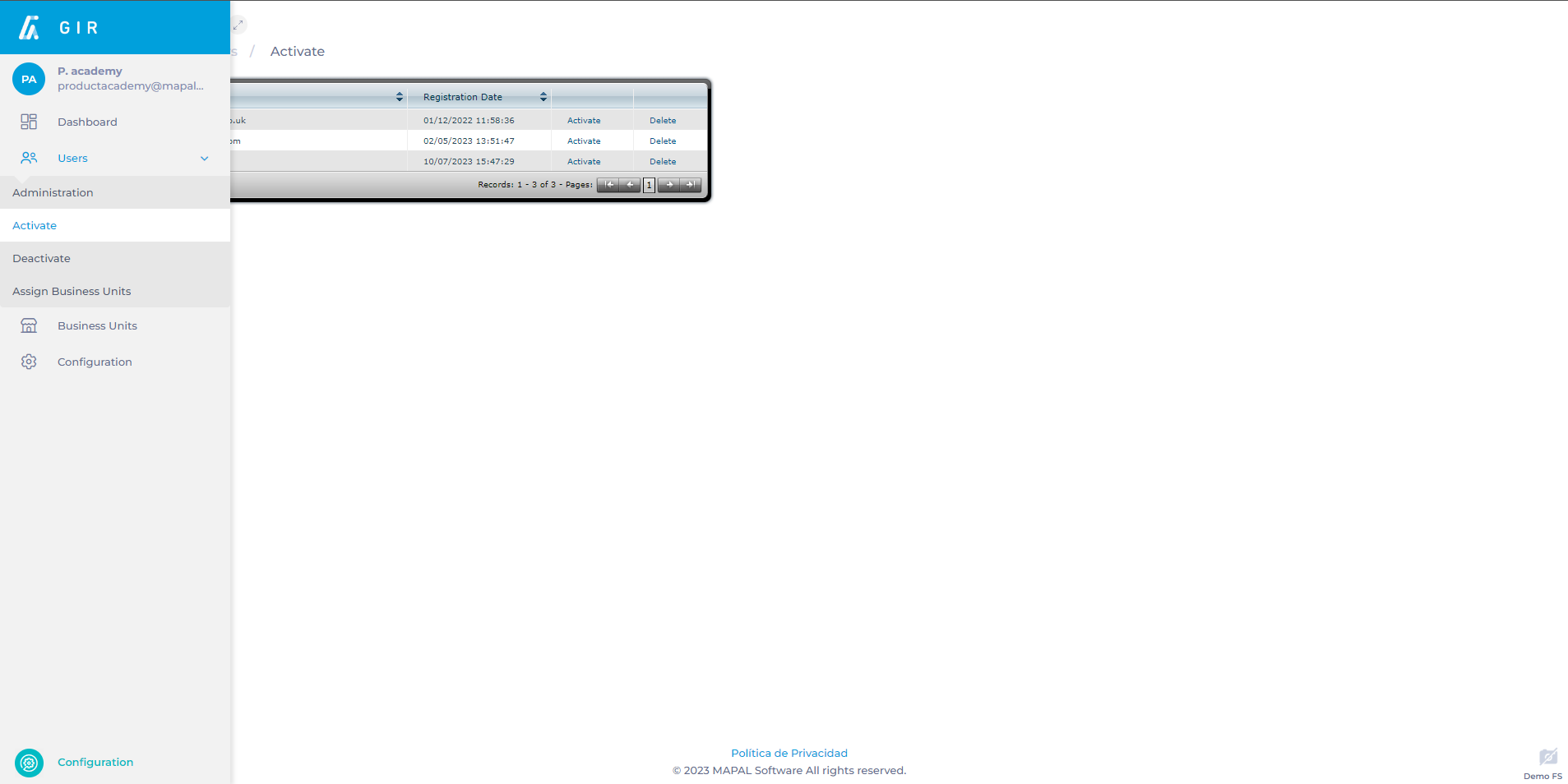
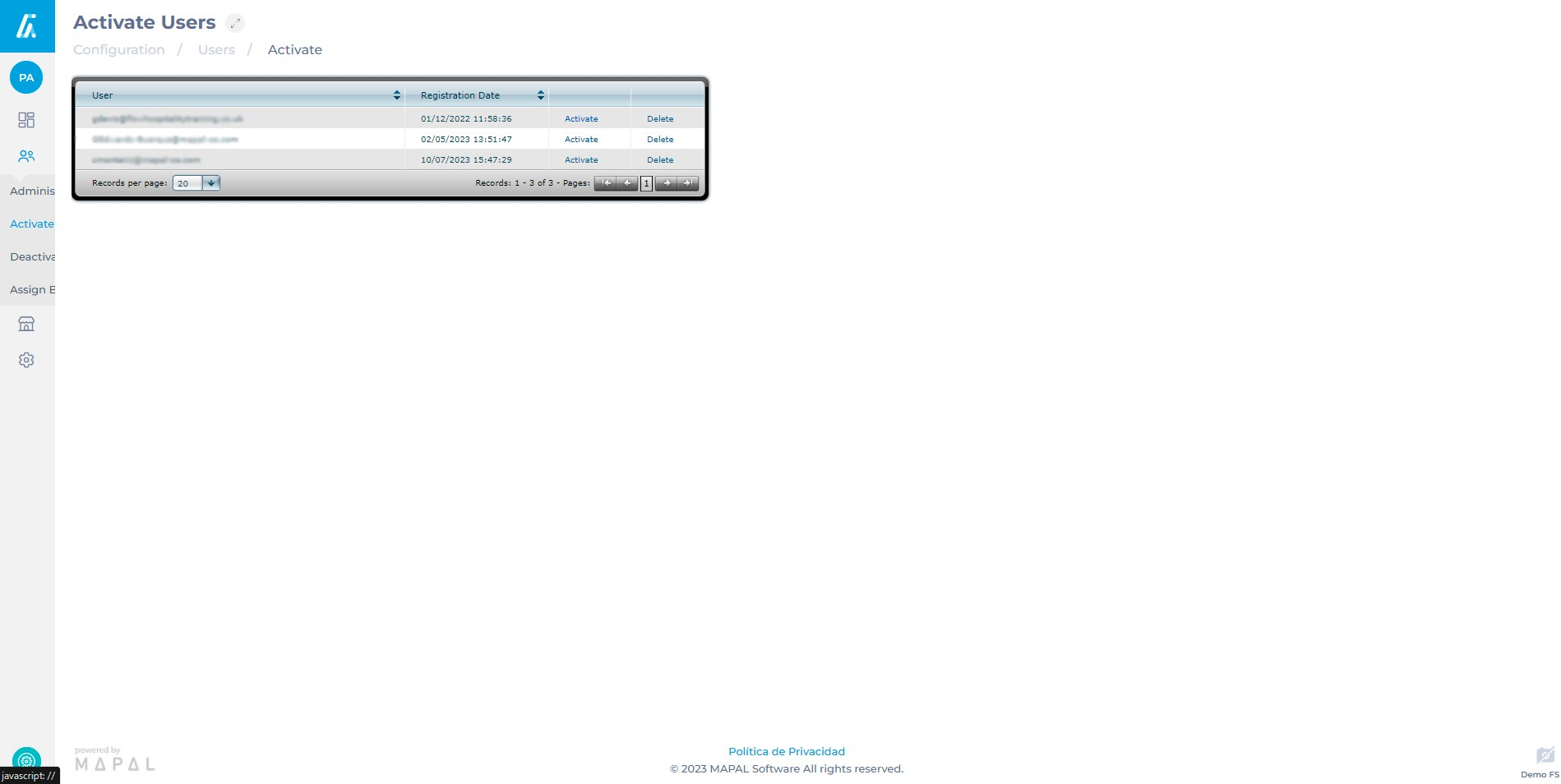
- The list of pending users for activation will appear. Select the user you wish to activate and click on Activate.
- Once Activate is clicked, the following screen allows you to complete and correct user details. It is important to consider the following:
- User's personal information: name, surname, and mobile phone number.
- Language for receiving email notifications.
- Assignment of the user's Role, granting permissions for accessing various functionalities.
- Access Restriction by Clocking In: condition the user's access to GIR based on the associated worker being clocked in at the time of login. For example, they can only access GIR if they have clocked in at a workplace or deactivate the user if the worker is no longer employed.
- Determine the centers to which the user will have access. This can be done by selecting individual centers or by adding access from another similar user (select the user and select Apply).
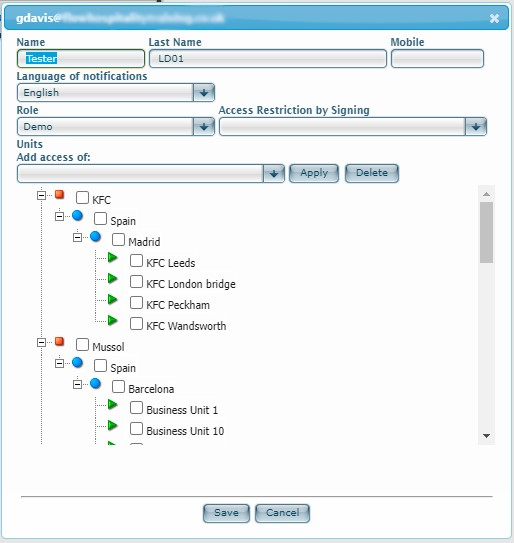
- Select Save to finish OR Cancel if you do not wish to save the changes.
Note: The language in which GIR is displayed depends on the language configured in the browser, not the language selected in the profile. To automatically deactivate a user in case the worker leaves the company, mark "Deactivate the user if the worker is no longer employed" when editing the user in the User Administration.
