


Start from: The Workforce module.
There are a number of preconfigured alerts that will help you optimize the organization in the scheduler. Each of these alerts warns you of potential conflicts.
- Work during absence: Check for shifts or entries that overlap with absenteeism incidents.
- Personal restrictions: Checks if the shifts or entries respect the personal restrictions defined for the employee.
- Contractual restrictions: Checks whether shifts or entries respect the restrictions of the employee's contract or agreement, excluding days off.
- Days off restrictions: Check if the days off comply with the minimum rest days detailed in the contract or agreement.
- Preliminary shift restrictions: Checks whether projected shifts or transfers take place during preliminary shifts.
- Shift preferences: Check if shifts or transfers respect the requests made by employees in GIR Staff.
- Work in assigned workstations: Checks if the employee or generic position is assigned to workstations in each shift or entry (shifts).
- Work in authorized center: Checks if the employee or generic position is authorized to take a shift or to clock-in in a certain unit.
- Expected Leave Date: Checks if the employee has shifts or clock ins beyond their Expected Departure Date in each work period.
If a scheduled shift violates any of the above requirements, a red mark (a dot) will appear in the employee's cell.
Once the shift conflict is corrected, the alert disappears from the list.
View alerts
- Select Scheduling > Scheduler 2.0 from the main menu.
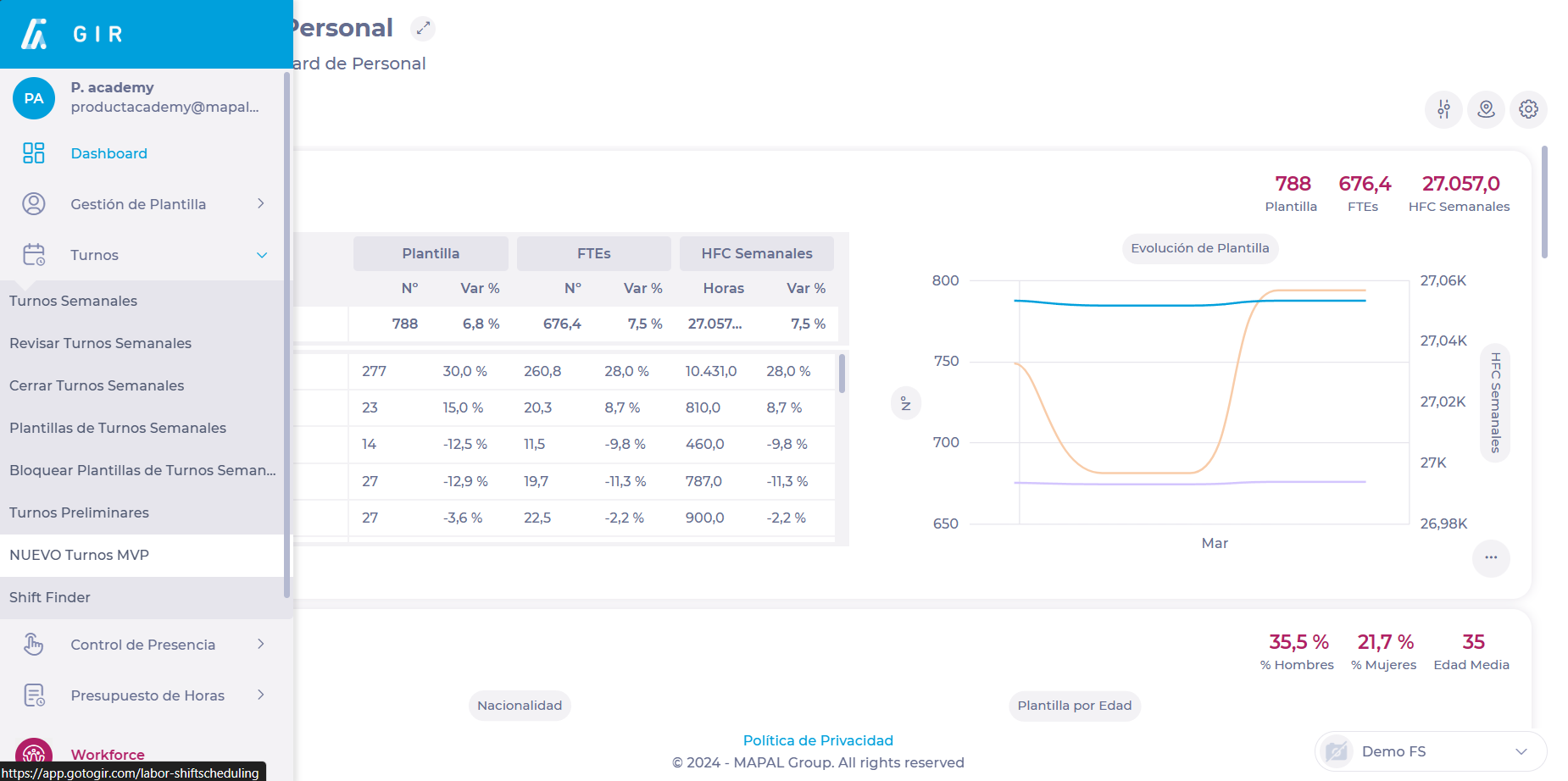
- Parameterize the planner to be able to access the main grid.
To make the parameterization, see Access the scheduler.
- Once in the main grid, select the Detailed Information button.
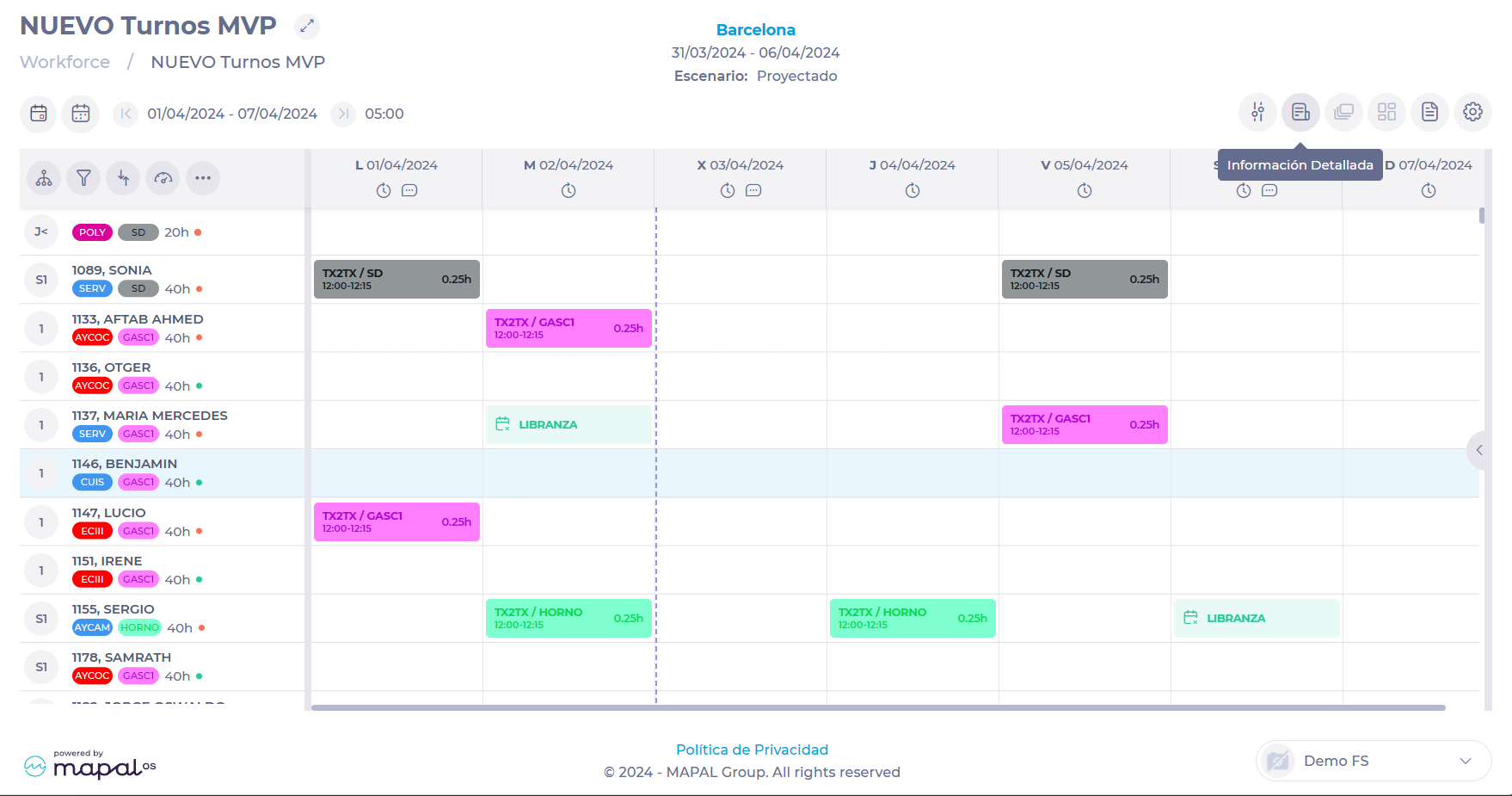
- From the drop-down menu, select Alerts.

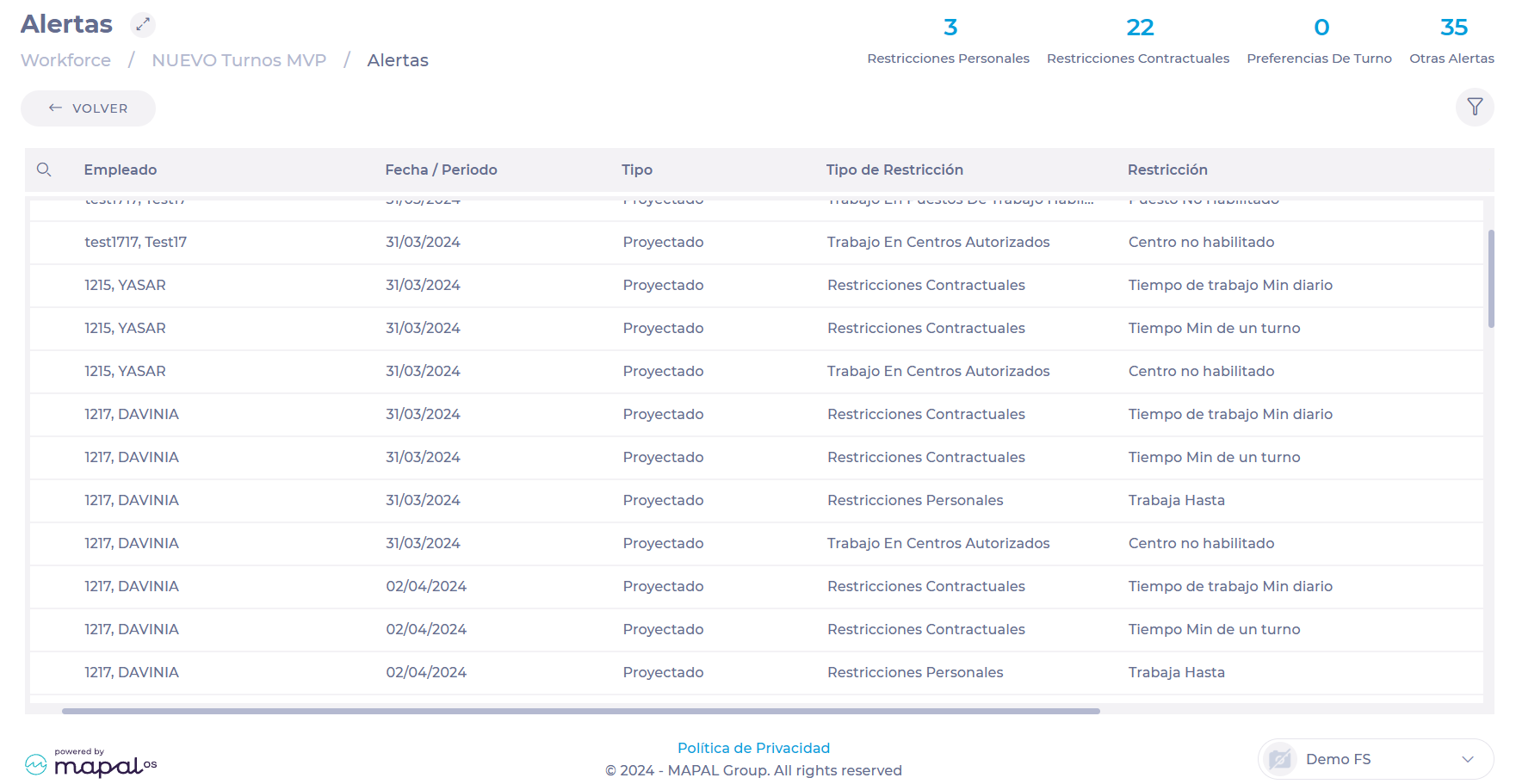
Notes: Alerts will appear as you create your schedule, so it's a good idea to regularly check the alert list. You can filter the list to show a specific employee, type of restriction, or date.
