


Start from: The Workforce dashboard.
What is Shift Finder
Shift Finder is a Workforce tool that helps you fill open shifts quickly by matching available employees with a specific shift need. It uses live rota, absence, and permission data so that proposals are only sent to employees who are actually able to work that shift.
How Shift Finder works for managers
As a manager, you define the shift details and, if needed, apply filters to exclude employees on days off or with contractual alerts. What you can do in Shift Finder depends on your permissions:
- Access: Allows managers to open the Shift Finder screen, view proposals, and see the Shift Finder card in the app.
- Create / Edit / Cancel: Allows managers to create new proposals, edit them, or cancel proposals they previously submitted.
- Approve / Deny: Allows managers to authorise or reject proposals created by other managers.
If a manager has all three permissions, proposals they create are sent directly to the selected employees without requiring additional approval. In this case, employees immediately receive a push notification inviting them to accept or decline the proposed shift.
Create a shift proposal
- Navigate to Scheduling > Shift finder.
- In the Shift finder screen, select New +.

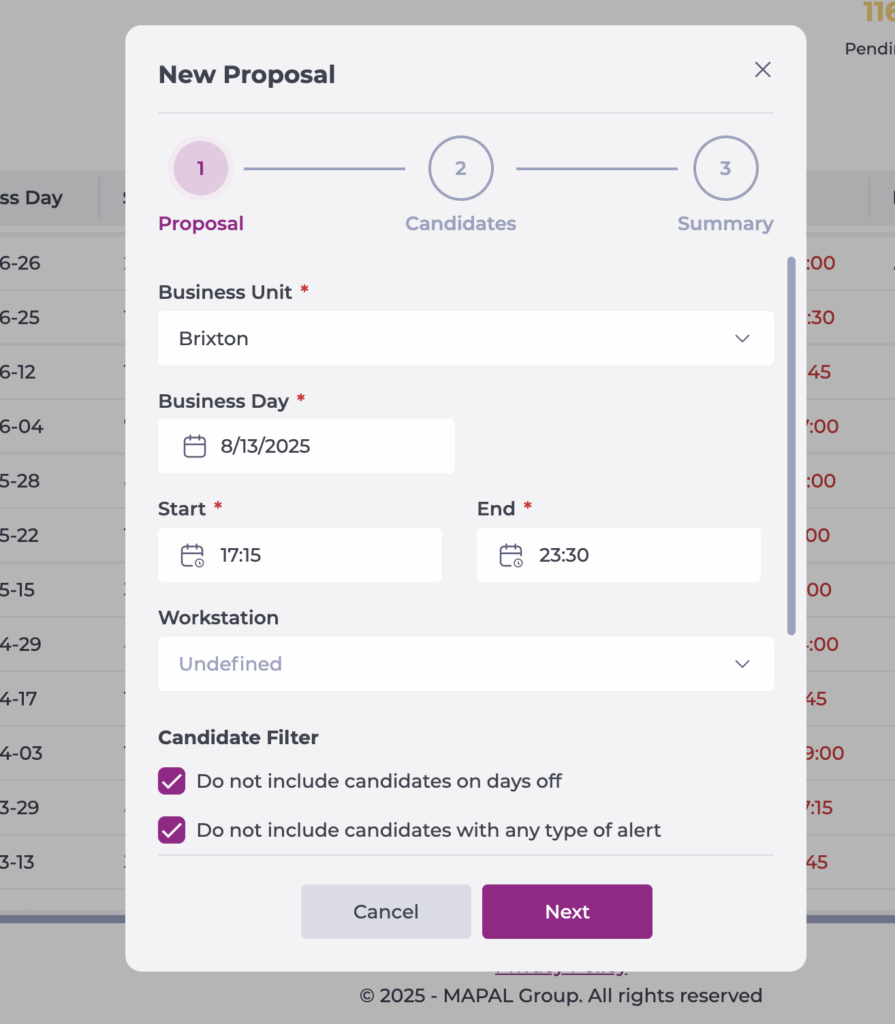
- The “New proposal” form will appear, divided into three steps: Proposal, Candidates, and Summary.
1. Proposal
- Fill in the following fields:
- Business unit: The venue where the shift is needed.
- Business day : The day of the shift. The available times are based on the venue’s configured business day start time.
- Start and end time: The hours the shift will cover.
- Workstation: The workstation for the shift. Select Undefined if any qualified employee can take it.
- Candidate filter (If permitted): choose whether to exclude certain employees:
- Do not include candidates on days off: Excludes employees with a full or partial day off on that date.
- Do not include candidates with any type of alert: Excludes employees with contractual or agreement alerts, including those the proposal would put into alert.
- Do not include candidates with obligatory alerts: Excludes employees with mandatory alerts or where the proposal would cause non-compliance.
- Expiry: Set a cut-off time before the shift starts for accepting the proposal. After expiry, employees cannot accept the shift.
- Comments: Optional message for employees.
- Once you finish filling out the fields, select Next.
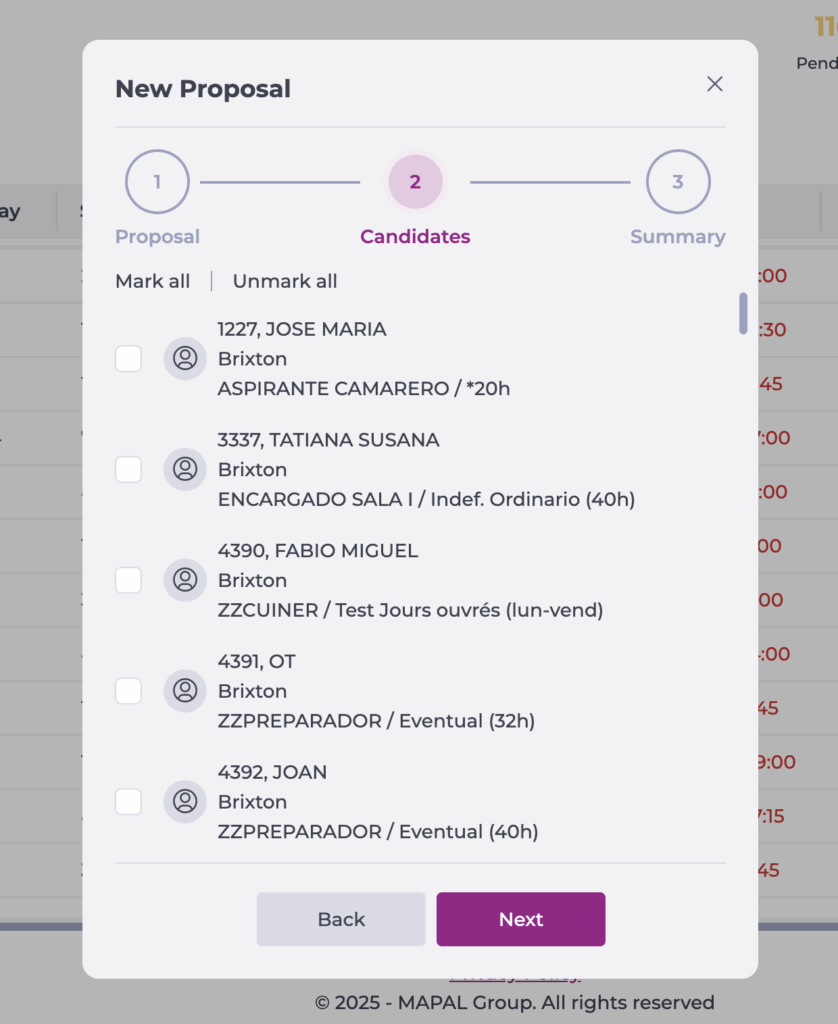
2. Candidates
The list will show employees who:
- Are hired employees.
- Have no conflicting projected shifts in any business unit.
- Have no full-day absence on the proposal date.
- Have no overlapping partial absence.
- Can clock in at the business unit.
- Are authorised to work in the selected workstation (unless “Undefined” is chosen).
Select employees using:
- Mark all: to include all displayed candidates.
- Individual checkboxes: to select specific employees.
3. Summary
- Check all proposal details.
- Select Publish to submit.
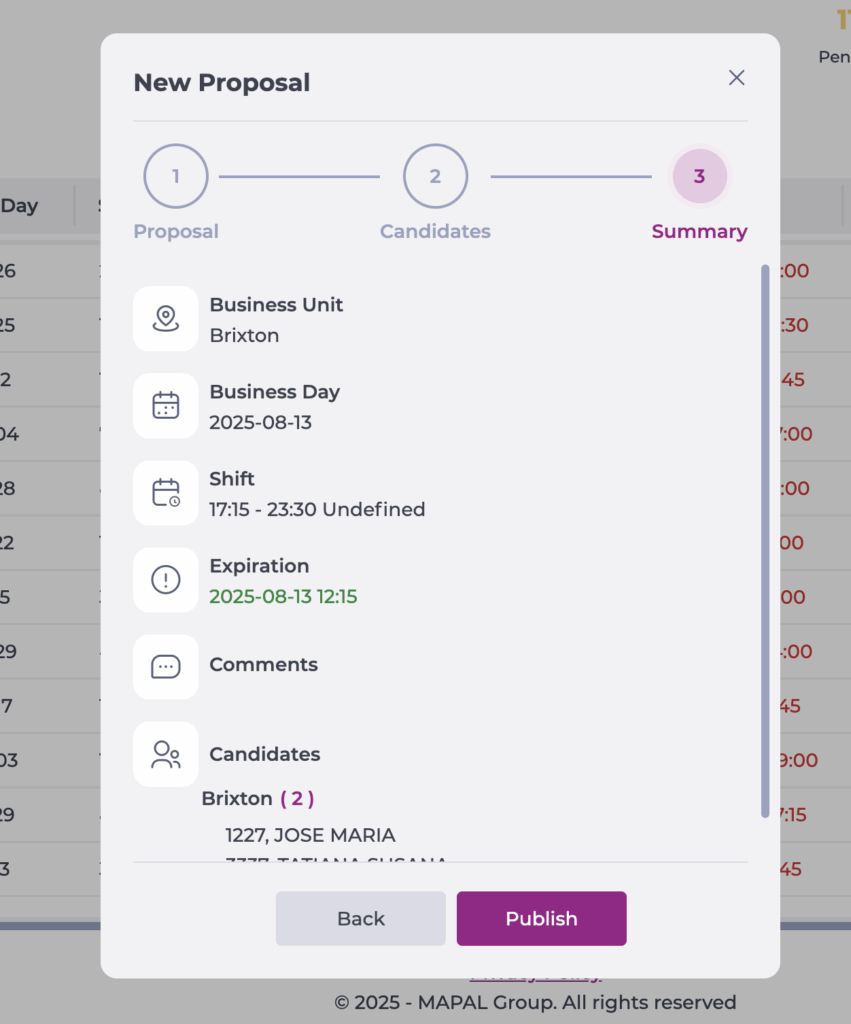
Notes: If you have authorisation permissions, the proposal is sent immediately via push notification to all selected employees in Gir Staff. If you do not have authorisation permissions, a push notification is sent to managers authorised to approve proposals for that business unit.
