


Start from: The Workforce module.
-
Select Scheduling > Weekly ROTAs from the main menu.
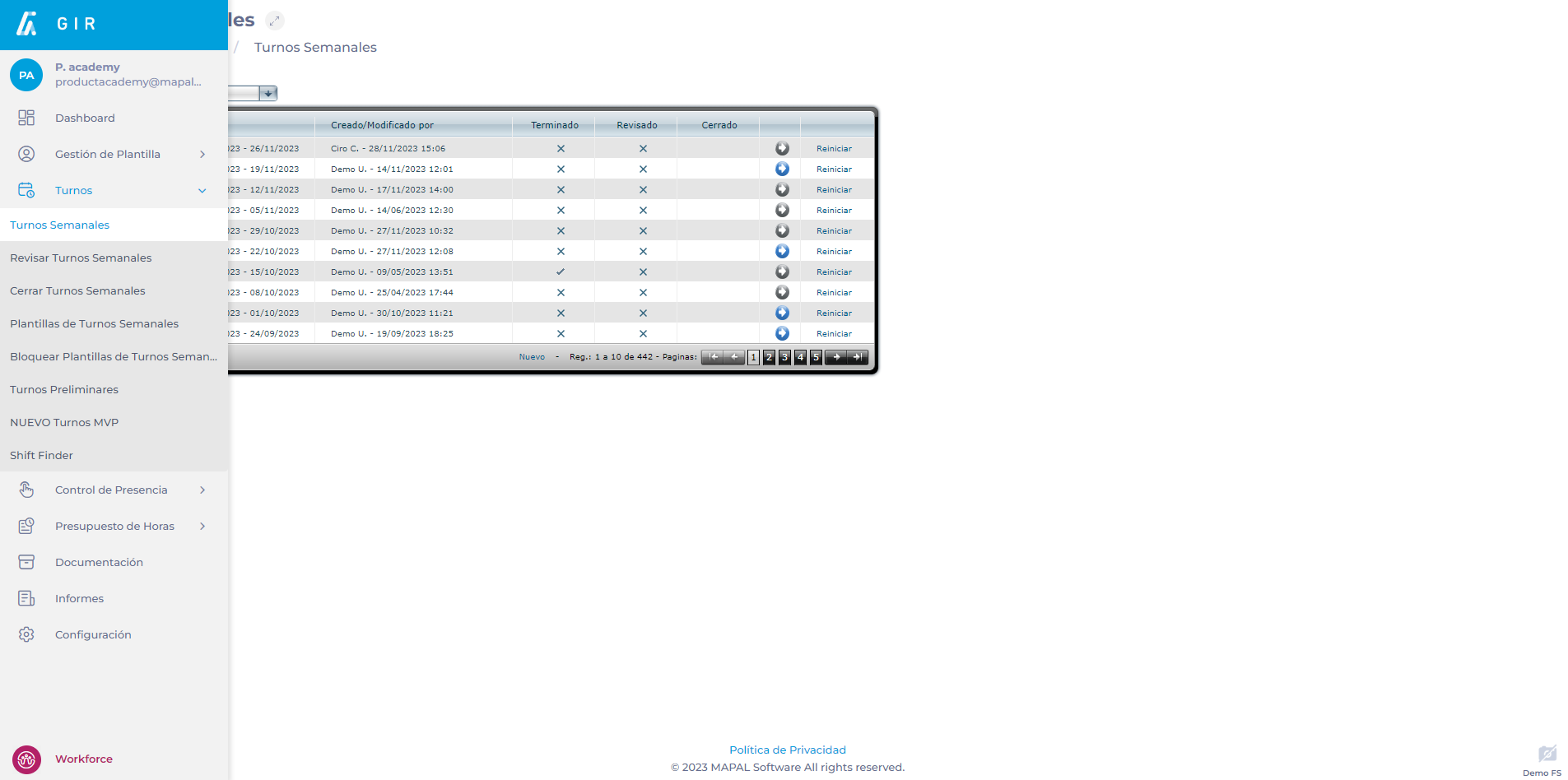
-
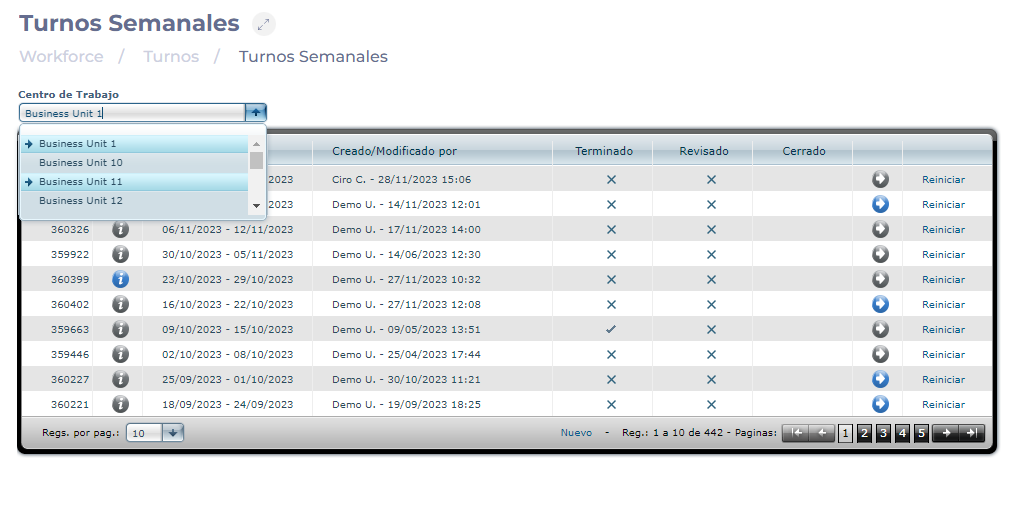
Select the Work Center where you will create a copy of the shift.
-
Select New to create a new weekly shift.
Notes: You can configure a weekly shift that has already been created by selecting the Arrow icon. If the icon is blue, it means that there is already data saved in that week.
-
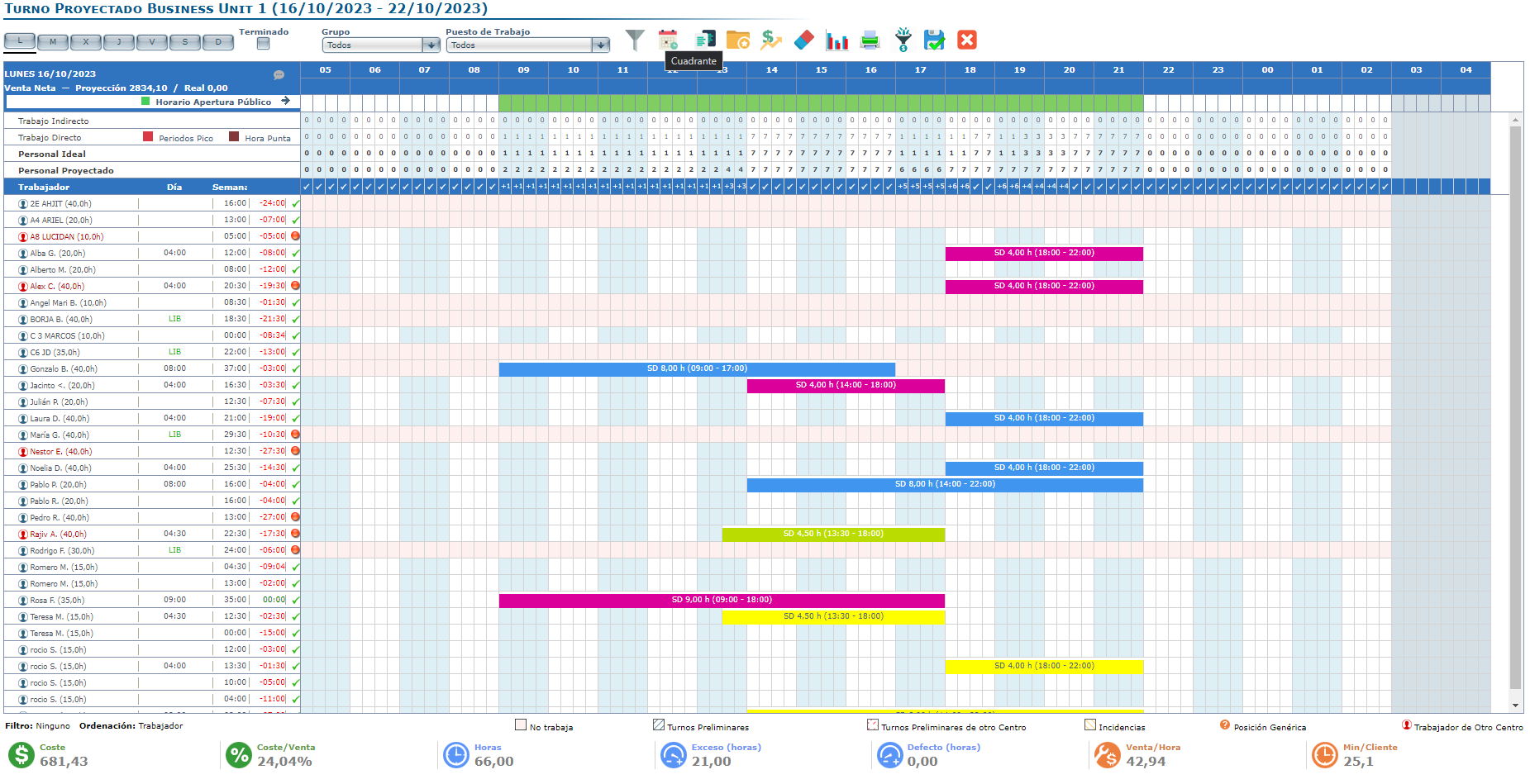
From the Projected Shift screen, select Quadrant to access the shift setup screen via Quadrant.
-
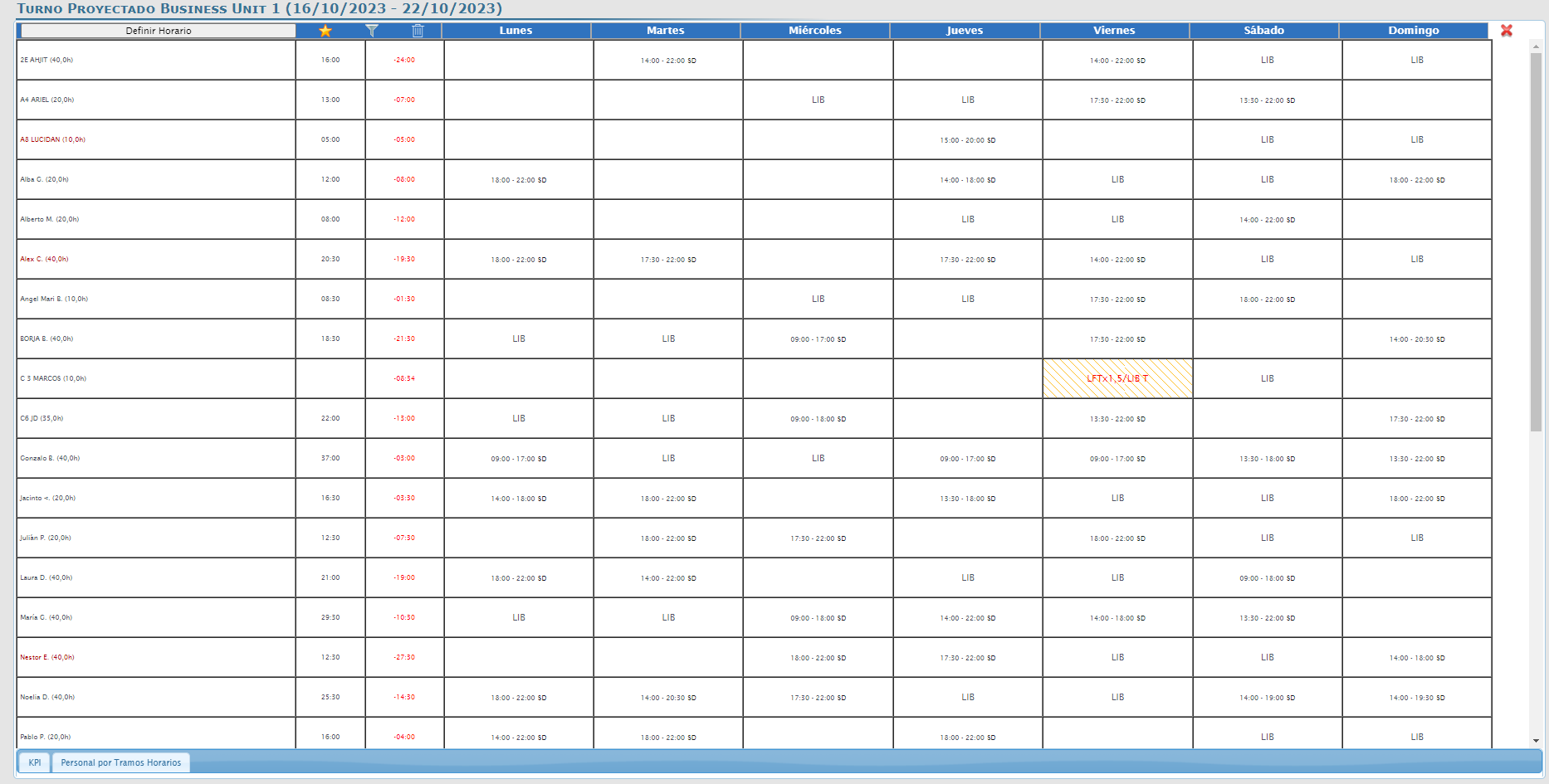
In the configuration screen by quadrant, select the Star icon.
-
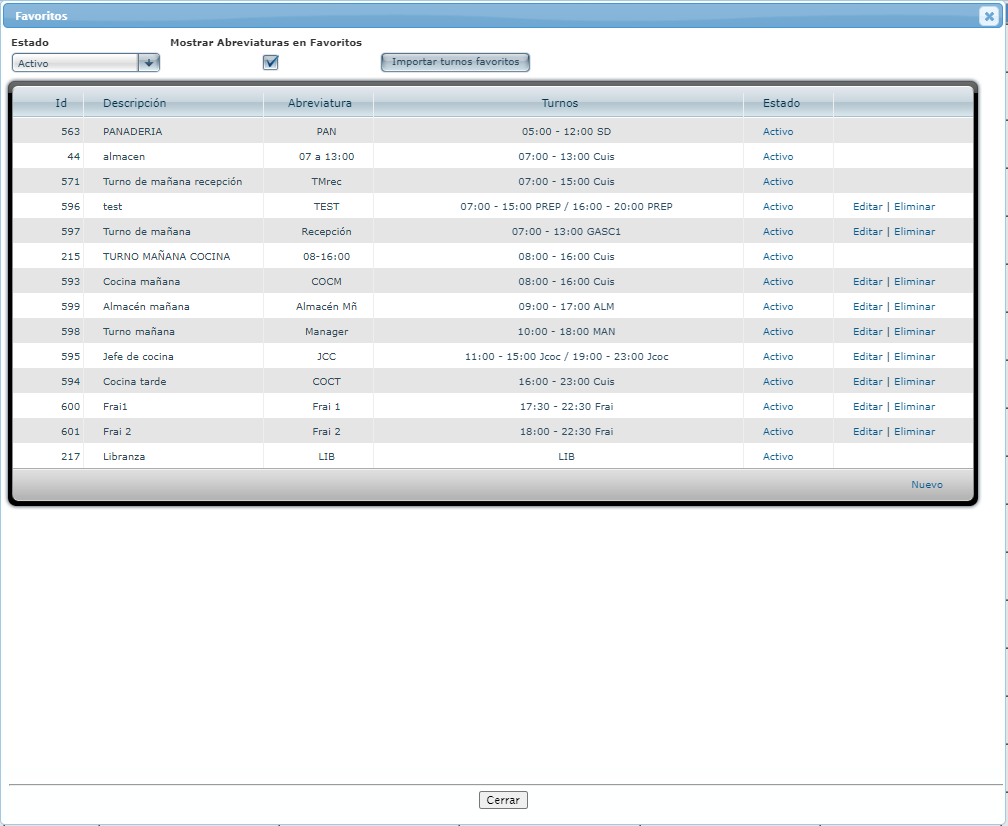
When you select the Star, a pop-up window will appear where you will see all the possible options to execute with a favorite shift:
-
Status: Allows you to filter favorite shifts by active, inactive, or all shifts.
-
Show abbreviations in Favorites: Allows you to view the abbreviation configured for the favorite shift.
-
Import Favorite Shifts: Allows you to import shifts already created from other centers.
-
New: Allows you to create a new favorite shift.
-
Active/Inactive: Allows you to change the status of the favorite shift to active or inactive, depending on your preference.
-
Edit: Allows you to edit the selected favorite shift.
-
Delete: Allows you to delete the selected favorite shift.
-
Create a favorite shift
-
In the Favorites window, select the New button.
-
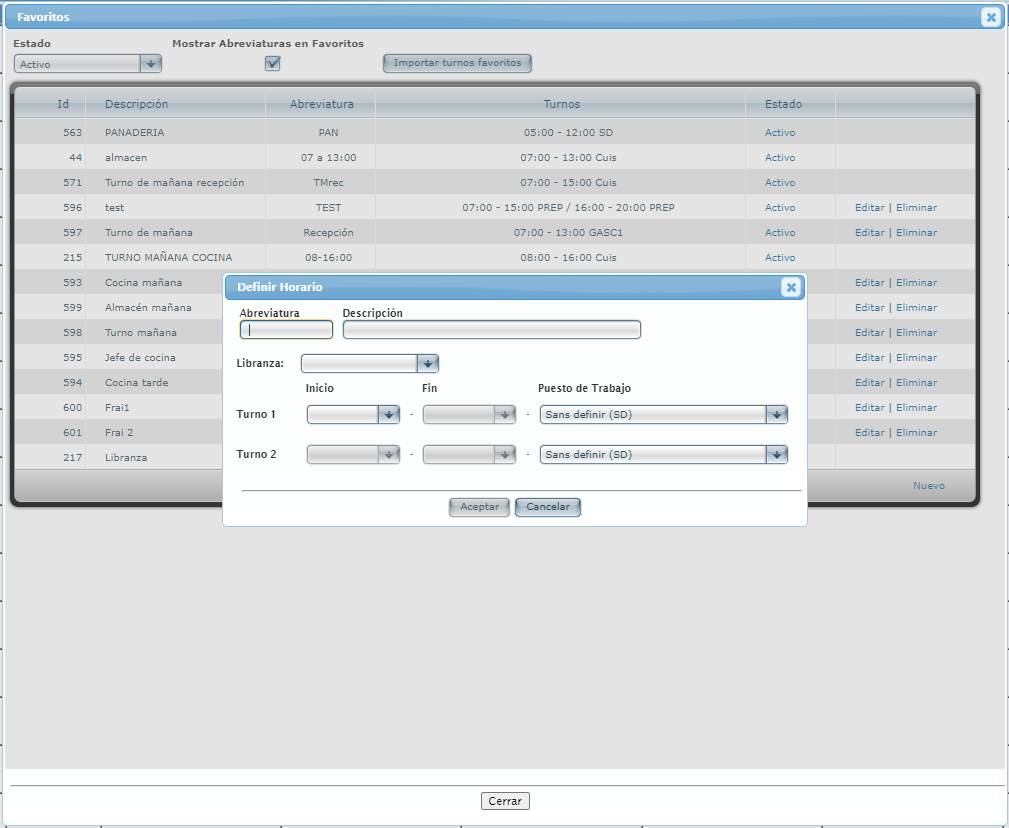
In the pop-up window, define the following data to be associated with the new favorite shift:
-
Abbreviation: Assign an abbreviation to the favorite shift for easy identification.
-
Description: Define this favorite shift with a specific name or description of your choice.
-
Day off: Select a morning time off, afternoon time off or a full time off.
-
Shift 1: Select a start and end time for the first shift, as well as the work center.
-
Shift 2: In case of a split shift, we select the start and end time of the second shift, as well as the work center.
-
-
Select Accept to save the new favorite shift OR Cancel to discard the setting.
Assign a favorite shift
-
Once the favorite shifts have been created, go back to the quadrant screen and select Set schedule.
-
In the Favorites dropdown, choose the shift to assign and select Accept.
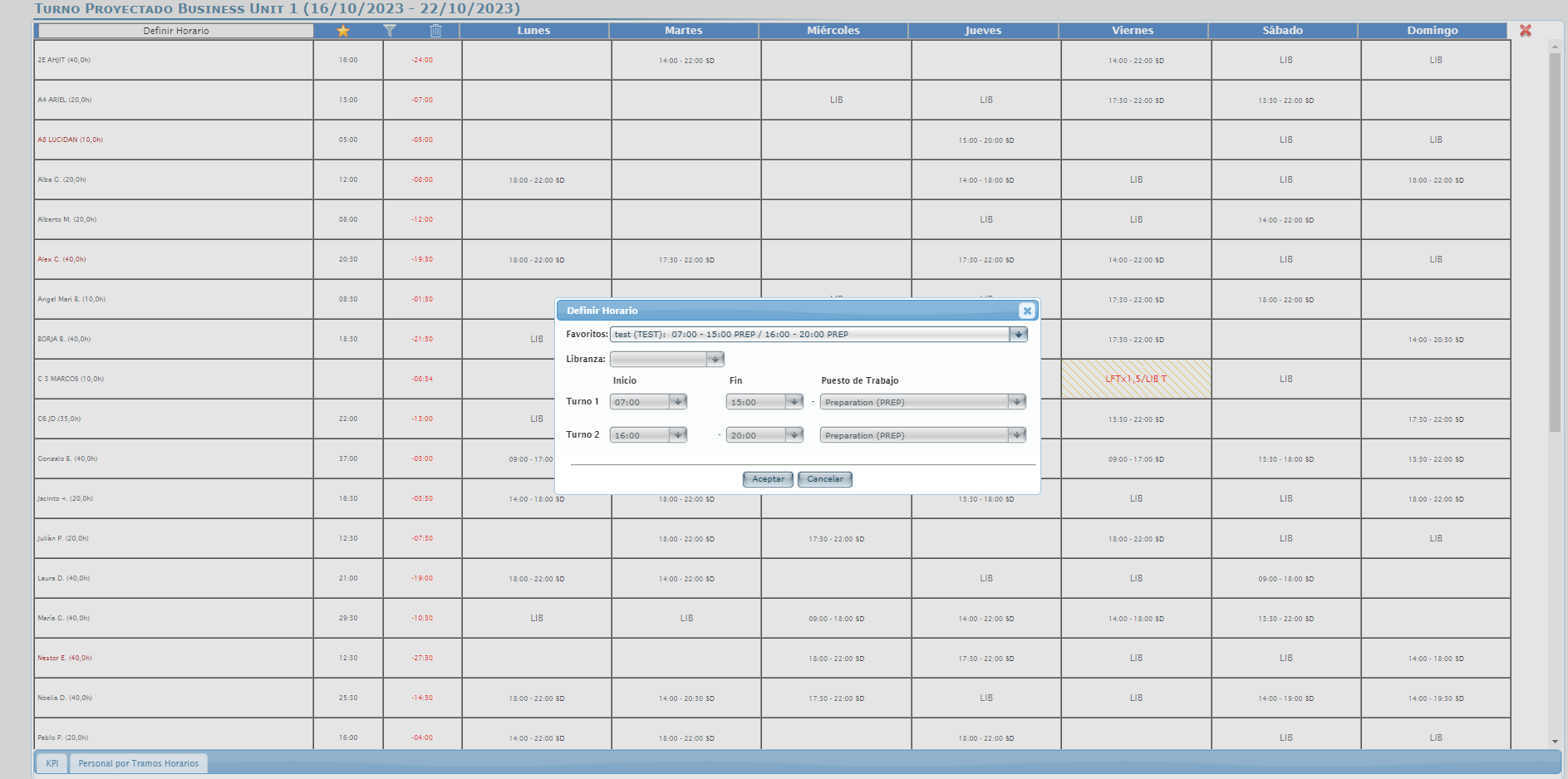
Notes: Favorite shifts will be displayed with abbreviation or not depending on what is configured.
