


Start from: The Workforce module.
- Select Scheduling > Weekly ROTAs from the main menu.

- Select the Work Center where you will create a copy of the shift.
- Select New to create a new weekly shift.
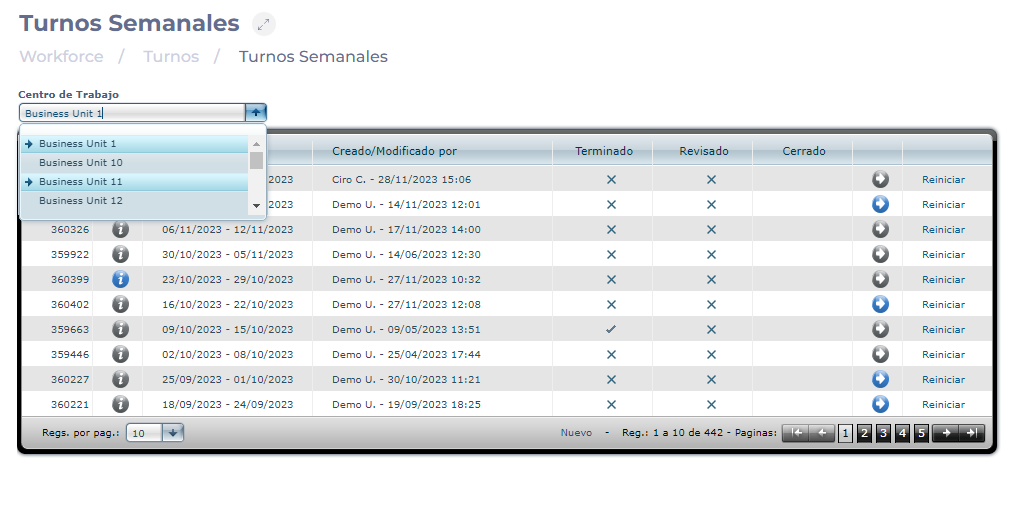
Notes: You can set up a weekly shift that has already been created by selecting the Arrow icon. If the icon is blue, it means that there is already data saved in that week.
- In the Projected Shift screen, select the Copy Shift button. Once the button is clicked, a box will appear in which you can select the week, month, and year of the weekly shift to be copied.
- Select the week and press the Accept button.

Once accepted, each employee will be assigned the weekly shift and time off they had in the previous week selected.
Notes: In case of incidences or vacations in the previous shift selected will overlap with the incidence. If a new employee is hired after the selected week, he/she will not have an assigned shift.
To complete the process of copying and saving the new shift, see Mark shift as finished.
