


Start from: The SmartHub home screen.
How offline mode works
Offline mode is designed to protect clock-ins when there are connection problems between the device, the internet, and the Workforce backoffice.
When enabled in settings, the device:
- Monitors both internet connectivity and backoffice availability.
- Automatically switches into offline mode when it detects a problem.
- Stores clock-ins in an encrypted local database instead of sending them immediately.
- Automatically sends stored clock-ins one by one when the connection is restored.
If a stored clock-in cannot be sent on the first attempt, the device retries according to an internal retry policy until the record is successfully submitted.
Note: Offline mode is automatic once enabled. No manual action from employees is required when connectivity is lost.
Enable and monitor offline mode
- On the SmartHub device, open the Settings menu.
- Locate the Offline mode option.
- Ensure that offline mode is enabled according to your company policy.
When offline mode is available, you will see:
- An “Offline mode” indicator showing the current status.
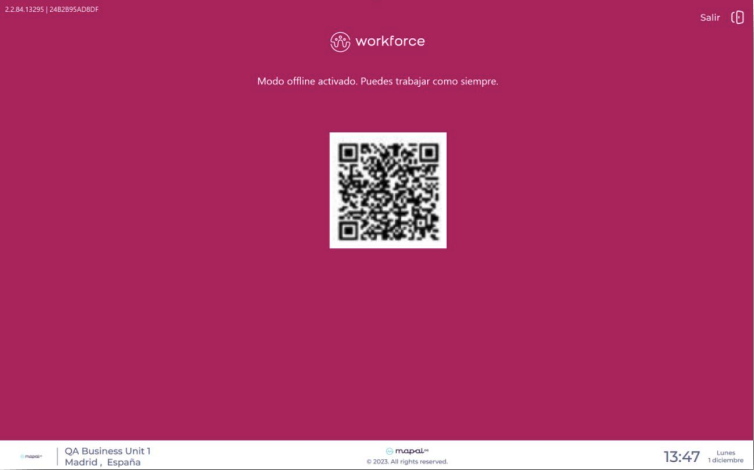
- An option in Settings to enable or disable offline mode (subject to your permissions).
Offline status scenarios
SmartHub uses a combination of internet status and Workforce backoffice status to decide when to activate offline mode and what is possible.
Use this table to understand how SmartHub behaves in each scenario:
| Scenario | Internet connection | Workforce backoffice | Device mode | Clock-ins possible? | What happens on the device |
|---|---|---|---|---|---|
| 1 | Available | Available | Online mode | Yes | Normal state. All services active, GirStaff QR visible, clock-ins sent in real time. |
| 2 | Not available | Available | Offline mode (active) | Yes | Offline mode activates automatically. Clock-ins (including GirStaff QR) are allowed and synchronised as soon as the connection is restored. |
| 3 | Available | Not available | Limited (error state) | No | The device cannot register new clock-ins. An on-screen message informs users that clocking is not currently possible. |
| 4 | Not available | Not available | Offline mode (limited) | No | Offline mode with a limited interface. No clock-ins are possible until service is restored. |
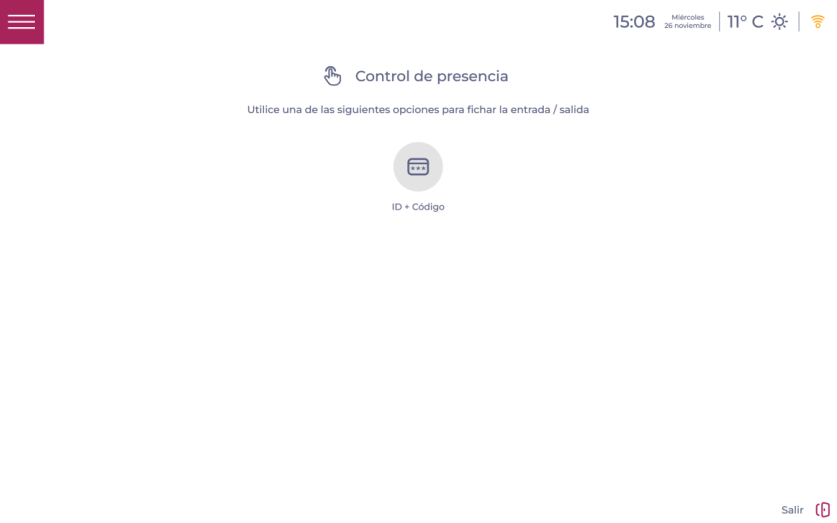
SmartHub shows an indicator in the top bar. The colour reflects the current connectivity status:
- Green: Normal online operation. Internet and Workforce backoffice are available (Scenario 1).
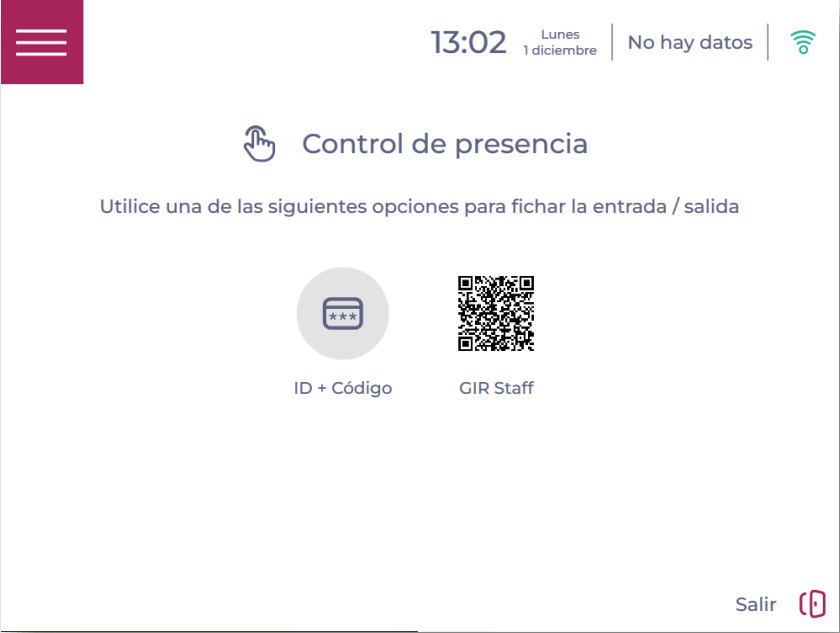
- Orange: Partial issue detected. Either the internet connection is down or the backoffice is temporarily unavailable. Offline mode may be active, and some functions are limited (Scenarios 2 and 3).
- Red: Severe outage. Neither the internet connection nor the backoffice is available (Scenario 4). Clock-ins are not possible until service is restored.
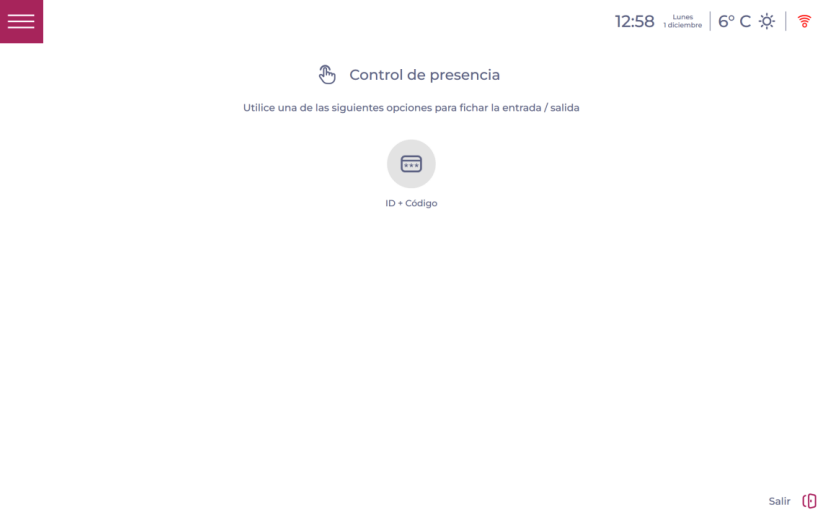
Use the indicator together with on-screen messages to understand whether employees can continue clocking in or if you need to fall back to manual attendance tracking.
Features available and restricted in offline mode
When offline mode is active, some features remain available while others are limited because they require a live connection.
| Feature | Offline mode status | Details |
|---|---|---|
| Clock-ins (PIN/card/fingerprint) | Enabled (if employee data synced) | Employees can clock in and out as normal when their details are already stored on the device. |
| Clock-ins via GirStaff QR | Enabled (backoffice available) | Only available when the Workforce backoffice is reachable. |
| Employee management | Disabled | Employee management is not available without a live connection. |
| PIN recovery | Disabled | PIN recovery links do not work in offline mode. |
| PIN change | Disabled | PIN change links do not work in offline mode. |
| Configuration | Accessible with restrictions | The Settings menu remains visible. Options that require a connection (for example, credentials or log upload) are hidden. |
| Sync | Visible | Sync is displayed in Settings but may be limited while offline. |
| Alerts and surveys | Disabled | Alerts and surveys are not available without connection to the backoffice service. |
Note: In offline mode, unavailable options remain visible to keep the interface familiar, but are dimmed or greyed out until the device returns to full online status.
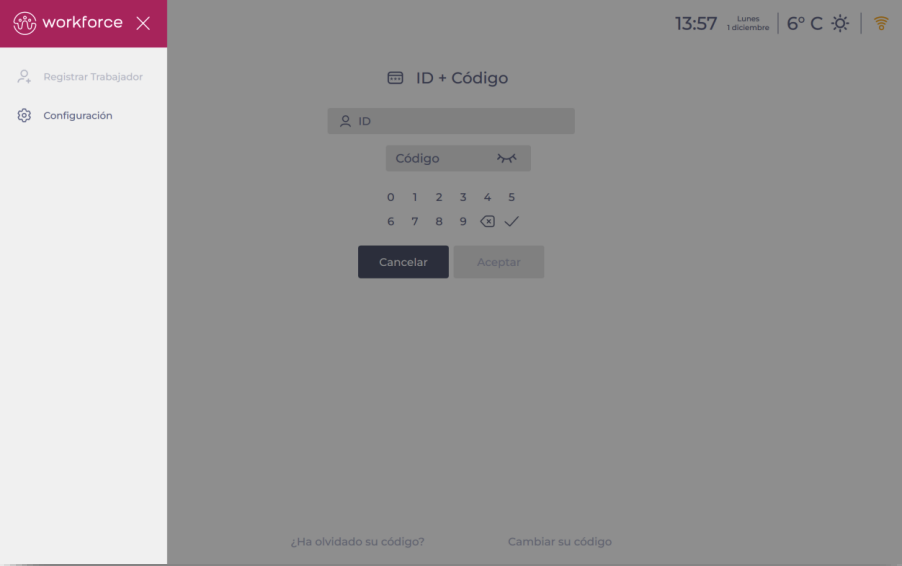
Clock in and out while offline
When offline mode is active and the status table indicates that clocking is allowed (Scenario 2), employees continue to use the terminal in the same way as in online mode. The device validates identifiers locally (for example, PIN, card, fingerprint, or QR where supported), records the event on the device, and queues it for later synchronisation.
From the employee point of view, the experience does not change: they present their usual identifier and receive on-screen confirmation.
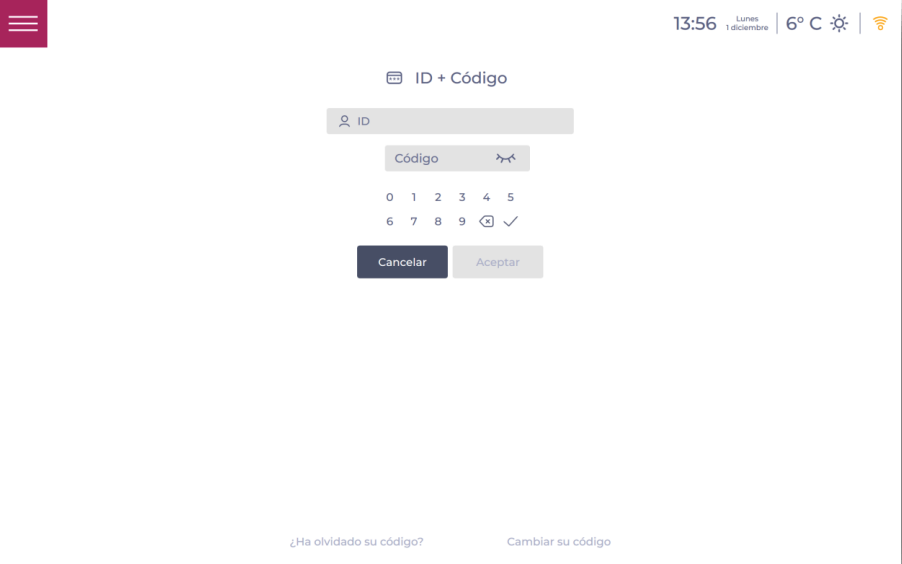
Note: In more severe outages where both the internet connection and the backoffice are unavailable (Scenarios 3 and 4), the device may temporarily block new clock-ins. In these cases, the clocking screen clearly informs users that registration is not possible, and you may need to record attendance manually until service is restored.
Best practices for managers
- Keep offline mode enabled on shared devices so that clock-ins are protected during unexpected outages.
- Instruct staff to use the terminal normally even when the offline indicator is visible, unless the screen explicitly states that clocking is not possible.
- Avoid changing critical configuration while the device is in offline mode, as some options may not be available or up to date.
- After known outages, check that the device has had time to reconnect and synchronise all pending clock-ins.
