


Start from: The Workforce App.
- Select the Workforce icon on the app screen to display the menu.
- Select Absences from the main menu.
Main Absences Screen
The main absences page shows the absence statistics for all the centers to which the user has access.
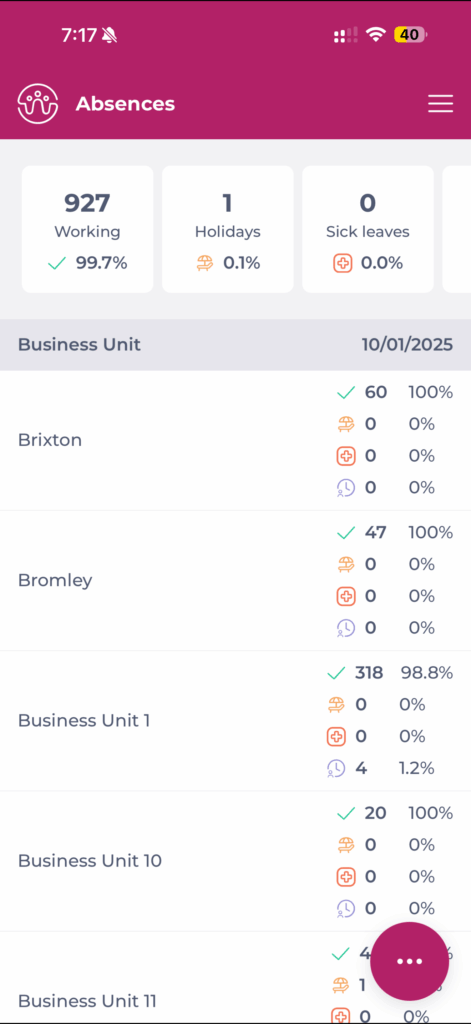
The counters in the page header show:
- The number of employees Working.
- The number of absenteeism incidents by type:
- Holidays
- Sick leaves
- Other incidents
- Percentages of the total.
By selecting a business unit (in the grid), the details of the absences of the selected business unit will be displayed.
 |  |
- Select the employee's field (the row) to view the details of his or her absence incidents.
- By sliding one of the rows to the left, you will discover the different actions available for the absence occurrence:
- Edit the incident, including the option to attach documentation from the cell phone.
- Eliminate the incident.
- Review or de-review the issue.
The floating menu gives access to absence creation, parameters, filter, and grouping by components.
Create an absenteeism record
- Navigate to the floating menu on the main Absenteeism page and select Create Absence.
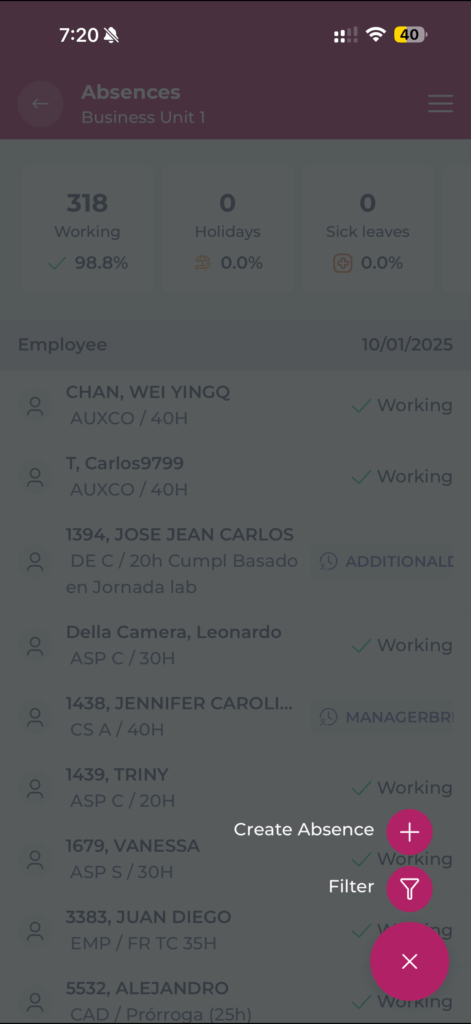
- Once the Create Absence component appears, fill in all the fields.
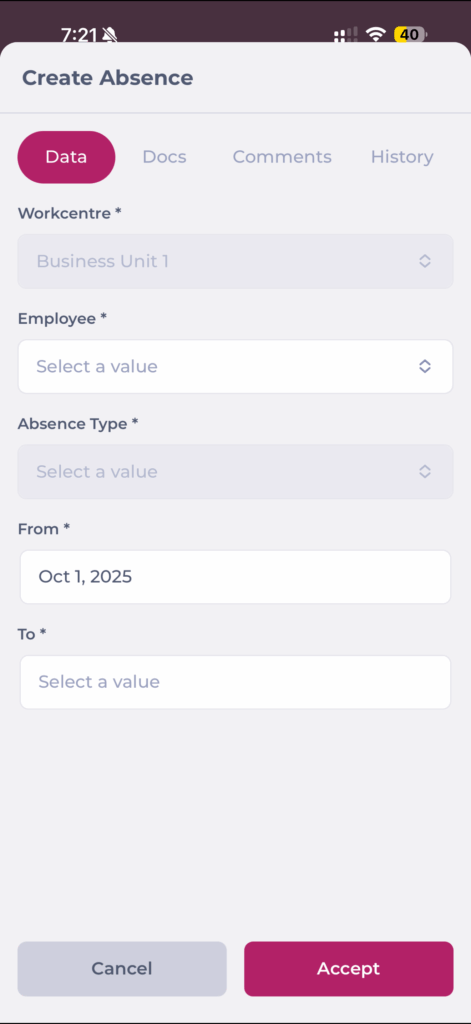
Note: Note that, unlike the PC panel, the Documents tab will be disabled. Users will only be able to add documents to absences already created.
- Sick leave will display additional fields to configure:
- End date confirmed
- Hospitalization
- Replacement
- Relapse
- If the start and end dates are the same, and if the absence can be set for a period of time within a day, a switch will be enabled to define the absence as a partial absence if necessary.
- In cases such as these, new fields will be enabled to establish the start and end times of the absence.
- To edit an incident, access the employee's issue, swipe left, and select the Pencil icon.
Note: This option will only be displayed if the user has the necessary permissions and the absence is not in review status.
- When editing an absence, you can attach files to it by selecting them from the files stored on your mobile device or by taking a picture of the document.
Note: As in the other menus, you can use parameters, filters, and groupings to find the occurrences.
Absenteeism Rules
Absences can be managed with rules to enforce company policies and operational requirements. These rules can be activated during initial setup or by request and are inactive by default.
Rules can be configured to:
- Require supporting documents: e.g., Sick Leave or Work Accident may require a medical note.
- Set minimum and maximum duration limits: e.g., Marriage Leave maximum 15 days; Vacation minimum 1 day.
- Block requests on specific days: e.g., Training cannot be requested on public holidays in the site’s calendar.
- Restrict by seniority: e.g., Paid Leave requires 90 days of service.
- Prevent consecutive incompatible incidents: e.g., Personal Leave cannot be placed immediately before Vacation.
- Restrict by job category: e.g., Union Days only available to representatives.
- Limit the number of requests within a period: e.g., Justified Absence limited to 3 per month.
These rules reduce errors, prevent unnecessary back-and-forth, and ensure absence processes match operational needs.
