


Start from: The Workforce module.
- Select Workforce Management > Workforce 2.0 from the main menu.
- Use the filters at the top of the screen to refine the employee list. For full filtering guidance, see Filter the employee grid.
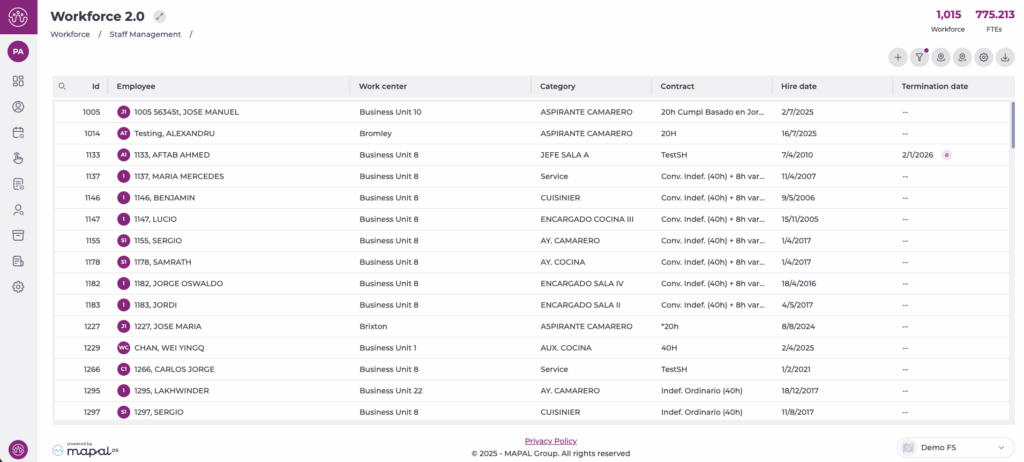
- Select the specific employee from the grid.
- Choose Time & Attendance from the left-hand menu.

Configure an employee’s clock-in codes
- In the Code panel, you can configure all identification methods used in T&A applications:
- PIN Number: enter a four-digit code of your choice or select the arrow button to automatically generate a random code.
- Card code: enter or scan the magnetic or NFC card identifier assigned to the employee.
These codes allow the employee to clock in even when their fingerprint cannot be used.

Select the business units where the employee may clock in
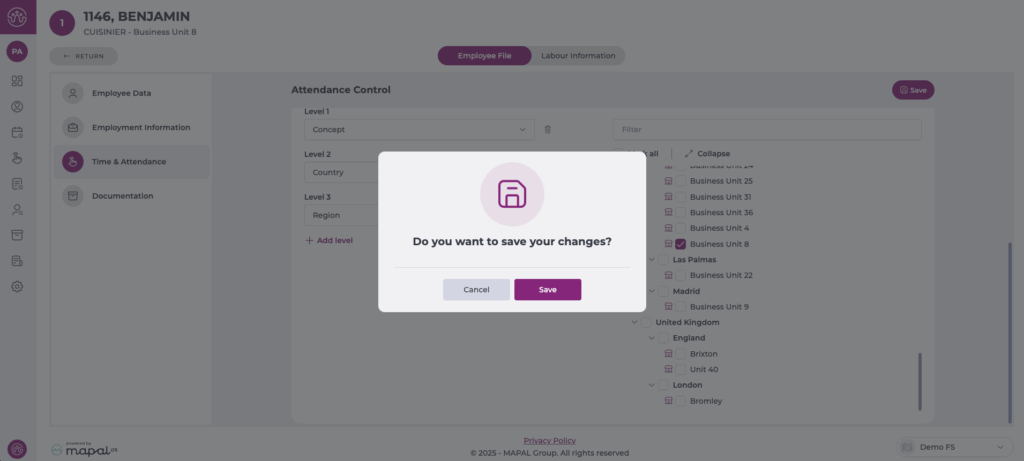
The Business Units panel allows you to define exactly where the employee is authorised to record attendance.
- Use the Selection of Units tab to choose business units manually, or use Advanced Filter to filter by country, concept, or other hierarchy levels.
- Tick the business units where the employee is allowed to clock in.

Save changes
- Once all codes and eligible business units have been configured, select Save at the top right of the screen.
- A confirmation window will appear; select Save again to apply the changes.
To learn how to punch in using the assigned code, see Punch in by code.
