


Start from: The Workforce dashboard.
- Select Workforce Management > Workforce 2.0 from the main menu to open the Employees List.

- Use the list to locate the employee record with the email address to be changed.
Note: Use the filter to narrow down your search when needed. For more information about how to use the filter, see Filter the employee grid.
- Once in the employee file, select the Employee Data tab.
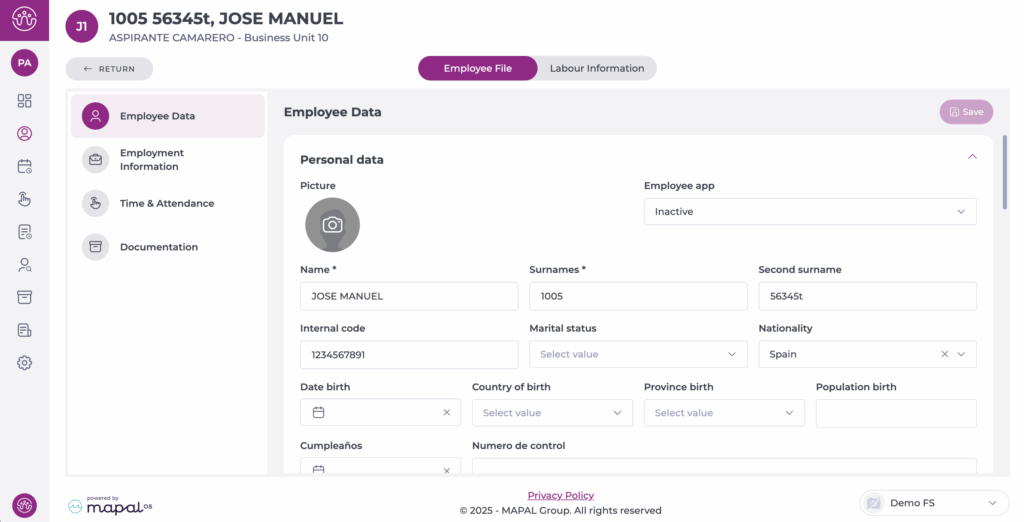
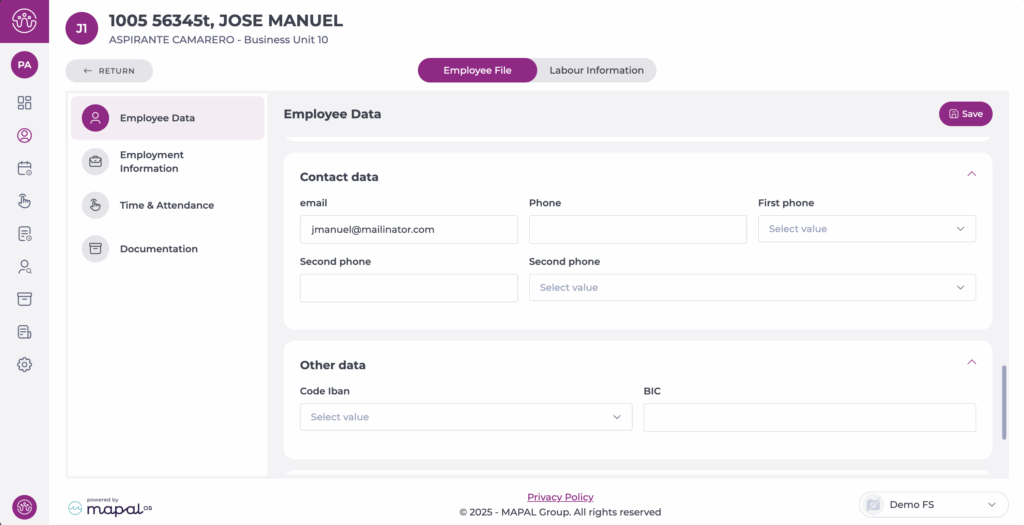
- Scroll down to Contact data.
- Enter the new email address in the E-mail field.
- Select Save and confirm the action to complete the process.
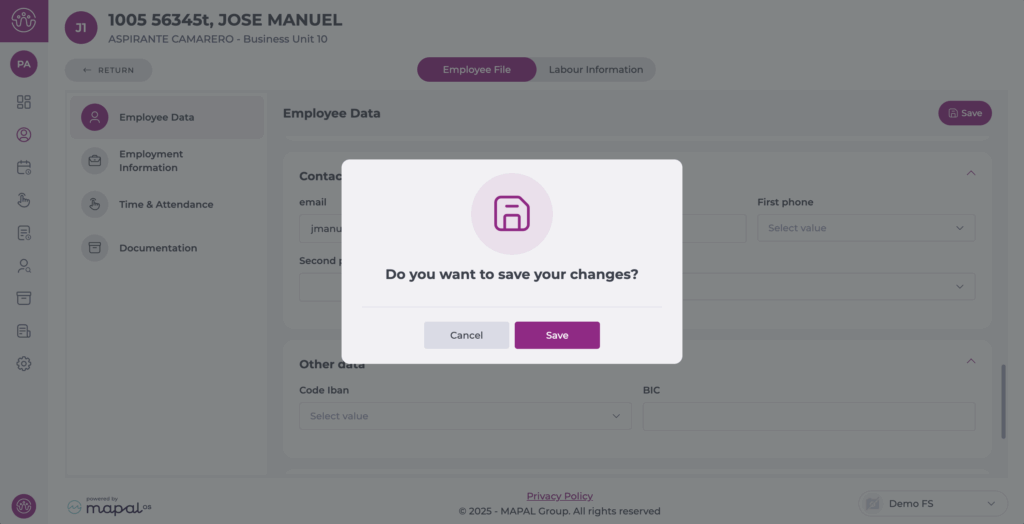
The employee’s email address will be updated immediately when the record is saved.
Note: Saving the employee record will save all of the fields in the record. You will be prompted to enter a valid value for any incorrect fields before the changes are saved.
